
1. Introduction
This manual provides detailed instructions for the use and maintenance of your SUNGOOYUE ME-MPP303 Stylus Pen. This active pen is designed to enhance your digital experience, offering precise input and natural writing or drawing on compatible devices. Featuring 4096 levels of pressure sensitivity and two customizable buttons, it provides a responsive and intuitive interaction.
2. Package Contents
Please verify that all items are present in your package:
- SUNGOOYUE ME-MPP303 Stylus Pen
- Replacement Pen Tips (2x)
- Tip Removal Tool

Image: The SUNGOOYUE ME-MPP303 Stylus Pen, accompanied by two spare pen tips and a small tool for tip replacement.
3. Product Overview
Familiarize yourself with the components of your stylus pen:
- Pen Tip: For writing, drawing, and navigation.
- Custom Buttons (2): Programmable for various functions depending on your device and software.
- Pen Clip: For secure attachment to pockets or notebooks.

Image: A black stylus pen, the SUNGOOYUE ME-MPP303, standing vertically, showcasing its sleek design and integrated clip.

Image: A close-up view of the upper section of the stylus pen, highlighting the pen clip and the two custom buttons located on the side.
4. Setup
The SUNGOOYUE ME-MPP303 Stylus Pen is designed for immediate use with compatible devices. No battery installation or Bluetooth pairing is typically required for basic functionality, as it utilizes MPP (Microsoft Pen Protocol) technology for automatic connection.
- Power On: The pen is generally always on and ready for use.
- First Use: Simply touch the pen tip to the screen of your compatible device. The device should automatically recognize the pen.
- Custom Button Configuration: For advanced features and custom button assignments, refer to your device's operating system settings (e.g., Windows Pen & Windows Ink settings) or specific application settings.
5. Operating Instructions
The stylus pen offers a natural and precise input experience:
- Writing and Drawing: Use the pen tip directly on the screen. The 4096 pressure levels allow for varying line thickness and opacity based on how firmly you press.
- Navigation: Tap to select, drag to move items, and use gestures as you would with your finger.
- Custom Buttons: The two side buttons can be configured for functions such as right-click, erase, or launching specific applications. Check your device's pen settings for customization options.

Image: A hand demonstrating writing the word "hello" on a laptop screen using the SUNGOOYUE ME-MPP303 Stylus Pen, illustrating its use for digital input.

Image: The stylus pen positioned on a tablet screen, which displays a graph and handwritten notes, highlighting its utility for detailed work and annotations.
6. Compatibility
The SUNGOOYUE ME-MPP303 Stylus Pen is compatible with various HP devices that support Microsoft Pen Protocol (MPP) technology. Confirmed compatible models include, but are not limited to:
- HP Envy X360 series
- HP Pavilion X360 series
- HP ENVY 17 Aexxx
- HP ENVY X2 12 E0xx
- HP ENVY X2 12 G0xx
- HP ENVY X360 13z Ag0xxx
For optimal performance, ensure your device's drivers and operating system are up to date. If your device is not listed, please consult your device manufacturer's specifications for MPP compatibility.
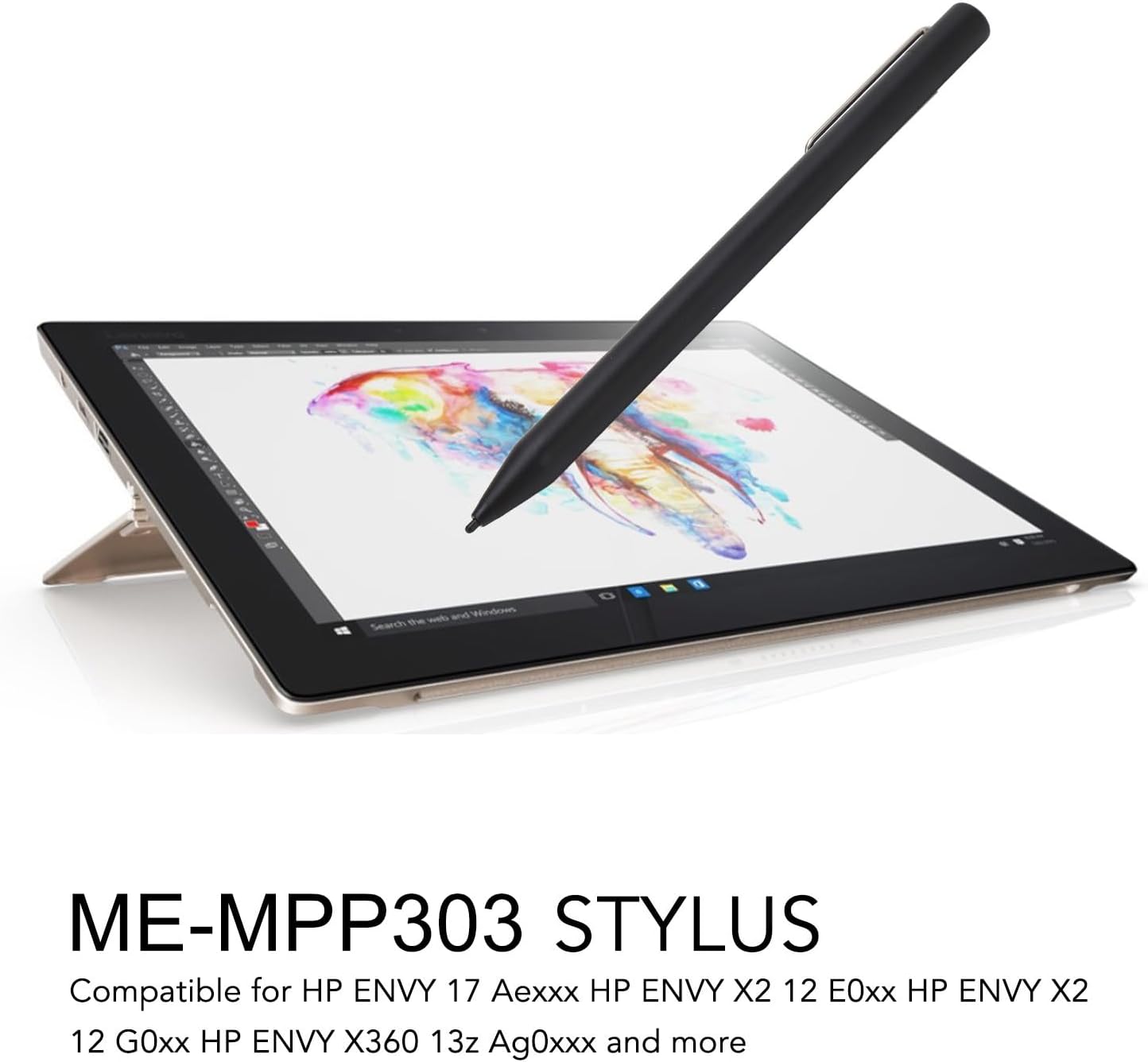
Image: The stylus pen resting on a tablet screen that displays vibrant digital artwork, illustrating its compatibility with various HP touch screen devices.
7. Maintenance
To ensure the longevity and optimal performance of your stylus pen, follow these maintenance guidelines:
- Cleaning: Wipe the pen body with a soft, dry, lint-free cloth. Do not use harsh chemicals or abrasive materials.
- Pen Tip Replacement: If the pen tip becomes worn or damaged, use the provided tip removal tool to gently pull out the old tip and insert a new one. Ensure the new tip is fully seated.
- Storage: Store the pen in a safe place to prevent damage to the tip or body. Avoid extreme temperatures.
8. Troubleshooting
If you encounter issues with your stylus pen, refer to the following common solutions:
| Problem | Solution |
|---|---|
| Pen is not responding. |
|
| Inaccurate or inconsistent input. |
|
| Custom buttons are not working. |
|
9. Specifications
- Model: ME-MPP303
- Pressure Sensitivity: 4096 Levels
- Material: Aluminum Alloy
- Buttons: 2 Customizable Buttons
- Compatibility: Microsoft Pen Protocol (MPP) compatible devices (e.g., select HP Envy X360, Pavilion X360 models)
- Manufacturer: SUNGOOYUE
10. Warranty and Support
For warranty information and technical support, please refer to the documentation provided with your purchase or contact SUNGOOYUE customer service through their official website or the retailer where the product was purchased. Please retain your proof of purchase for warranty claims.
