
1. Introduction
Welcome to the user manual for your new E99 Drone. This drone is designed for beginners, offering an exciting experience in aerial photography and videography. Equipped with dual cameras, including one on the drone and one on the remote control, it allows for capturing stunning footage from various perspectives. Its user-friendly features, such as one-touch takeoff and landing, make it accessible even for novice pilots. With a powerful 1800 mAh rechargeable battery and USB charging, you can enjoy extended flight times both indoors and outdoors. The compact and portable design ensures you can easily carry it to capture unforgettable moments from unique viewpoints. Please read this manual carefully before operating your drone to ensure safe and optimal performance.
2. What's in the Box
Please verify that all components listed below are included in your package:
- E99 Drone
- Remote Control
- 2 x 1800 mAh Batteries
- Spare Propellers
- Screwdriver
- USB Charging Cable

Figure 2.1: Complete E99 Drone package contents.
3. Setup Guide
3.1 Battery Installation
- Drone Battery: Insert the 1800 mAh battery into the designated compartment on the drone until it clicks securely into place. Ensure the battery is fully charged before first use.
- Remote Control Batteries: Open the battery compartment on the back of the remote control. Insert 3 x AA batteries (not included), ensuring correct polarity (+/-). Close the compartment.
3.2 Propeller Installation
The drone's propellers may come pre-installed. If not, or if you need to replace them:
- Match the propellers with the corresponding motor arms (usually marked A and B).
- Gently push down and twist the propeller onto the motor shaft until it is firmly seated.
- Ensure all propellers are securely attached and free from damage before flight.
3.3 Pairing the Drone and Remote Control
- Place the drone on a flat, level surface.
- Turn on the drone by pressing the power button. The drone's indicator lights will flash.
- Turn on the remote control.
- Push the left joystick (throttle) all the way up, then pull it all the way down. The drone's indicator lights will stop flashing and remain solid, indicating successful pairing.
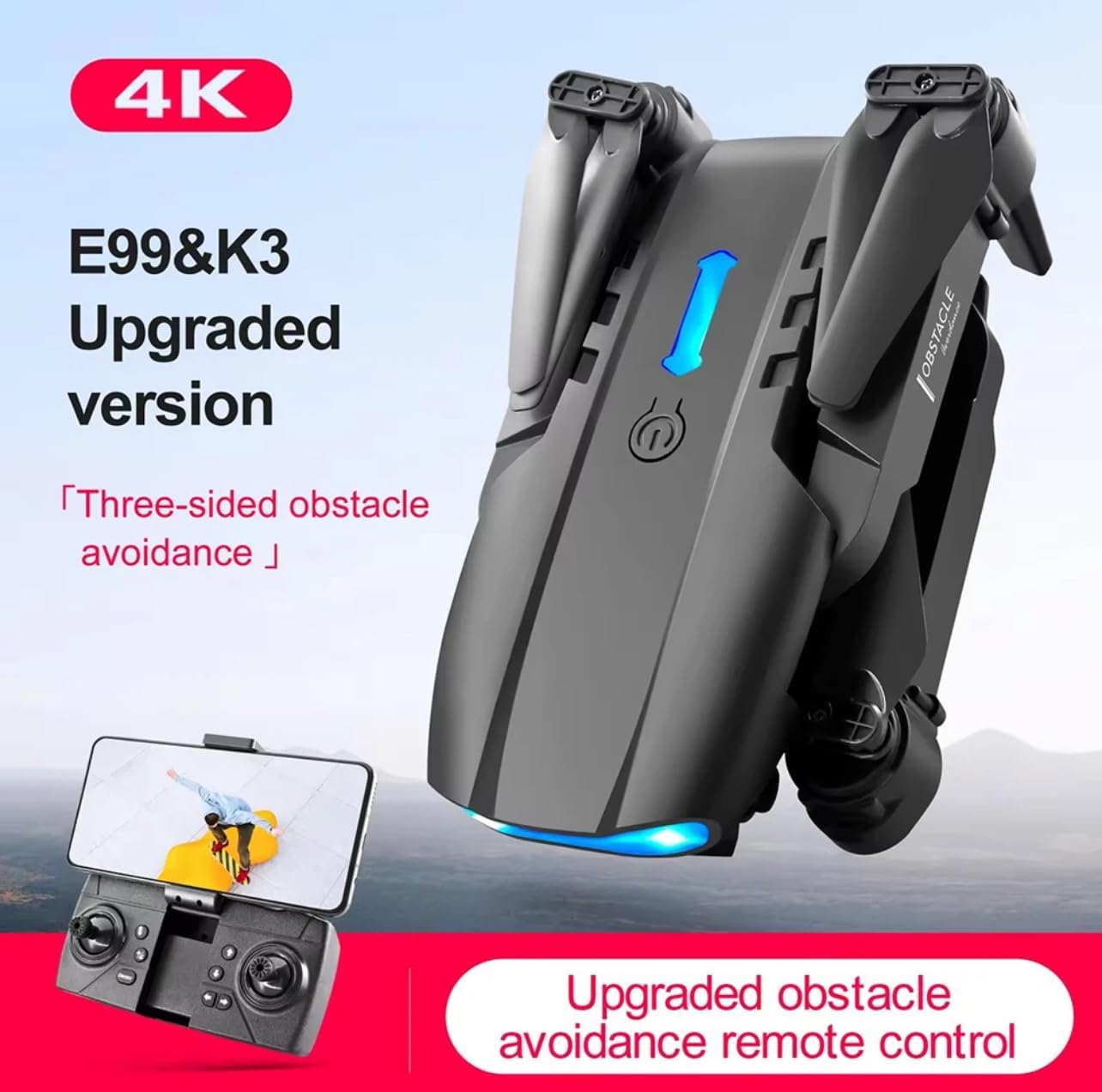
Figure 3.1: E99 Drone and Remote Control.
4. Operating Instructions
4.1 Basic Flight Controls
- Left Joystick (Throttle): Push up to ascend, pull down to descend.
- Left Joystick (Yaw): Push left to rotate left, push right to rotate right.
- Right Joystick (Forward/Backward): Push up to fly forward, pull down to fly backward.
- Right Joystick (Left/Right): Push left to fly left, push right to fly right.
4.2 One-Key Functions
The E99 Drone features convenient one-key operations for ease of use:
- One-Key Takeoff: Press the one-key takeoff button (usually indicated by an arrow pointing up) to automatically launch the drone and hover at a stable altitude.
- One-Key Landing: Press the one-key landing button (usually indicated by an arrow pointing down) to automatically land the drone gently.
- One-Key Return: Press the one-key return button to make the drone fly back towards its takeoff point. Note: This function relies on the drone's internal sensors and is not GPS-based.

Figure 4.1: One-Key Takeoff/Landing/Return in action.
4.3 Camera Operation
The E99 Drone is equipped with dual cameras for versatile shooting:
- Switching Cameras: Use the dedicated button on the remote control or within the companion app to switch between the front camera and the bottom camera.
- Photo Capture: Press the photo button on the remote control to take a still image.
- Video Recording: Press the video button on the remote control to start/stop video recording.
- Gesture Control: The drone supports gesture control for photo and video. Make a specific hand gesture (e.g., a fist for photo, palm for video) in front of the drone's camera to trigger the action.

Figure 4.2: HD Dual Camera Shooting System.

Figure 4.3: Gesture Photo/Video Recognition.
4.4 Advanced Flight Features
- 360° Stunt Show: Press the stunt button on the remote control to perform an impressive 360-degree flip. Ensure sufficient altitude and clear surroundings before attempting.
- Trajectory Pointing Flight: In the companion app, you can draw a flight path on your screen, and the drone will automatically follow the designated trajectory.

Figure 4.4: 360° Stunt Performance.

Figure 4.5: Trajectory Pointing Flight.
5. Maintenance
5.1 Cleaning
- Regularly wipe the drone and remote control with a soft, dry cloth to remove dust and debris.
- Avoid using liquid cleaners or solvents, as they may damage the electronic components.
5.2 Battery Care
- Always use the provided USB charging cable to charge the drone batteries.
- Do not overcharge or over-discharge the batteries.
- Store batteries in a cool, dry place away from direct sunlight and extreme temperatures.
- If the drone will not be used for an extended period, remove the batteries from both the drone and the remote control.
5.3 Propeller Replacement
- If a propeller is damaged or bent, replace it immediately with a spare propeller from your kit.
- Use the included screwdriver to carefully remove the screw holding the damaged propeller.
- Install the new propeller, ensuring it matches the correct motor arm (A or B), and secure it with the screw.
6. Troubleshooting
If you encounter any issues with your E99 Drone, please refer to the following common problems and solutions:
| Problem | Possible Cause | Solution |
|---|---|---|
| Drone does not respond to remote control. | Not paired; low battery; interference. | Re-pair the drone and remote control. Charge drone and remote control batteries. Fly in an open area away from obstacles and other wireless devices. |
| Drone cannot take off or flies unstable. | Propellers installed incorrectly or damaged; drone not calibrated; low battery. | Check propeller installation and replace if damaged. Place drone on a flat surface and perform gyroscope calibration (refer to remote control instructions for specific button combination). Charge battery. |
| Camera not working or poor image quality. | SD card full or missing (if applicable); camera lens dirty; app connection issue. | Ensure SD card is inserted and has free space. Clean camera lens gently. Reconnect to the drone's Wi-Fi network in the app. |
| Short flight time. | Battery not fully charged; battery degradation; aggressive flying. | Ensure battery is fully charged. Consider replacing old batteries. Fly more conservatively. |
7. Specifications
Below are the key specifications for the E99 Drone:
- Model: E99
- Brand: Generic
- Manufacturer: Shenzhenshijiutianlianchuangkeji
- Dimensions (Folded): Approximately 13 x 7 x 5 cm
- Dimensions (Unfolded): Approximately 25 x 25 x 5.5 cm
- Weight: 90 grams
- Battery Capacity: 1800 mAh
- Charging Type: USB
- Control Type: Remote Control
- Special Features: Dual Cameras, One-Touch Takeoff/Landing, 360° Stunts, Trajectory Flight, Gesture Control
- Video Capture Format: MP4
- Components Included: Remote control, propellers, 1800 mAh battery, screwdriver

Figure 7.1: E99 Drone Product Dimensions.
8. Warranty and Support
For warranty information and customer support, please refer to the specific terms provided by your retailer or the manufacturer at the time of purchase. Typically, warranty covers manufacturing defects for a limited period. For technical assistance or further inquiries, please contact the seller directly through the platform where the product was purchased.