1. Introduction
This manual provides detailed instructions for the SUNGOOYUE READSON Portable Mechanical Gaming Keyboard. This keyboard features multiple connection modes (wired, 2.4G wireless, and Bluetooth), vibrant RGB lighting, and an ergonomic design for comfortable use. It is equipped with Red Switches, offering a smooth and linear keystroke experience suitable for gaming and typing.
2. Package Contents
Please verify that all items listed below are present in your package:
- 1 x SUNGOOYUE READSON Mechanical Keyboard
- 1 x USB Adapter (for 2.4G wireless connection)
- 1 x Key Puller
- 1 x Type-C Data Cable (for wired connection and charging)
- 1 x User Manual (this document)

Image: The keyboard, a USB-C to USB-A cable, a 2.4G USB adapter, and a key puller are included in the package.
3. Specifications
| Model Number | SUNGOOYUEm2gdk3tvfs-13 |
| Material | ABS |
| Keyboard Axis | Red Switch |
| Connection Modes | Wired (Type-C), 2.4G Wireless, Bluetooth 3.0, Bluetooth 5.0 |
| Lighting | RGB Multiple Luminous Modes |
| Key Conflict | All Keys Conflict (N-key rollover) |
| Battery Capacity | Inbuilt 1800mAh Lithium Battery |
| Operating Current | 300mA (Maximum) |
| Standby Current | 0.5mA |
| Compatible Systems | Win 2000, ME, XP, Vista, 7, HarmonyOS, 8, 10, Android, iOS |
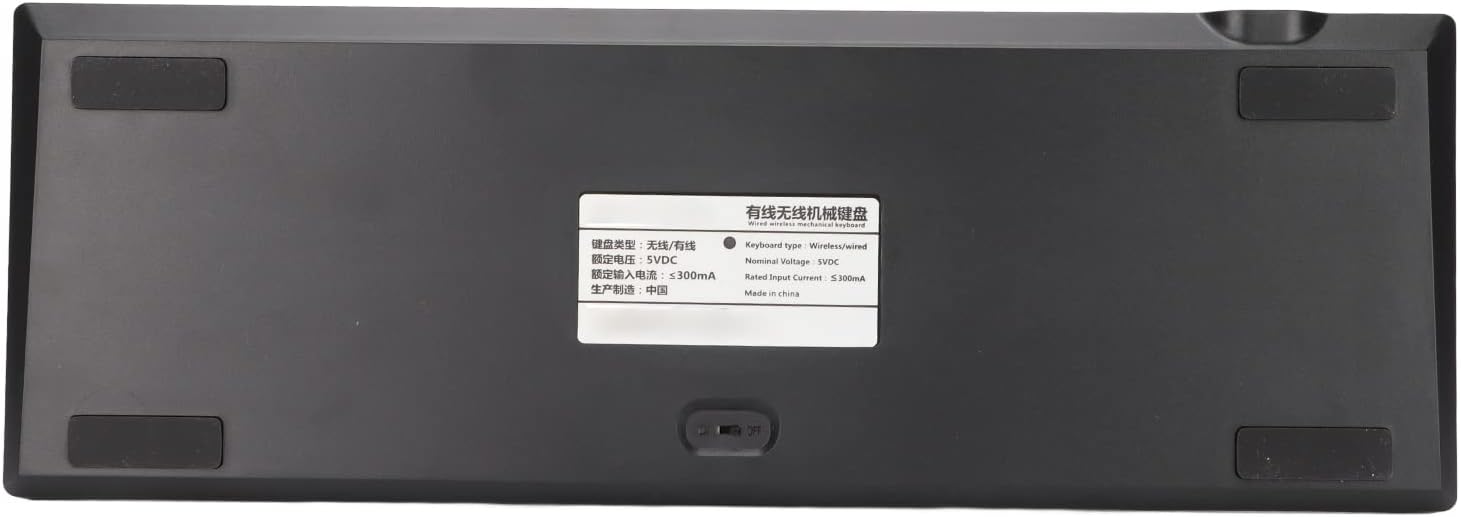
Image: The underside of the keyboard, displaying the product information label with specifications.
4. Setup and Connection
The keyboard supports three connection modes: Wired, 2.4G Wireless, and Bluetooth. Ensure the power switch on the bottom of the keyboard is in the ON position for wireless modes.
4.1. Wired Connection
- Connect the Type-C end of the provided data cable to the keyboard's Type-C port.
- Connect the USB-A end of the data cable to an available USB port on your computer.
- The keyboard will be automatically recognized and ready for use. The keyboard will also charge in this mode.
4.2. 2.4G Wireless Connection
- Ensure the keyboard's power switch (located on the bottom) is ON.
- Insert the 2.4G USB adapter into an available USB port on your computer.
- Press the Fn + 2.4G keys simultaneously on the keyboard to switch to 2.4G mode. The indicator light will flash, then become solid when connected.
- The keyboard should connect automatically. If not, try re-inserting the adapter or restarting the keyboard.
4.3. Bluetooth Connection
The keyboard supports two Bluetooth channels (BT3.0 and BT5.0).
- Ensure the keyboard's power switch (located on the bottom) is ON.
- Press the Fn + M1 keys simultaneously to enter Bluetooth pairing mode for the first device (BT3.0). The indicator light will flash rapidly.
- On your device (computer, tablet, phone), enable Bluetooth and search for new devices.
- Select "BT3.0 Keyboard" or similar from the list of available devices to pair.
- Once paired, the indicator light will become solid.
- To connect a second device, repeat steps 2-5 using Fn + M2 for the second Bluetooth channel (BT5.0). Select "BT5.0 Keyboard" or similar.
- To switch between paired Bluetooth devices, press Fn + M1 or Fn + M2.

Image: A close-up view of the keyboard's lower-left keys, highlighting the 'Fn', '2.4G', 'RGB', 'M1', and 'M2' keys used for connection and lighting controls.
5. Operating Instructions
5.1. RGB Lighting Control
The keyboard features customizable RGB backlighting. Use the following key combinations to adjust the lighting effects:
- Fn + RGB: Cycle through different RGB lighting modes.
- Fn + ↑: Increase backlight brightness.
- Fn + ↓: Decrease backlight brightness.
- Fn + ←: Decrease lighting effect speed.
- Fn + →: Increase lighting effect speed.
5.2. Multimedia and Function Keys
Many keys have secondary functions accessible by pressing the Fn key simultaneously with the desired key. Refer to the keycaps for specific icons.
| Key Combination | Function |
| Fn + F1 | Media Player |
| Fn + F2 | Volume Down |
| Fn + F3 | Volume Up |
| Fn + F4 | Mute |
| Fn + F5 | Stop |
| Fn + F6 | Previous Track |
| Fn + F7 | Play/Pause |
| Fn + F8 | Next Track |
| Fn + F9 | |
| Fn + F10 | Web Browser |
| Fn + F11 | My Computer |
| Fn + F12 | Calculator |
| Fn + Win | Lock/Unlock Windows Key |

Image: A full top-down view of the keyboard, showing the layout of all keys including the function row and multimedia shortcuts.
6. Charging the Keyboard
The keyboard has an inbuilt 1800mAh lithium battery. When the battery is low, the indicator light may flash or change color. To charge:
- Connect the Type-C end of the provided data cable to the keyboard's Type-C port.
- Connect the USB-A end of the data cable to a USB power source (e.g., computer USB port, USB wall adapter).
- The indicator light will show charging status (e.g., solid red while charging, off or green when fully charged).
7. Maintenance
To ensure the longevity and optimal performance of your keyboard, follow these maintenance guidelines:
- Cleaning: Use a soft, dry cloth to wipe the surface of the keyboard. For deeper cleaning, use the provided key puller to remove keycaps and clean dust or debris with compressed air or a small brush.
- Avoid Liquids: Do not expose the keyboard to liquids. Spills can cause permanent damage.
- Storage: Store the keyboard in a cool, dry place away from direct sunlight and extreme temperatures.
- Charging: Use only the provided Type-C cable for charging. Avoid overcharging the battery.
8. Troubleshooting
| Problem | Possible Solution |
| Keyboard not responding in wireless mode. |
|
| RGB lighting not working or stuck. |
|
| Keys are not registering or double-typing. |
|
| Bluetooth pairing fails. |
|
9. Warranty and Support
This SUNGOOYUE product is covered by a standard manufacturer's warranty. For specific warranty terms, duration, and support inquiries, please refer to the warranty card included in your package or contact SUNGOOYUE customer service through the retailer where the product was purchased. Please retain your proof of purchase for warranty claims.
For technical assistance or further questions, please visit the official SUNGOOYUE website or contact their support team.