
1. Introduction
This manual provides comprehensive instructions for setting up, operating, maintaining, and troubleshooting your Cudy AX3000 WiFi 6 Mesh System M3000. Please read this guide carefully to ensure optimal performance and longevity of your device.
The Cudy AX3000 WiFi 6 Mesh System is designed to replace your traditional router and extenders, offering seamless, whole-home mesh WiFi coverage. It features a powerful 1.3 GHz dual-core CPU for fast data transmission and low latency, supporting up to 200 devices simultaneously.
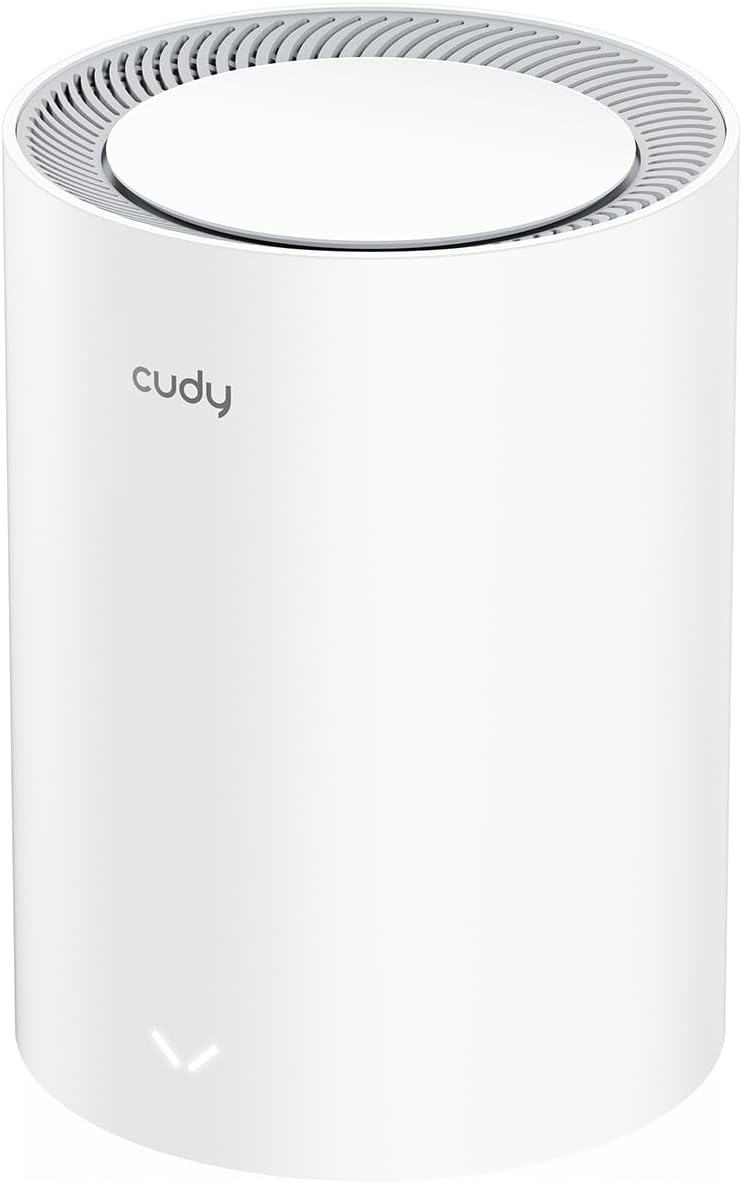
Image: Two Cudy M3000 Mesh Units displayed on a wooden surface, highlighting their design and the product's premium multi-gig AX3000 Wi-Fi 6 capabilities.
2. Package Contents
Verify that all items are present in your package:
- Cudy M3000 Mesh Unit
- Power Adapter
- Ethernet Cable
- Quick Installation Guide

Image: The retail box for the Cudy M3000 Mesh System, showing the product and branding.
3. Product Overview
The Cudy M3000 Mesh Unit features a sleek design with essential ports and indicators for easy management.
3.1. Physical Appearance and Ports
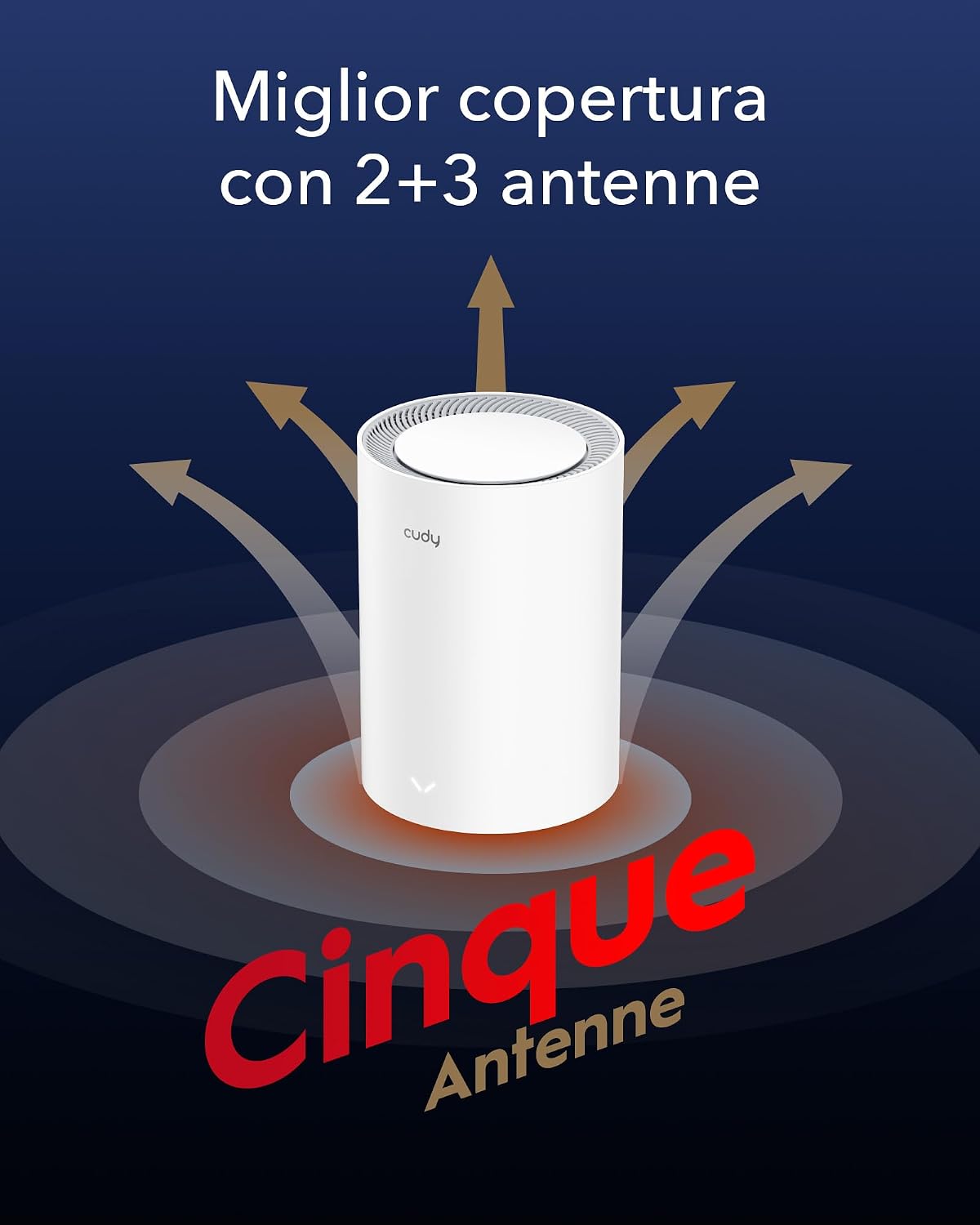
Image: Rear view of the Cudy M3000 Mesh Unit, highlighting the WAN and LAN ports, power input, and reset button.
The unit typically includes:
- WAN Port (2.5G Multi-Gigabit): Connects to your modem or existing router for internet access.
- LAN Port(s): For wired connections to devices like PCs, gaming consoles, or network storage.
- Power Input: Connects to the provided power adapter.
- Reset Button: Used to restore factory default settings.
3.2. LED Indicators
The LED indicator on the front of the unit provides status information:
- Solid Blue: Device is powered on and operating normally.
- Pulsing Blue: Device is starting up or establishing a connection.
- Solid Red: No internet connection or an error has occurred.
4. Setup Guide
Follow these steps to set up your Cudy AX3000 Mesh System.
4.1. Initial Placement
Place your first M3000 unit (main unit) in a central location in your home, away from obstructions and interference sources like microwaves or cordless phones. For multi-unit systems, strategically place additional units to maximize coverage.

Image: A diagram illustrating optimal placement of mesh units for comprehensive WiFi coverage across different floor plans, including single-unit, two-unit, and three-unit setups for varying square meterages.
4.2. Hardware Connection
- Power Off: Disconnect power from your modem (if applicable) and any existing router.
- Connect Main Unit: Connect one end of the provided Ethernet cable to the WAN port (2.5G) of the Cudy M3000 unit and the other end to your modem's LAN port.
- Power On: Connect the power adapter to the Cudy M3000 unit and plug it into a power outlet. Wait for the LED indicator to turn solid blue.
- Connect Additional Units (if applicable): For multi-unit systems, place additional M3000 units and power them on. They will automatically connect to the main unit.
4.3. Network Configuration
You can configure your mesh system using the Cudy App or a web browser.
Using the Cudy App:
- Download the "Cudy" app from your mobile device's app store.
- Open the app and follow the on-screen instructions to detect and set up your Cudy M3000 Mesh System.

Image: Screenshots of the Cudy mobile application interface, demonstrating device management and setup features.
Using a Web Browser:
- Connect your computer or mobile device to the Cudy M3000's default WiFi network (SSID and password are on the bottom label of the unit).
- Open a web browser and enter
http://cudy.netor192.168.10.1in the address bar. - Follow the setup wizard to configure your internet connection and WiFi settings.
5. Operating Instructions
Once set up, your Cudy M3000 Mesh System provides seamless WiFi coverage. Here are key operational aspects:
5.1. Seamless Roaming
The mesh system allows your devices to automatically switch to the strongest WiFi signal as you move around your home, ensuring an uninterrupted connection.
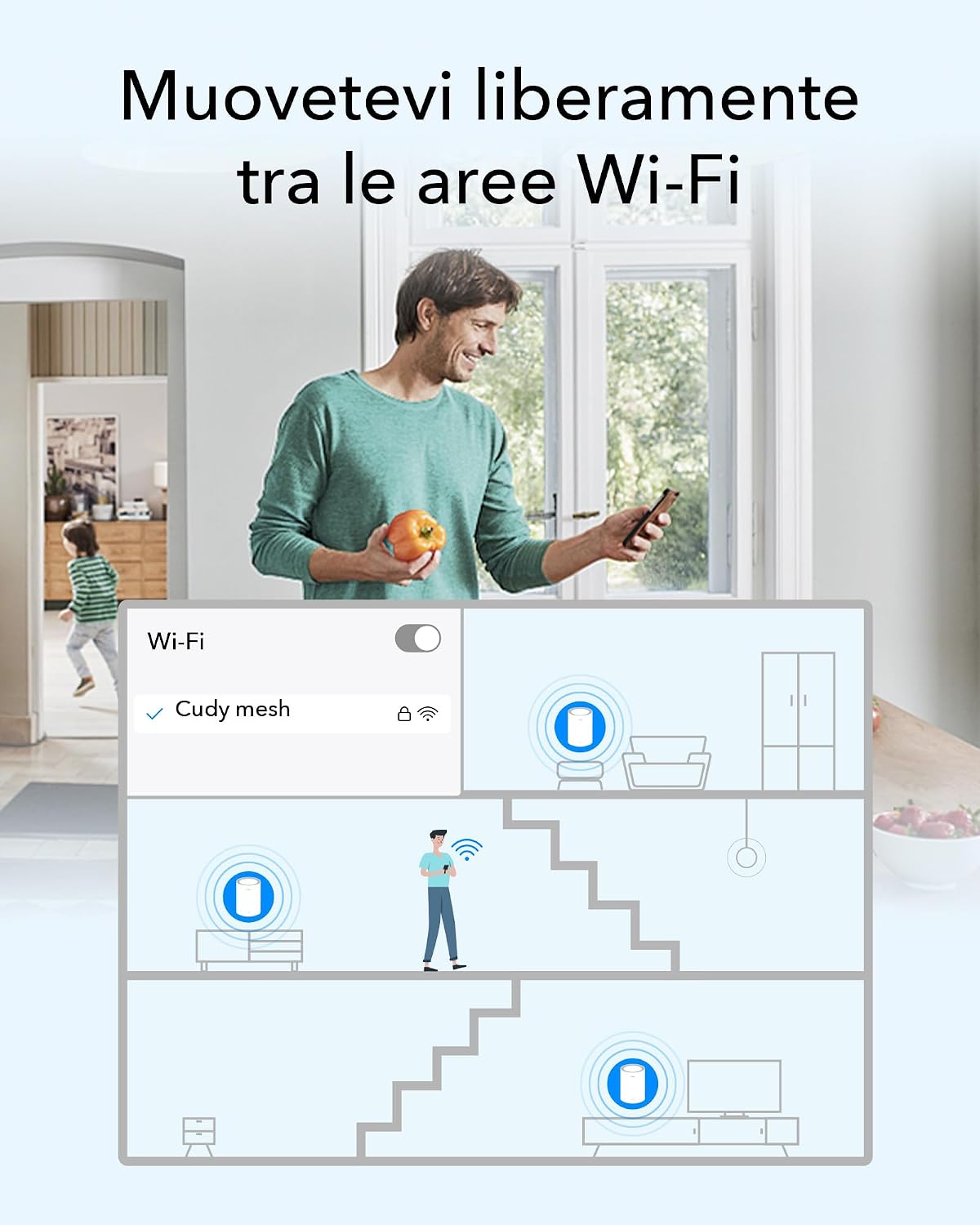
Image: A visual representation of a person moving through a house while their device maintains a continuous WiFi connection by seamlessly switching between mesh units.
5.2. Ethernet Backhaul
For optimal performance, especially in larger homes or with high-bandwidth applications, you can connect mesh units via Ethernet cables. This creates a dedicated wired connection between units, improving speed and stability.
5.3. Connecting Devices
Connect your wireless devices to the WiFi network using the SSID and password you configured during setup. For wired devices, use the available LAN ports on any mesh unit.
6. Advanced Features
The Cudy M3000 offers several advanced features for enhanced control and security.
6.1. VPN Support
The system supports various VPN protocols, including WireGuard, OpenVPN, ZeroTier, IPSec, PPTP, and L2TP, allowing for secure remote connections and privacy.

Image: A collection of logos representing the VPN protocols supported by the Cudy M3000, including WireGuard, OpenVPN, ZeroTier, IPSec, L2TP, and PPTP.
6.2. Parental Controls
Manage internet access for specific devices or users with features like website filtering and time limits.

Image: A child reading a book in bed, accompanied by icons for home network management and parental controls, illustrating the ability to manage internet access.
6.3. Quality of Service (QoS)
Prioritize network traffic for specific applications or devices to ensure smooth performance for critical tasks like gaming or video conferencing.
6.4. Security Protocols
The system supports WPA2 and WPA3 security protocols to protect your network from unauthorized access.

Image: Three golden shield icons symbolizing WPA3 encryption, Guest Network functionality, and DoS Protection, highlighting the system's security features.
7. Maintenance
Regular maintenance ensures your mesh system operates efficiently.
- Firmware Updates: Check for and install firmware updates regularly through the Cudy App or web interface to benefit from new features and security enhancements.
- Rebooting: Periodically reboot your mesh units to refresh network connections and resolve minor issues.
- Cleaning: Keep the units clean and free from dust to prevent overheating. Use a soft, dry cloth.
8. Troubleshooting
If you encounter issues, try the following solutions:
8.1. No Internet Connection (Red LED)
- Check the connection between your main M3000 unit and the modem. Ensure the Ethernet cable is securely plugged into the WAN port.
- Reboot your modem and then your Cudy M3000 unit.
- Verify your internet service is active by connecting a computer directly to the modem.
8.2. Weak WiFi Signal or Dead Zones
- Adjust the placement of your mesh units to ensure optimal coverage. Avoid placing them near large metal objects or thick walls.
- Consider adding another Cudy M3000 unit to expand coverage.
- If using multiple units, ensure they are within effective range of each other.
8.3. Unable to Access Web Management Page
- Ensure your device is connected to the Cudy M3000's WiFi network or via an Ethernet cable.
- Try clearing your browser's cache or using a different browser.
- Verify you are using the correct address:
http://cudy.netor192.168.10.1.
8.4. Factory Reset
If problems persist, you may need to perform a factory reset. With the unit powered on, press and hold the Reset button (usually located on the back) for about 10 seconds until the LED indicator changes. The unit will reboot with factory default settings.
9. Specifications
| Feature | Specification |
|---|---|
| Brand | Cudy |
| Model Name | M3000 (1-PACK)_EU V2.0 |
| Frequency Band Class | Dual Band |
| Wireless Standard | 802.11ax (Wi-Fi 6) |
| Data Transfer Rate | 3000 Mbps |
| Max Upstream Data Transfer Rate | 2500 Mbps |
| WAN Port Bandwidth | 2.5G Multi-Gigabit |
| LAN Port Bandwidth | 1000Mbps |
| Number of Ports | 2 (1x WAN, 1x LAN) |
| Antenna Type | Internal (5 Antennas) |
| Signal Coverage | Up to 270 m² (with multiple units) |
| CPU | 1.3 GHz Dual-Core Cortex-A53 |
| Installed RAM | 256 MB |
| Security Protocols | WPA2, WPA3 |
| VPN Support | WireGuard, OpenVPN, ZeroTier, IPSec, PPTP, L2TP |
| Operating Systems | CudyOS, OpenWRT Compatible |
| Control Method | App, Web Interface |
| Dimensions (LxWxH) | 11L x 11l x 15.5H cm |
| Weight | 360 Grams |
| Voltage | 12 Volt |
| Recommended Use | Indoor |
10. Warranty and Support
10.1. Product Warranty
The Cudy AX3000 WiFi 6 Mesh System M3000 comes with a 2-year warranty from the date of purchase. Please retain your proof of purchase for warranty claims.
10.2. Technical Support
For technical assistance, troubleshooting, or any questions regarding your Cudy product, please contact Cudy technical support or customer service. You can find contact information on the official Cudy website or in the Quick Installation Guide included with your product.
Official Cudy videos are available to guide users step-by-step through configuration and setup processes.


