
Introduction
This manual provides instructions for the installation, operation, and maintenance of the Brilluxa Smart Control Panel, model Brilluxaoh79qifnkg. This 4-inch touch screen wall switch panel is designed for smart home automation, offering compatibility with Tuya, ZigBee, and Bluetooth devices. It functions as a central control unit for various smart products, including doorbells, lights, curtains, and sockets, and features voice control capabilities, a dynamic display for daily information, and automatic brightness adjustment.
Setup and Installation
The Brilluxa Smart Control Panel operates on a voltage range of 100-240V. Its dimensions are approximately 8.6x8.6cm (3.4x3.4in), with an installation size of approximately 48.5x48.5x26.5mm (1.9x1.9x1in). The package includes one Smart Home Control Panel, two user manuals, and four screws for installation.
Installation Steps:
- Ensure power to the installation area is turned off at the circuit breaker.
- Carefully remove the existing wall switch or cover plate.
- Connect the wiring of the Brilluxa Smart Control Panel according to local electrical codes and the provided wiring diagram in the supplementary manual.
- Secure the control panel into the wall box using the provided screws.
- Restore power to the circuit.
- Follow on-screen prompts to complete initial setup and network configuration.

Image: The Brilluxa Smart Control Panel installed on a wall, demonstrating its integration into a smart home environment with wireless connectivity to a light switch.
Operating Instructions
Multi-functional Control
The control panel is compatible with over 410,000 Tuya products and can manage up to 20 different product types. This includes smart doorbells, lights, curtains, and sockets, allowing for comprehensive smart home management. It can add over 100 devices to meet daily needs and provide a multi-scene intelligent life experience with one click.

Image: Diagram illustrating the Brilluxa Smart Control Panel's compatibility with various Tuya devices, including smart doorbells, switches, curtain switches, bulbs, sockets, and sensors.
Voice Control and Remote Access
The smart home control screen supports voice commands, enabling you to activate intelligent scenes with simple phrases. Additionally, you can control your smart devices remotely through a dedicated mobile application, providing flexibility and convenience from anywhere.

Image: Four panels depicting different voice control scenarios: a user arriving home, leaving home, asking for news, and preparing for sleep, all interacting with the smart control panel.
4-Inch LCD Screen Display
The 4-inch LCD screen dynamically displays essential daily information, including the current date, time, and local weather forecasts. This feature acts as a personal life assistant, keeping you informed at a glance.

Image: Close-up of the 4-inch LCD screen displaying daily information such as temperature, date, time, and 'Leave mode' and 'Home mode' scene buttons.
Convenient Scene Access
For quick access, you can customize and add frequently used scenes and devices directly to the home page. This allows for convenient one-click operation of your preferred smart home functions.
Automatic Brightness Adjustment
The touch screen switch panel is equipped with an ambient light sensor that automatically adjusts the screen's brightness. This ensures optimal visibility and comfort, adapting to various lighting conditions throughout the day.
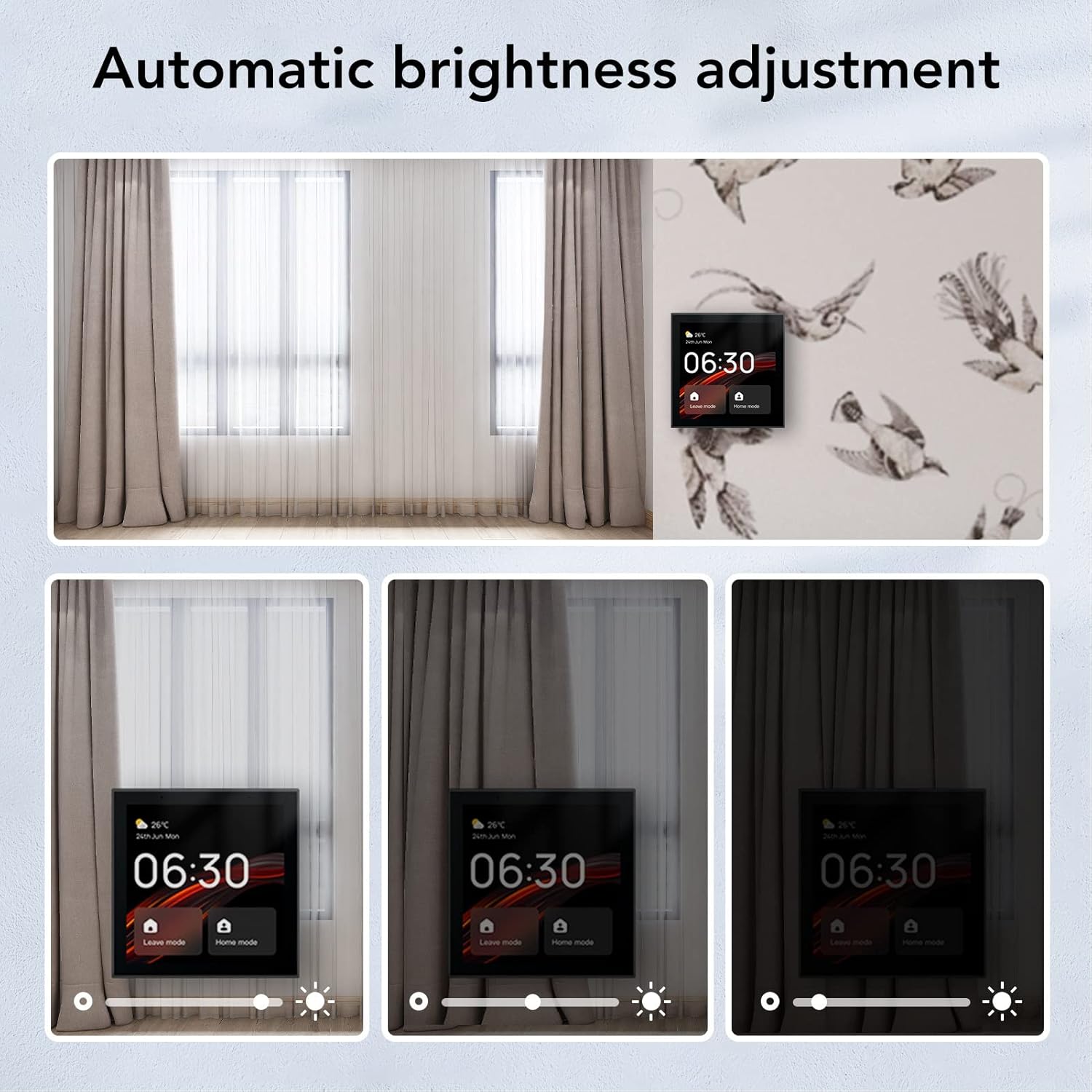
Image: Series of images demonstrating the automatic brightness adjustment feature of the control panel, showing the screen adapting to different ambient light conditions from bright to dim.
Multiple Control Methods
The Brilluxa Smart Control Panel offers versatile control options including direct touch interaction on the screen, voice commands for hands-free operation, and remote management via a dedicated mobile application.
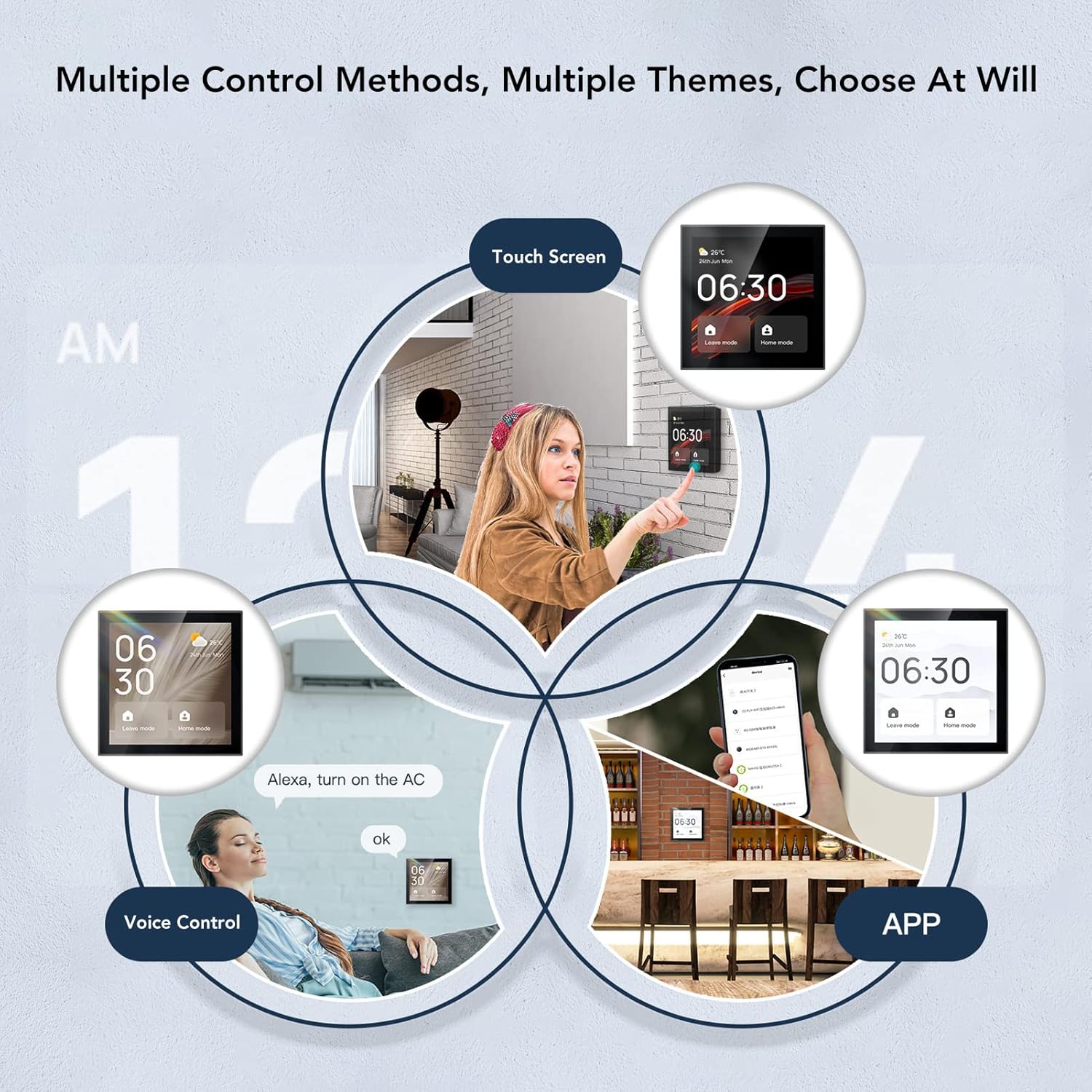
Image: Infographic showing three primary control methods for the smart panel: touch screen interaction, voice commands, and control via a mobile application.
Maintenance
To ensure the longevity and optimal performance of your Brilluxa Smart Control Panel, follow these maintenance guidelines:
- Cleaning: Gently wipe the screen and exterior surfaces with a soft, dry, or slightly damp cloth. Avoid using abrasive cleaners, solvents, or chemical sprays, as these can damage the screen or casing.
- Power Off Before Cleaning: Always ensure the device is powered off before performing any cleaning.
- Avoid Liquids: Do not spray liquids directly onto the panel or allow moisture to seep into openings.
- Environmental Conditions: Keep the device in a dry environment and avoid exposure to extreme temperatures or direct sunlight for extended periods.
Troubleshooting
If you encounter issues with your Brilluxa Smart Control Panel, refer to the following common troubleshooting steps:
- Device Unresponsive:
- Check if the device is properly powered. Ensure the circuit breaker is on.
- Perform a soft reset by briefly turning off and then on the power to the device at the circuit breaker.
- Connectivity Issues (Wi-Fi/ZigBee/Bluetooth):
- Ensure your Wi-Fi router is functioning correctly and the network is active.
- Verify the control panel is within range of your Wi-Fi router or ZigBee hub.
- Restart your router and the control panel.
- Check the device settings on the control panel or the mobile application to ensure correct network credentials.
- Screen Not Responding to Touch:
- Ensure the screen is clean and free of debris or moisture.
- Restart the device.
- Voice Control Not Working:
- Check if the microphone is enabled in the device settings.
- Ensure you are speaking clearly and within range of the device's microphone.
- Verify internet connectivity, as voice commands often require cloud processing.
For more detailed troubleshooting guides or persistent issues, please visit the official Brilluxa support website or contact customer service.
Specifications
| Brand | Brilluxa |
| Model Number | Brilluxaoh79qifnkg |
| ASIN | B0DH3P6VWF |
| Item Type | Smart Home Control Panel |
| Material | ABS, Plastic |
| Voltage | 100-240V |
| Product Dimensions (D x W x H) | 4.33" x 4.33" x 3.14" (Approx. 8.6x8.6cm) |
| Installation Size | Approx. 48.5x48.5x26.5mm (1.9x1.9x1in) |
| Screen Size | 4 Inches |
| Color | Black |
| Compatibility | Tuya, ZigBee, Bluetooth devices |
| Number of Settings | 20 types of products, 100+ devices |
Warranty Information
Warranty coverage for the Brilluxa Smart Control Panel is provided by the manufacturer. Specific terms and conditions, including the duration of the warranty and claim procedures, are typically detailed in the warranty card included with your product packaging or available on the official Brilluxa website. Please retain your original purchase receipt as proof of purchase for any warranty claims.
Customer Support
For technical assistance, product inquiries, or to report any issues with your Brilluxa Smart Control Panel, please contact Brilluxa customer service. Support contact information, including phone numbers, email addresses, and online support portals, can usually be found on the product packaging, the official Brilluxa website, or within the mobile application associated with the device.


