
1. Introduction
This manual provides essential information for the safe and effective use of your UISCOM Digital Piano Keyboard URS25. Please read this manual thoroughly before operating the instrument and retain it for future reference. This digital piano is designed for beginners and experienced players alike, offering a full-size 88-key semi-weighted keyboard with extensive features for musical expression and learning.
2. Safety Information
- Power Supply: Use only the specified AC adapter. Ensure the voltage matches the requirements of your region.
- Water and Moisture: Do not expose the instrument to rain, moisture, or excessive humidity. Avoid placing containers with liquids near the piano.
- Heat Sources: Keep the instrument away from direct sunlight, radiators, heat registers, stoves, or other heat-producing appliances.
- Ventilation: Ensure proper ventilation. Do not block any ventilation openings.
- Cleaning: Clean only with a dry cloth. Do not use liquid cleaners or aerosols.
- Servicing: Do not attempt to service this product yourself. Refer all servicing to qualified service personnel.
- Children: Supervise children when they are using the instrument to prevent accidents.
3. Package Contents
Verify that all items listed below are included in your package:
- UISCOM 88-Key Digital Piano (URS25)
- Piano Stand (if included with your model variant)
- Triple Sustain Pedal Unit
- AC Power Adapter
- Sheet Music Stand
- Foldable Headphones
- Music Clip
- Keyboard Sticker Set
- Piano Dust Cloth
- Instruction Manual (this document)

Figure 3.1: Included Accessories
This image displays the complete set of items you should find in your UISCOM Digital Piano Keyboard URS25 package, including the main piano unit, stand, pedal, power adapter, music stand, headphones, music clip, keyboard stickers, and dust cloth.
4. Setup
4.1 Assembly
If your model includes a stand, carefully assemble it according to the separate assembly instructions provided with the stand components. Ensure all screws are tightened securely for stability.
4.2 Connecting Power
- Locate the DC POWER input port on the rear panel of the piano.
- Connect the supplied AC power adapter to the DC POWER input.
- Plug the AC power adapter into a standard wall outlet.
4.3 Connecting the Triple Pedal
- Locate the PEDAL input port on the rear panel.
- Connect the cable from the triple pedal unit to the PEDAL input.
4.4 Connecting Headphones
- Locate the EARPHONE (3.5mm Jack) output ports on the rear panel.
- Plug your headphones into either of the EARPHONE jacks for private practice.
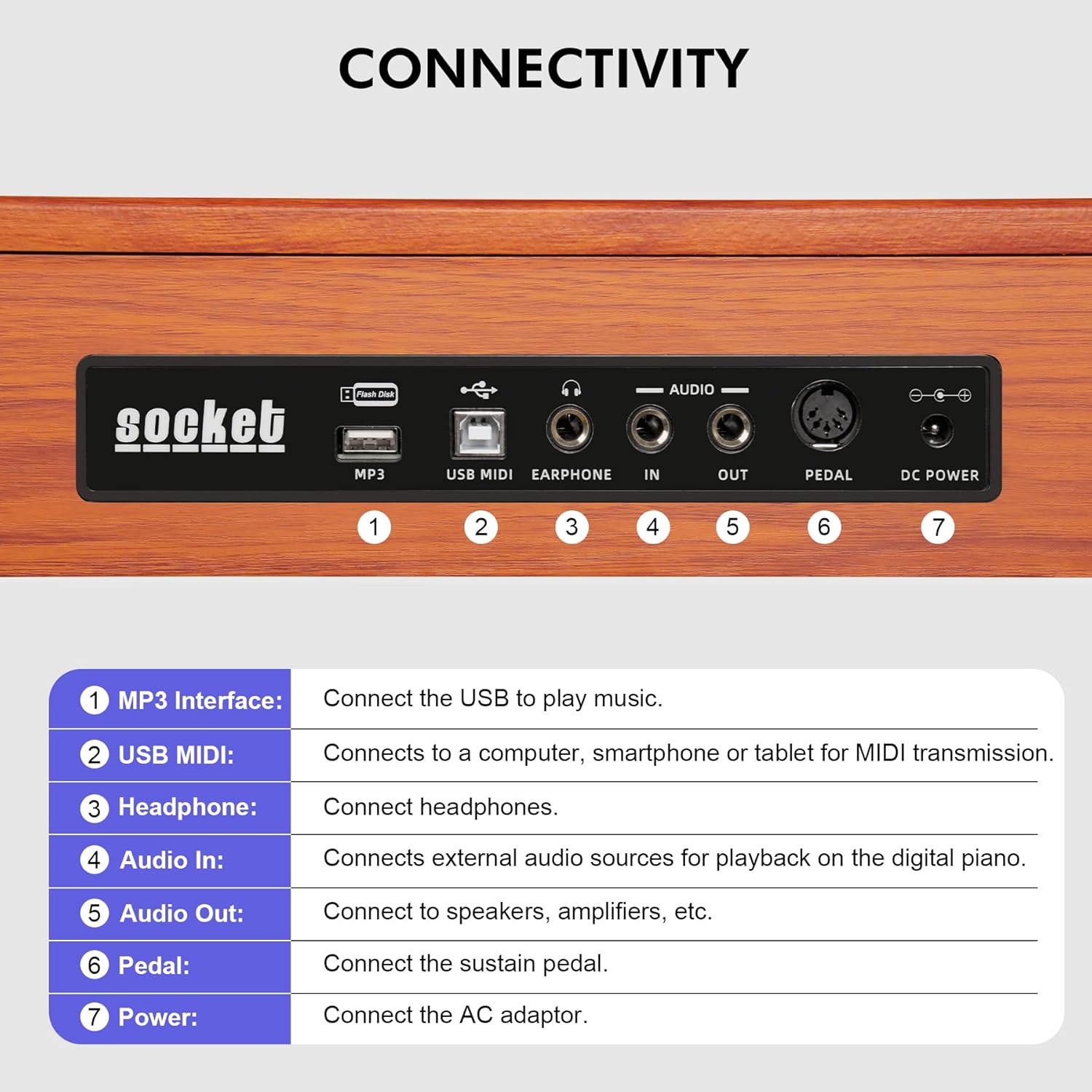
Figure 4.1: Connectivity Panel
This image illustrates the various input and output ports on the back of the digital piano, including connections for power, pedals, headphones, and other audio devices.
5. Operating Instructions
5.1 Power On/Off and Volume
- Power: Press the POWER button on the control panel to turn the piano on or off.
- Volume: Use the VOLUME knob to adjust the overall sound level.
5.2 Key Response and Feel
The URS25 features 88 semi-weighted keys that respond to the force of your keystrokes, providing a dynamic playing experience. This design offers a quicker return and lighter touch compared to fully weighted keys, suitable for beginners.

Figure 5.1: Semi-Weighted Keys in Action
This image demonstrates the semi-weighted keys of the URS25 digital piano, emphasizing their full size and responsive feel.
5.3 Sound Selection (Tones, Rhythms, Demo Songs)
The piano offers a wide range of musical options:
- Tones: Select from 600 different instrument tones. Refer to the control panel for tone selection buttons.
- Rhythms: Choose from 800 rhythms to accompany your playing.
- Demo Songs: Explore 80 built-in demo songs.

Figure 5.2: Control Panel and Sound Sources
This image provides a detailed view of the piano's control panel, highlighting the extensive selection of demo songs, tones, and rhythms available for use.
5.4 Advanced Functions
- Metronome: Use the metronome function for timing practice.
- Split Keyboard: Divide the keyboard into two sections, allowing two players or different instrument sounds in each section.
- Layered Sounds (Dual Tone): Combine two different instrument tones to play simultaneously.
- Key Transposition: Change the pitch of the keyboard without changing your finger positions.
- Recording and Playback: Record your performances and play them back.

Figure 5.3: Dual Keyboard Mode
This image visually explains the dual keyboard mode, where the 88 keys are divided into two independent sections, each capable of playing different tones.
5.5 Connectivity
- USB-MIDI: Connect the piano to a computer, tablet, or smartphone via the USB-MIDI port for MIDI data transmission. This allows interaction with music software like POP Piano or Perfect Piano.
- Bluetooth: Utilize the Bluetooth function to use the piano as a speaker for audio playback from external devices.
- MP3 Interface: Connect a USB drive to the MP3 interface to play music files directly through the piano's speakers.
- Audio In/Out: Use the AUDIO IN port to connect external audio sources for playback. Use the AUDIO OUT port to connect to external speakers or amplifiers.

Figure 5.4: Headphone Practice
This image illustrates the use of headphones for quiet and focused practice, highlighting the dual headphone jack feature.
6. Maintenance
- Cleaning: Wipe the piano's surface with a soft, dry cloth. For stubborn dirt, slightly dampen the cloth with water and then wipe dry immediately. Avoid abrasive cleaners or solvents.
- Dust Protection: Use the provided piano dust cloth or a similar cover when the instrument is not in use to protect it from dust and debris.
- Storage: Store the piano in a stable, dry environment away from extreme temperatures and direct sunlight.
- Key Care: Avoid pressing the keys with excessive force or striking them with hard objects.
7. Troubleshooting
If you encounter any issues, please refer to the following common problems and solutions:
- No Sound:
- Ensure the power adapter is securely connected and the piano is turned on.
- Check the volume knob; it might be set too low.
- If headphones are connected, disconnect them to check speaker output.
- Verify that external speakers/amplifiers are properly connected and powered on if using Audio Out.
- Keys Not Responding:
- Ensure the piano is powered on.
- Check if any specific mode (e.g., demo mode) is active that might prevent normal playing.
- Pedal Not Working:
- Ensure the pedal unit is correctly plugged into the PEDAL input port.
- Check for any physical damage to the pedal or cable.
- MIDI/Bluetooth Connection Issues:
- For USB-MIDI, ensure the correct drivers (if required by your operating system) are installed and the cable is securely connected.
- For Bluetooth, ensure the piano's Bluetooth function is enabled and your external device is in pairing mode.
If the problem persists after attempting these solutions, please contact customer support.
8. Specifications
| Feature | Detail |
|---|---|
| Brand | UISCOM |
| Model Name | URS25 (RS25T) |
| Number of Keys | 88 |
| Key Type | Semi-Weighted |
| Tones | 600 |
| Rhythms | 800 |
| Demo Songs | 80 |
| Connectivity | USB-MIDI, Bluetooth, MP3 Interface, Audio In/Out, Headphone Jack |
| Power Source | AC Adapter |
| Item Weight | 13.61 kg (29.9 pounds) |
| Package Dimensions | 56.5 x 17 x 6.5 inches |
| Assembled Dimensions (approx.) | 50.8 inches (Length) x 13.8 inches (Width) x 28.4 inches (Height) |

Figure 8.1: Product Dimensions
This image provides a visual representation of the digital piano's dimensions, including its length, width, and height when assembled with the stand.
9. Warranty and Support
For warranty information and customer support, please refer to the documentation included with your purchase or visit the official UISCOM website. Keep your proof of purchase for warranty claims.