
1. Product Overview
The Riokko YM119 OBD2 Scanner is a diagnostic tool designed for car owners to easily read and clear engine fault codes. It provides real-time data, freeze frame information, and supports various diagnostic functions for OBDII/EOBD compliant vehicles manufactured since 1996. Its intuitive interface and compact design make it suitable for both professional technicians and home users.

Figure 1.1: Riokko YM119 OBD2 Scanner. This image shows the main diagnostic tool with its color screen, control buttons, and the attached OBDII connector cable.
2. Setup and Initial Use
2.1 Package Contents
- Riokko YM119 OBD2 Scanner Unit
- User Manual (this document)
2.2 Connecting the Scanner
- Locate the vehicle's Data Link Connector (DLC). This is typically located under the dashboard on the driver's side.
- Ensure the vehicle's ignition is turned ON (engine can be off or running, depending on the test).
- Plug the OBDII connector of the YM119 scanner firmly into the vehicle's DLC. The scanner will power on automatically.
2.3 Language Selection
The YM119 supports 13 national languages. To change the language:
- From the main menu, navigate to "Setting" using the arrow keys.
- Press the OK button to enter the Setting menu.
- Select "Language" and choose your preferred language from the list.
- Press OK to confirm your selection.
3. Operating the Scanner
3.1 Navigation Buttons
- EXIT: Returns to the previous screen or main menu.
- UP/DOWN Arrows: Navigate through menu options.
- LEFT/RIGHT Arrows: Navigate through data screens or adjust settings.
- OK: Confirms selection or enters a submenu.
- BAT: Initiates the battery voltage test.

Figure 3.1: Main Menu and Professional Functions. This image illustrates the scanner's main menu interface and highlights its key diagnostic capabilities such as Engine Fault Diagnostics, Quick Clear Fault Code, Real-time Data Stream, and Battery Life Test.
3.2 Diagnostic Functions
From the main menu, select "Diagnosis" to access the primary diagnostic functions.

Figure 3.2: OBD II Diagnostic Test Items. This image shows the comprehensive list of diagnostic tests available on the scanner, from reading and erasing codes to advanced sensor and component tests.
3.2.1 Read Codes
This function retrieves Diagnostic Trouble Codes (DTCs) from the vehicle's computer. These codes indicate specific issues detected by the vehicle's onboard diagnostic system.
- Select "Read Codes" from the Diagnosis menu.
- The scanner will display any stored, pending, or permanent DTCs.
- Use the UP/DOWN arrows to scroll through the codes.
- For detailed information on a specific code, use the "DTC Lib" function or refer to a reliable automotive repair database.
3.2.2 Clear Codes
This function erases DTCs from the vehicle's computer and turns off the Malfunction Indicator Lamp (MIL), also known as the Check Engine Light. Note: Clearing codes does not fix the underlying problem. The MIL will illuminate again if the fault persists.

Figure 3.3: Check and Turn Off Engine Light. This image demonstrates the scanner's ability to diagnose and clear engine fault codes, effectively turning off the Check Engine Light on the vehicle's dashboard.
- Select "Erase Codes" from the Diagnosis menu.
- Confirm the action when prompted.
- The MIL should turn off.
3.2.3 Real-time Data (Live Data Stream)
View real-time sensor data from the vehicle's engine control unit (ECU). This data can be displayed in text or graphical format, allowing for dynamic monitoring of vehicle performance.
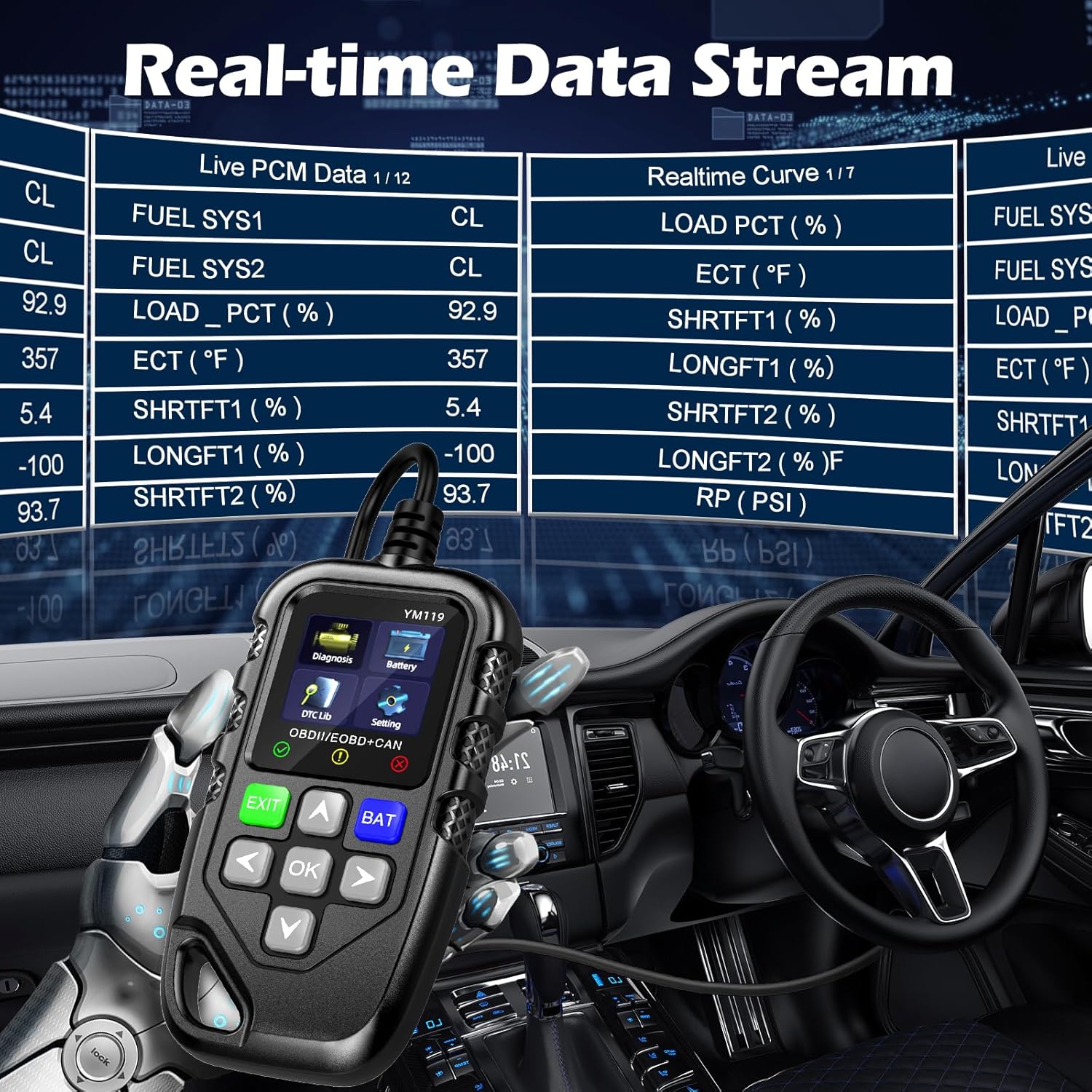
Figure 3.4: Real-time Data Stream. This image shows the scanner's capability to display live engine data, including various sensor readings and their corresponding real-time curves, aiding in dynamic vehicle diagnostics.
- Select "Live Data" or "Realtime Curve" from the Diagnosis menu.
- Use the UP/DOWN arrows to scroll through different data parameters.
- Use the LEFT/RIGHT arrows to switch between text and graph views (if available for the parameter).
3.2.4 Freeze Frame Data
When an emission-related fault occurs, the vehicle's computer records a snapshot of operating conditions at the time of the fault. This "freeze frame" data helps in diagnosing intermittent problems.
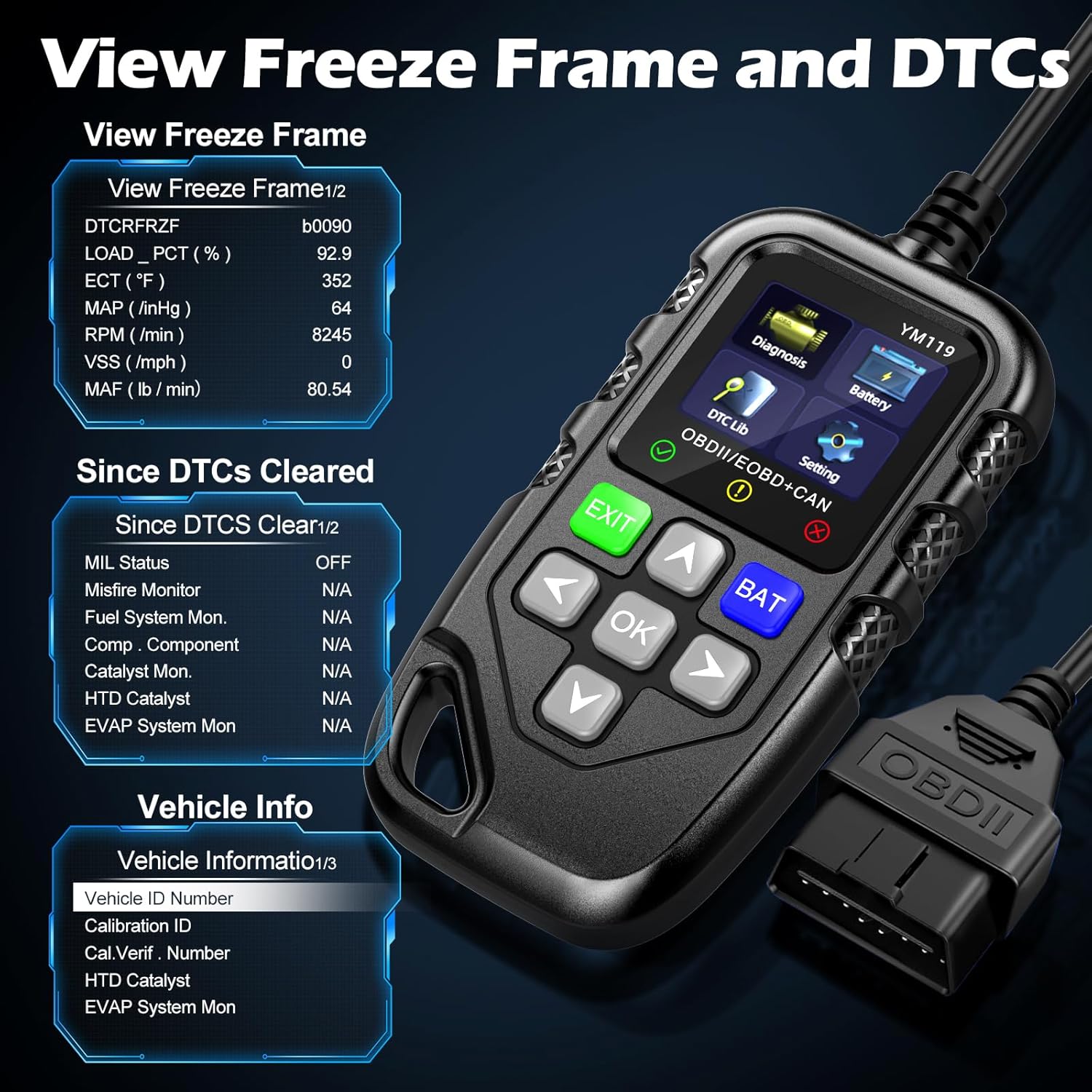
Figure 3.5: View Freeze Frame and DTCs. This image displays the scanner's ability to capture and show freeze frame data, which provides a snapshot of engine conditions at the moment a fault code was set, aiding in diagnosis.
- Select "View Freeze Frame" from the Diagnosis menu.
- Review the recorded parameters.
3.2.5 DTC Query (DTC Lib)
The built-in DTC Library allows you to look up definitions for generic (P0, P2, P34, B0, C0, U0) and manufacturer-specific (P1, P30-P33, B1, C1, U1) codes.
- From the main menu, select "DTC Lib".
- Enter the DTC code using the arrow keys and OK button.
- The scanner will display the definition of the code.
3.2.6 I/M Readiness
This function checks the readiness of the emission-related monitoring systems on the vehicle. It's useful for determining if the vehicle is ready for an emissions test.
- Select "I/M Readiness" from the Diagnosis menu.
- The scanner will display the status of various monitors (e.g., Misfire Monitor, Fuel System Monitor). "OK" indicates the monitor has completed its test, "INC" indicates incomplete, and "N/A" indicates not applicable.
3.2.7 Battery Voltage Test
The YM119 can perform a basic battery voltage test to assess the vehicle's battery health.

Figure 3.6: Estimate Battery Life Test. This image shows the scanner's dedicated function for monitoring and assessing the vehicle's battery voltage and overall health.
- From the main menu, select "Battery" or press the BAT button.
- The scanner will display the current battery voltage.
3.2.8 Vehicle Information
This function retrieves the Vehicle Identification Number (VIN), Calibration ID (CALID), and Calibration Verification Number (CVN) of the vehicle.
- Select "Vehicle Info" from the Diagnosis menu.
- The scanner will display the available vehicle information.
4. Maintenance
4.1 Cleaning the Device
To maintain the scanner's performance and appearance:
- Wipe the unit with a soft, damp cloth.
- Do not use abrasive cleaners or solvents.
- Ensure the device is dry before storage.
4.2 Storage
Store the scanner in a clean, dry environment away from extreme temperatures and direct sunlight. Keep the OBDII connector free from dust and debris.
5. Troubleshooting
| Problem | Possible Cause | Solution |
|---|---|---|
| Scanner does not power on. |
|
|
| "Link Error" or "Communication Error" message. |
|
|
| Engine light reappears after clearing codes. | Underlying fault has not been repaired. | Clearing codes only turns off the light; it does not fix the problem. Diagnose and repair the underlying issue before clearing codes again. |
| Inaccurate or missing data readings. |
|
|
6. Specifications
| Feature | Detail |
|---|---|
| Model Number | AE0004L (YM119) |
| Brand | Riokko |
| Screen Size | 2.8 Inches |
| Supported Protocols | Nine standard OBDII/EOBD protocols |
| Supported Languages | 13 national languages |
| Item Weight | 7.8 ounces (approx. 221 grams) |
| Package Dimensions | 8.11 x 5.35 x 1.14 inches (approx. 20.6 x 13.6 x 2.9 cm) |
| First Available Date | October 16, 2024 |
7. Warranty and Support
7.1 Warranty Information
The Riokko YM119 OBD2 Scanner comes with a 3-year warranty from the date of purchase. This warranty covers defects in materials and workmanship under normal use.
7.2 Return Policy
A 30-day no-questions-asked return policy is offered for your purchase. Please refer to your retailer's specific return instructions.
7.3 Customer Support
For technical assistance, warranty claims, or any other inquiries, please contact Riokko customer service. 24/7 customer service is available to assist you.
Please visit the official Riokko website or refer to your product packaging for the most current contact information.