
F FENVI BE6500
Fenvi WiFi 7 USB Adapter BE6500 User Manual
Model: BE6500 | Brand: F FENVI
1. Introduction
The Fenvi WiFi 7 USB Adapter BE6500 is designed to provide ultra-fast wireless connectivity for your desktop or laptop. Utilizing the advanced 8912AU chipset, this tri-band adapter supports WiFi 7 (802.11be) standards, offering speeds up to 6500Mbps across 6GHz, 5GHz, and 2.4GHz bands. It is ideal for demanding applications such as 8K streaming, competitive gaming, and large file transfers, delivering significantly faster performance than previous WiFi generations. The adapter features a USB 3.0 interface for maximized bandwidth and includes high-gain antennas for enhanced signal reception and coverage.
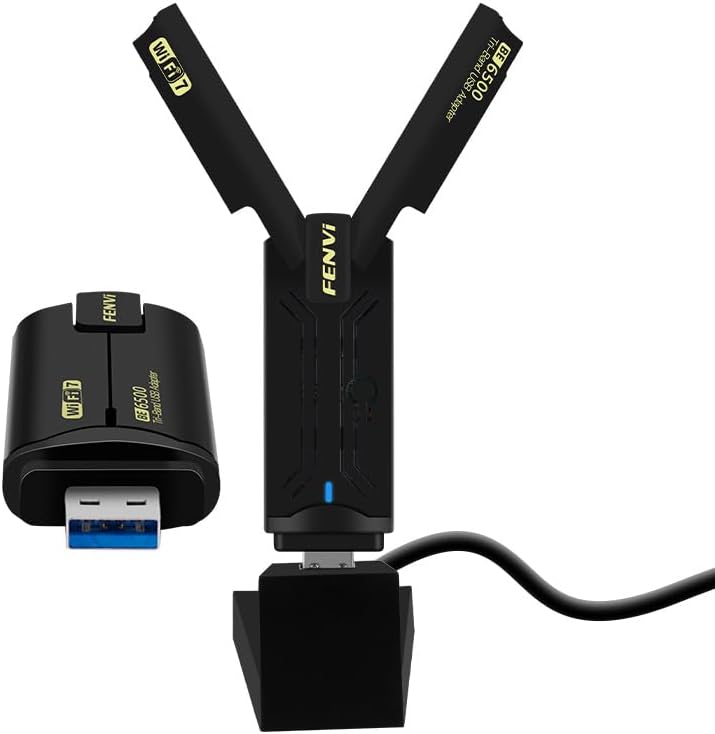
Image: The Fenvi WiFi 7 USB Adapter BE6500, shown with its adjustable antennas extended and connected to its USB 3.0 base.
2. Package Contents
Please verify that all items are present in your package:
- Fenvi WiFi 7 USB Adapter BE6500
- USB 3.0 Cable (approximately 30 inches)
- User Manual (this document)
3. Key Features
The Fenvi WiFi 7 USB Adapter BE6500 offers a range of features designed for superior wireless performance:
- Blazing WiFi 7 Speeds: Experience up to 6500Mbps (BE6500) with the advanced 8912AU chipset, providing 4X faster connectivity than WiFi 6.
- Tri-Band Operation: Supports 6GHz, 5GHz, and 2.4GHz bands for optimized performance across various network conditions and devices.
- USB 3.0 SuperSpeed Performance: Utilizes a 5Gbps USB 3.0 interface for ultra-low latency and efficient data transfer, significantly outperforming USB 2.0.
- Optimized for Crowded Networks: Features 160MHz channel bandwidth, OFDMA (Orthogonal Frequency-Division Multiple Access), and 4K-QAM (Quadrature Amplitude Modulation) to ensure stable connections even with multiple devices and high-bandwidth activities.
- Universal Compatibility: Works with WiFi 7, 6E, 6, and 5 routers, and is backward-compatible with older networks. Compatible with Windows 11 and Windows 10 operating systems.
- Flexible Design: Equipped with a 30-inch USB 3.0 cable for flexible placement, allowing you to optimize signal reception.

Image: Visual representation of key features including range boosting with high gain antennas, USB 3.0 blazing-fast transfer speeds, WPA3 enhanced encryption, Windows 11/10 compatibility, and simple installation with preloaded drivers.
4. Installation & Setup
The Fenvi WiFi 7 USB Adapter is designed for straightforward installation. Follow these steps to get started:
- Connect the Adapter: Plug the Fenvi WiFi 7 USB Adapter into an available USB 3.0 port on your desktop or laptop. While compatible with USB 2.0, a USB 3.0 port is recommended for optimal performance.
- Driver Installation:
- Automatic Installation: For most Windows 11/10 systems, the necessary drivers will auto-install upon connecting the device. A new drive may appear in your file system, which contains the installer.
- Manual Installation: If automatic installation does not occur, navigate to 'This PC' or 'My Computer', locate the new drive (often labeled as a CD Drive or similar), and run the installer executable file found within.
- Online Download: In rare cases where the driver does not auto-install or is not accessible from the device, you may need to download the latest drivers from the official Fenvi support website.
- System Reboot: After the driver installation is complete, it is recommended to restart your computer to ensure all changes are applied correctly.
- Connect to Wi-Fi: Once your system has restarted, open your network settings. You should see new Wi-Fi options available. Select your desired Wi-Fi network (preferably a 6GHz or 5GHz network for best performance if your router supports it) and enter the network password.

Image: The Fenvi WiFi 7 USB Adapter BE6500 connected to a desktop computer, illustrating its flexible placement using the included USB cable and base to optimize network reception.
5. Operating Instructions
Once installed, the Fenvi WiFi 7 USB Adapter operates seamlessly to provide high-speed wireless connectivity. Here’s how to maximize its performance:
5.1 Understanding Tri-Band Technology
The adapter supports three distinct frequency bands:
- 6GHz Band: Offers the highest speeds (up to 2882Mbps) and lowest latency, ideal for 8K streaming, VR applications, and competitive gaming. This band is less congested, providing a cleaner signal.
- 5GHz Band: Provides high speeds (up to 2882Mbps) suitable for 4K streaming and general high-bandwidth activities. It offers a good balance of speed and range.
- 2.4GHz Band: Offers wider coverage and better penetration through walls, suitable for general internet browsing and connecting devices further from the router (up to 688Mbps).
For optimal performance, connect to the 6GHz or 5GHz band if your router supports it and you are within range.

Image: A visual representation of the tri-band capabilities, showing theoretical maximum speeds for 6GHz (2400Mbps), 5GHz (2400Mbps), and 2.4GHz (574Mbps) bands.
5.2 Enhanced Network Efficiency
The adapter incorporates advanced technologies to improve network efficiency, especially in busy environments:
- 160MHz Channel Bandwidth: Allows for wider data channels, enabling higher throughput and faster data transfer.
- OFDMA (Orthogonal Frequency-Division Multiple Access): Improves efficiency by allowing multiple users to share a single channel, reducing latency and improving overall network performance.
- 4K-QAM (Quadrature Amplitude Modulation): Packs more data into each signal, increasing data rates and overall network capacity.

Image: A diagram illustrating the benefit of OFDMA, showing how data is transmitted more efficiently to multiple clients simultaneously compared to traditional methods where clients wait their turn.
5.3 Flexible Placement and Signal Optimization
The included 30-inch USB 3.0 cable and base allow for flexible placement of the adapter. Position the adapter in an open area, away from obstructions and other electronic devices that may cause interference, to achieve the best possible signal strength and coverage.

Image: A diagram demonstrating the adjustable high-gain antennas of the Fenvi WiFi 7 USB Adapter, which can be rotated up to 150 degrees to optimize signal reception and provide greater coverage compared to regular adapters.
6. Maintenance
To ensure the longevity and optimal performance of your Fenvi WiFi 7 USB Adapter, consider the following maintenance tips:
- Keep Clean: Periodically wipe the adapter with a soft, dry cloth to remove dust. Avoid using liquid cleaners.
- Proper Ventilation: Ensure the adapter is placed in an area with good airflow to prevent overheating, especially during prolonged high-usage periods.
- Handle with Care: Avoid dropping the adapter or subjecting it to physical shock. Do not force the USB connector into ports.
- Software Updates: Regularly check the official Fenvi website for updated drivers. Keeping your drivers current can improve performance and resolve compatibility issues.
7. Troubleshooting
If you encounter issues with your Fenvi WiFi 7 USB Adapter, refer to the following common problems and solutions:
7.1 Adapter Not Detected or Not Working
- Check USB Port: Try plugging the adapter into a different USB port on your computer. Ensure it's a functioning USB 3.0 port if available.
- Reinstall Drivers: Uninstall any existing drivers for the adapter from Device Manager, then follow the installation steps in Section 4 to reinstall them.
- System Reboot: A simple restart of your computer can often resolve detection issues.
7.2 Slow Speeds or Frequent Disconnections
- Router Compatibility: Ensure your Wi-Fi router supports WiFi 7 (802.11be) to achieve the advertised speeds. If your router is WiFi 6 or older, the adapter will operate at the maximum speed supported by your router.
- Signal Strength: Check the signal strength in your network settings. Move the adapter closer to your router or adjust its antennas for better reception. Utilize the flexible cable to find an optimal placement.
- Interference: Keep the adapter away from other electronic devices (e.g., microwaves, cordless phones) that may cause wireless interference.
- Driver Update: Ensure you have the latest drivers installed from the Fenvi website.
- Router Settings: Verify that your router's settings are optimized for performance (e.g., 160MHz channel enabled if supported, WPA3 encryption).
7.3 Adapter Overheating
- Ventilation: Ensure the adapter is in a well-ventilated area and not covered.
- Reduce Load: If possible, reduce the number of simultaneous high-bandwidth activities.
8. Specifications
| Attribute | Value |
|---|---|
| Model Number | BE6500 |
| Brand | F FENVI |
| Hardware Interface | USB 3.0 |
| Data Transfer Rate | 6500 Megabytes Per Second (Mbps) |
| Compatible Devices | Desktop, Laptop |
| Operating System Compatibility | Windows 11/10 |
| Package Dimensions | 6.93 x 4.61 x 1.65 inches |
| Item Weight | 5.6 ounces (0.16 Kilograms) |
| First Available Date | September 13, 2024 |
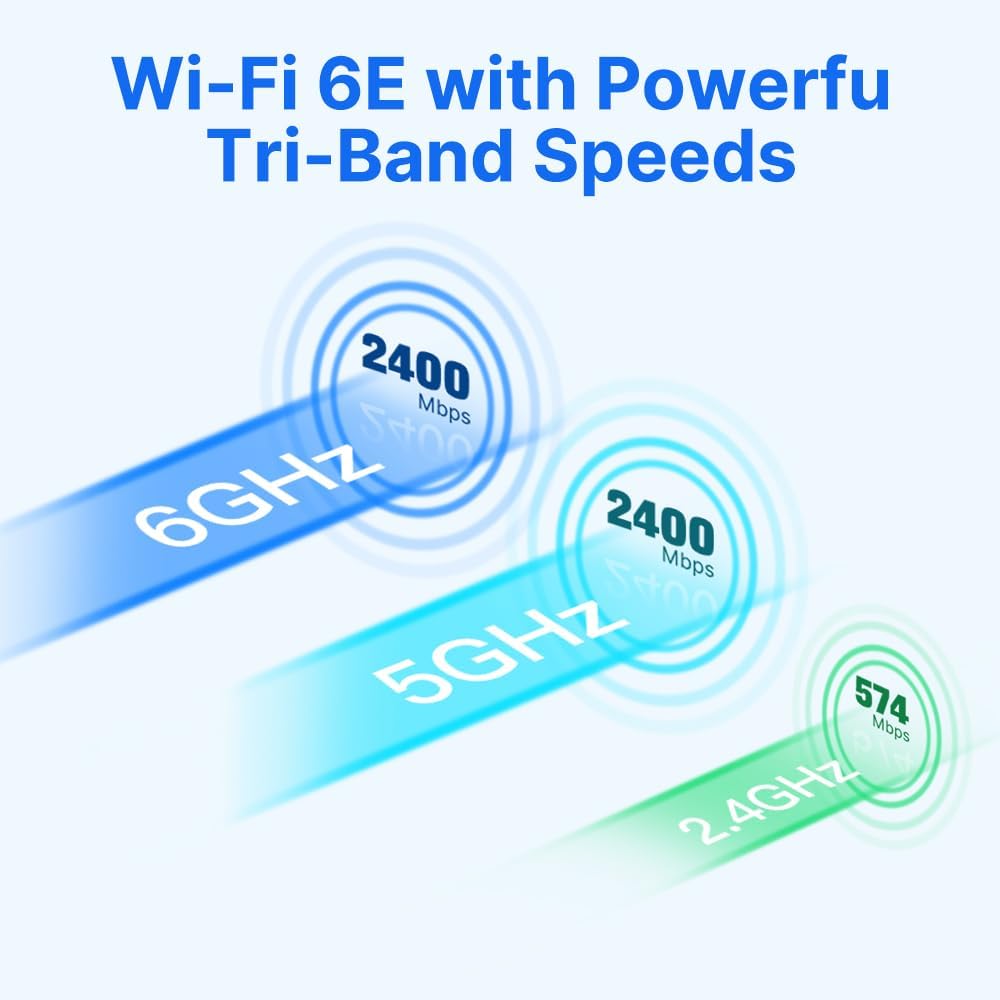
Image: Technical drawing illustrating the physical dimensions of the Fenvi WiFi 7 USB Adapter BE6500, including length (88.5mm) and width (29.5mm).
9. Warranty and Support
For warranty information and technical support, please refer to the documentation included with your purchase or visit the official FENVI website. Keep your proof of purchase for any warranty claims.
Ask a question about this manual
Ask about setup, troubleshooting, compatibility, parts, safety, or missing instructions. Manuals+ will review the question and use this page’s manual context to help answer it.