
1. Introduction
This manual provides detailed instructions for the installation, operation, and maintenance of your Junsun Android 13 Car Radio Stereo. Please read this manual thoroughly before using the product to ensure proper function and safety. This unit is designed to enhance your in-car entertainment and navigation experience with its advanced features.
2. Safety Information
- Always operate the device responsibly and in accordance with local traffic laws. Distracted driving can lead to accidents.
- Do not attempt to disassemble or modify the unit. This may cause damage, electric shock, or fire, and will void the warranty.
- Ensure all wiring connections are secure and properly insulated to prevent short circuits.
- Consult a professional for installation if you are unsure about any steps.
- Keep the unit away from water and excessive moisture.
3. Package Contents
Verify that all items listed below are included in your package:
- Car Radio Unit
- Power Cable
- RCA Cable
- Reversing Line
- Can Bus Decoder
- GPS Module
- USB Cables (x2)
- Antenna
- Crowbar (Installation Tool)
- Screwdriver
- External Microphone

Figure 3.1: Overview of included components in the package.
4. Setup and Installation
This section guides you through the physical installation and initial setup of your car radio stereo.
4.1 Applicable Car Models
The Junsun Android 13 Car Radio Stereo is compatible with a range of vehicles. Please verify your vehicle model against the list below:
- Jeep Wrangler/Unlimited (2007-2018)
- Jeep Compass (2009-2016)
- Jeep Patriot (2009-2016)
- Jeep Grand Cherokee (2005-2011)
- Jeep Liberty (2008-2011)
- Jeep Commander (2008-2011)
- Chrysler Sebring (2007-2010)
- Chrysler Town&Country (2007-2010)
- Dodge Grand Caravan (2011-2014)
- Dodge Charger (2008-2010)
- Dodge Ram Pickup 1500/2500/3500 (2009-2012)

Figure 4.1: Examples of compatible car models with the Junsun car radio installed.
4.2 Installation Steps
- Preparation: Turn off your vehicle's ignition and disconnect the negative terminal of the car battery to prevent electrical shorts.
- Remove Old Unit: Carefully remove the existing car radio unit from your dashboard. Use the provided crowbar tool if necessary to pry open trim panels without causing damage.
- Connect Wiring: Connect the provided power cable, RCA cable, reversing line, and other necessary cables to the corresponding ports on the new Junsun unit and your vehicle's wiring harness. Refer to the wiring diagram for detailed connections.
- Special Note for Alpine/Infinity Sound Systems: If your car is equipped with an Alpine or Infinity sound system, ensure you use the two specific plugs indicated in the wiring diagram for proper audio integration.
- Install GPS Module and Antenna: Connect the GPS module and antenna, positioning them in a location with clear sky visibility for optimal signal reception.
- Test Connections: Before fully securing the unit, reconnect the car battery and briefly turn on the ignition to test basic functions like power, audio, and display.
- Secure New Unit: Once confirmed working, carefully slide the new Junsun unit into the dashboard opening and secure it with screws or clips. Reinstall any removed trim panels.
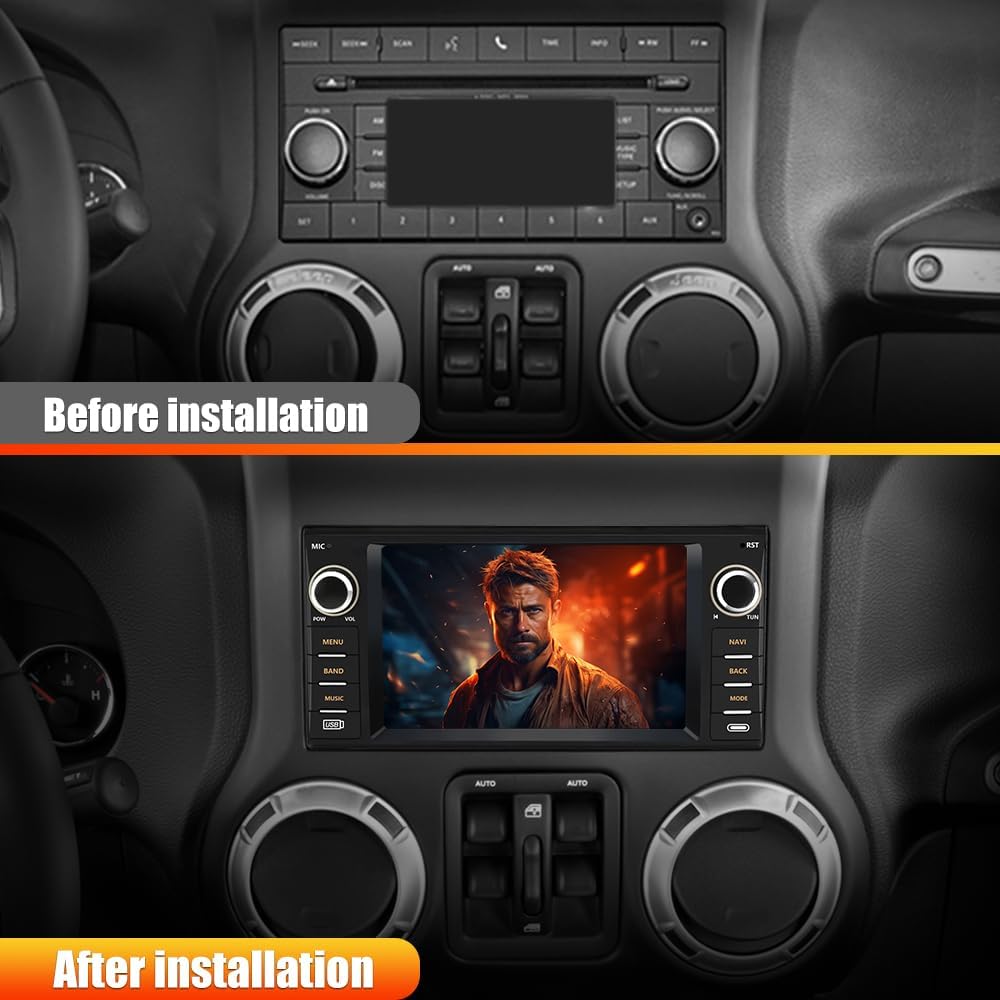
Figure 4.2: Visual comparison of the dashboard before and after installation.

Figure 4.3: Comprehensive wiring diagram for installation.

Figure 4.4: Important note regarding Alpine/Infinity sound system connections.
5. Operating Instructions
This section covers the main functions and features of your Junsun Android 13 Car Radio Stereo.
5.1 Basic Controls
- Power Button: Press to turn the unit on/off.
- Volume Knobs: Rotate to adjust the audio volume.
- Menu Button: Access the main menu or settings.
- Band Button: Switch between radio bands (FM/AM).
- Music Button: Directly access music playback.
- Navi Button: Launch the navigation application.
- Back Button: Return to the previous screen.
- Mode Button: Cycle through different audio sources (Radio, Bluetooth, USB, etc.).
5.2 Wireless CarPlay & Android Auto
The unit supports both wireless and wired connections for Apple CarPlay and Android Auto. This allows seamless integration with your smartphone for navigation, music, messages, and calls.
- Connection: Enable Bluetooth and Wi-Fi on your smartphone. On the car stereo, select the CarPlay or Android Auto icon. Follow the on-screen prompts to pair your device.
- Functionality: Once connected, you can access your phone's address book, notifications, messages, map navigation, and music directly from the car stereo's touch screen.

Figure 5.1: Apple CarPlay and Android Auto interfaces.
5.3 GPS Navigation
The unit comes with a built-in offline North American map. It also supports online navigation when connected to Wi-Fi.
- Offline Maps: Access pre-loaded maps for navigation without an internet connection.
- Online Maps: Connect to Wi-Fi to use real-time online navigation services, which provide updated traffic information and points of interest.

Figure 5.2: GPS Navigation interface.
5.4 Wi-Fi Connectivity
Connect the unit to a Wi-Fi network to access online features, download applications, and browse the internet.
- Connecting to Wi-Fi: Go to Settings > Network & Internet > Wi-Fi. Select your desired network and enter the password.
- App Store: Download or delete applications from the integrated APP Store, similar to a smartphone.

Figure 5.3: Wi-Fi connectivity and online access.
5.5 Bluetooth Functionality (Bluetooth 5.0)
The unit features Bluetooth 5.0 for fast and stable connections with your phone, enabling hands-free calling and audio streaming.
- Pairing: Enable Bluetooth on your phone and search for the car radio unit. Select it to pair.
- Hands-Free Calling: Make or receive calls directly through the car radio. The external microphone ensures clear voice pickup, and car speakers provide clear audio.
- Bluetooth Music: Stream audio from your phone to the car stereo.
- Phonebook Access: Access your phone's contacts directly from the unit.

Figure 5.4: Bluetooth 5.0 features.
5.6 FM Radio
Tune into your favorite FM radio stations.
- Scanning: Use the scan function to automatically find and save available stations.
- Manual Tuning: Manually adjust the frequency to find specific stations.

Figure 5.5: FM Radio interface.
5.7 Reversing Image (Backup Camera)
When the reverse gear is engaged, the unit automatically displays the rearview image from the connected backup camera, providing parking assistance.

Figure 5.6: Reversing image display.
5.8 Built-in DSP (Digital Signal Processor)
The integrated DSP allows for advanced audio tuning and equalization, providing a more customized and immersive sound experience.
- Equalizer: Adjust various frequency bands to tailor the sound output to your preference.
- Sound Field Control: Optimize sound staging and delay for different seating positions within the vehicle.

Figure 5.7: Built-in DSP for audio customization.
6. Maintenance
Proper maintenance ensures the longevity and optimal performance of your car radio stereo.
- Cleaning the Screen: Use a soft, lint-free cloth to gently wipe the touch screen. For stubborn smudges, slightly dampen the cloth with water or a screen-safe cleaner. Avoid abrasive materials or harsh chemicals.
- General Cleaning: Keep the unit's exterior free from dust and debris. Use a soft, dry cloth.
- Software Updates: Periodically check for software updates via Wi-Fi to ensure you have the latest features and bug fixes.
- Avoid Extreme Temperatures: Do not expose the unit to extreme heat or cold, as this can affect its electronic components.
7. Troubleshooting
This section addresses common issues you might encounter with your Junsun car radio stereo.
| Problem | Possible Cause | Solution |
|---|---|---|
| Unit does not power on. | Loose power connection, blown fuse, vehicle battery issue. | Check all power cable connections. Inspect vehicle fuses. Ensure car battery is charged. |
| No sound or distorted audio. | Speaker wiring issues, incorrect audio settings, volume too low. | Verify speaker connections. Check audio settings and equalizer. Increase volume. |
| CarPlay/Android Auto connection difficulties. | Incorrect pairing, Wi-Fi/Bluetooth interference, phone software issues. | Ensure Wi-Fi and Bluetooth are enabled on both devices. Re-pair the devices. Update phone OS. Try a wired connection if wireless fails. |
| GPS signal is weak or inaccurate. | GPS antenna obstruction, poor satellite visibility. | Ensure GPS antenna is placed in an unobstructed location (e.g., dashboard, not under metal). Move to an open area. |
| Backup camera image flickers or is unclear. | Loose camera connection, faulty camera, lighting conditions. | Check the camera's video input connection. Ensure the camera lens is clean. Note that extreme bright light conditions can sometimes affect image stability. |
| Unit is slow or unresponsive. | Too many apps running, low memory, software glitch. | Close unnecessary applications. Restart the unit. Perform a factory reset if issues persist (note: this will erase data). |
8. Specifications
Detailed technical specifications for the Junsun Android 13 Car Radio Stereo.
| Feature | Specification |
|---|---|
| Operating System | Android 13 |
| Screen Size | 7 inches / 18 cm |
| Connectivity Technology | Bluetooth, Wi-Fi |
| Controller Type | Android |
| Compatible Devices | Smartphone, Car Audio |
| Connector Type | RCA, USB, HDMI, 3.5mm Jack |
| Audio Output Mode | Stereo |
| Surround Sound Channel Configuration | 2.0 |
| Number of Channels | 2 |
| Color | Black |
| Item Weight | 3.12 pounds |
| Package Dimensions | 11.38 x 10.67 x 3.98 inches |
| Model Number | ac9b5045-12e6-423c-b633-79425a41e2f6 |
| Manufacturer | j Junsun |
| Country of Origin | China |
9. Warranty Information
For warranty details, please refer to the warranty card included with your product or contact Junsun customer support. Standard warranty terms typically cover manufacturing defects for a specified period from the date of purchase.
10. Customer Support
If you have any questions, require technical assistance, or need to report an issue, please contact Junsun customer support:
- Email: Junsun-US@outlook.com
- Online: Visit the official Junsun store on Amazon for FAQs and additional resources.

Figure 10.1: Junsun Customer Support Contact Information.


