
1. Introduction
This manual provides essential instructions for the setup, operation, and maintenance of your new Generic Voice Remote Control. This remote is designed as a replacement for various TCL 4K HD Smart LED HDTV models. Please review this manual thoroughly to ensure proper use and compatibility.
Important Note: This is an infrared (IR) replacement remote. While it supports voice control, specific pairing steps for voice functionality may vary by TV model. Ensure your original remote matches the appearance of this replacement for optimal compatibility.
2. Compatibility
This remote control is compatible with a wide range of TCL Smart LED HDTV models, including but not limited to:
- TCL 65P8M, 55P8M, 65P8E, 55P8E
- TCL 75S434, L40S65A, L32S60A-B
- TCL 65P8S, 55P8S, 49S6800FS, 32S6800S
- TCL 75EP660, 50EP660, 43EP660
- TCL 43S434, 50S434, 55S434, 65S434
If your specific TV model is not listed, please compare your original remote control with the images provided in this manual to confirm visual similarity before use. Full functionality may vary depending on the specific TV model.
3. Setup
3.1 Battery Installation
- Locate the battery compartment on the back of the remote control.
- Slide the battery compartment cover downwards or outwards to open it.
- Insert two (2) AAA batteries, ensuring the positive (+) and negative (-) terminals align correctly with the markings inside the compartment.
- Replace the battery compartment cover by sliding it back into place until it clicks securely.
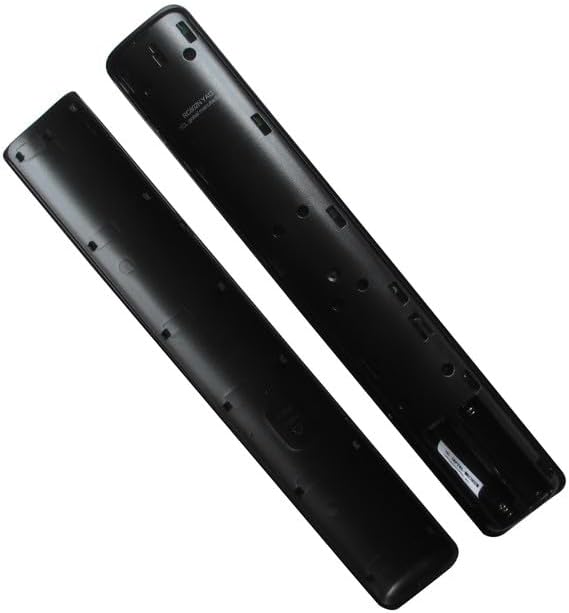
Figure 1: Back view of the remote control with the battery compartment. Insert two AAA batteries as indicated by the polarity markings.
3.2 Initial Connection
For basic infrared (IR) functions, the remote should work immediately after battery installation. Point the remote directly at your TCL TV's IR receiver.
For Voice Control functionality, your TV may require pairing the remote via Bluetooth. Refer to your TCL TV's user manual for specific instructions on how to pair a new voice remote. Typically, this involves navigating to the TV's settings menu (e.g., Settings > Remotes & Accessories > Add Accessory) and following the on-screen prompts.
4. Operating the Remote Control
The remote control features a standard layout for easy navigation and control of your TCL TV. Below is a general overview of common buttons and their functions:

Figure 2: Front view of the remote control with labeled buttons.
- Power Button (⏻): Turns the TV on or off.
- Mute Button (🔇): Mutes or unmutes the TV audio.
- Navigation Pad (Up, Down, Left, Right): Moves the cursor or selection on the TV screen.
- OK Button: Confirms a selection or enters a menu.
- Back Button (↩): Returns to the previous screen or menu.
- Home Button (🏠): Accesses the TV's home screen or smart TV interface.
- Menu Button (☰): Opens the TV's main menu or settings.
- Volume Up/Down (+ / -): Adjusts the TV volume.
- Voice Assistant Button (●●●●): Activates the voice control feature. Press and hold to speak commands.
- Settings Button (⚙️): Directly accesses TV settings.
- App Shortcut Buttons: Dedicated buttons for popular streaming services (if present).
4.1 Using Voice Control
If your remote is successfully paired for voice functionality:
- Press and hold the Voice Assistant Button (often marked with a microphone icon or colored dots).
- Speak your command clearly into the microphone located on the remote.
- Release the button once you have finished speaking.
Examples of voice commands include: "Open Netflix," "Search for action movies," "Switch to HDMI 1," or "What's the weather?"
5. Maintenance
5.1 Battery Replacement
Replace batteries when the remote's response becomes sluggish or stops working. Always use new AAA batteries and dispose of old batteries responsibly according to local regulations.
5.2 Cleaning
To clean the remote, gently wipe it with a soft, dry cloth. For stubborn dirt, slightly dampen the cloth with water. Avoid using harsh chemicals, abrasive cleaners, or excessive moisture, as these can damage the remote's electronics or finish.
5.3 Storage
Store the remote in a cool, dry place away from direct sunlight and extreme temperatures. If the remote will not be used for an extended period, it is advisable to remove the batteries to prevent leakage.
6. Troubleshooting
- Remote not responding:
- Check if the batteries are inserted correctly and are not depleted. Replace if necessary.
- Ensure there is a clear line of sight between the remote and the TV's IR receiver. Remove any obstructions.
- Try moving closer to the TV.
- Voice control not working:
- Confirm that the remote is properly paired with your TV via Bluetooth. Refer to your TV's manual for pairing instructions.
- Ensure the TV's microphone access for the remote is enabled in the TV settings.
- Speak clearly and hold the voice button throughout your command.
- Some functions do not work:
- As a replacement remote, it may not support all advanced or unique functions of your original TV remote.
- Verify that your TV model is listed as compatible or visually matches the remote.
7. Specifications
| Feature | Specification |
|---|---|
| Brand | Generic |
| Compatible Devices | Television (Various TCL Smart LED HDTV models) |
| Connectivity Technology | Infrared (IR) for basic functions, Bluetooth for Voice Control |
| Power Source | 2 x AAA Batteries (not included) |
| Color | Black |
| Max Number of Supported Devices | 1 |
8. Warranty and Support
For warranty information and customer support, please contact the seller or retailer from whom you purchased this product. As a generic replacement item, specific warranty terms may vary.