
ECOWITT GW1200, WS85
Ecowitt Weather Station User Manual
Models: GW1200 IoT Wi-Fi Gateway & WS85 Outdoor Sensor Array
Brand: ECOWITT
1. Introduction
This manual provides comprehensive instructions for the setup, operation, and maintenance of your Ecowitt Weather Station, which includes the GW1200 IoT Wi-Fi Gateway and the WS85 Outdoor Sensor Array. This system is designed to monitor various environmental parameters, providing valuable weather data for your home or garden.
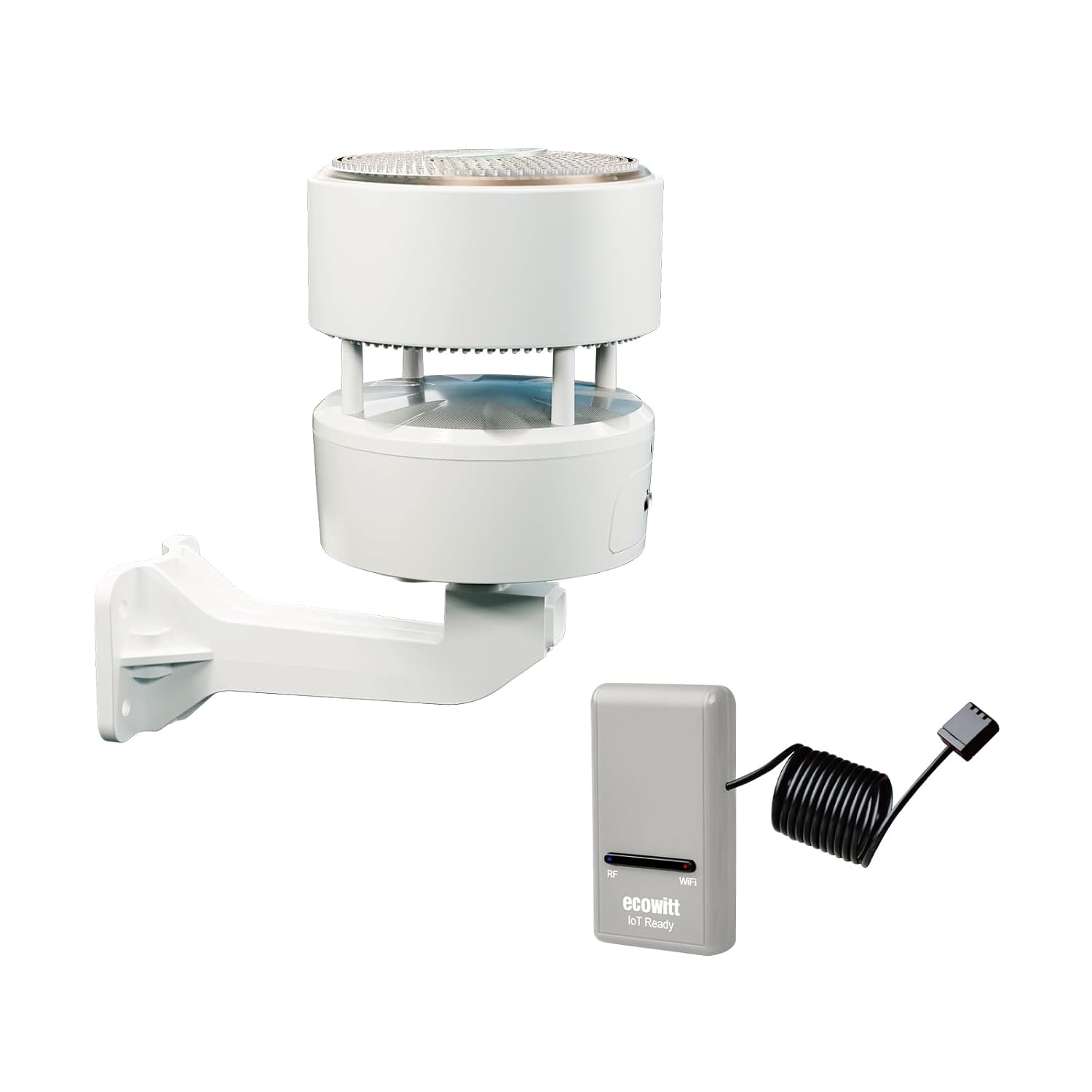
Figure 1: Ecowitt Weather Station components, including the GW1200 IoT Wi-Fi Gateway and the WS85 Outdoor Sensor Array.
2. What's in the Box
Please verify that all components are present before proceeding with installation:
- GW1200 IoT Wi-Fi Gateway
- WS85 Outdoor Sensor Array
- USB Extension Cable (1.5m/3ft)
- Solar Panel (integrated with WS85)
- Rain Gauge (integrated with WS85)
- Wind Speed/Direction Sensor (integrated with WS85)
- Mounting Hardware
- Instruction Manual (this document)
3. Setup and Installation
3.1 GW1200 IoT Wi-Fi Gateway Setup
The GW1200 gateway serves as the central hub for your weather station, collecting data from sensors and uploading it to the internet.
- Powering the Gateway: Connect the GW1200 gateway to a USB power source (2.0 or later) using the provided USB cable. An additional 1.5m/3ft USB extension cable is included for flexible placement.
- Wi-Fi Configuration: There are two primary methods to configure the Wi-Fi connection for the GW1200:
- Ecowitt APP (Recommended): Download the Ecowitt APP from your mobile device's app store. Follow the in-app instructions for Wi-Fi configuration. This method is generally the easiest and most intuitive.
- Website: Alternatively, you can configure Wi-Fi through a web browser. Refer to the Quick Start Guide for detailed steps on this method.
- Sensor Pairing: Once connected to Wi-Fi, the GW1200 will automatically begin pairing with compatible Ecowitt sensors, including the WS85 Outdoor Sensor Array.

Figure 2: The GW1200 IoT Wi-Fi Gateway, ready for connection.

Figure 3: Components of the GW1200 gateway, including the integrated temperature, humidity, and barometric pressure sensor probe.
3.2 WS85 Outdoor Sensor Array Installation
The WS85 is a compact outdoor sensor array designed to measure wind speed, wind direction, and rainfall.
- Mounting Location: Choose an outdoor location that provides unobstructed exposure to wind and rain for accurate readings. Avoid placing it near large structures, trees, or other objects that could interfere with measurements.
- Mounting Options: The WS85 offers two primary mounting methods using a pole (not included, 1 - 1.5 inches in diameter):
- Side Mount: Attach the WS85 to the side of a vertical pole using the provided mounting hardware.
- Top Mount: Attach the WS85 to the top of a vertical pole using the provided mounting hardware.
- Orientation: Ensure the WS85 is correctly oriented according to the directional symbol on the unit for accurate wind direction readings.

Figure 4: The two common mounting configurations for the WS85 Outdoor Sensor Array.

Figure 5: Key components of the WS85 Outdoor Sensor Array, including the haptic rainfall sensor, solar panel, ultrasonic wind speed sensor, and USB port for firmware updates.
4. Operation
Once the GW1200 gateway is connected to Wi-Fi and the WS85 sensor array is installed, your weather station will begin collecting and transmitting data.
4.1 Data Collection and Transmission
- The WS85 Outdoor Sensor Array continuously measures wind speed, wind direction, and rainfall.
- The GW1200 gateway, with its built-in 3-in-1 sensor, measures indoor temperature, humidity, and barometric pressure.
- Data from the WS85 is transmitted wirelessly to the GW1200 gateway via RF communication, with a range of up to 100 meters.
- The GW1200 then uploads all collected sensor data to the internet, making it accessible via the Ecowitt APP.

Figure 6: The GW1200 gateway supports 100M RF communication, allowing flexible placement within your home or property.
4.2 Viewing Data and Smart Control
- Ecowitt APP: All sensor data can be viewed in real-time on the Ecowitt APP (available for iOS and Android). The app provides a user-friendly interface to monitor current conditions and historical data.
- IOT Ready: The GW1200 gateway is IOT (Internet of Things) ready. Beyond just collecting data, it can pair with other Ecowitt smart control devices, such as the WFC01 watering timer and AC1100 smart switches. This allows for integrated control of these devices directly from the Ecowitt APP, creating a cohesive Ecowitt ecosystem for your home.

Figure 7: The GW1200 gateway can pair with a wide range of Ecowitt sensors and smart devices, expanding its functionality.
5. Maintenance
Regular maintenance ensures the longevity and accuracy of your Ecowitt Weather Station.
- Cleaning the WS85: Periodically inspect the WS85 Outdoor Sensor Array for dirt, debris, or spiderwebs that may accumulate on the rain gauge or wind sensors. Gently clean with a soft, damp cloth. Avoid abrasive cleaners.
- Solar Panel: Ensure the solar panel on the WS85 is clean and free from obstructions to maximize its charging efficiency.
- Firmware Updates: The WS85 has a USB port for firmware updates. Check the Ecowitt website or APP for available updates to ensure optimal performance and access to new features.
- Battery Check: While the WS85 is solar-powered, it may contain backup batteries. Refer to the Quick Start Guide for information on battery type and replacement intervals if applicable.
6. Troubleshooting
If you encounter issues with your Ecowitt Weather Station, consider the following common troubleshooting steps:
- No Data/Missing Readings:
- Ensure the GW1200 gateway is powered on and connected to Wi-Fi. Check the Wi-Fi indicator light.
- Verify the WS85 sensor array is properly installed and within the 100-meter RF communication range of the GW1200.
- Check for any physical obstructions between the WS85 and GW1200 that might block the signal.
- Confirm the WS85 is receiving adequate sunlight for its solar panel.
- Inaccurate Readings:
- Rainfall: Check the rain gauge on the WS85 for debris or blockages.
- Wind: Ensure the WS85 is mounted in an open area, free from wind obstructions. Verify the directional symbol is correctly oriented.
- Temperature/Humidity/Pressure (GW1200): Ensure the GW1200 is placed in a location that reflects the desired indoor conditions, away from direct heat sources or drafts.
- Wi-Fi Connection Issues:
- Restart your Wi-Fi router and the GW1200 gateway.
- Ensure you are entering the correct Wi-Fi password.
- If using the Ecowitt APP, try re-running the Wi-Fi configuration process.
For more detailed troubleshooting or specific error codes, please refer to the comprehensive Quick Start Guide included with your product or visit the official Ecowitt support website.
7. Specifications
Below are the key specifications for the Ecowitt Weather Station (GW1200 & WS85):

Figure 8: Summary of key features for the WS85 Outdoor Sensor Array.
| Feature | Description |
|---|---|
| Brand | ECOWITT |
| Model | GW1200 IoT Wi-Fi Gateway, WS85 Outdoor Sensor Array |
| Power Source | USB (GW1200), Solar Powered (WS85) |
| Connectivity Technology | Wi-Fi (GW1200), RF Communication (WS85 to GW1200) |
| Special Features | Barometer, Thermometer, Hygrometer, Weather Resistant (WS85) |
| Included Components | GW1200 IoT Wi-Fi Gateway, WS85 Outdoor Sensor Array, USB Extension Cable, Solar Panel, Rain Gauge, Wind Speed/Direction Sensor, Mounting Hardware, Instruction Manual |
| Temperature Accuracy | 1 °C |
| Sensor Technology | Ultrasonic (Wind), Contact (Rainfall) |
| Upper Temperature Rating | 60 Degrees Celsius |
| WS85 Transmission Range | 100 Meters (RF) |
| WS85 Ingress Protection | IPX5 |
8. Warranty and Support
For information regarding product warranty, returns, or technical support, please refer to the official Ecowitt website or the documentation provided with your purchase. You can also visit the ECOWITT Store on Amazon for additional resources and contact information.
Ask a question about this manual
Ask about setup, troubleshooting, compatibility, parts, safety, or missing instructions. Manuals+ will review the question and use this page’s manual context to help answer it.