
Coleshome B01151001001
Coleshome Gaming Desk User Manual
Model: B01151001001 | Brand: Coleshome
1. Introduction
Thank you for choosing the Coleshome Gaming Desk. This desk is designed to enhance your gaming and work experience with its integrated LED lighting, convenient power outlets, USB charging ports, and versatile storage solutions. This manual provides detailed instructions for assembly, setup, operation, and maintenance to ensure optimal performance and longevity of your product.

Figure 1: Overview of the Coleshome Gaming Desk.
2. Safety Instructions
Please read and understand all safety instructions before assembling or using the desk. Failure to follow these instructions may result in injury or damage to the product.
- Keep all small parts and packaging materials away from children and pets to prevent choking hazards.
- Ensure all connections are secure before placing items on the desk.
- Do not overload the desk. Refer to specifications for weight limits.
- Only use the provided power cord and ensure it is connected to a grounded outlet.
- Avoid spilling liquids on the desk, especially near electrical components.
- Do not attempt to modify the electrical components or wiring.
- Place the desk on a flat, stable surface to prevent tipping.
3. Package Contents
Before beginning assembly, verify that all components are present and undamaged. If any parts are missing or damaged, please contact customer support.
The package typically includes:
- Desk tabletop sections
- Desk frame components (legs, supports)
- Monitor stand components
- Storage shelf and drawer components (fabric drawers)
- LED light strip and controller
- Integrated power strip with outlets and USB ports
- Assembly hardware (screws, bolts, nuts, etc.)
- Assembly tools (e.g., Allen wrench, screwdriver)
- Instruction manual
4. Assembly Instructions
Assembly of the Coleshome Gaming Desk is designed to be straightforward. Follow the step-by-step instructions provided in the included assembly guide. All parts are clearly labeled for easy identification.
- Unpack and Organize: Lay out all components on a clean, soft surface to prevent scratches. Identify each part using the provided labels.
- Assemble the Frame: Begin by assembling the main desk frame according to the diagrams. Ensure all screws are tightened securely but do not overtighten.
- Install Storage Unit: Attach the storage shelf and drawer unit. Note that this unit is reversible and can be installed on either the left or right side of the desk to suit your setup.
- Attach Monitor Stand: Secure the monitor stand to the tabletop. This stand helps elevate your monitor for ergonomic viewing.
- Integrate Electrical Components: Carefully install the LED light strip and the power strip with outlets and USB ports into their designated slots. Connect the power cord.
- Insert Drawers: Assemble the fabric drawers and slide them into the storage unit.
- Final Checks: Ensure all connections are firm and the desk is stable. Adjust the leveling feet if necessary to prevent wobbling.

Figure 2: Assembly diagram illustrating dimensions and reversible storage unit.
5. Setup and Operation
5.1. LED Lighting System
The desk features an integrated LED light strip with customizable settings to enhance your gaming atmosphere and reduce eye strain.
- Connection: Ensure the LED light strip is properly connected to the power source within the desk.
- Controls: Use the integrated control panel to adjust the lighting.
- Modes: Select from 10 different lighting modes.
- Colors: Choose from 10 distinct colors to match your preference or mood.
- Brightness: Adjust the brightness level to a comfortable setting.
- Memory Function: The system retains your last selected lighting settings when powered off and on.
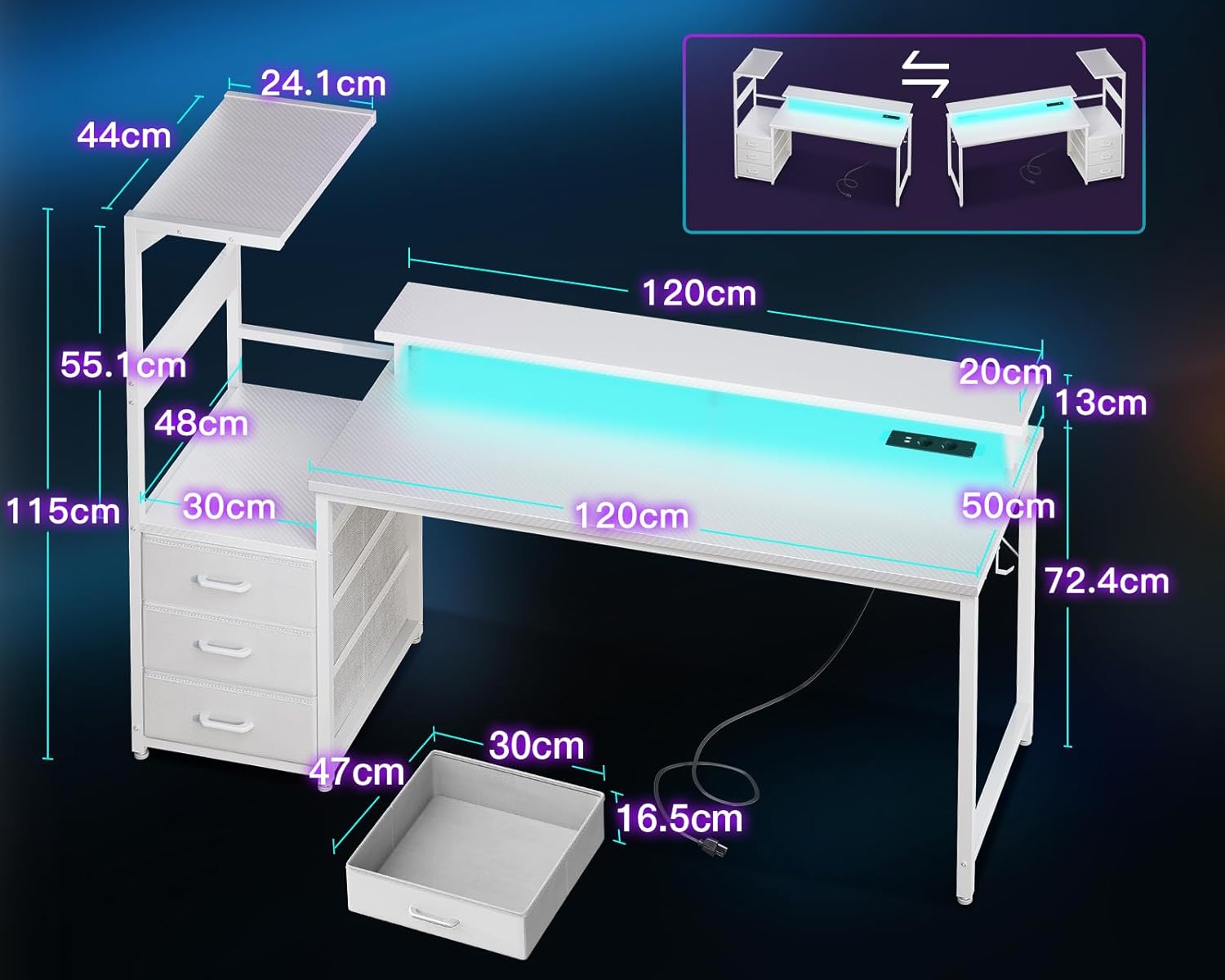
Figure 3: Detail of the LED light strip and control interface.
5.2. Power Outlets and USB Charging Ports
The desk is equipped with 2 standard power outlets and 2 USB charging ports for convenient access to power for your devices.
- Power Connection: Plug the desk's main power cord into a wall outlet.
- Using Outlets: Plug your electronic devices (e.g., monitor, PC) into the 220V-250V/15A power outlets.
- Using USB Ports: Connect your smartphones, gaming peripherals, or other USB-powered devices to the 5V/2.1A USB charging ports.
- Cable Management: Utilize the integrated cable management features to keep your workspace tidy.

Figure 4: Integrated power and USB charging hub.
5.3. Storage Features
The desk offers ample storage to keep your gaming setup organized.
- Fabric Drawers: Utilize the three fabric drawers for storing accessories, games, or personal items.
- Open Storage Shelf: The large open shelf is ideal for housing your PC tower or other larger equipment.
- Side Hook: Use the convenient side hook to hang headphones, bags, or other items, keeping them easily accessible and off the desk surface.

Figure 5: Overview of the desk's powerful storage capabilities.
5.4. Ergonomic Monitor Stand
The integrated monitor stand helps promote a healthy posture by elevating your screen to an optimal viewing height.
- Proper Posture: Position your monitor on the stand to align the top of your screen with your eye level, reducing neck and back strain.
- Additional Storage: The space beneath the monitor stand can be used for storing keyboards, mice, or other small items when not in use, keeping your main desk surface clear.

Figure 6: Ergonomic benefits of the monitor stand.
6. Maintenance
Regular maintenance will help preserve the appearance and functionality of your Coleshome Gaming Desk.
- Cleaning the Surface: The carbon fiber finish is waterproof and easy to clean. Use a soft, damp cloth with mild soap and water to wipe down the surface. Avoid abrasive cleaners or harsh chemicals.
- Dusting: Regularly dust the desk and all components with a dry, soft cloth.
- Electrical Components: Ensure all electrical connections are clean and free of dust. Do not attempt to clean the power outlets or USB ports with liquids.
- Drawer Care: The fabric drawers can be spot cleaned with a damp cloth. Allow them to air dry completely before reinserting.
- Hardware Check: Periodically check all screws and bolts to ensure they remain tight. Retighten if necessary.
7. Troubleshooting
If you encounter issues with your Coleshome Gaming Desk, refer to the following common problems and solutions:
| Problem | Possible Cause | Solution |
|---|---|---|
| LED lights not working. | Loose connection, power issue, controller malfunction. | Check all LED connections. Ensure the desk is plugged into a working outlet. Verify the controller is functioning. |
| Power outlets/USB ports not providing power. | Desk not plugged in, wall outlet issue, internal wiring problem. | Ensure the desk's main power cord is securely plugged into a live wall outlet. Test the wall outlet with another device. |
| Desk is wobbly. | Uneven floor, loose assembly hardware. | Adjust the leveling feet at the bottom of the desk legs. Retighten all assembly screws and bolts. |
| Drawers do not slide smoothly. | Improper assembly of drawer unit, obstruction. | Ensure the drawer unit was assembled correctly and is not warped. Check for any obstructions inside the drawer slots. |
If the problem persists after attempting these solutions, please contact Coleshome customer support for further assistance.
8. Specifications
| Feature | Detail |
|---|---|
| Brand | Coleshome |
| Model Number | B01151001001 |
| Color | Fibre de Carbone Blanc (Carbon Fiber White) |
| Dimensions (L x W x H) | 151 cm x 50 cm x 113.2 cm (50 x 151 x 113.2 cm) |
| Weight | 18.7 Kilograms |
| Material | Carbon Fiber (top), MDF |
| LED Lighting | 10 colors, 10 modes, memory function |
| Power Outlets | 2 x 220V-250V/15A |
| USB Charging Ports | 2 x 5V/2.1A |
| Storage | 3 fabric drawers, open PC tower shelf, side hook |
| Monitor Stand | Ergonomic, integrated |
| Assembly | Easy assembly, reversible storage unit |
9. Warranty and Support
Coleshome is committed to providing high-quality products and customer satisfaction. For any product-related issues, missing parts, or assembly questions, please do not hesitate to contact our professional customer support team.
Please refer to your purchase documentation or the Coleshome official website for specific warranty details and contact information. Our team is ready to assist you within 24 hours.
Related Documents - B01151001001
 |
Inbox Zero L-Shaped Desk User Manual and Assembly Guide Comprehensive user manual and assembly guide for the Inbox Zero L-Shaped Desk, featuring detailed instructions, parts list, safety precautions, and troubleshooting tips for home office setup. |
 |
Inbox Zero L-Shaped Desk User Manual and Assembly Guide This user manual provides essential guidance for the Inbox Zero L-Shaped Desk, covering safety instructions, a detailed parts list, step-by-step assembly procedures, and customer support information. Optimize your workspace with this versatile desk. |
 |
Coleshome 39 Inch Computer Desk Installation Manual Step-by-step installation guide for the Coleshome 39 Inch Computer Desk, including parts list and assembly instructions. |
 |
L Shaped Desk User Manual & Assembly Guide Comprehensive user manual and assembly instructions for the L Shaped Desk, including package contents, precautions, parts list, and step-by-step guidance for easy setup. |
 |
HOMCOM 920-100V70/V80/V90 Computer Desk Assembly Instructions and Care Guide Detailed assembly guide and care instructions for the HOMCOM 920-100V70/V80/V90 computer desk. Features include a monitor stand, power outlets, and LED lighting. Includes parts list, step-by-step assembly, and maintenance tips. |
 |
Wrought Studio L-Shaped Desk User Manual User manual for the Wrought Studio L-Shaped Desk, providing assembly instructions, safety guidelines, parts list, and customer service details for this reversible computer and gaming desk. |
Ask a question about this manual
Ask about setup, troubleshooting, compatibility, parts, safety, or missing instructions. Manuals+ will review the question and use this page’s manual context to help answer it.