
1. Package Contents
Verify that all items listed below are included in your package. If any items are missing or damaged, please contact customer support.
- 8 Channel 4K PoE NVR with 1TB Hard Drive (x1)
- 2.7K/5.0 Megapixel PoE Camera (x4)
- 60 Feet Network Cable (x4)
- 48V Power Supply for NVR (x1)
- Remote (x1)
- HDMI Cable (x1)
- USB Mouse (x1)
- Screws (x4)
- Manual (x1)
- 24 Hour Video Surveillance Protection Sticker (x1)

Figure 1: Included components in the OOSSXX PoE Security Camera System package.
2. System Overview
The OOSSXX PoE Outdoor Security Camera System provides comprehensive surveillance with high-resolution cameras and a Network Video Recorder (NVR) with an integrated monitor. The system supports up to 8 cameras for expandable coverage.

Figure 2: The 10.2-inch integrated monitor NVR for convenient viewing.

Figure 3: System diagram illustrating the 8-channel NVR with 4 cameras and expansion capability.
3. Setup Guide
3.1 Physical Camera Installation
Follow these steps to physically install your PoE bullet cameras:
- Determine Bracket Screw Hole Sizes: Use the camera's mounting bracket as a template to mark the desired screw hole positions on the wall or ceiling.
- Drill Hole Positions: Drill pilot holes at the marked positions using an appropriate drill bit for your mounting surface.
- Insert Wall Anchors: For masonry or drywall, insert the provided wall anchors into the drilled holes.
- Mount the Camera: Align the camera bracket with the holes and secure it using the provided screws. Adjust the camera angle as needed.
Video 1: Step-by-step guide for installing the 5MP Wired PoE Bullet Camera.
3.2 System Connection
Connect the cameras to the NVR and ensure network connectivity:
- Connect PoE Cameras to NVR: Use the provided 60-foot network cables to connect each PoE camera to the PoE LAN ports on the back of the NVR.
- Connect NVR to Power: Plug the 48V power supply into the NVR's power port and then into a power outlet.
- Connect NVR to Router (for online access): Use the 1-meter LAN cable to connect the NVR's WAN port to your internet router.
- Connect Monitor (if not integrated): If your NVR does not have an integrated monitor, connect an external monitor via HDMI or VGA.
3.3 Mobile App Setup (HonestView)
To access your security system remotely, install and configure the 'HonestView' mobile application:
- Download the App: Download the free 'HonestView' app from your smartphone's App Store (iOS or Android).
- Open the App and Add Device: Launch the app, tap the '+' icon, and select 'Scan to add' or 'Add smart device'.
- Scan NVR QR Code: Scan the QR code located on the NVR device or displayed on the NVR's monitor.
- Complete Network Setup: Wait for the app to complete the network configuration.
- Name Your Device: Once connected, name your device (e.g., 'Home Security') and tap 'Finished'.
- Start Live View: Tap the 'Play' button to begin viewing live camera feeds. You can tap the screen to enter full-screen mode.
Video 2: Demonstration of connecting the PoE camera to the NVR and setting up the 'HonestView' app.
4. Operating Instructions
4.1 Live View and Playback
After successful setup, you can view live feeds and review recorded footage:
- Live View: Access the 'HonestView' app or connect a monitor to the NVR to see real-time video from all connected cameras.
- Playback: Use the app's 'Playback' function or the NVR interface to review recorded video. The 1TB hard drive stores footage for later access.
4.2 Motion Detection and Alerts
The system features advanced AI Human Detection to minimize false alarms:
- AI Human Detection: Utilizes advanced recognition algorithms to detect human activity, reducing false alerts from animals, leaves, or other non-human movements. This feature can be manually enabled or disabled.
- Alerts: Receive real-time notifications via the 'HonestView' app, email, or a buzzer on the NVR when abnormal actions are detected.
- Customizable Detection Area: Configure specific zones within the camera's view to trigger alerts, focusing on critical areas and further reducing unnecessary notifications.

Figure 4: AI Human/Vehicle Detection capabilities and alert options.
4.3 Night Vision Modes
The cameras provide clear visibility in various lighting conditions:
- Infrared Night Vision: Three infrared array LEDs enable high-quality night vision up to 65 feet, automatically switching from day to night mode.
- Full-Color Mode: In certain conditions, the camera can provide full-color night vision for enhanced detail.
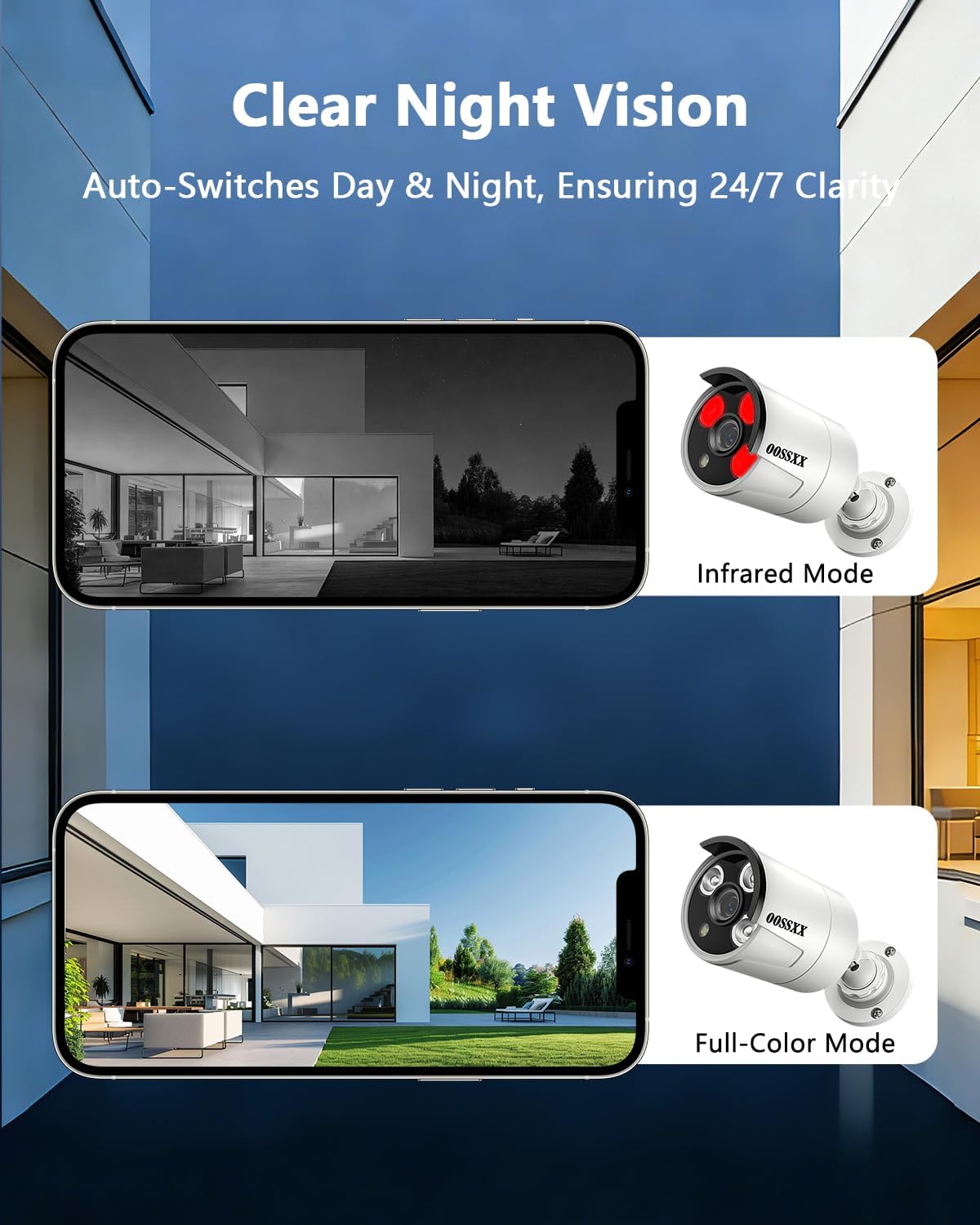
Figure 5: Clear night vision with automatic day/night switching.
4.4 Audio Monitoring
Each camera includes a built-in microphone for one-way audio monitoring:
- One-Way Audio: Listen to audio from the camera's location through the 'HonestView' app. Note that this is a one-way audio feature, allowing you to hear but not speak through the camera.
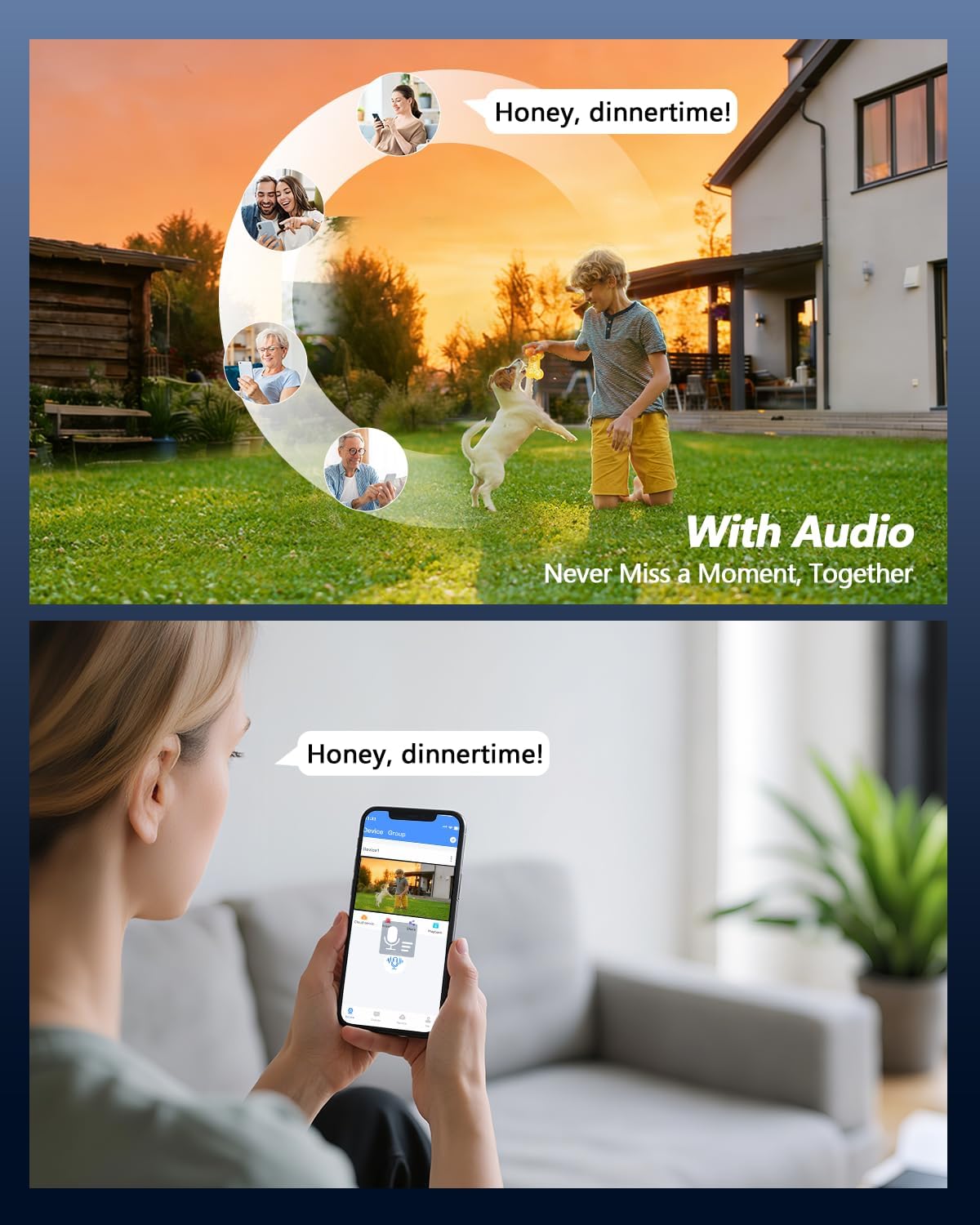
Figure 6: Audio monitoring feature for listening to your surroundings.
5. Maintenance
Regular maintenance ensures optimal performance and longevity of your security system:
- Cleaning: Periodically clean camera lenses with a soft, damp cloth to remove dust and smudges that may affect image clarity. Ensure the camera is powered off before cleaning.
- Firmware Updates: Check the OOSSXX official website or the 'HonestView' app for available firmware updates. Keeping your system updated ensures the latest features and security patches.
- Hard Drive Management: The 1TB hard drive will automatically overwrite older footage when full. If you require longer storage, consider backing up important footage or upgrading the hard drive (supports up to 2TB).
- Cable Inspection: Regularly inspect all network and power cables for any signs of wear, damage, or loose connections.
6. Troubleshooting
If you encounter issues with your OOSSXX security camera system, refer to the following common troubleshooting steps:
- No Video Feed:
- Ensure cameras are properly connected to the NVR's PoE ports.
- Verify the NVR is powered on and connected to a monitor (if applicable).
- Check network cables for damage or loose connections.
- No Remote Access:
- Confirm the NVR is connected to your internet router via the LAN cable.
- Check your router's internet connection.
- Ensure the 'HonestView' app is updated to the latest version.
- Verify that the NVR's QR code was scanned correctly during app setup.
- False Motion Alerts:
- Adjust the sensitivity settings for motion detection in the NVR or app.
- Utilize the customizable detection area feature to exclude areas prone to false triggers (e.g., moving trees, busy roads).
- Ensure AI Human Detection is enabled if you wish to filter out non-human movements.
- Poor Image Quality:
- Clean the camera lens to remove any dirt or smudges.
- Ensure the camera is securely mounted and not vibrating.
- Check for obstructions in the camera's field of view.
7. Specifications
Detailed technical specifications for the OOSSXX PoE Outdoor Security Camera System:
| Feature | Specification |
|---|---|
| Brand | OOSSXX |
| Model Name | IP Cameras System |
| Model Number | HD 2.7K 5.0MP with Audio |
| Connectivity Technology | IEEE 802.11at/af, POE, Wired |
| Special Features | 2.7K / 5Megapixel Super HD, IP67 Waterproof, One-Way Audio, Plug and play PoE System |
| Indoor/Outdoor Usage | Indoor, Outdoor |
| Compatible Devices | Smartphones, Personal Computers, Tablets, TV |
| Controller Type | APP, Remote |
| Mount Type | Wall Mount |
| Color | Plug and Play PoE System |
| Form Factor | Bullet |
| Installation Type | Screw In |
| Enclosure Material | Aluminum |
| Water Resistance Level | Waterproof (IP67) |
| Alert Type | Audio and Motion |
| Light Source | Infrared |
| Effective Still Resolution | 5 MP |
| Photo Sensor Resolution | 5 MP |
| Video Capture Resolution | 2.7K 5MP, 2592×1944 |
| Frame Rate | 15fps |
| Number of Channels | 8 |
| Video Encoding | H.265 |
| Night Vision Range | 65 Feet |
| Number of IR LEDs | 3 |
| Flash Memory Installed Size | 1 TB |
| Flash Memory Supported Size Maximum | 2 TB |
| Power Source | Corded Electric |
| Voltage | 110 Volts (AC) |
| Wattage | 30 watts |
| Viewing Angle | 75 Degrees |
| Zoom Type | Digital Zoom |
| Item Dimensions | 11 x 10 x 7 inches |
| Item Weight | 10 Pounds |
8. Warranty and Support
8.1 Warranty Information
This OOSSXX product comes with a US Location Manufacturer Warranty for 1 Year from the date of purchase. Please retain your proof of purchase for warranty claims.
8.2 Customer Support
For technical assistance, troubleshooting, or warranty inquiries, please contact OOSSXX customer support. Refer to the contact information provided in your product packaging or visit the official OOSSXX website.