
Introduction
Thank you for choosing the VBESTLIFE 56MP 4K Digital Camera. This manual provides essential information for setting up, operating, and maintaining your camera. This camera is designed to capture high-definition 4K videos and crisp 56MP photos, featuring a 16X digital zoom and a versatile 3-inch rotating touchscreen for various shooting angles.
Product Features
- Clear Quality 4K Video and 56MP Photos: Equipped with a CMOS sensor for high-definition 4K video and 56MP photos.
- Easy Selfies and Distant Shots: Features a 3-inch touchscreen that rotates 270 degrees and 16X digital zoom.
- Vibrant Colors and Rich Details: Captures 56MP static photos with accurate colors and fine details.
- Multifunctional Video Camera: Can be used as a webcam for video chatting and live streaming.
- Connectivity for Easy Sharing: Supports wireless transmission for seamless viewing, transferring, and sharing of images and videos via a dedicated application.
1. Setup
1.1 Battery Installation and Charging
Before first use, ensure the battery is fully charged. Insert the provided battery into the battery compartment located at the bottom of the camera. Connect the camera to a power source using the USB cable and charger to begin charging. The charging indicator will show the status.

Image: The VBESTLIFE 4K 56MP Digital Camera shown with its included accessories, such as the battery, charger, USB cable, lens caps, and card reader.
1.2 Memory Card Insertion
Locate the memory card slot, typically on the side or bottom of the camera. Insert a compatible SD card (not included) into the slot until it clicks into place. Ensure the card is inserted in the correct orientation to avoid damage.
2. Operating Instructions
2.1 Powering On/Off
Press and hold the power button, usually located on the top of the camera, to turn the camera on or off. The screen will illuminate upon startup.
2.2 Taking Photos
To take a photo, switch the camera to photo mode. Frame your shot using the rotating touchscreen. Press the shutter button halfway to focus, then press it fully to capture the image.

Image: A front view of the VBESTLIFE 4K 56MP Digital Camera with its rotating screen displaying a close-up of red tulips, illustrating photo capture.
2.3 Recording Videos
Switch the camera to video recording mode. Press the record button to start and stop video capture. The camera will record 4K resolution video.
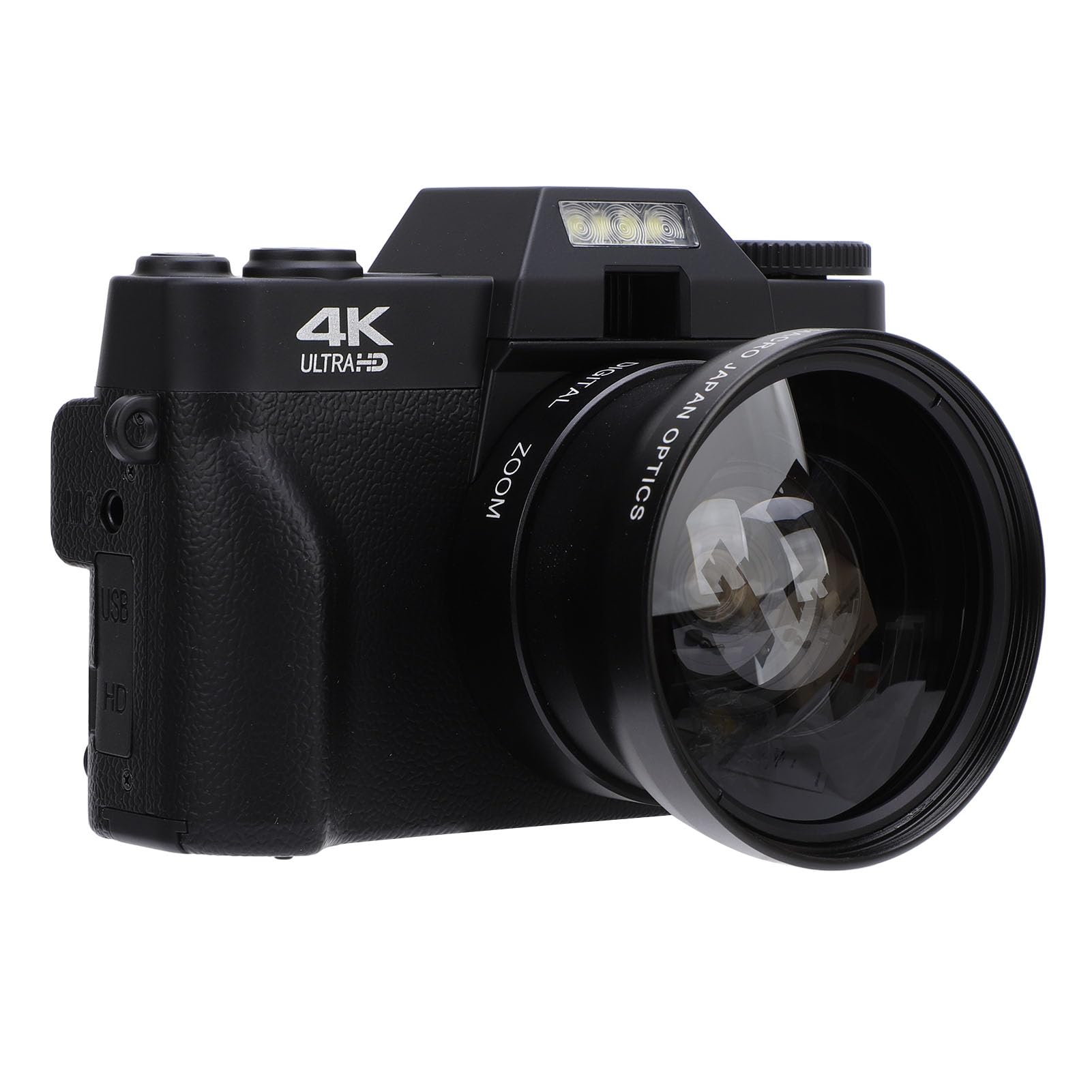
Image: The VBESTLIFE 4K 56MP Digital Camera with a wide-angle lens attached, and its rotating screen displaying a serene landscape, indicating video recording capability.
2.4 Using Digital Zoom
While in photo or video mode, use the zoom controls (often marked 'W' for Wide and 'T' for Telephoto) to adjust the 16X digital zoom. This allows for closer shots of distant subjects.
2.5 Rotating Touchscreen Operation
The 3-inch touchscreen can be rotated up to 270 degrees. Adjust the screen to face forward for selfies or vlogging, or to various angles for creative shots. The touchscreen allows for intuitive navigation of menus and settings.

Image: The VBESTLIFE 4K 56MP Digital Camera with its screen rotated to face forward, displaying a group of smiling individuals, suitable for selfies or group photos.
2.6 Connecting to a TV
To view photos and videos on a larger screen, connect the camera to a TV using an HD Multimedia Interface cable (not included). Ensure both devices are powered off before connecting, then power them on and select the correct input on your TV.
2.7 Webcam Functionality
Connect the camera to your computer via USB. Select the webcam mode on the camera (if prompted) or in your computer's settings. This allows the camera to function as a webcam for video calls and live streaming.
2.8 Wi-Fi Connectivity and App Usage
Download the dedicated application from your device's application store. Enable Wi-Fi on the camera and connect your smartphone or tablet to the camera's Wi-Fi network. This enables seamless transfer and sharing of images and videos.

Image: The VBESTLIFE 4K 56MP Digital Camera positioned next to a smartphone, with visual cues indicating wireless connectivity for data transfer.
3. Maintenance
3.1 Cleaning the Camera
Use a soft, lint-free cloth to clean the camera body. For the lens and screen, use a specialized lens cleaning cloth and solution. Avoid abrasive materials or harsh chemicals.
3.2 Battery Care
To prolong battery life, avoid extreme temperatures. Store the battery in a cool, dry place when not in use. Fully charge the battery before extended storage and periodically recharge it if stored for long periods.
3.3 Storage
When not in use, store the camera in a protective case or bag to prevent dust and scratches. Keep it away from direct sunlight, moisture, and extreme temperatures.
4. Troubleshooting
- Camera Not Turning On: Ensure the battery is fully charged and correctly inserted. Try charging the battery for at least 30 minutes.
- Memory Card Error: Check if the memory card is inserted correctly. Ensure the card is compatible and not full. Try formatting the card (this will erase all data).
- Poor Image/Video Quality: Ensure the lens is clean. Check lighting conditions. Adjust camera settings such as resolution or exposure if necessary.
- Wi-Fi Connectivity Issues: Ensure Wi-Fi is enabled on both the camera and your smart device. Restart both devices and try connecting again. Verify the correct app is installed.
5. Specifications
| Feature | Specification |
|---|---|
| Brand | VBESTLIFE |
| Model Name | VBESTLIFE4tfqzh32xd |
| Model Number | VBESTLIFE4tfqzh32xd |
| Image Stabilization | Digital |
| Manufacturer | VBESTLIFE |
| ASIN | B0DGRDPT8S |
6. Warranty and Support
For warranty information or technical support, please refer to the documentation included with your purchase or contact VBESTLIFE customer service directly. Keep your proof of purchase for any warranty claims.