
1. Product Overview
The vapourd Stream Deck Studio Controller Keyboard is a versatile control interface designed for content creators, live streamers, and professionals. It features 15 customizable LCD keys that allow for efficient control of various applications and software on both Mac and PC systems.
Key features include:
- 15 Customizable LCD Keys: Program keys to switch scenes, launch applications, trigger actions, and more. The LCD display shows the assigned function or custom icon.
- Customizable Information Display: The device can display real-time information such as weather, time, or PC hard drive temperature.
- Detachable Non-Slip Bracket: Provides an ergonomic viewing angle and stable placement.
- Wide Software Compatibility: Built-in support for popular platforms like OBS Studio (Windows 27.0+, Apple 28.0+), Twitch, YouTube, Twitter, Discord, Spotify, and Philips Hue.
- Multiple Application Scenarios: Suitable for gaming, live streaming, video editing, music creation, and office work.

Image 1.1: The vapourd Stream Deck Studio Controller Keyboard, showcasing its 15 customizable LCD keys.
2. Setup Guide
2.1 Package Contents
Before proceeding, ensure all items are present:
- vapourd Stream Deck Studio Controller Keyboard
- USB-C Connection Cable
- Removable Custom Stand
2.2 Physical Connection
- Connect one end of the provided USB-C cable to the port on the back of the Stream Deck.
- Connect the other end of the USB-C cable to an available USB port on your computer (Mac or PC).
- Optional: Attach the removable custom stand to the Stream Deck for an elevated and stable position. Ensure it snaps firmly into place.

Image 2.1: Details of the Stream Deck's physical components, including the USB-C port and detachable stand.
2.3 Software Installation
To utilize the full functionality of your Stream Deck, you must install the accompanying software.
- Visit the official vapourd support website to download the latest Stream Deck software for your operating system (Mac or PC). A direct link is usually provided in the product packaging or quick start guide.
- Run the installer. You may need administrator rights to complete the installation.
- Follow the on-screen prompts to complete the installation process.
- Once installed, launch the Stream Deck application. The device should be automatically detected.

Image 2.2: The Stream Deck software interface, demonstrating the drag-and-drop configuration.
3. Operating Instructions
3.1 Customizing LCD Keys
The Stream Deck software allows you to assign various actions to each of the 15 LCD keys.
- Open the Stream Deck application on your computer.
- The software displays a virtual representation of your Stream Deck. On the right panel, you will find a list of available actions and applications.
- Drag an action (e.g., 'Launch App', 'Switch Scene', 'Hot Key') from the right panel onto a desired key on the virtual Stream Deck.
- Once an action is assigned, configure its specific parameters in the properties panel at the bottom of the software window.
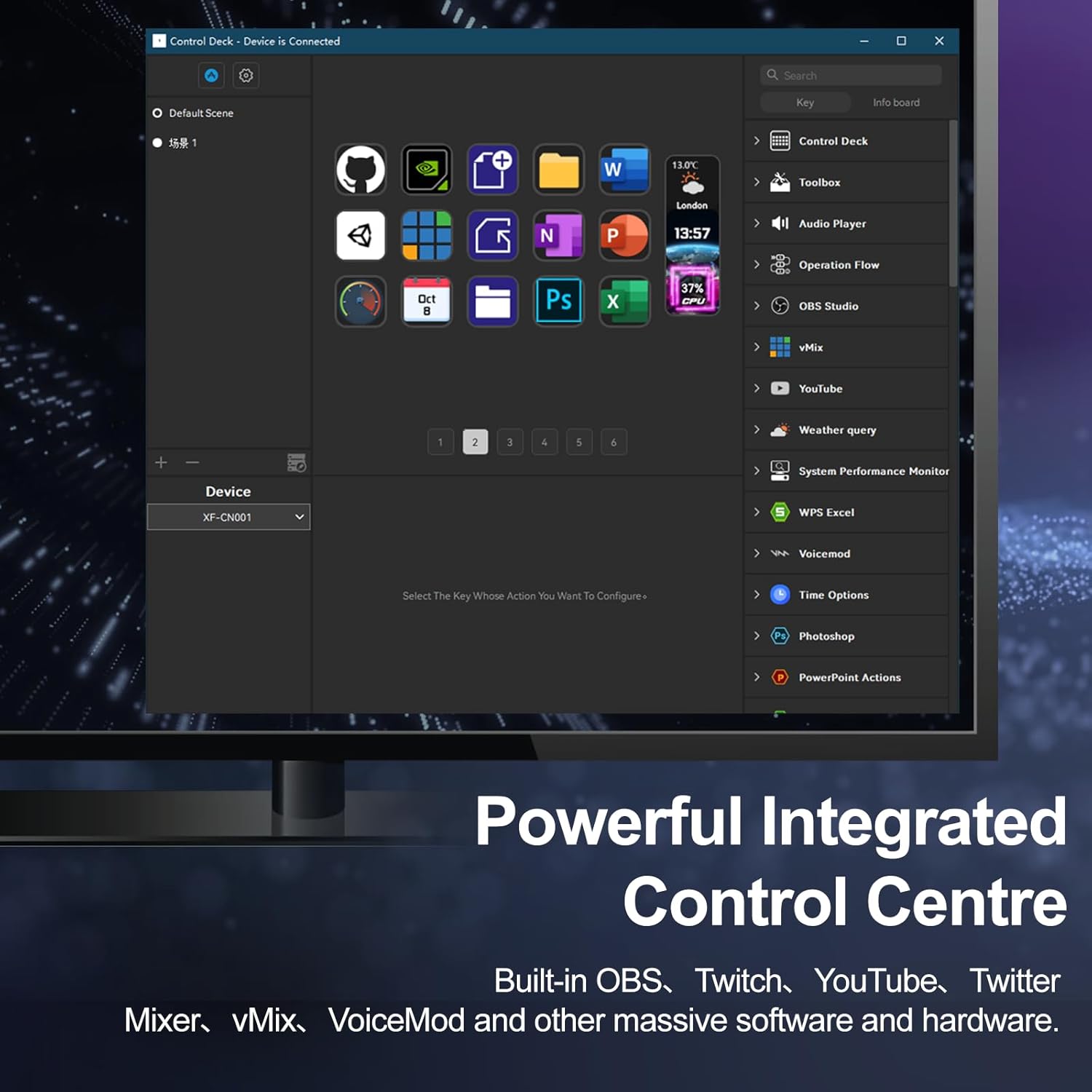
Image 3.1: The Stream Deck software acting as a powerful integrated control center.
3.2 Custom Button Icons
Personalize your Stream Deck by assigning custom icons to your keys.
- In the Stream Deck software, select a key that has an action assigned.
- In the properties panel, locate the icon customization option.
- You can choose from a library of icons or upload your own image files (e.g., JPG, PNG) to use as button icons.
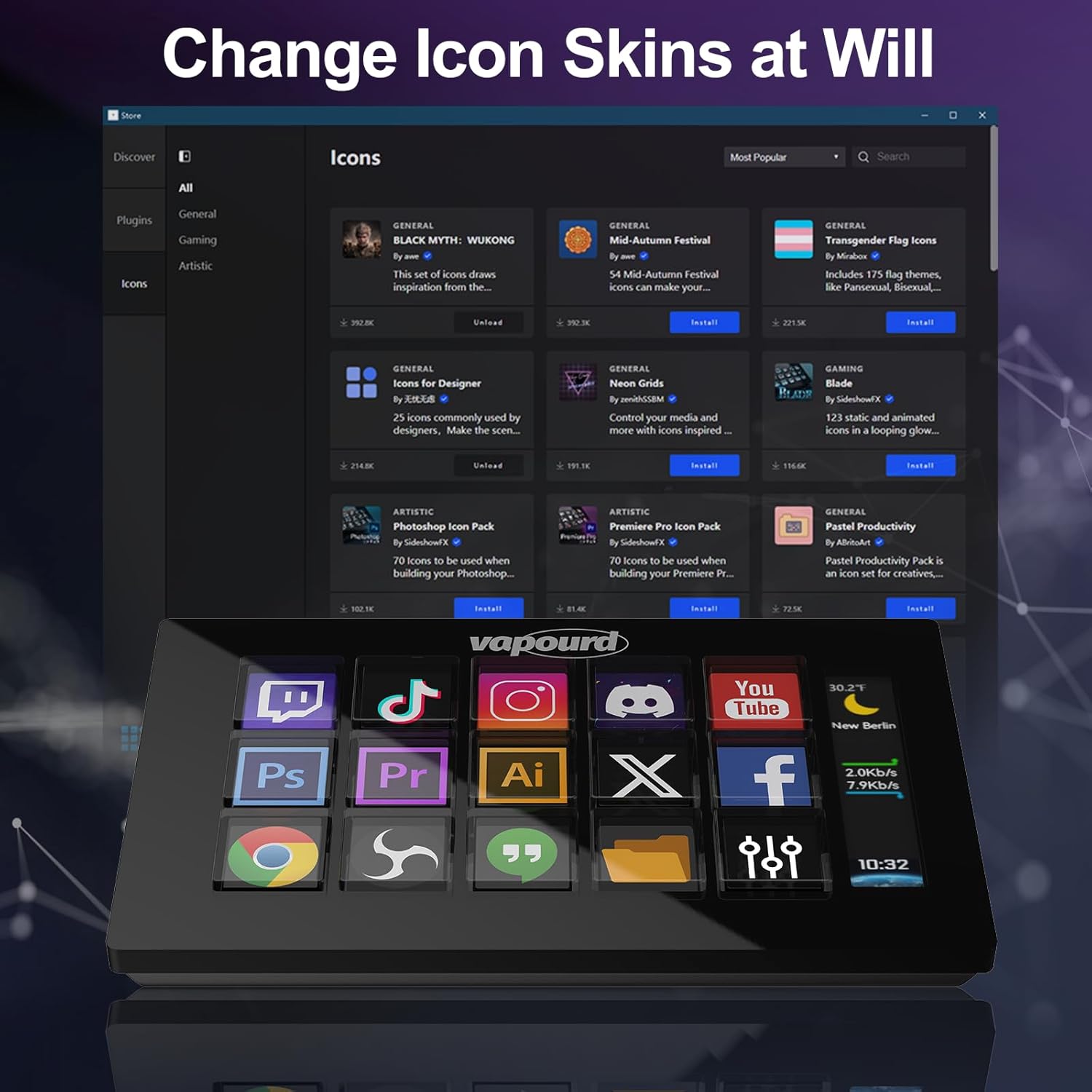
Image 3.2: Customizing button icons within the Stream Deck software.
3.3 Triggering Actions
Once keys are configured, simply press the corresponding LCD button on the Stream Deck to trigger the assigned action. A single button can be configured to perform single or multiple actions sequentially.

Image 3.3: One-button operation of the Stream Deck.
3.4 Customizable Information Display
The Stream Deck can display up to three pieces of real-time information. This feature is configured within the Stream Deck software.
- In the Stream Deck software, look for the 'Info Board' or similar section.
- Select the type of information you wish to display (e.g., weather, time, CPU temperature, network speed).
- Configure any necessary settings for the chosen information type.
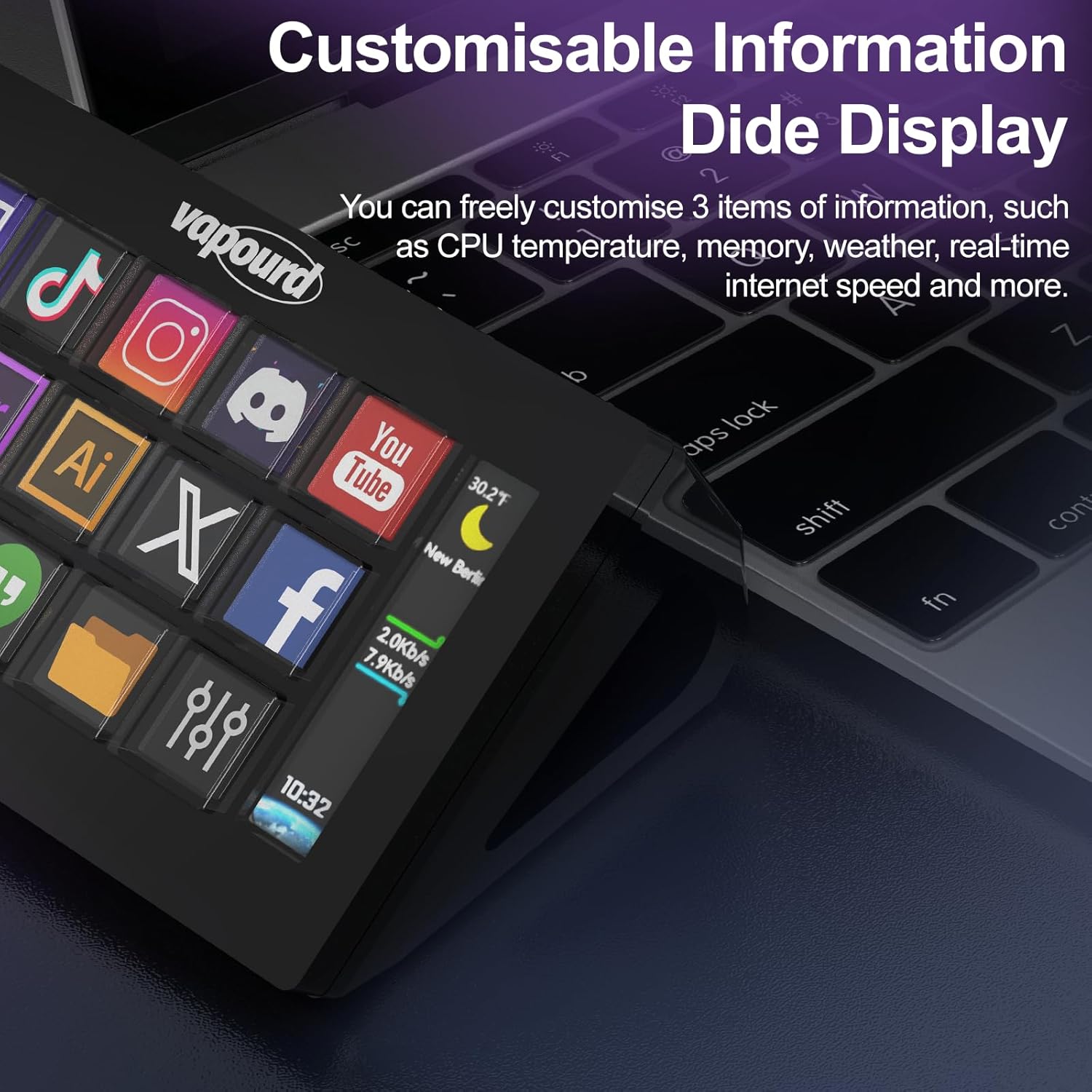
Image 3.4: The Stream Deck displaying customizable information.
4. Maintenance
To ensure the longevity and optimal performance of your vapourd Stream Deck, follow these simple maintenance guidelines:
- Cleaning: Use a soft, dry, lint-free cloth to gently wipe the surface of the device and the LCD keys. Avoid using abrasive cleaners, solvents, or aerosol sprays, as these can damage the screen and finish.
- Storage: When not in use, store the Stream Deck in a cool, dry place away from direct sunlight and extreme temperatures.
- Handling: Avoid dropping the device or exposing it to excessive force. Keep liquids away from the Stream Deck to prevent internal damage.
- Cable Care: Do not bend or crimp the USB-C cable excessively. Always grasp the connector, not the cable, when plugging or unplugging.
5. Troubleshooting
If you encounter issues with your vapourd Stream Deck, refer to the following common problems and solutions:
5.1 Device Not Detected
- Check USB Connection: Ensure the USB-C cable is securely connected to both the Stream Deck and your computer. Try a different USB port on your computer.
- Restart Software/Computer: Close and restart the Stream Deck application. If the issue persists, restart your computer.
- Try a Different Cable: If possible, test with another USB-C data cable to rule out a faulty cable.
- Admin Rights: Ensure the Stream Deck software is installed and running with necessary administrative permissions.
5.2 Software Crashes or Instability
- Update Software: Ensure you are running the latest version of the Stream Deck software. Check the official vapourd website for updates.
- System Compatibility: Verify that your operating system meets the minimum requirements for the software (e.g., OBS Studio Windows 27.0+, Apple 28.0+).
- Reinstall Software: If crashes persist, try uninstalling and then reinstalling the Stream Deck software.
- Check for Conflicts: Other background applications might conflict with the Stream Deck software. Try closing unnecessary programs.
5.3 Keys Not Responding
- Software Configuration: Double-check that actions are correctly assigned to the keys in the Stream Deck software.
- Application Focus: Ensure the target application (e.g., OBS, Twitch) is running and in focus if the action requires it.
- Profile Switching: Verify that you are on the correct profile within the Stream Deck software if you have multiple profiles configured.
6. Specifications
| Feature | Specification |
|---|---|
| Model Number | 4d7278da-d10c-4753-94f6-765c1b89660b |
| Item Weight | 10.6 ounces |
| Package Dimensions | 6.61 x 5 x 2.64 inches |
| Compatible Devices | MAC, Personal Computer |
| Number of Keyboard Keys | 15 |
| Connectivity Technology | USB |
| Special Feature | Built-In Arpeggiator, Portable |
| Number of Channels | 6 |
| Control Method | App |
| Date First Available | September 11, 2024 |
7. Warranty and Support
For warranty information and technical support, please refer to the documentation included with your product or visit the official vapourd website. You can typically find contact information for customer service and support resources there.