
1. Introduction
This manual provides detailed instructions for the installation, operation, maintenance, and troubleshooting of your NOBKLEN Portable 10.26" Wireless CarPlay & Android Auto Car Stereo. This device offers seamless smartphone integration, a high-definition touchscreen display, and includes both a 4K dash camera and a 1080P backup camera for enhanced driving safety and convenience.
Please read this manual thoroughly before using the product to ensure proper function and to maximize your user experience. Keep this manual for future reference.
2. Setup and Installation
The NOBKLEN Portable Car Stereo is designed for hassle-free installation, requiring no complex wiring or dashboard modifications. It is compatible with most cars, trucks, and SUVs.
2.1 Package Contents
- Portable 10.26" Display Unit
- Suction Cup Mount
- Power Cable (Car Charger)
- 1080P Backup Camera with Cable
- User Manual
2.2 Mounting the Display Unit
- Clean the desired mounting surface on your dashboard or windshield to ensure a secure attachment.
- Attach the suction cup mount to the display unit.
- Press the suction cup firmly onto the cleaned surface and engage the locking mechanism to secure it.
- Adjust the angle of the display unit for optimal viewing without obstructing your driving view.

Figure 2.2.1: Easy installation of the portable car stereo in different vehicle types.
2.3 Power Connection
- Connect the power cable to the display unit.
- Plug the car charger end of the power cable into your vehicle's 12V power outlet (cigarette lighter socket).
- The unit will power on automatically when the vehicle's ignition is turned on.
2.4 Backup Camera Installation (Optional)
For the 1080P backup camera functionality, professional installation is recommended for optimal wiring and placement. Connect the backup camera cable to the designated input port on the main display unit. Ensure the camera is mounted securely at the rear of your vehicle and wired to the reverse light circuit for automatic activation.

Figure 2.4.1: The included HD backup camera and its display on the unit.
3. Operating Instructions
3.1 Initial Power On and System Interface
Upon powering on, the unit will display its main interface. The 10.26-inch IPS touchscreen with 1600x600 resolution provides clear visuals and a responsive touch experience.
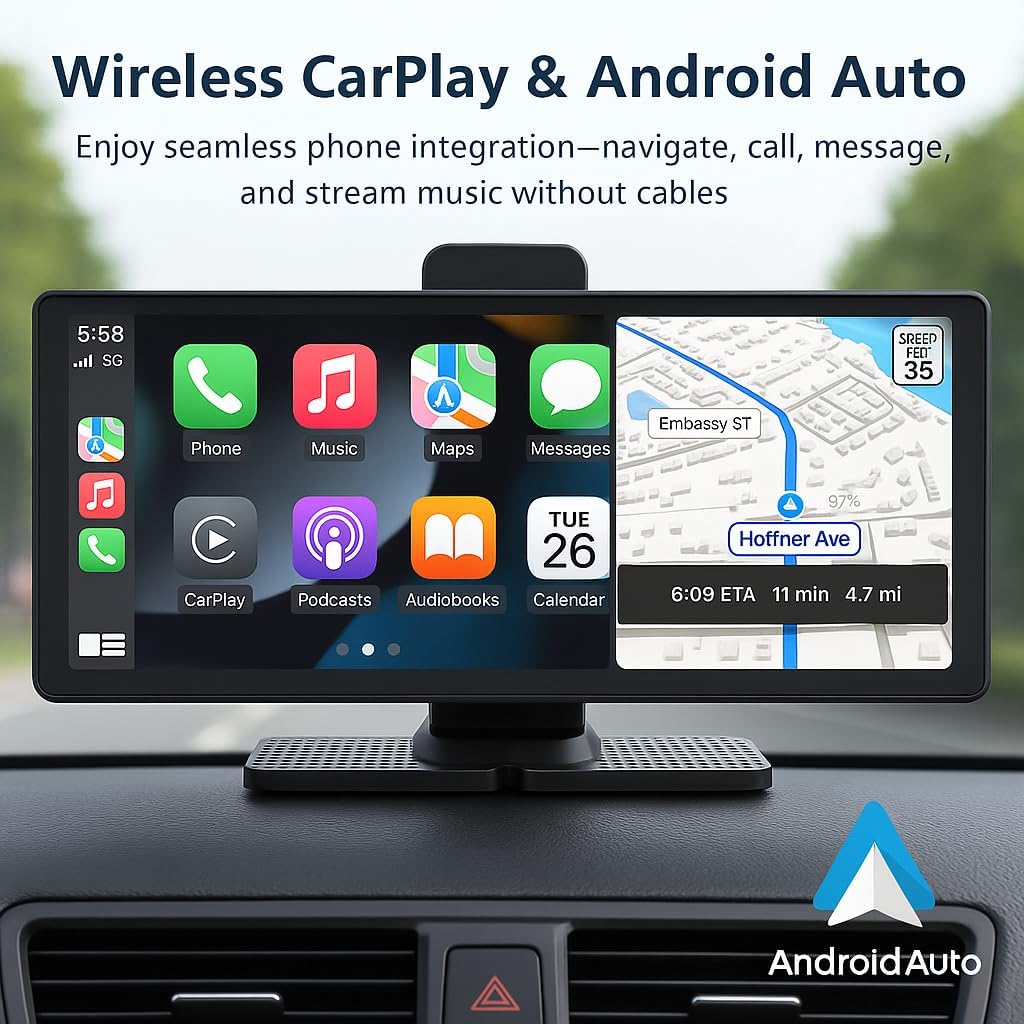
Figure 3.1.1: Main interface displaying Wireless CarPlay.
3.2 Wireless Apple CarPlay Connection
- On the portable display, select the Apple CarPlay icon.
- On your iPhone, ensure Wi-Fi and Bluetooth are enabled.
- Go to Bluetooth settings on your iPhone and connect to the device named 'NOBKLEN_XXXX'.
- Confirm the pairing request on both devices.
- Once connected via Bluetooth, a prompt will appear on your iPhone to use CarPlay. Tap 'Use CarPlay'.
- CarPlay will now be active on the portable display, allowing access to navigation, calls, messages, and music apps.

Figure 3.2.1: Steps for Wireless Apple CarPlay connection.
3.3 Wireless Android Auto Connection
- On the portable display, select the Android Auto icon.
- On your Android phone, ensure Wi-Fi and Bluetooth are enabled.
- Open the Android Auto application on your phone (if not already installed, download from Google Play Store).
- Go to Bluetooth settings on your Android phone and connect to the device named 'NOBKLEN_XXXX'.
- Confirm the pairing request on both devices.
- Android Auto will now be active on the portable display, providing access to navigation, calls, messages, and music apps.

Figure 3.3.1: Steps for Wireless Android Auto connection.
3.4 Audio Output Options
The unit supports multiple audio output methods to integrate with your vehicle's sound system:
- FM Transmitter: Tune your car's FM radio to an unused frequency, then set the portable stereo's FM transmitter to the same frequency.
- AUX Output: Connect the unit to your car's AUX input using a 3.5mm audio cable (not always included).
- Built-in Speakers: The unit has integrated speakers for direct audio output.
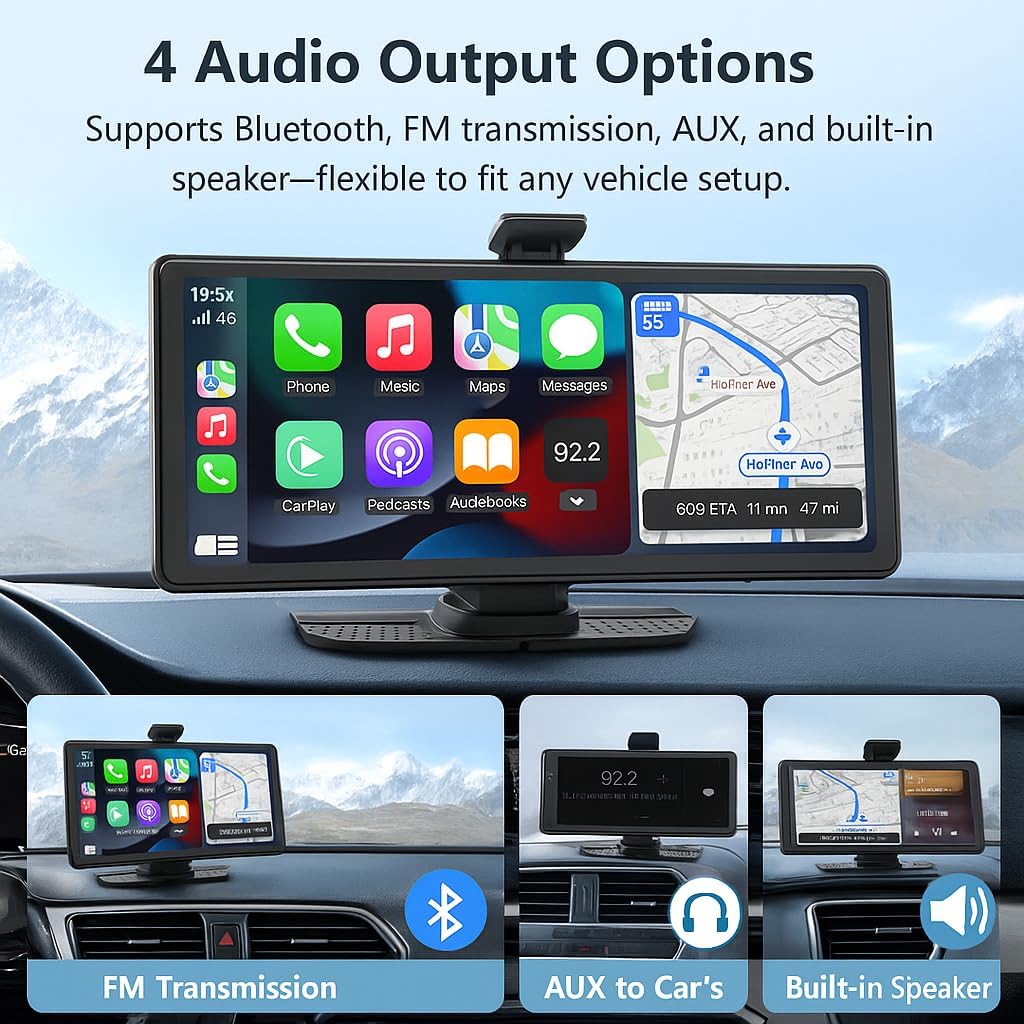
Figure 3.4.1: Available audio output options.
3.5 Voice Control and GPS Navigation
Utilize Siri or Google Assistant for hands-free control of navigation, calls, messages, and music. Simply activate your phone's voice assistant through the connected CarPlay or Android Auto interface.

Figure 3.5.1: Smart Voice Control and GPS Navigation features.

Figure 3.5.2: Voice control for various applications.
3.6 Screen Mirroring
The unit supports wireless screen mirroring, allowing you to display your phone's content directly on the 10.26" HD screen. This feature is useful for viewing videos, photos, or other applications not natively supported by CarPlay or Android Auto.

Figure 3.6.1: Wireless HD Mirror Link in action.

Figure 3.6.2: High-definition screen mirroring.
3.7 Dash Camera Operation
The integrated 4K dash camera continuously records your front view. Recordings are stored on a microSD card (not included or sold separately). Ensure a compatible microSD card is inserted for recording functionality. The camera features a swivel mechanism for directional adjustment.

Figure 3.7.1: Front 4K Ultra HD dash camera view.
3.8 Backup Camera Operation
When the vehicle is shifted into reverse (and the backup camera is correctly wired), the display will automatically switch to the 1080P rear view, providing a wide-angle view with parking guidelines for safer maneuvering.

Figure 3.8.1: 1080P rear lens for safer driving.
4. Maintenance
4.1 Cleaning the Display Unit
- Use a soft, lint-free cloth to gently wipe the screen and exterior of the unit.
- For stubborn smudges, slightly dampen the cloth with water or a screen-safe cleaning solution. Avoid harsh chemicals or abrasive materials.
- Ensure the unit is powered off before cleaning.
4.2 Mount and Cable Care
- Periodically check the suction cup mount for secure attachment. Re-apply if necessary.
- Avoid exposing the mount to extreme heat for prolonged periods, as this may affect its adhesion.
- Ensure all cables are routed safely and are not pinched or exposed to excessive wear.
4.3 MicroSD Card Management
- Regularly back up important dash cam recordings from the microSD card to another storage device.
- Format the microSD card periodically (e.g., monthly) within the unit's settings to maintain optimal recording performance and prevent data corruption.
- Replace the microSD card if you notice frequent errors or degraded performance.
5. Troubleshooting
If you encounter issues with your NOBKLEN Portable Car Stereo, please refer to the following common problems and solutions:
| Problem | Possible Cause | Solution |
|---|---|---|
| Unit does not power on. | No power from 12V outlet; loose connection. | Check if the car charger is securely plugged into the 12V outlet. Ensure the vehicle's ignition is on. Test the 12V outlet with another device. |
| Cannot connect to Wireless CarPlay/Android Auto. | Bluetooth/Wi-Fi off on phone; incorrect pairing; phone not compatible. | Ensure Bluetooth and Wi-Fi are enabled on your smartphone. Forget the device in your phone's Bluetooth settings and re-pair. Confirm your phone supports wireless CarPlay/Android Auto. |
| No audio or poor audio quality. | Incorrect audio output setting; low volume; loose AUX cable; FM interference. | Check the audio output setting (FM, AUX, Built-in Speaker) on the unit. Adjust volume on both the unit and your car stereo. Ensure AUX cable is fully inserted. If using FM, try a different frequency. |
| Backup camera not displaying. | Camera cable loose; incorrect wiring; camera malfunction. | Check the connection of the backup camera cable to the main unit. Verify the camera is correctly wired to the vehicle's reverse light circuit. |
| Mount sags or loses adhesion. | Surface not clean; extreme heat; worn suction cup. | Clean the mounting surface thoroughly. Avoid prolonged exposure to direct sunlight and extreme heat. If the suction cup is worn, consider replacing the mount. |
| Dash cam recordings are not saving or are corrupted. | No microSD card; full card; faulty card; incorrect format. | Ensure a microSD card is inserted. Check if the card is full and delete old files or format the card. Try a different, high-quality microSD card. |
If the problem persists after trying these solutions, please contact NOBKLEN customer support for further assistance.
6. Specifications
| Feature | Detail |
|---|---|
| Model Number | RM-B0DGN7HCPZ |
| Display Size | 10.26 inches |
| Display Type | IPS Touchscreen |
| Display Resolution | 1600 x 600 |
| Front Camera Resolution | 4K Ultra HD |
| Rear Camera Resolution | 1080P Full HD |
| Connectivity Technology | Bluetooth, USB, Wi-Fi |
| Controller Type | Touchscreen, Voice Control |
| Special Features | Wireless Apple CarPlay, Wireless Android Auto, Voice Control, GPS Navigation, Mirror Link |
| Compatible Devices | Car, Truck, RV, Taxi, Smartphone, Tablet |
| Connector Type | 3.5mm Jack, HDMI, RCA, USB |
| Audio Output Mode | Stereo, Surround, Mono |
| Video Encoding | H.264, H.265/HEVC, MPEG-4 |
| Item Weight | 2.18 pounds |
| Package Dimensions | 10.2 x 4.88 x 4.37 inches |
7. Warranty and Support
7.1 Product Warranty
NOBKLEN products are covered by a limited warranty against manufacturing defects. Please refer to the warranty card included with your purchase or visit the official NOBKLEN website for specific warranty terms and conditions. Keep your proof of purchase for warranty claims.
7.2 Customer Support
For technical assistance, troubleshooting beyond this manual, or warranty inquiries, please contact NOBKLEN customer support. Contact information can typically be found on the product packaging, the official NOBKLEN website, or through your retailer.
When contacting support, please have your product model number (RM-B0DGN7HCPZ) and purchase date readily available.