
Introduction
This manual provides detailed instructions for setting up, operating, maintaining, and troubleshooting your HP Envy 6120e 714L8B All-in-One Printer. Please read this manual carefully to ensure proper use and to maximize the performance and longevity of your device.
1. Setup
1.1 Unboxing and Initial Inspection
Carefully remove all components from the packaging. Ensure all items listed below are present and undamaged. Retain packaging for future transport or service needs.
- HP Envy 6120e All-in-One Printer
- Original HP Ink Cartridges
- AC Power Cable
- Setup Guide / Reference Guide

Image: Contents of HP Envy 6120e printer box. This image displays all the items included in the HP Envy 6120e printer package, ensuring users know what to expect upon unboxing.
1.2 Power Connection
- Place the printer on a stable, flat surface.
- Connect the power cable to the rear of the printer and then to a wall outlet.
- Press the Power button to turn on the printer.
1.3 Ink Cartridge Installation
Use only original HP ink cartridges for optimal performance and to ensure printer functionality. This printer includes dynamic security measures to prevent the use of non-HP cartridges.
- Open the ink cartridge access door.
- Wait for the carriage to move to the center.
- Unpack the new HP ink cartridges.
- Insert the cartridges into their respective slots (black and tri-color) until they click into place.
- Close the ink cartridge access door.
1.4 Software Installation and Connectivity
The HP Smart app is required for full functionality and continuous internet connection is necessary for HP+ features.
- Download the HP Smart app on your PC, smartphone, or tablet.
- Follow the on-screen instructions in the HP Smart app to connect your printer to your Wi-Fi network (Dual Band Wi-Fi supported).
- The app will guide you through the remaining setup steps, including HP+ activation and Instant Ink enrollment if applicable.

Image: HP Envy 6120e All-in-One Printer with Instant Ink promotion. This image shows the HP Envy 6120e printer, highlighting its compact design and the Instant Ink program.
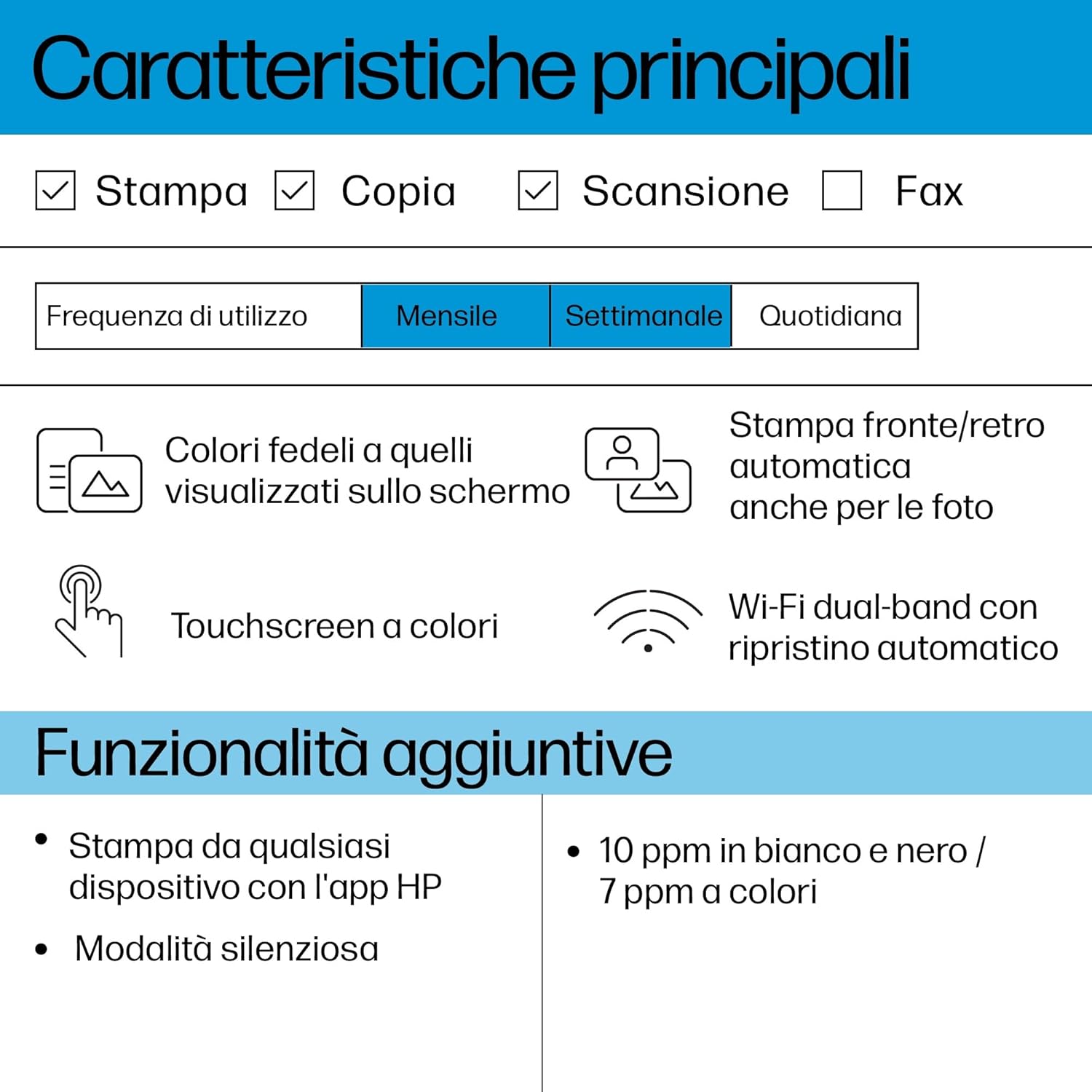
Image: Simplified printing experience with HP Envy 6120e and smartphone. This image demonstrates the ease of printing from a smartphone to the HP Envy 6120e, highlighting the simplified user experience.
2. Operating the Printer
2.1 Printer Overview and Controls
The HP Envy 6120e features an intuitive color touchscreen for easy navigation and control of printing, copying, and scanning functions.
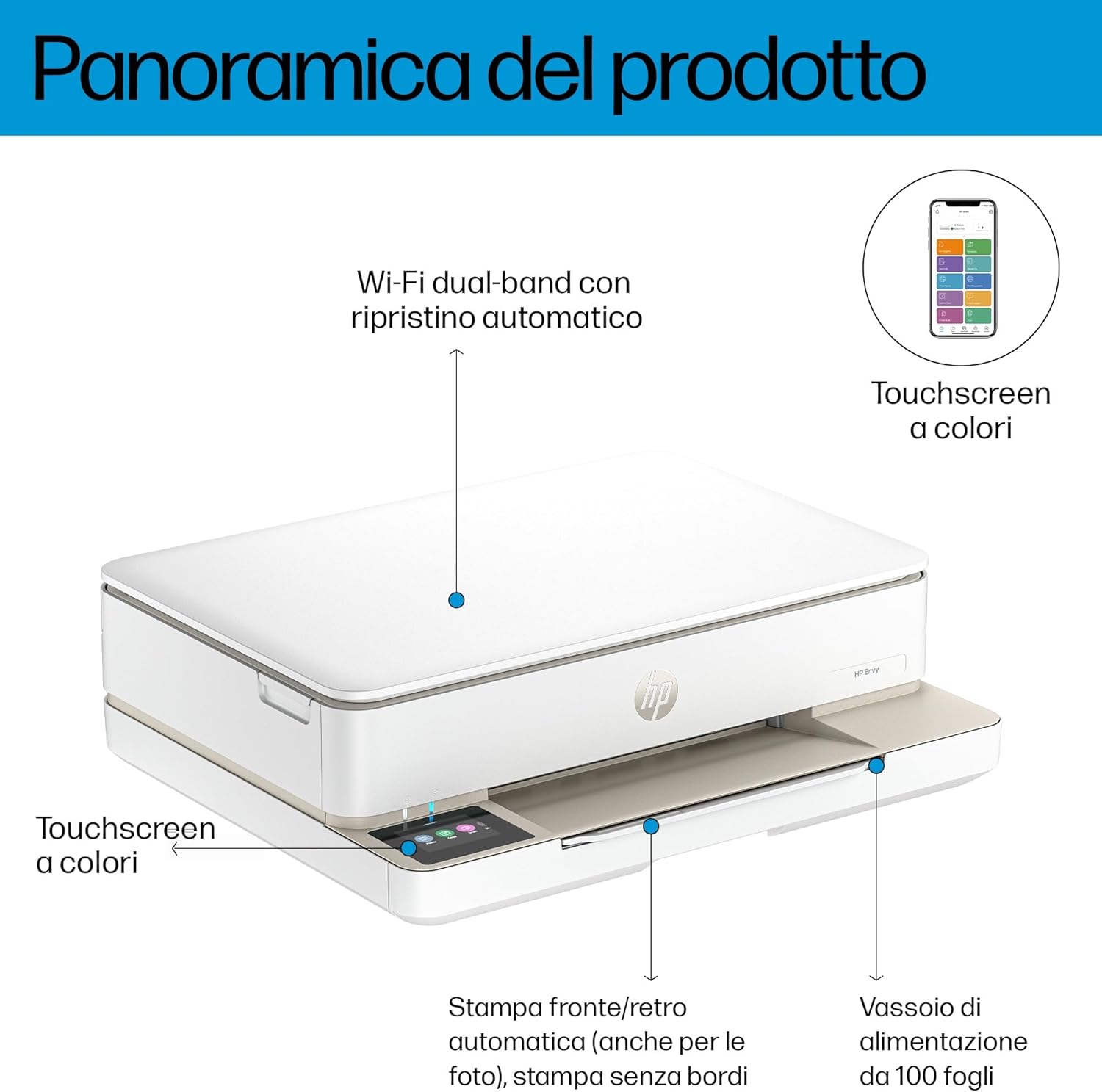
Image: HP Envy 6120e printer product overview with labeled features. This image provides a comprehensive overview of the HP Envy 6120e printer, pointing out its main components and functionalities like dual-band Wi-Fi, color touchscreen, automatic duplex printing, and the paper input tray.

Image: HP Envy 6120e printer color touchscreen. A detailed view of the intuitive color touchscreen on the HP Envy 6120e, showing various function icons for easy navigation.
2.2 Printing
The printer supports various paper types and sizes, including A4, A5, A6, envelopes, and photo paper. It offers automatic duplex printing for convenience.
- Print Speed: Up to 10 ppm (pages per minute) in black/white, 7 ppm in color.
- Print Resolution: Up to 4800 x 1200 dpi (color), 1200 x 1200 dpi (black).
- Duplex Printing: Automatic two-sided printing is supported.
- Paper Loading: Load paper into the 100-sheet input tray.
2.3 Copying
Use the color touchscreen to access copying functions. You can adjust settings such as number of copies and copy quality.
- Copy Speed (Black): Up to 8 ppm.
- Max Copies: Up to 99 copies per execution.
2.4 Scanning
The printer features a flatbed scanner for scanning documents and photos. Scanned files can be saved to your connected device via the HP Smart app.
- Scanner Type: Flatbed.
- Color Depth: 24-bit.
2.5 Connectivity
The HP Envy 6120e offers versatile connectivity options for seamless integration with your devices.
- Wireless: Dual Band Wi-Fi with auto-reset, Wi-Fi Direct.
- Mobile Printing: HP Smart app, Apple AirPrint, Mopria.
- USB: 1 USB 2.0 port (USB cable not included).

Image: HP Envy 6120e key features infographic. An infographic summarizing the primary features of the HP Envy 6120e printer, including its print, copy, and scan capabilities, Wi-Fi connectivity, and print speeds.
3. Maintenance
3.1 Ink Cartridge Replacement
When ink levels are low, the printer will notify you. Replace cartridges promptly to maintain print quality. Consider enrolling in HP Instant Ink for automatic cartridge delivery.
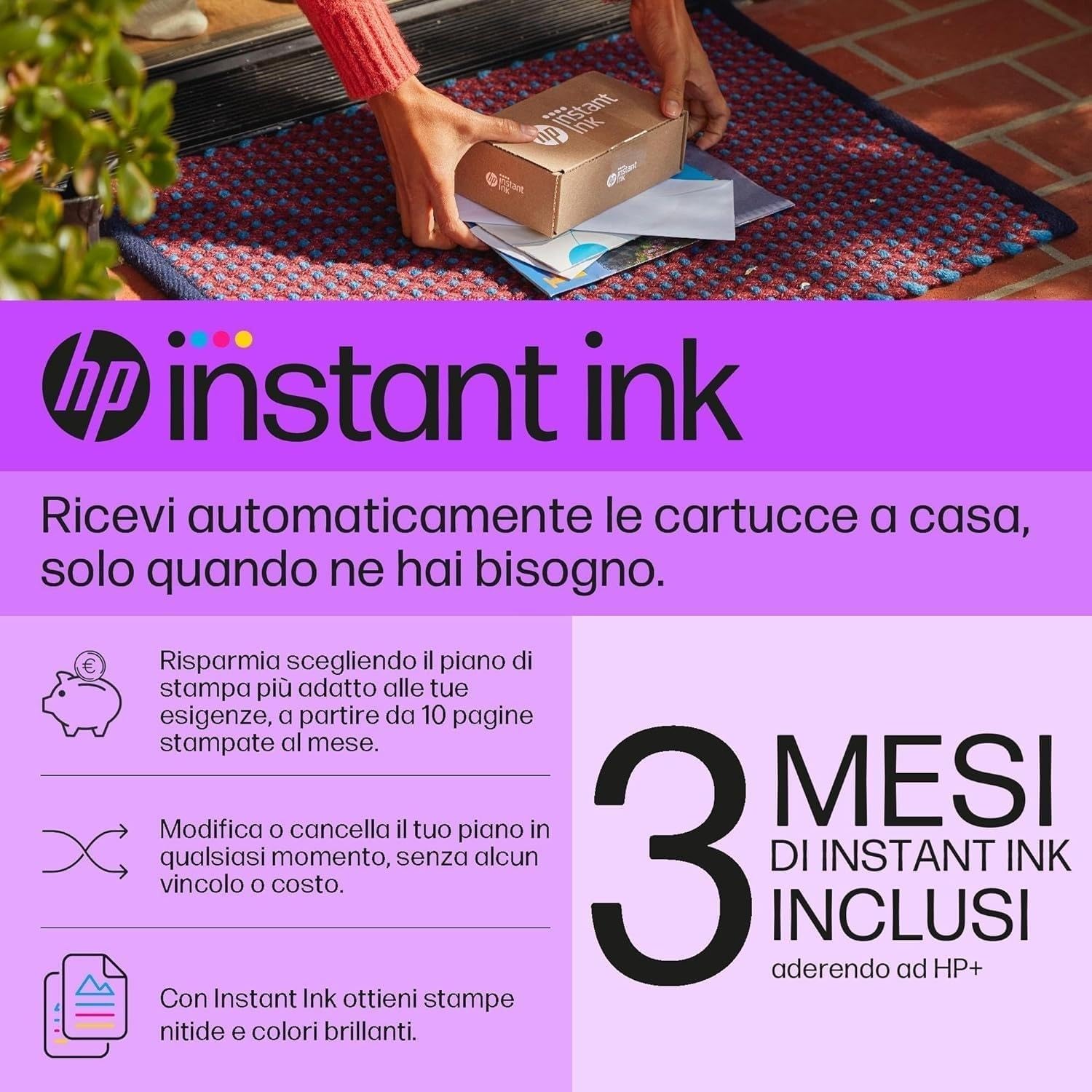
Image: HP Instant Ink box being delivered. This image illustrates the HP Instant Ink service, where cartridges are delivered automatically to your home.
Compatible cartridges for HP Envy 6120e 714L8B:
- HP 308 Black
- HP 308 Tri-color
- HP 308e EvoMore Black
- HP 308 Multipack Black/Tri-color
3.2 Cleaning the Printer
Regular cleaning helps maintain print quality and extends the life of your printer.
- Exterior: Wipe the exterior surfaces with a soft, damp, lint-free cloth.
- Scanner Glass: Clean the scanner glass with a soft cloth and glass cleaner (non-abrasive).
- Printhead Cleaning: If print quality issues arise (streaks, faded colors), perform a printhead cleaning cycle through the printer's control panel or HP Smart app.
3.3 Paper Handling
Always use recommended paper types and ensure paper is loaded correctly to prevent jams.
- Use paper with a weight between 60 to 90 g/m².
- Fan the paper stack before loading to prevent multiple sheets from feeding at once.
4. Troubleshooting
4.1 Common Issues and Solutions
- Printer Not Responding: Check power connections, ensure printer is on, and verify Wi-Fi connectivity. Restart both printer and computer/device.
- Print Quality Issues: Perform printhead cleaning, check ink levels, and ensure you are using original HP cartridges.
- Paper Jams: Follow the printer's on-screen instructions or refer to the HP support website for specific paper jam clearance procedures. Always remove jammed paper carefully to avoid tearing.
- Connectivity Problems: Ensure your Wi-Fi network is stable. If using Wi-Fi Direct, ensure your device is connected directly to the printer's Wi-Fi signal.
4.2 Error Messages
Refer to the HP Smart app or the printer's touchscreen for specific error codes and recommended actions. Many issues can be resolved by following the on-screen prompts.
4.3 Non-Original Cartridge Warning
This printer contains firmware designed to prevent the use of non-HP cartridges with non-HP chips or electronic circuitry. Cartridges using non-HP chips may not function or may cease to function.
5. Specifications
| Feature | Detail |
|---|---|
| Product Dimensions (D x W x H) | 36.1 x 43.3 x 13.6 cm |
| Weight | 5.13 Kilograms |
| Maximum Paper Size Supported | A4 (210 x 297 mm) |
| Print Technology | Thermal Inkjet |
| Print Speed (Black) | Up to 10 ppm |
| Print Speed (Color) | Up to 7 ppm |
| Print Resolution (Color) | Up to 4800 x 1200 dpi |
| Print Resolution (Black) | Up to 1200 x 1200 dpi |
| Duplex Printing | Automatic (Yes) |
| Scanner Type | Flatbed |
| Maximum Sheet Input Capacity | 100 sheets |
| Connectivity | Wi-Fi (Dual Band), USB 2.0 |
| Compatible Devices | Desktop, Smartphone |
| Display Size | 2.4 Inches |

Image: HP Envy 6120e printer with dimensions. This image provides a visual representation of the HP Envy 6120e printer's physical dimensions, including depth, width, and height.
6. Warranty & Support
6.1 Warranty Information
The HP Envy 6120e 714L8B printer comes with a standard warranty. Additionally, with HP+, you receive a 1-year supplementary warranty, extending your coverage.
6.2 Customer Support
For further assistance, troubleshooting, or to access additional resources, please utilize the following support channels:
- HP Smart App: The HP Smart app provides guided troubleshooting, access to printer settings, and direct links to support.
- HP Support Website: Visit the official HP support website for comprehensive documentation, drivers, and contact options.