
LG 34WR50QK-B.AEU
LG UltraWide™ Monitor User Manual
Model: 34WR50QK-B
1. Introduction
This manual provides essential information for the setup, operation, and maintenance of your LG UltraWide™ Monitor, model 34WR50QK-B. This 34-inch curved Wide Quad HD monitor is designed to enhance productivity and entertainment with its expansive display and advanced features.

Figure 1.1: LG UltraWide 34WR50QK-B Monitor (Front View)
The image displays the LG UltraWide 34WR50QK-B monitor from the front, highlighting its curved 34-inch display. The screen shows a multi-window setup, including a video conference, charts, and a messaging application, demonstrating its multitasking capabilities. Key features like "WQHD 3440 x 1440", "HDR10", "sRGB 99% (Typ.)", and "100Hz" are overlaid on the screen.
1.1 What's in the Box
Please check that all components are present before proceeding with the setup:
- 1 x LG UltraWide™ Monitor (34WR50QK-B)
- 1 x Power Cable
- 1 x HDMI Cable
2. Setup
2.1 Assembling the Stand
Carefully remove the monitor and stand components from the packaging. Attach the stand base to the stand neck, then secure the assembled stand to the back of the monitor. Ensure all connections are firm.

Figure 2.1: Ergonomic Design and Stand Assembly
This image illustrates the ergonomic features of the monitor, including its 3-sided borderless design, adjustable tilt functionality, and a simple one-click stand attachment mechanism. The tilt adjustment allows users to position the screen for optimal viewing comfort.
2.2 Connecting to Your Device
Connect the monitor to your computer or other devices using the provided HDMI cable or a DisplayPort cable (not included). Ensure the power cable is securely connected to the monitor and a power outlet.

Figure 2.2: Rear Ports and Connections
The image shows the back of the LG UltraWide 34WR50QK-B monitor, detailing the available input ports. These include two HDMI ports, one DisplayPort, and USB ports for peripheral connections, along with the power input.
2.3 Powering On
Press the power button located on the bottom center of the monitor to turn it on. The monitor will automatically detect the input signal.
3. Operating Your Monitor
3.1 UltraWide Display and Multitasking
The 34-inch curved UltraWide display with QHD resolution (3440x1440, 21:9 format) provides an expansive workspace, ideal for multitasking. You can comfortably view multiple applications side-by-side without the need to constantly switch windows.
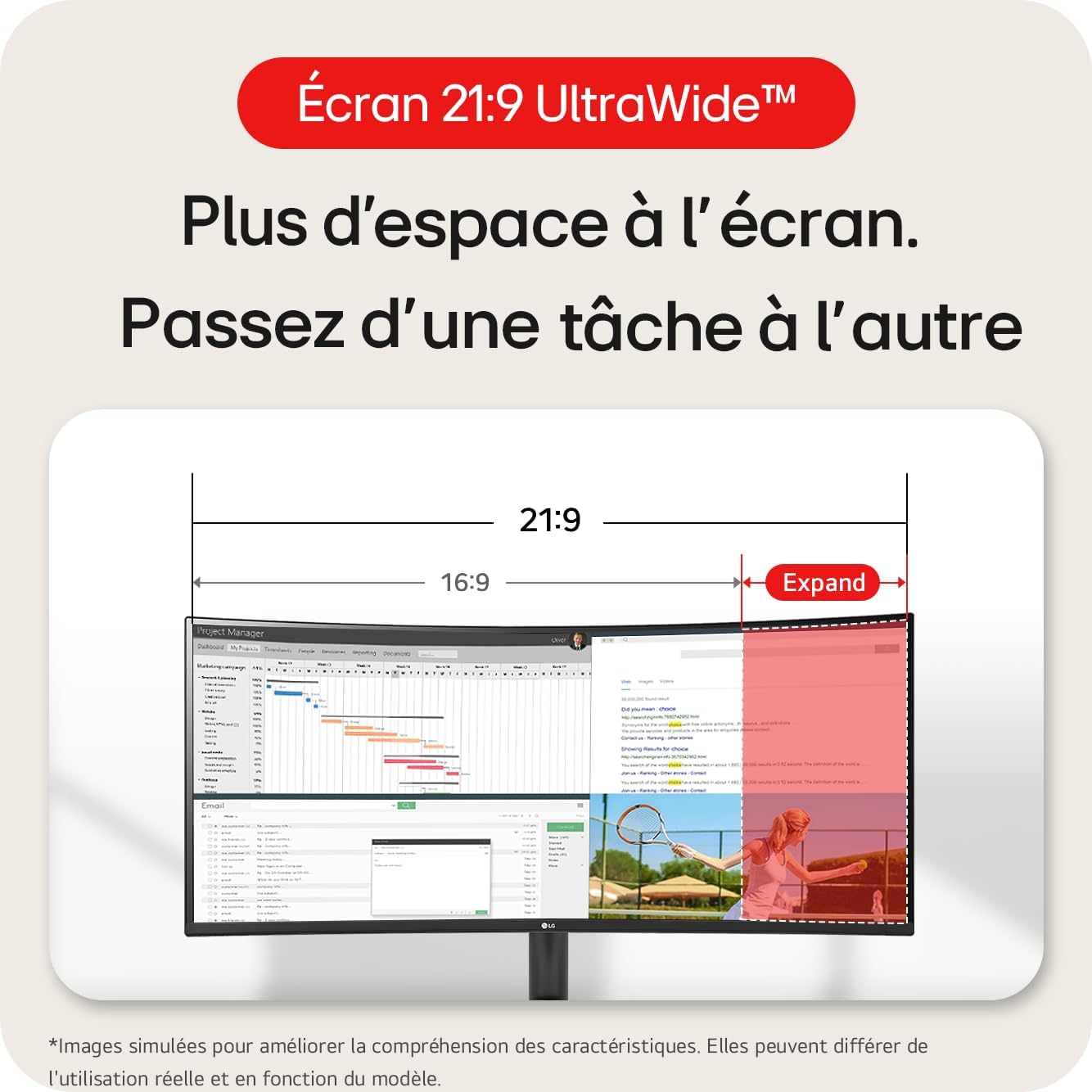
Figure 3.1: UltraWide Screen Advantage
This diagram visually compares a standard 16:9 screen with the 21:9 UltraWide screen, demonstrating the significantly increased horizontal workspace available on the UltraWide monitor. It shows how more content, such as multiple application windows, can be displayed simultaneously.
3.2 HDR10 and Color Accuracy
This monitor supports HDR10 (High Dynamic Range) and covers 99% of the sRGB color space. This ensures vibrant colors, deep blacks, and bright whites, providing a more immersive and accurate visual experience for content creation and consumption.

Figure 3.2: HDR10 and sRGB Color Performance
The image displays a landscape with rich, vibrant colors, illustrating the enhanced visual quality provided by HDR10 and 99% sRGB color coverage. This feature ensures accurate and striking color reproduction for various types of content.
3.3 Eye Comfort Features
The monitor includes Flicker Safe and Reader Mode to reduce eye strain during prolonged use. Flicker Safe minimizes screen flicker, while Reader Mode adjusts color temperature and luminance to simulate paper, making reading more comfortable.

Figure 3.3: Eye Comfort Modes
This image presents two visual examples: one showing how Reader Mode softens the screen's appearance for comfortable reading, and another demonstrating how Flicker Safe eliminates screen flickering to reduce eye fatigue. These features are designed to protect user's eyes during extended viewing.
3.4 Picture-by-Picture (PBP) and Dual Controller
The monitor supports Picture-by-Picture (PBP), allowing you to display content from two different input sources simultaneously on the same screen. With Dual Controller software, you can control both connected computers with a single keyboard and mouse, enhancing workflow efficiency.

Figure 3.4: Picture-by-Picture (PBP) Setup
This diagram illustrates the Picture-by-Picture (PBP) feature, showing a laptop connected via HDMI and a desktop computer connected via DisplayPort, both simultaneously displaying their content on the single UltraWide monitor. This setup allows for seamless multi-device operation.
3.5 LG Switch App
Utilize the LG Switch App for seamless navigation and enhanced productivity features. This application provides tools for managing virtual desktops, intelligent screen splitting, calendar management, and launching video calls, optimizing your workspace.

Figure 3.5: LG Switch App Interface
The image displays various functionalities of the LG Switch App, including options for virtual backgrounds, intelligent screen splitting layouts, calendar management, and quick access to video conferencing tools. These features are designed to streamline workflow and enhance user experience.
4. Maintenance
4.1 Cleaning the Monitor
To clean the screen, gently wipe it with a soft, lint-free cloth. For stubborn marks, dampen the cloth slightly with water or a non-abrasive, monitor-safe cleaning solution. Avoid spraying liquid directly onto the screen.
4.2 General Care
Keep the monitor away from direct sunlight, excessive heat, and humidity. Ensure proper ventilation around the monitor to prevent overheating. Do not place heavy objects on the monitor or its cables.
5. Troubleshooting
| Problem | Possible Cause | Solution |
|---|---|---|
| No image on screen | Power cable disconnected; Input cable disconnected; Incorrect input source selected. | Check power and input cable connections. Press the joystick button to open the OSD menu and select the correct input source. |
| Screen is blank or black | Monitor is in power-saving mode; Computer is in sleep mode. | Move the mouse or press a key on the keyboard to wake the computer. Press the power button on the monitor. |
| Image is blurry or distorted | Incorrect resolution setting; Cable connection issues. | Set the display resolution to 3440 x 1440. Reconnect the input cable securely. |
| No sound | Volume too low or muted; Incorrect audio output device selected. | Adjust monitor volume. Check audio settings on your computer to ensure the monitor is selected as the output device. |
6. Specifications
| Feature | Detail |
|---|---|
| Brand | LG |
| Model Number | 34WR50QK-B.AEU |
| Screen Size | 34 Inches |
| Resolution | 3440 x 1440 Pixels (QHD Wide 1440p) |
| Aspect Ratio | 21:9 |
| Refresh Rate | 100Hz |
| Image Brightness | 300 cd/m² |
| Color Gamut | sRGB 99% (Typ.) |
| HDR Support | HDR10 |
| Total USB Ports | 4 |
| Product Dimensions (L x W x H) | 8.79 x 31.85 x 19.03 inches |
| Item Weight | 12.98 pounds |
| Manufacturer | LG |
| First Available Date | January 24, 2025 |
6.1 Energy Efficiency Information

Figure 6.1: EU Energy Label
This image displays the EU Energy Label for the LG 34WR50QK monitor, indicating an energy efficiency class of E and a power consumption of 26 kWh per 1000 hours in standard dynamic range (SDR) mode, and 43 kWh per 1000 hours in high dynamic range (HDR) mode. It also shows the screen size and resolution.
For detailed product information and energy efficiency data, please refer to the official EPREL database: https://eprel.ec.europa.eu/qr/2033455
7. Warranty & Support
7.1 Warranty Information
LG provides a standard manufacturer's warranty for this product. The specific terms and duration of the warranty may vary by region. Please retain your proof of purchase for warranty claims.
7.2 Customer Support
For technical assistance, troubleshooting, or service requests, please visit the official LG support website or contact LG customer service in your region. Contact information can typically be found on the LG website or in the documentation included with your product.
You can also visit the LG Store on Amazon for more information: LG Store
Ask a question about this manual
Ask about setup, troubleshooting, compatibility, parts, safety, or missing instructions. Manuals+ will review the question and use this page’s manual context to help answer it.