
Introduction
This manual provides comprehensive instructions for the setup, operation, maintenance, and troubleshooting of your BASEKAMP EVO Compact 61 Mechanical Gaming Keyboard. Please read this manual thoroughly to ensure proper use and to maximize your keyboard's performance.
Package Contents
- BASEKAMP EVO Compact 61 Mechanical Gaming Keyboard
- USB-C to USB-A Cable
- Additional WASD Keycaps (Orange)
- User Manual
Setup
- Connect the Keyboard: Locate the USB-C port on the back of the keyboard. Insert the smaller end of the provided USB-C cable into this port.
- Connect to Computer: Insert the larger USB-A end of the cable into an available USB port on your PC.
- Driver Installation: The keyboard is plug-and-play. Your operating system (PC) should automatically detect and install the necessary drivers. No additional software is required for basic functionality.

Operating Instructions
Keyboard Layout and Function Keys
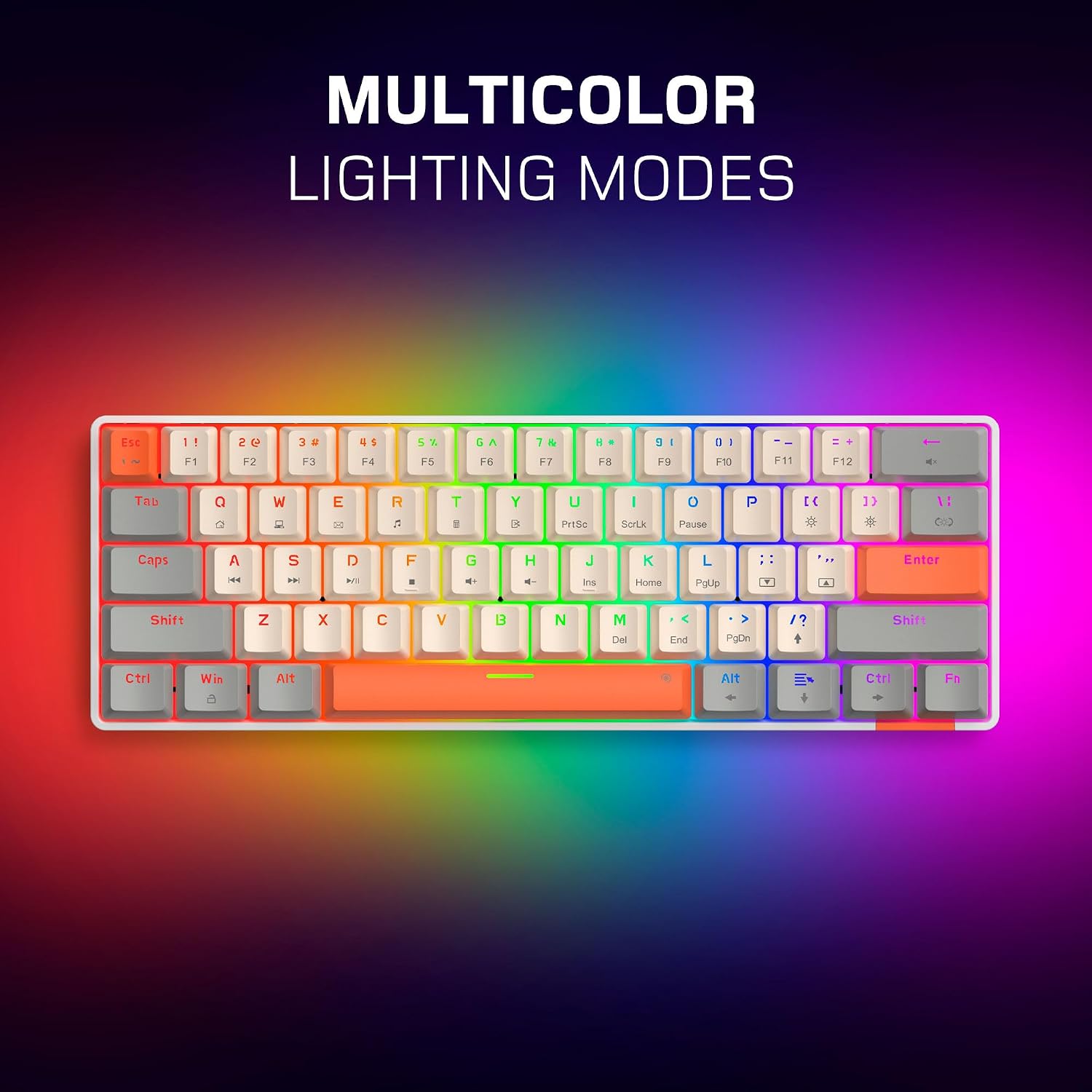
The EVO Compact 61 features a 61-key layout, which optimizes desk space. Many standard functions are accessed via the Fn (Function) key in combination with other keys.
- F-Keys (F1-F12): Press Fn + the corresponding number key (e.g., Fn + 1 for F1).
- Arrow Keys: Typically accessed via Fn + W, A, S, D or dedicated keys depending on the specific model's firmware. Refer to the keycap legends for exact combinations.
- Media Controls: Use Fn in combination with designated keys for play/pause, volume control, and track navigation.

Lighting Effects
The keyboard features customizable rainbow lighting effects. Use the following Fn key combinations to adjust the lighting:
- Change Lighting Mode: Press Fn + \| (backslash/pipe key).
- Adjust Brightness: Press Fn + [ { to decrease brightness, and Fn + ] } to increase brightness.
- Adjust Speed: Press Fn + ; : to decrease speed, and Fn + ' " to increase speed.
Keycap Replacement
Your keyboard comes with additional orange WASD keycaps for personalization. To replace keycaps:
- Gently pull the existing WASD keycaps upwards to remove them. A keycap puller (not included) can assist in this process.
- Align the new orange WASD keycaps with the switch stems and press down firmly until they click into place.

Maintenance
- Cleaning: Use a soft, dry cloth to wipe the keyboard surface. For deeper cleaning, gently remove keycaps and use compressed air to clear debris from between the switches.
- Avoid Liquids: Do not expose the keyboard to liquids. In case of accidental spills, immediately disconnect the keyboard and allow it to dry completely before reconnecting.
- Storage: Store the keyboard in a cool, dry place away from direct sunlight and extreme temperatures.
Troubleshooting
- Keyboard Not Responding:
- Ensure the USB-C cable is securely connected to both the keyboard and your PC.
- Try connecting the keyboard to a different USB port on your PC.
- Restart your computer.
- Lighting Not Working or Incorrect:
- Use the Fn key combinations (Fn + \|, Fn + [ {, Fn + ] }) to cycle through lighting modes and adjust brightness.
- Ensure the keyboard is properly connected and receiving power.
- Keys Not Registering:
- Check for any physical obstructions under the keycap.
- If a specific key is consistently failing, contact customer support.
Specifications
| Model Number | BK24EVO |
| Keyboard Type | Mechanical Gaming Keyboard |
| Switch Type | Red Jixian Linear Switches |
| Key Layout | 61-Key Compact |
| Connectivity | USB-C Wired |
| Backlighting | Rainbow RGB |
| Compatible Devices | PC |
| Product Dimensions | 11.3"L x 3.9"W x 1.4"H (291mm x 112mm x 35mm) |
| Item Weight | 1.5 pounds (0.68 kg) |
| Special Features | Backlit, Hotkeys and Media Keys, Mechanical |


Warranty and Support
For warranty information or technical support, please refer to the contact details provided with your purchase documentation or visit the official BASEKAMP website. Keep your proof of purchase for warranty claims.