
1. Introduction
Thank you for choosing the Inefala 10" Android 13 Car Radio. This manual provides essential information for the proper installation, operation, and maintenance of your new car radio. Please read it thoroughly before use to ensure optimal performance and safety.
2. Product Overview & Key Features
The Inefala 10" Android 13 Car Radio is a high-performance multimedia system designed for specific vehicle models. It integrates advanced features for an enhanced driving experience.
- Operating System: Android 13
- Processor: 8-Core CPU
- Memory/Storage: 4GB RAM + 64GB ROM
- Display: 10-inch IPS Touchscreen
- Connectivity: Bluetooth 5.0, Dual-frequency WiFi
- Smartphone Integration: Wireless Carplay & Android Auto
- Navigation: Online & Offline GPS Navigation support
- Audio: HI-FI, DSP, 32-band EQ Sound Effects, Full RCA Output, FM/RDS Radio
- Vehicle Compatibility: Renault Master, Opel Movano, Nissan NV400 (2010-2021)
- Additional Features: Backup Camera input, Steering Wheel Control support, Multiple UI Themes

Image: Overview of the Inefala Android 13 system, highlighting the 8-Core processor, 4GB RAM, 64GB ROM, Bluetooth 5.0, IPS screen, multiple UI themes, and WiFi capabilities.

Image: Display showing the Wireless Apple Carplay and Android Auto interfaces, demonstrating voice commands and app integration.
3. Package Contents
Please verify that all items are present in the package:
- 1 x Inefala Android Car Radio
- 2 x Power Cables
- 1 x GPS Antenna
- 1 x Backup Camera Input Cable
- 1 x RCA Cable
- 2 x USB Cables
- 1 x Installation Tool
- 1 x Radio Cable
- 1 x Radio Antenna
- 1 x CANBUS Decoder (if applicable for your vehicle model)
- 1 x Instruction Manual (this document)
- 1 x Backup Camera
- 1 x External Microphone
- Additional Accessories
4. Setup and Installation
Installation of the car radio requires technical knowledge. It is recommended to have it installed by a qualified professional to avoid damage to the unit or your vehicle. Ensure the vehicle's power is disconnected before starting installation.
4.1 Vehicle Compatibility
This unit is specifically designed for Renault Master, Opel Movano, and Nissan NV400 models manufactured between 2010 and 2021. Verify your vehicle's dashboard configuration matches the provided images.
4.2 Installation Steps (General Guide)
- Remove Original Radio: Carefully remove the existing car radio and dashboard trim.
- Connect Wiring Harness: Connect the provided power cables, RCA cables, USB cables, GPS antenna, and radio antenna to the corresponding ports on the new unit and your vehicle's wiring harness. Ensure all connections are secure.
- CANBUS Connection: If your vehicle requires a CANBUS decoder (included), connect it as per the wiring diagram to ensure proper communication with vehicle systems (e.g., steering wheel controls).
- Backup Camera Installation: Install the backup camera at the rear of your vehicle and route its cable to the car radio's backup camera input.
- External Microphone: Connect the external microphone for improved call quality and voice command accuracy. Position it optimally.
- Test Functionality: Before fully reassembling the dashboard, temporarily connect power and test all functions of the new radio (power on/off, audio, touch screen, GPS, Bluetooth, Carplay/Android Auto, backup camera).
- Secure Unit: Once tested, secure the car radio in the dashboard opening and reassemble the trim.

Image: Visual representation of the car radio installed in a compatible vehicle dashboard, showing the original radio slot and the new 10-inch unit after installation.
5. Operating Instructions
5.1 Power On/Off
The unit typically powers on automatically with the vehicle's ignition. To manually power on/off or restart, press and hold the power button on the unit or use the corresponding option in the system settings.
5.2 Touchscreen Operation
Navigate the Android interface by tapping, swiping, and pinching on the 10-inch IPS touchscreen, similar to a smartphone or tablet. The IPS screen provides wide viewing angles and clear visuals.
5.3 Home Screen & Apps
The home screen displays frequently used apps and widgets. You can customize the layout and install additional applications from the Google Play Store (requires internet connection).
5.4 Steering Wheel Control
If your vehicle supports steering wheel controls and the CANBUS is correctly installed, you can configure the buttons to control various functions of the car radio, such as volume, track skipping, and mode selection. Access the steering wheel control learning function in the system settings to map your vehicle's buttons.

Image: Screenshot of the car radio's interface for configuring steering wheel controls, showing options to learn and assign functions to vehicle buttons.
6. Connectivity
6.1 Bluetooth 5.0
Pair your smartphone via Bluetooth 5.0 for hands-free calling and audio streaming. Go to the Bluetooth settings on the car radio, enable Bluetooth, and search for available devices on your phone. Select the car radio from the list to pair.
6.2 Wi-Fi
Connect the car radio to a Wi-Fi network (e.g., mobile hotspot) to access online features, download apps, and receive software updates. Navigate to Wi-Fi settings, select your network, and enter the password.
6.3 Wireless Carplay & Android Auto
Connect your iPhone or Android smartphone wirelessly to use Apple Carplay or Android Auto. This allows you to access navigation, music, messages, and other compatible apps directly on the car radio's screen. Follow the on-screen prompts for initial setup, usually involving Bluetooth pairing and Wi-Fi connection.
7. Navigation
The unit supports both online and offline GPS navigation. You can use pre-installed navigation apps or download your preferred navigation software from the Google Play Store. The included GPS antenna ensures accurate positioning.

Image: Split display showing GPS navigation on one side and a backup camera view on the other, illustrating the unit's capabilities.
8. Audio Features
8.1 DSP & 32-band EQ
Utilize the built-in Digital Sound Processor (DSP) and 32-band Equalizer (EQ) to fine-tune the audio output to your preference. Adjust frequency bands, balance, fader, and other sound effects for an optimized listening experience.
8.2 FM/RDS Radio
Access FM radio stations with clear reception. The Radio Data System (RDS) function displays station information, song titles, and other relevant data where available. The unit supports 30 preset radio stations.
8.3 Full RCA Output
The unit provides full RCA output, allowing connection to external amplifiers and subwoofers for a more powerful and customized audio system.
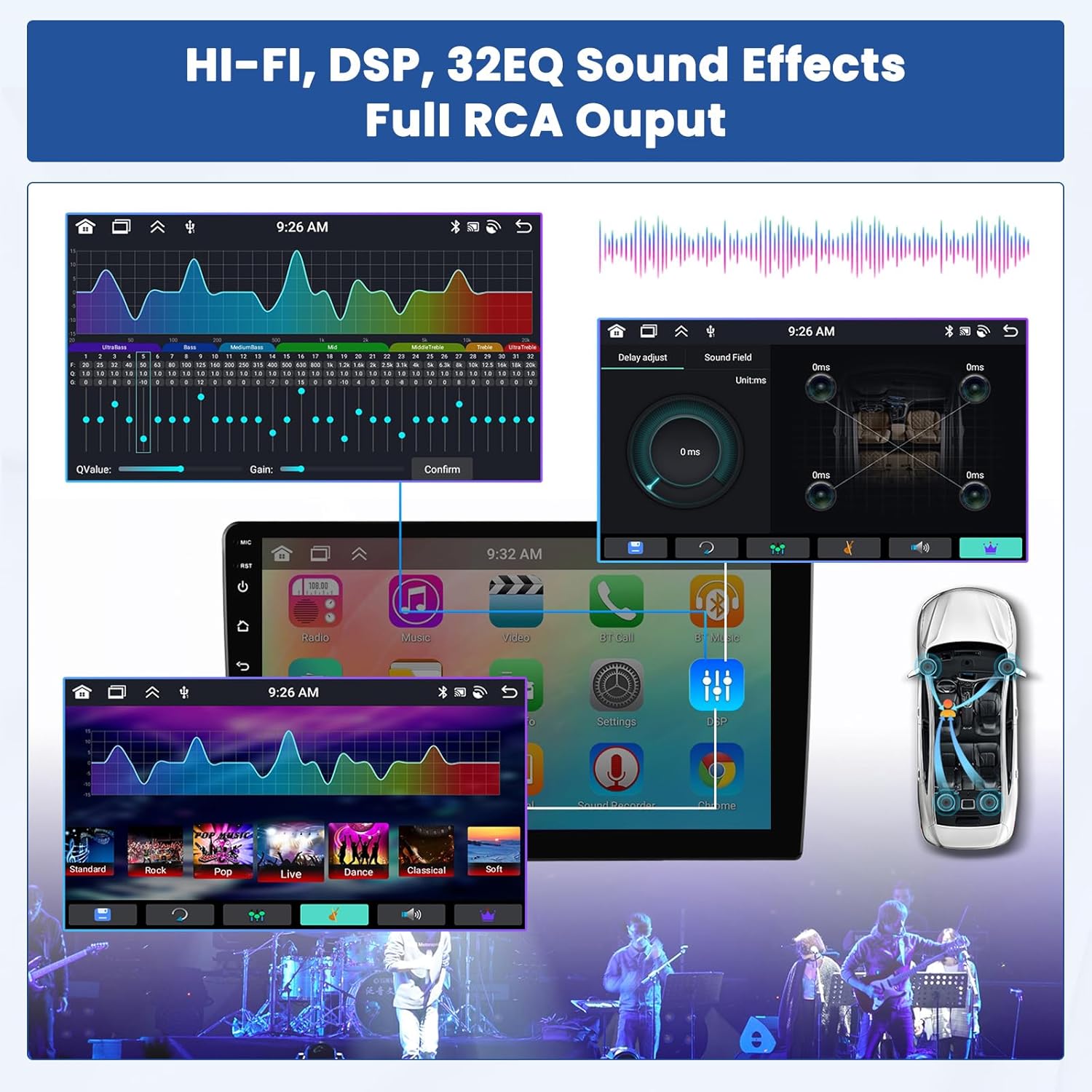
Image: Screenshots of the car radio's audio settings, showing the DSP interface with delay adjustment and the 32-band equalizer for sound customization.
Image: Display of the FM radio interface, showing frequency tuning, preset stations, and RDS information.
9. Backup Camera
The included backup camera provides a clear view of the area behind your vehicle when reversing, enhancing safety. The display automatically switches to the camera feed when the vehicle is put into reverse gear.
Image: A split screen view showing a car reversing with a clear backup camera feed on the car radio display, including parking guidelines.
10. Maintenance
To ensure the longevity and optimal performance of your car radio, follow these maintenance guidelines:
- Cleaning: Use a soft, dry cloth to clean the screen and exterior. Avoid abrasive cleaners or solvents.
- Software Updates: Periodically check for and install software updates to ensure the system runs efficiently and has the latest features and security patches.
- Temperature: Avoid exposing the unit to extreme temperatures, both hot and cold, for extended periods.
- Power Supply: Ensure a stable power supply to prevent electrical damage.
11. Troubleshooting
If you encounter issues with your Inefala car radio, refer to the following common troubleshooting steps:
- No Power: Check all power cable connections. Ensure the vehicle's ignition is on. Verify fuses.
- No Sound: Check speaker connections. Verify volume settings and ensure the mute function is not active. Check audio source selection.
- Touchscreen Unresponsive: Try restarting the unit. Ensure the screen is clean and free from obstructions.
- GPS Not Working: Ensure the GPS antenna is properly connected and has a clear view of the sky. Check GPS settings in the system.
- Bluetooth/Wi-Fi Connection Issues: Ensure Bluetooth/Wi-Fi is enabled on both the unit and your device. Try re-pairing or re-connecting. Check network passwords.
- Backup Camera Not Displaying: Check the camera cable connection. Ensure the vehicle is in reverse gear. Verify camera settings.
- Steering Wheel Controls Not Working: Ensure CANBUS is correctly installed (if applicable). Re-learn the steering wheel controls in the settings.
If problems persist after attempting these steps, please contact Inefala customer support for assistance.
12. Specifications
| Feature | Specification |
|---|---|
| Brand | Inefala |
| Model Number | Inefala-A7925A3477A4MI2-EU60 |
| Screen Size | 10 Inches |
| Operating System | Android 13 |
| Processor | 8-Core |
| Memory Storage Capacity | 64 GB |
| Connectivity Technology | Bluetooth, Wi-Fi |
| Supported Navigation System | GPS |
| Audio Output Mode | Stereo |
| Control Method | Touch |
| Item Weight | 2.7 Kilograms |
| Compatible Vehicle Type | Truck (Renault Master, Opel Movano, Nissan NV400) |
13. Warranty & Support
Inefala provides comprehensive support for its products:
- Warranty: 24 months quality assurance.
- Returns: 30 days free return policy.
- Technical Support: Online consultation available, with responses typically within 24 hours.
For technical assistance or warranty claims, please refer to the contact information provided with your purchase or visit the Inefala brand store on Amazon.

Image: Instructions for obtaining technical assistance, showing steps to contact Inefala support via email.