1. Introduction
This manual provides essential information for the proper installation, operation, and maintenance of your CaoDuRen WiFi Module WLAN Module K30357 QM7-3166. Please read these instructions carefully before proceeding with installation to ensure correct usage and to prevent damage to the module or your printer.
2. Product Overview
The CaoDuRen K30357 QM7-3166 is a replacement WiFi (WLAN) module designed for specific Canon printer models. This module enables wireless network connectivity for your compatible printer, allowing it to connect to a local Wi-Fi network for printing tasks without a direct cable connection.

Figure 1: Front view of the CaoDuRen K30357 QM7-3166 WiFi Module. This image shows the module's top side with visible circuit board components and a metal bracket, resting on a brown cardboard surface.
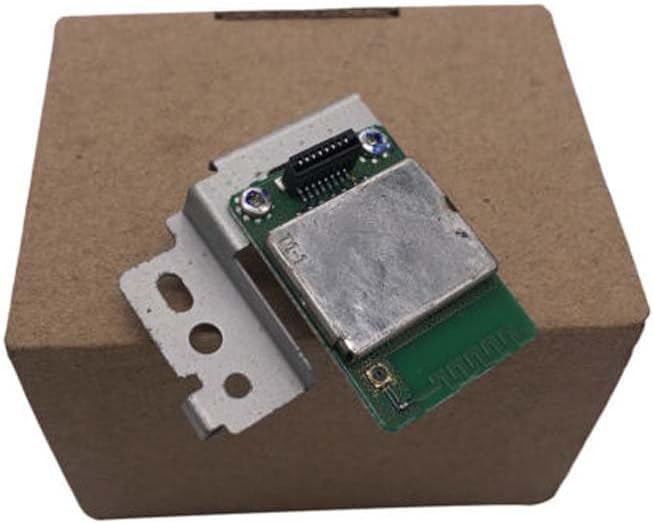
Figure 2: Back view of the CaoDuRen K30357 QM7-3166 WiFi Module. This image displays the underside of the module, featuring a metal shield and the connector pins, also placed on a brown cardboard surface.
3. Compatibility
This WiFi module is compatible with the following Canon printer models:
- Canon MX515
- Canon MX435
- Canon MX925
- Canon IP7250
- Canon MX922
- Canon IX6830
- Canon MX522
- Canon ix6880
- Canon ix6780
Important: Before purchasing or installing, verify that your printer model is listed above and that the module's appearance matches the original part you intend to replace. Incompatibility may lead to malfunction.
4. Package Contents
The package includes:
- 1 x CaoDuRen WiFi Module WLAN Module K30357 QM7-3166
5. Setup and Installation
Installation of this WiFi module requires opening your printer. It is recommended that this procedure be performed by individuals with experience in electronic component handling to avoid damage. Always refer to your specific printer's service manual for detailed disassembly and reassembly instructions.
General Installation Steps:
- Power Off and Disconnect: Ensure the printer is completely powered off and unplugged from the electrical outlet. Disconnect all cables (USB, Ethernet, etc.).
- Access the Module Compartment: Carefully open the printer's casing to access the area where the WiFi module is located. This often involves removing screws and plastic covers. Consult your printer's specific service manual for precise instructions on how to open it.
- Remove Old Module (if applicable): If replacing an existing module, gently disconnect any cables or connectors attached to it and remove the old module from its slot or mounting bracket.
- Install New Module: Align the CaoDuRen K30357 QM7-3166 module with the designated slot or mounting points. Carefully insert the module, ensuring all pins are correctly aligned and seated. Secure it with any screws or clips that were present.
- Reconnect Cables: If any cables were disconnected from the module or surrounding components, reconnect them securely.
- Reassemble Printer: Carefully reassemble the printer's casing, ensuring all screws are tightened and covers are properly secured.
- Power On and Test: Plug the printer back into the power outlet and turn it on. Proceed to the 'Operation' section to configure the wireless connection.
Caution: Static electricity can damage electronic components. Take appropriate anti-static precautions during installation.
6. Operation
Once the WiFi module is physically installed, you will need to configure your printer to connect to your wireless network. The exact steps may vary slightly depending on your specific Canon printer model. Generally, the process involves using the printer's control panel or a setup utility on your computer.
General Wireless Setup Steps:
- Access Network Settings: On your printer's control panel, navigate to the 'Setup', 'Settings', or 'Wireless LAN Setup' menu.
- Select Wireless Setup Method: Choose a method such as 'Standard setup', 'WPS (Wi-Fi Protected Setup)', or 'Manual setup'.
- Connect to Network:
- Standard/Manual Setup: The printer will scan for available Wi-Fi networks. Select your network's name (SSID) from the list and enter your network password (WPA/WPA2 key).
- WPS: If your router supports WPS, you can press the WPS button on your router and then follow the prompts on your printer's control panel to establish a connection.
- Confirm Connection: The printer should display a confirmation message once it successfully connects to the network. You may also see a Wi-Fi indicator light illuminate.
- Install Printer Drivers (if needed): Ensure you have the latest printer drivers installed on your computer or mobile device to print wirelessly.
Refer to your Canon printer's user manual for detailed instructions on configuring wireless connectivity.
7. Maintenance
The CaoDuRen WiFi Module K30357 QM7-3166 is a sealed electronic component and requires no routine maintenance. To ensure its longevity and proper function:
- Keep Dry: Avoid exposure to liquids or high humidity.
- Avoid Physical Shock: Protect the module from drops or impacts.
- Cleanliness: Ensure the printer's internal environment remains free of excessive dust, which can affect electronic components.
8. Troubleshooting
If you encounter issues after installing the WiFi module, consider the following troubleshooting steps:
- Module Not Detected:
- Ensure the module is correctly seated in its slot and all connectors are secure.
- Verify compatibility with your specific printer model.
- Power cycle the printer (turn off, unplug, wait 30 seconds, plug in, turn on).
- Cannot Connect to Wi-Fi Network:
- Double-check your Wi-Fi network name (SSID) and password.
- Ensure your router is powered on and broadcasting a signal.
- Move the printer closer to the wireless router to rule out signal strength issues.
- Restart your wireless router.
- Confirm that your printer's firmware is up to date.
- Intermittent Connection:
- Check for sources of interference (e.g., microwaves, cordless phones, other Wi-Fi networks).
- Ensure the printer is within the effective range of your Wi-Fi router.
- Consider changing the Wi-Fi channel on your router.
If problems persist, consult your printer's user manual or contact the printer manufacturer's support.
9. Specifications
| Feature | Detail |
|---|---|
| Model Number | K30357 QM7-3166 |
| Type | WiFi / WLAN Module |
| Compatibility | Canon MX515, MX435, MX925, IP7250, MX922, IX6830, MX522, ix6880, ix6780 |
| Package Dimensions | 5.91 x 3.15 x 1.77 inches |
| Item Weight | 1.1 pounds |
10. Warranty and Support
For warranty information and technical support regarding the CaoDuRen WiFi Module WLAN Module K30357 QM7-3166, please contact the seller or manufacturer directly. Keep your purchase receipt as proof of purchase.