
1. Introduction
This manual provides essential information for the setup, operation, and maintenance of your Raywego 34-inch Ultrawide Curved Gaming Monitor (Model Q340B45). This monitor delivers an immersive visual experience with WQHD+ (3440x1440) resolution, a 1500R curvature, and a high 165Hz refresh rate, making it ideal for both gaming and productivity. Please read this manual thoroughly before using the product.

Image 1: Raywego 34-inch Ultrawide Curved Gaming Monitor with feature highlights.
Video 1: Overview of the 34-inch Ultrawide 1500R Curved Gaming Monitor, highlighting its design and gaming capabilities.
2. What's in the Box
Ensure all items are present and in good condition upon unboxing:
- 34 inch ultrawide monitor
- DP cable
- Base and stand
- User manual
- Power adapter
Video 2: Unboxing video for the 34-inch Ultrawide Monitor, showing all included components.
3. Setup
3.1 Assembling the Stand
Attach the stand base to the stand riser, then secure the assembled stand to the back of the monitor. The monitor supports VESA wall mounting (75mm x 75mm) by removing the stand and attaching a compatible VESA mount.

Image 2: Rear view of the monitor highlighting connectivity ports and stand attachment.
Video 3: Detailed instructions on how to install the monitor stand.
3.2 Connecting to a Device
Connect the monitor to your computer or gaming console using the provided DP or HDMI cables. Ensure the power adapter is securely connected to the monitor and a power outlet.
- DisplayPort (DP): Supports up to 165Hz refresh rate at WQHD+ resolution.
- HDMI 2.0: Supports up to 100Hz refresh rate at WQHD+ resolution.
4. Operating the Monitor
4.1 Display Features
- WQHD+ Resolution (3440x1440): Experience sharp, refined detail with over 5 million pixels.
- Color Accuracy: 10.7 billion colors with 123% sRGB and 98% DCI-P3 for vibrant visuals.
- High Contrast Ratio: 4000:1 contrast ratio delivers deeper shadows and brighter highlights.
- 1500R Curved Design: Provides an immersive surround experience and reduces eye strain.
- Low Blue Light & Flicker-Free: Technologies designed to reduce eye fatigue during extended use.
- HDR10: Enhances realism with true-to-life color representation for darker darks and brighter brights.
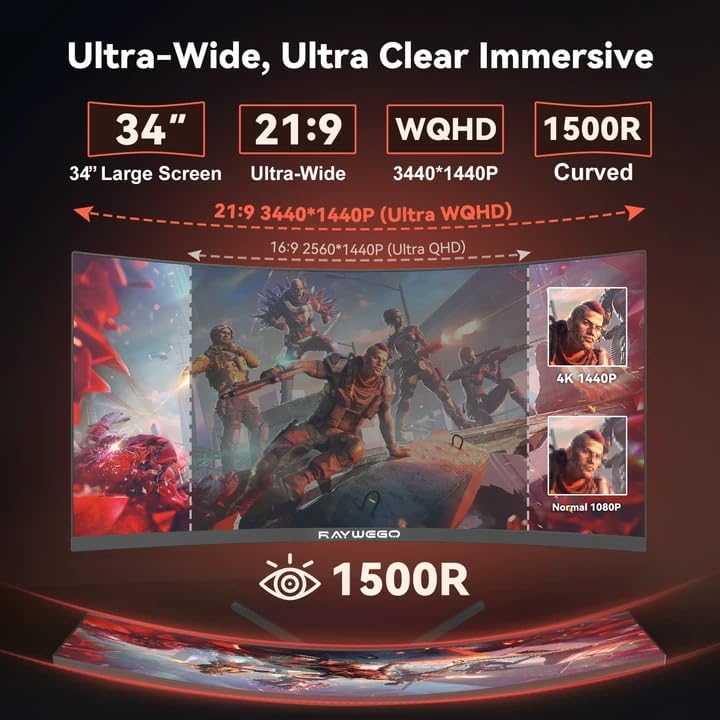
Image 3: Visual comparison of the 21:9 Ultrawide display versus standard aspect ratios.
4.2 Gaming Performance
- 165Hz Refresh Rate (DP): Provides smooth, fluid motion for competitive gaming.
- 1ms MPRT Response Time: Minimizes motion blur and ghosting for clear visuals.
- FreeSync: Synchronizes the monitor's refresh rate with your GPU for tear-free gaming.
- Gaming RGB Backlight: Customizable RGB lighting on the monitor's rear for enhanced ambiance.
- FPS-RTS Modes: Custom display settings optimized for First Person Shooter and Real-Time Strategy games.
- Blacklevel: Optimizes shadow details to expose enemies in dark areas.
- Pinpoint Strike: Enhances aiming precision.
- Timer: Track in-game timers and cooldowns.

Image 4: High refresh rate and response time features for gaming.

Image 5: Dedicated gaming assistance features.
4.3 Productivity Features
- 21:9 Aspect Ratio: Provides 30% more screen space than conventional monitors, enhancing productivity.
- PIP (Picture-in-Picture) / PBP (Picture-by-Picture): Display two signals simultaneously on the screen for multitasking.
- Swivel/Height Adjustable Stand: Ergonomic stand allows for height, swivel, and tilt adjustments to achieve your ideal viewing angle.
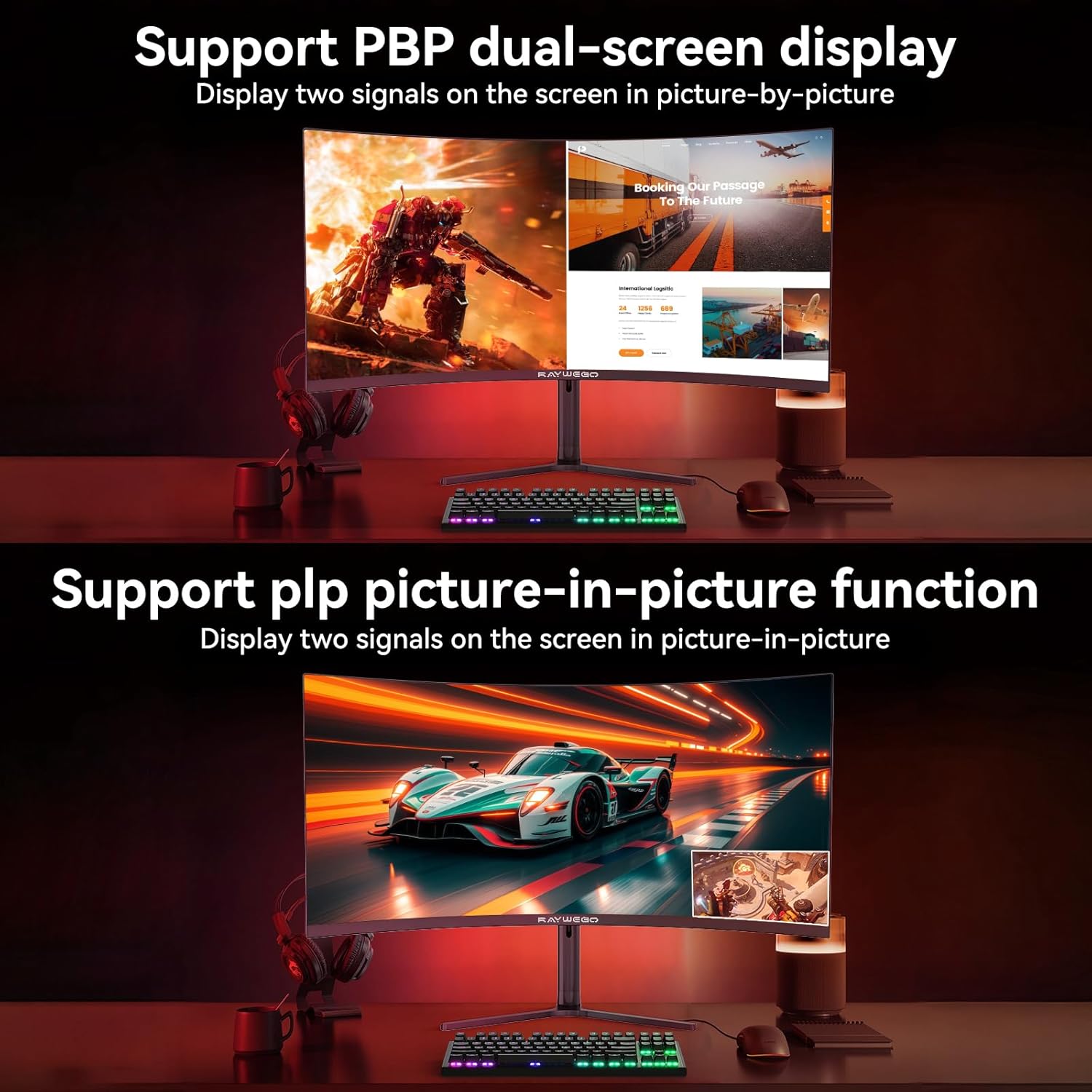
Image 6: PIP and PBP functions for enhanced multitasking.
Video 4: Demonstration of the 34-inch curved monitor's various functions and features.
5. Specifications
| Feature | Specification |
|---|---|
| Product Dimensions | 2.4 x 31.7 x 21.5 inches |
| Item Weight | 8 pounds |
| Item Model Number | Q340B45 |
| Standing Screen Display Size | 34 Inches |
| Aspect Ratio | 2.40:1 (21:9 Ultrawide) |
| Resolution | 3440 x 1440 Pixels (WQHD+) |
| Max Refresh Rate (DP) | 165 Hz |
| Max Refresh Rate (HDMI 2.0) | 100 Hz |
| Image Brightness | 300 Candela |
| Voltage | 12 Volts |
| Screen Surface Description | Matte |
6. Troubleshooting
If you encounter issues with your monitor, please refer to the following common solutions:
- No Display/Signal: Ensure all cables (DP, HDMI, power) are securely connected. Verify the correct input source is selected on the monitor.
- Incorrect Resolution/Refresh Rate: Check your computer's display settings to ensure the resolution is set to 3440x1440 and the refresh rate is set to 165Hz (for DP) or 100Hz (for HDMI).
- Color Issues: Adjust color settings in the monitor's OSD menu. Ensure HDR is properly configured in your device's display settings if applicable.
- Physical Connection Issues (DP Cable): Some users report DP cables not fully seating. Ensure the cable is pushed firmly into the port until it clicks, even if it appears to have some exposed length.
- Pixel Issues: If you observe dead or stuck pixels, refer to the warranty information for potential replacement or repair options.
7. Warranty and Support
Your Raywego monitor comes with a 3-Year Protection Plan. For any technical assistance, warranty claims, or customer support, please contact Raywego's US-based Customer Support team. Refer to the contact information provided in your product packaging or on the official Raywego website.