
1. Introduction
The Samsung Music Frame is an innovative smart speaker designed to blend seamlessly into your home decor while delivering rich, immersive audio. It functions as both a high-quality speaker and a customizable photo frame, allowing you to personalize its appearance to match your space. This manual provides comprehensive instructions for setting up, operating, and maintaining your Music Frame.

Figure 1.1: Samsung Music Frame Smart Speaker
2. What's in the Box
Carefully unpack your Samsung Music Frame and ensure all components are present. The package should contain the following items:
- Music Frame Unit
- Photo Mat
- Wall Mount Kit
- Power Cable
- Power Adapter
- Stand
- Art Panel Holders
- Deco Gear 4K HDMI 2.0 Cable (x2)
- CPS Exclusive 26 Months Premium Extended Service Protection Information
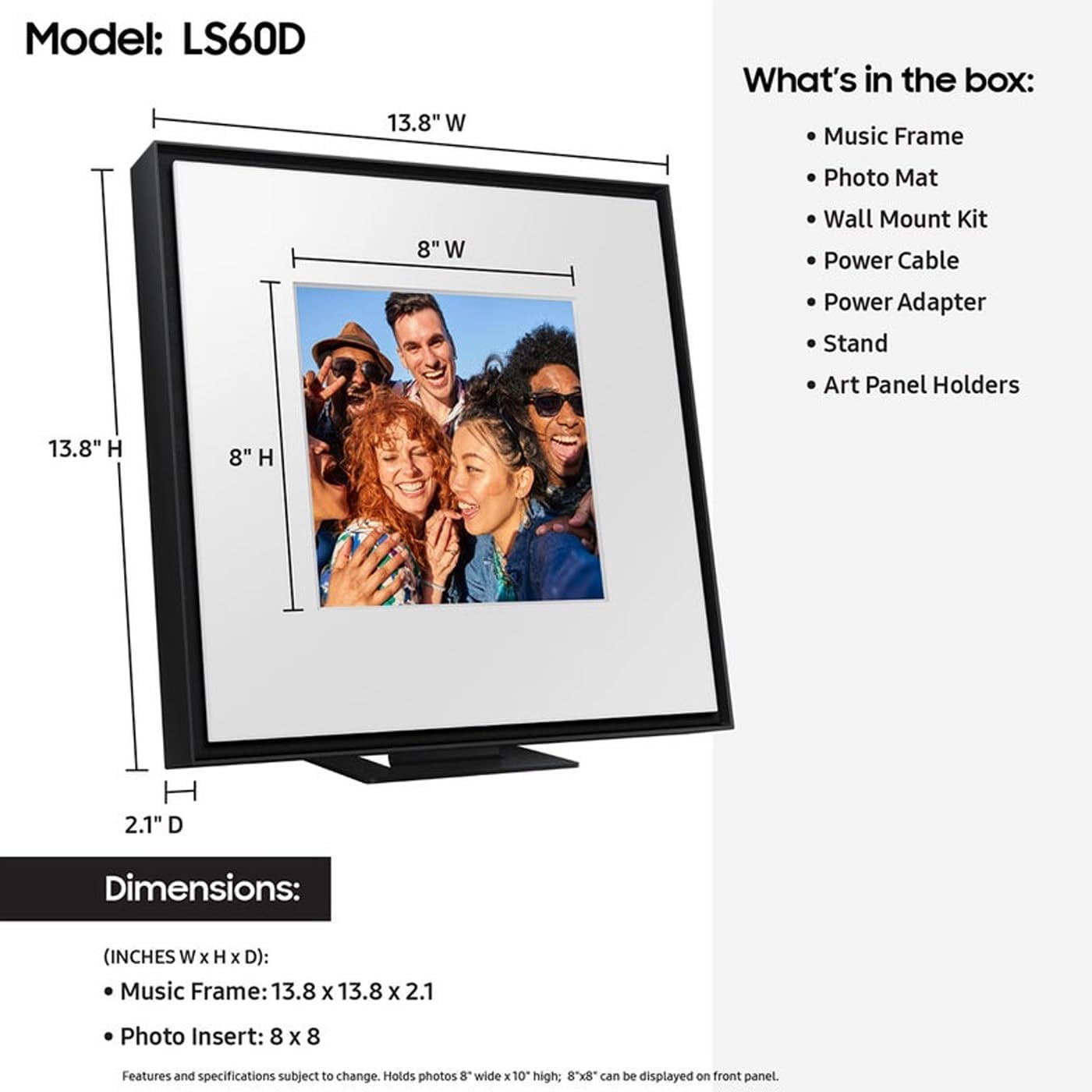
Figure 2.1: Included Components and Dimensions
3. Key Features
- Customizable Design: The Music Frame allows you to swap out the color bezel and display your personal artwork or photos, enabling seamless integration with your home decor. This feature ensures the speaker complements your aesthetic preferences.
- Dolby Atmos: Experience multi-dimensional surround sound from a single speaker. Dolby Atmos Music and Sound technology enhances your audio content with rich, deep sound that fills the room.
- Q-Symphony: When paired with a compatible Samsung TV, Q-Symphony optimizes all audio channels, allowing the Music Frame and TV speakers to operate as one for a more robust audio experience. Adding a Samsung Soundbar can further enhance this powerful audio setup.
- Wide Range Speaker Technology: Equipped with high-quality, 3-way stereo speakers and patented wide-range speaker technology, the Music Frame delivers clear, uniform, and balanced sound throughout the room, regardless of your listening position.
- Wireless Music Streaming: Stream your favorite music wirelessly via Wi-Fi or Bluetooth, providing access to various streaming platforms.

Figure 3.1: Customizable Bezel Design
4. Setup
4.1 Placement Options
The Samsung Music Frame offers versatile placement options to suit your space:
- Tabletop Placement: Use the included stand to place the Music Frame on a flat surface such as a table or shelf.
- Wall Mounting: Utilize the provided wall mount kit to securely attach the Music Frame to a wall. Ensure the wall can support the weight of the unit and follow the detailed instructions in the separate wall mount guide for proper installation.
4.2 Power Connection
- Connect the power cable to the power adapter.
- Plug the power adapter into the DC IN port on the back of the Music Frame.
- Plug the other end of the power cable into a wall outlet.

Figure 4.1: Rear Panel Connections
5. Operating Instructions
5.1 Bluetooth Pairing
- Press the Bluetooth pairing button on the Music Frame (refer to the unit's physical buttons for exact location). The indicator light will blink, indicating pairing mode.
- On your mobile device, navigate to Bluetooth settings and select "Samsung Music Frame" from the list of available devices.
- Once connected, the indicator light will turn solid, and you can begin streaming audio.
5.2 Wi-Fi Connection (SmartThings App)
For full functionality, including Q-Symphony and advanced controls, connect your Music Frame to Wi-Fi using the Samsung SmartThings app:
- Download and install the Samsung SmartThings app on your smartphone or tablet.
- Open the app and sign in with your Samsung account.
- Tap the "+" icon to add a new device.
- Select "Speaker" or search for "Music Frame" and follow the on-screen instructions to connect your device to your home Wi-Fi network.
5.3 Q-Symphony Setup (with Samsung TV)
If you have a compatible Samsung TV, enable Q-Symphony for an enhanced audio experience:
- Ensure both your Samsung TV and Music Frame are connected to the same Wi-Fi network via the SmartThings app.
- On your Samsung TV, navigate to Settings > Sound > Sound Output.
- Select the option that includes both TV speakers and the Music Frame (e.g., "TV + Music Frame").
5.4 Changing the Photo/Bezel
The Music Frame allows for easy customization of its appearance:
- Gently remove the existing bezel from the front of the Music Frame.
- Insert your desired photo or artwork into the photo mat.
- Align the new bezel or the existing bezel with your chosen image and snap it into place.
6. Maintenance
To ensure the longevity and optimal performance of your Samsung Music Frame, follow these maintenance guidelines:
- Cleaning: Use a soft, dry cloth to wipe the exterior of the Music Frame. For the display area, use a microfiber cloth specifically designed for electronics. Avoid abrasive cleaners or solvents.
- Placement: Place the unit in a well-ventilated area, away from direct sunlight, heat sources, and excessive moisture.
- Power: Disconnect the power cable during lightning storms or when the unit is left unattended for long periods.
7. Troubleshooting
If you encounter issues with your Samsung Music Frame, refer to the following common problems and solutions:
| Problem | Possible Cause | Solution |
|---|---|---|
| No power | Power cable not connected; outlet not working | Ensure power cable is securely plugged into the unit and a working wall outlet. Try a different outlet. |
| No sound | Volume too low; incorrect input source; Bluetooth/Wi-Fi not connected | Increase volume. Check the selected input source. Re-establish Bluetooth or Wi-Fi connection. |
| Bluetooth pairing failed | Device too far; pairing mode not active; interference | Move device closer to the Music Frame. Ensure Music Frame is in pairing mode. Turn off other Bluetooth devices nearby. |
| Wi-Fi connection unstable | Weak Wi-Fi signal; router issues | Move Music Frame closer to the Wi-Fi router. Restart your router. Check for router firmware updates. |
| Q-Symphony not working | Incompatible TV; incorrect TV settings | Ensure your Samsung TV is Q-Symphony compatible. Verify sound output settings on your TV. |
8. Specifications
| Feature | Detail |
|---|---|
| Product Dimensions | 2.1 x 13.8 x 13.8 inches |
| Item Weight | 9.3 pounds |
| Model Number | E990SAMHWLS60DZA |
| Brand | Samsung |
| Color | Black |
| Resolution | 1080p (for display content) |
| Compatible Devices | Personal Computer, Samsung TVs, Mobile Devices (via Bluetooth/Wi-Fi) |
| Screen Size | 7.5 Inches (photo insert area) |
| Manufacturer | SAMSUNG |
9. Warranty and Support
Your Samsung Music Frame comes with a manufacturer's warranty. For specific warranty terms and conditions, please refer to the documentation included with your product or visit the official Samsung support website. Additionally, this product includes information regarding a CPS Exclusive 26 Months Premium Extended Service Protection Plan, which may offer accidental and burn-in coverage. Please consult the provided documentation for details on this extended service plan.
For further assistance, technical support, or service inquiries, please contact Samsung Customer Service or refer to the support section of the Samsung website.