
ZCGIOBN A8
ZCGIOBN A8 4K HDR Smart Projector User Manual
Model: A8
1. Safety Information
Please read all safety instructions carefully before using the projector. Keep this manual for future reference.
- Power Supply: Use only the specified power adapter. Ensure the voltage is compatible with your region.
- Ventilation: Do not block ventilation openings. Ensure adequate airflow around the projector to prevent overheating.
- Liquid Exposure: Do not expose the projector to rain, moisture, or any liquids.
- Cleaning: Unplug the projector before cleaning. Use a soft, dry cloth. Avoid liquid cleaners.
- Placement: Place the projector on a stable, flat surface. Avoid direct sunlight or heat sources.
- Eye Protection: Do not look directly into the projector lens when the lamp is on. The bright light can cause eye strain or damage.
- Servicing: Do not attempt to repair the projector yourself. Refer all servicing to qualified personnel.

The projector features EyeCare technology with diffuse reflection to reduce blue light and eye fatigue, promoting a safer viewing experience.
2. Package Contents
Verify that all items are present in your package:
- ZCGIOBN A8 4K HDR Smart Projector
- Remote Control
- Power Adapter
- HDMI Cable
- User Manual
- Quick Start Guide
3. Product Overview
The ZCGIOBN A8 is a portable 4K HDR smart projector designed for versatile entertainment. It features a compact design and advanced image and sound technologies.
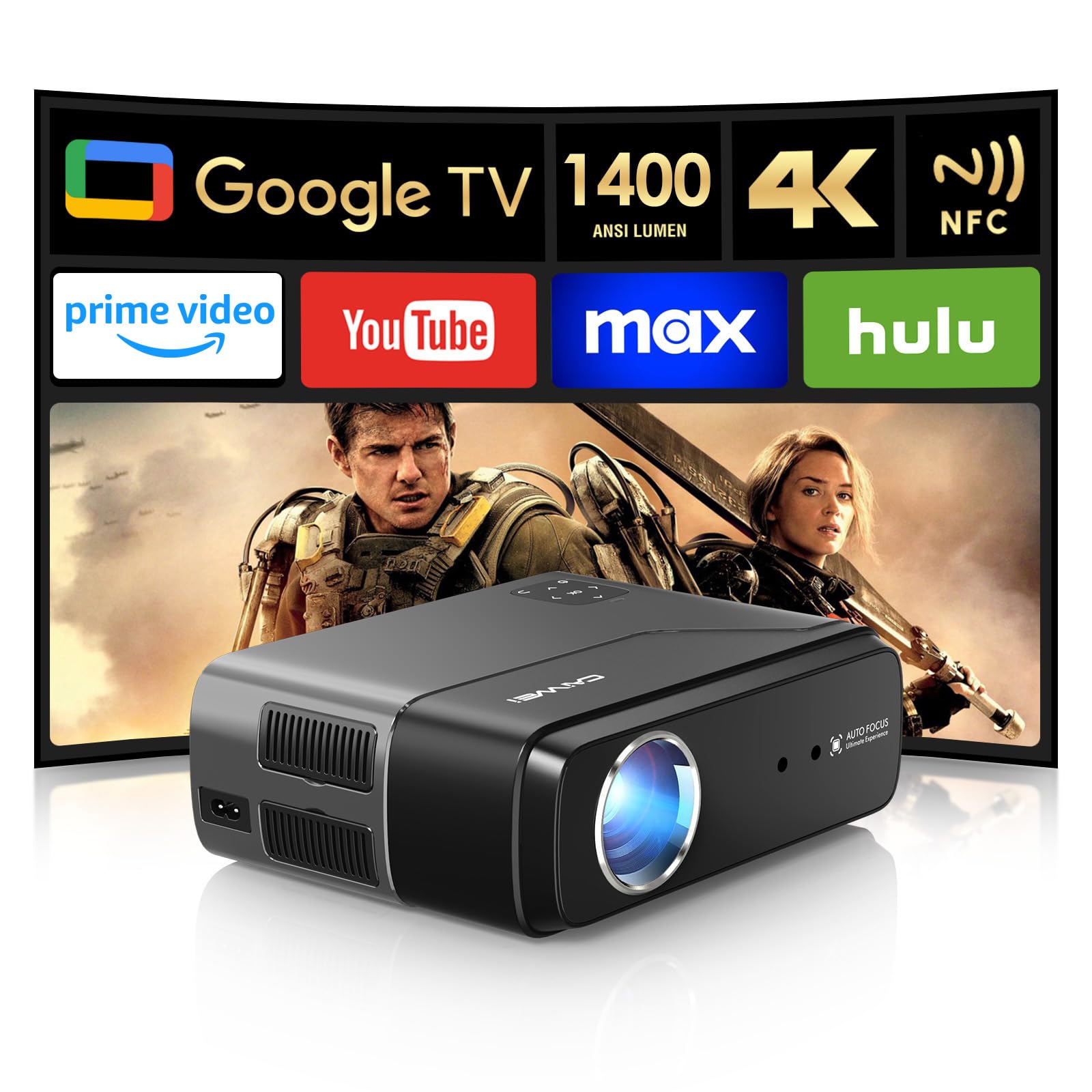
The ZCGIOBN A8 projector features a sleek design, with the projection lens prominently displayed on the front.
3.1 Key Components
- Projection Lens: Emits the image onto the screen or wall.
- Ventilation Ports: Located on the sides and rear to ensure proper cooling.
- Control Panel: Top-mounted buttons for basic navigation and settings.
- Input/Output Ports: Various ports for connecting external devices.
- Speakers: Integrated for audio output.

The compact and lightweight design of the projector allows for easy portability.

Detailed view of the LCD touch panel for control, the pop-up dust filter for maintenance, and the high transmittance lens for clear projection.
4. Setup
4.1 Initial Placement
Place the projector on a stable surface, ensuring the lens is facing the desired projection area (wall or screen). Maintain a clear path between the projector and the surface.
4.2 Power Connection
- Connect the power adapter to the projector's power input port.
- Plug the power adapter into a suitable electrical outlet.
- Press the power button on the projector or remote control to turn it on.
4.3 Image Adjustment (Auto Features)
The ZCGIOBN A8 projector features intelligent image adaptation technology for quick setup.
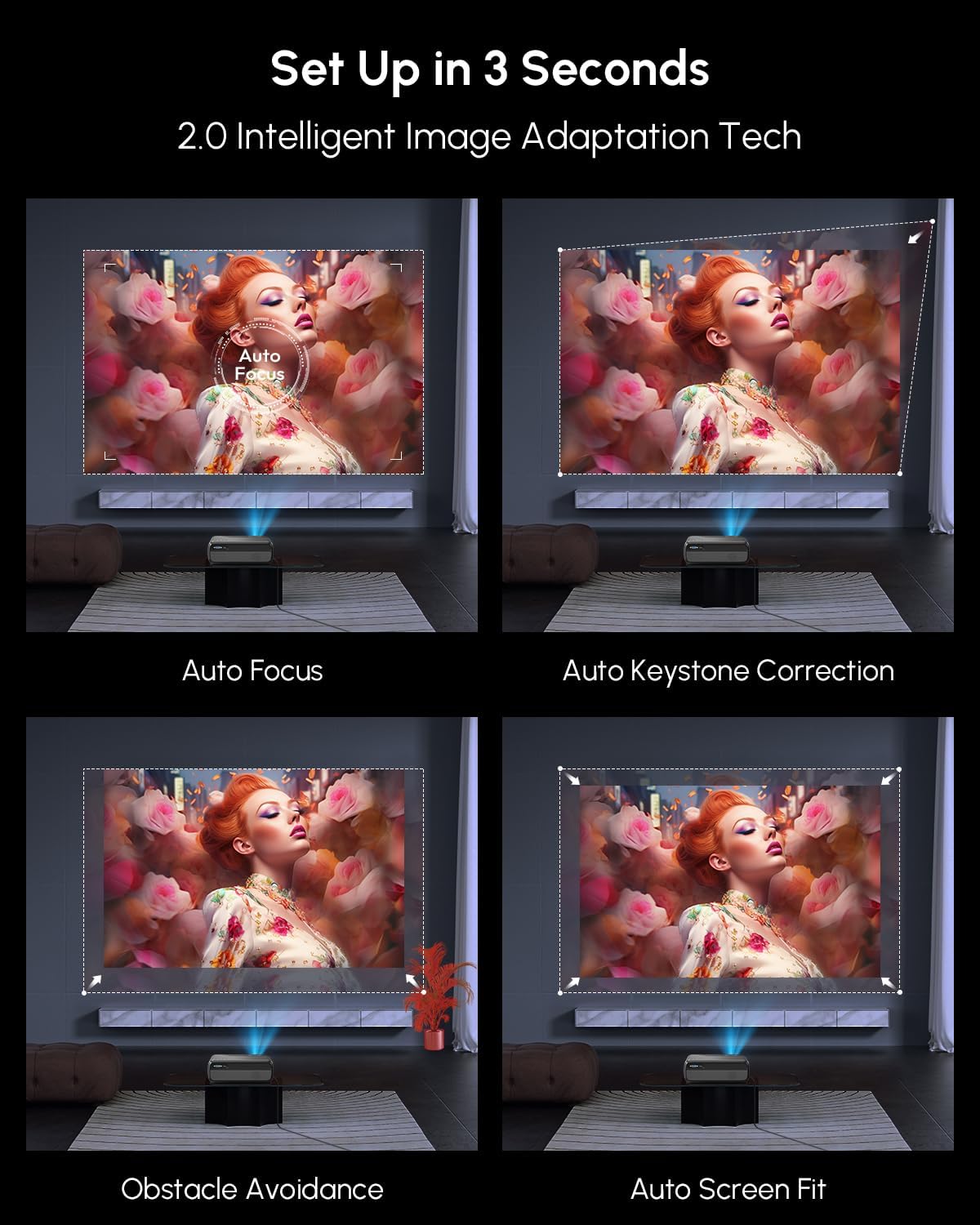
The projector automatically adjusts focus, keystone, avoids obstacles, and fits the screen for optimal viewing.
- Auto Focus: The projector automatically adjusts the image clarity.
- Auto Keystone Correction: Automatically corrects distorted images to a rectangular shape.
- Obstacle Avoidance: Detects and adjusts the projection area to avoid objects on the wall.
- Auto Screen Fit: Automatically scales the image to fit the projection screen.
Video demonstrating the intelligent projection correction features, including auto focus, auto keystone, obstacle avoidance, and screen alignment.

The projector offers instant entertainment with automatic screen alignment and obstacle avoidance upon power-on.

Real-time image perfection is achieved through auto focus and auto keystone correction, even in outdoor settings.
5. Operating Instructions
5.1 Basic Navigation
Use the remote control or the projector's top panel buttons to navigate the on-screen menu. The directional buttons allow movement, and the OK button confirms selections.
5.2 Smart Features (Google TV)
The projector comes with a built-in Smart OS, providing access to various streaming services and applications.

Access your favorite shows and apps directly from the Google TV interface.

The Google TV interface provides a wide range of content options and supports Google Cast for screen mirroring.

Utilize Google Voice Search and Google Assistant for hands-free control and content discovery.
5.3 Connectivity
- Wi-Fi 6: Connect to your wireless network for streaming and online features. Navigate to Settings > Network > Wi-Fi to connect.
- Bluetooth 5.2: Connect external Bluetooth speakers or use the projector as a Bluetooth speaker. Navigate to Settings > Bluetooth.
- NFC Casting: For faster content casting from compatible devices, tap your NFC-enabled device near the projector's NFC tag.
- HDMI/USB/AV/VGA: Connect external devices such as gaming consoles, laptops, or media players using the appropriate ports.

Wirelessly cast content from your devices using NFC, Google Cast, or WiFi 6 for seamless integration.

NFC provides an easier and faster method for casting content from compatible devices.

Two-way Bluetooth 5.2 enables the projector to function as a standalone Hi-Fi speaker or connect to external audio systems.

WiFi 6 technology ensures faster speeds and a more stable connection for gaming and streaming.

The projector offers versatile connectivity options including HDMI, Audio, AV, USB, and VGA for a wide range of devices.
5.4 Image and Audio Settings
- Brightness: The projector delivers 1400 ANSI Lumens for clear visuals even in softly lit rooms. Adjust brightness in the settings menu if needed.
- HDR: Experience enhanced contrast and color with 4K HDR support. Ensure your content source also supports HDR for optimal results.
- Color Optimization: The projector features a wider color gamut coverage (98% DCI-P3) and an innovative 6-color vivid light source for true-to-life colors.
- AI Enhancements: AI Picture (4K video decoding, noise reduction, brightness adaptation, dynamic contrast optimization), AI Sport Mode (motion blur correction), and AI Sound (DSP digital sound enhancement) automatically optimize your viewing experience.
- Audio: Enjoy immersive sound with Dolby Audio and DTS support from the built-in 30W speaker.
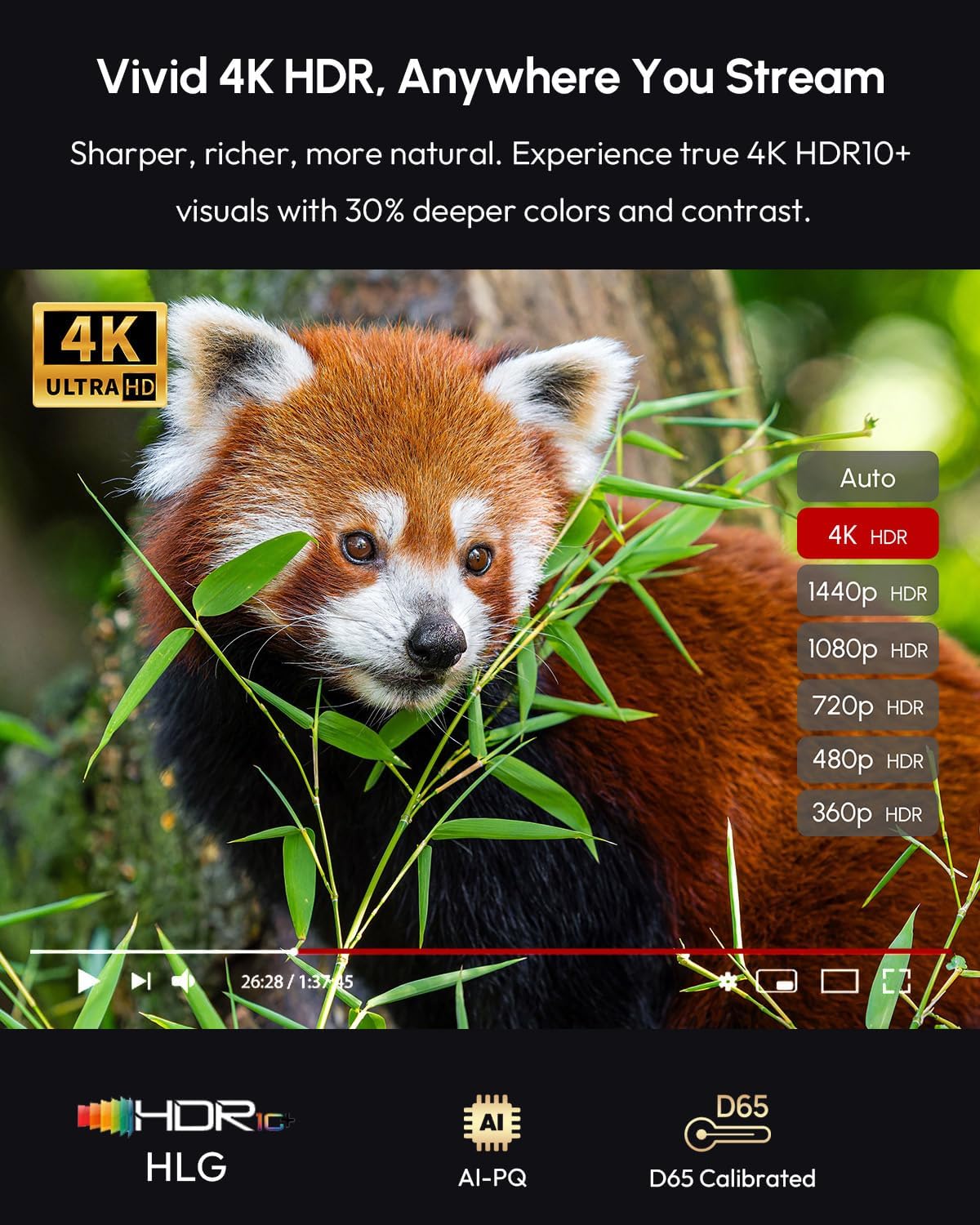
Experience vivid 4K HDR visuals with sharper, richer, and more natural colors.
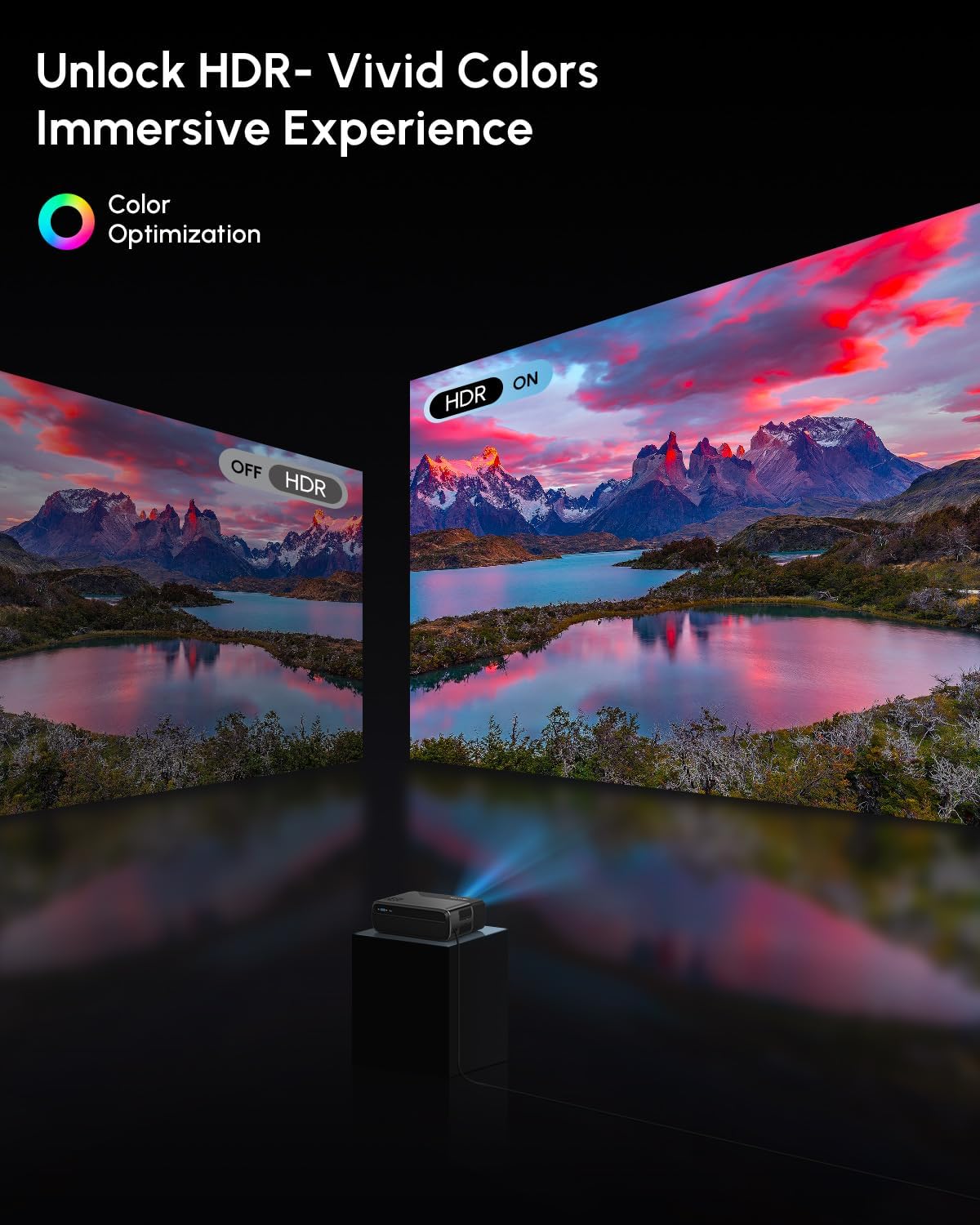
Unlock vivid colors and an immersive experience with HDR, as demonstrated by the comparison of HDR off and HDR on.

The projector offers wider color gamut coverage (98% DCI-P3) for true-to-life color reproduction.

An innovative 6-color vivid light source delivers truer color output, making images more dazzling and vibrant with high color accuracy.

AI Image Visual and Sound Enhancement Technology optimizes picture quality and audio for various content, including sports.

Feel immersive sound with Dolby Audio and DTS support from the built-in 30W speaker, enhancing your viewing experience.

The projector offers higher brightness at 1400 ANSI Lumens for clear images in various lighting conditions.
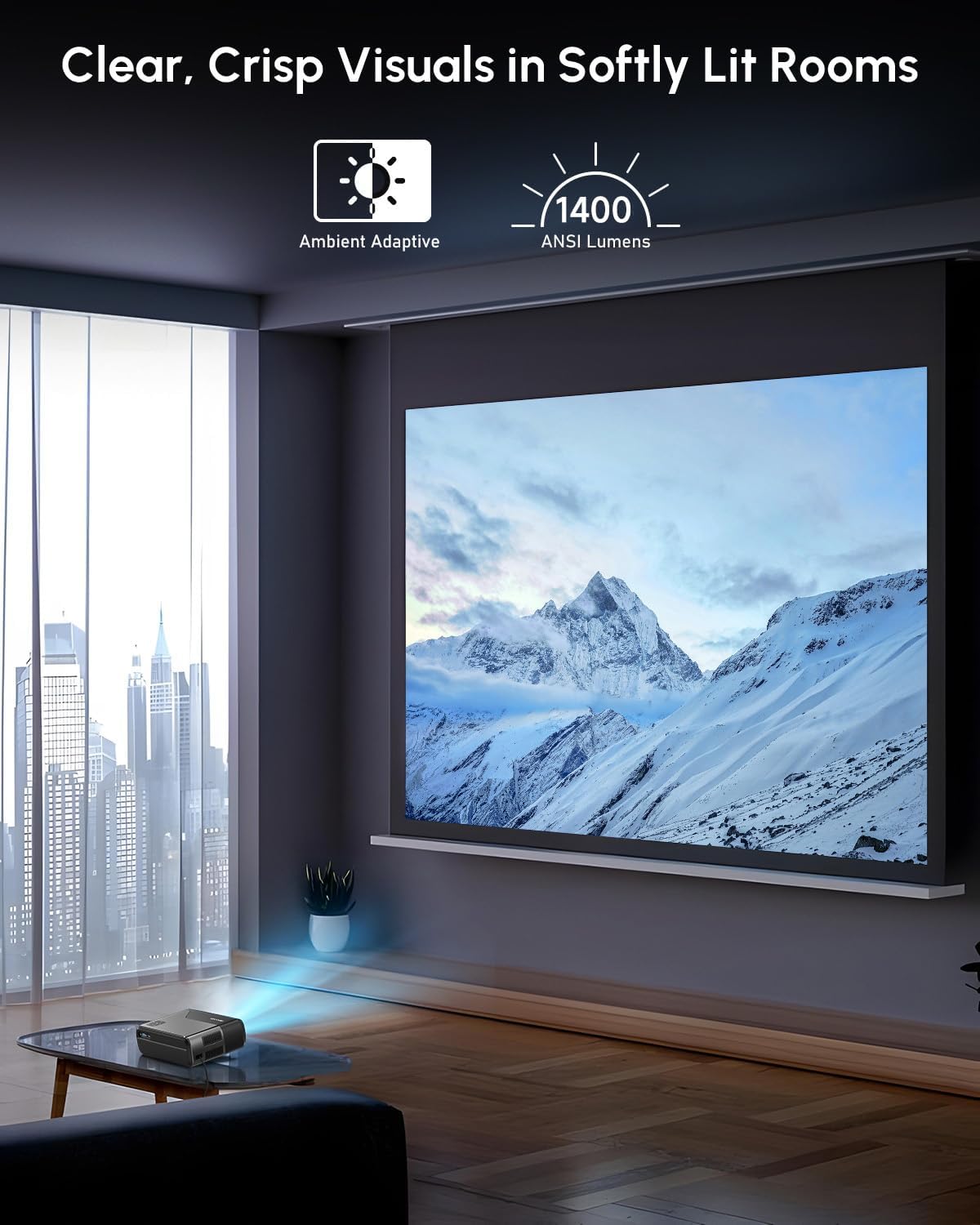
Enjoy clear, crisp visuals even in softly lit rooms thanks to the 1400 ANSI Lumens brightness and ambient adaptive technology.
5.5 Projection Size and Digital Zoom
The projector supports an adjustable projection size from 30 to 200 inches, allowing flexibility for different viewing environments. Digital zoom functionality (30%-100%) provides further control over image size without moving the projector.

Enjoy big screen fun with an adjustable projection size ranging from 30 to 200 inches.

Adjust the image size with digital zoom, ranging from 30% to 100%.
Video showcasing the projector's ability to create a large screen theater experience, demonstrating various projection sizes and image quality.
6. Maintenance
- Lens Cleaning: Gently wipe the projector lens with a soft, lint-free cloth. Do not use abrasive cleaners.
- Dust Filter: The projector features a pop-up dust filter. Regularly clean or replace the filter to maintain optimal performance and prevent dust accumulation.
- Ventilation: Ensure ventilation ports are clear of obstructions to prevent overheating.
- Storage: When not in use for extended periods, store the projector in a cool, dry place, protected from dust.

The projector's efficient cooling system, including a turbo fan and dust control, helps maintain performance and reduce noise.
7. Troubleshooting
| Problem | Possible Cause | Solution |
|---|---|---|
| No Power | Power cable not connected; Power outlet faulty. | Ensure power cable is securely connected. Try a different outlet. |
| No Image | Input source not selected; Cable connection loose; Lens cap on. | Select correct input source. Check HDMI/USB cable connections. Remove lens cap. |
| Blurred Image | Out of focus; Keystone not adjusted. | Allow auto-focus to complete or manually adjust focus. Check auto-keystone correction. |
| No Sound | Volume too low; Muted; External audio device not connected. | Increase volume. Unmute. Check Bluetooth or HDMI audio settings. |
| Overheating Warning | Blocked ventilation. | Ensure all ventilation ports are clear. Turn off and let cool. |
8. Specifications
| Brand | ZCGIOBN |
| Model Name | 4K Google TV WiFi6 Smart Projector |
| Item Model Number | A8 |
| Brightness | 1400 ANSI Lumens |
| Resolution | 4K HDR Support |
| Connectivity | Wifi6, Bluetooth 5.2, HDMI eARC, DD+, NFC, USB, AV, VGA |
| Operating System | Smart OS (with licensed Prime Video, Disney+) |
| Compatible Devices | Gaming Console, Laptop, Smartphone, Speaker |
| Average Lamp Life | 50,000 Hours |
| Item Weight | 6.56 pounds |
| Product Dimensions | 9.65 x 7.68 x 3.94 inches |
| Color | Silver |

The projector operates with silent serenity, producing less than 25dB of noise for an immersive experience.
9. Warranty and Support
For warranty information and technical support, please refer to the documentation included with your purchase or visit the official ZCGIOBN website. Keep your proof of purchase for warranty claims.
If you encounter any issues not covered in this manual, please contact customer service for assistance.
Related documentsA8


Ask a question about this manual
Ask about setup, troubleshooting, compatibility, parts, safety, or missing instructions. Manuals+ will review the question and use this page’s manual context to help answer it.