
1. Introduction
This manual provides detailed instructions for the installation, operation, and maintenance of your Hengweili Single Din Car Radio with a 6.9-inch touchscreen. Please read this manual thoroughly before using the product to ensure proper functionality and safety. Keep this manual for future reference.
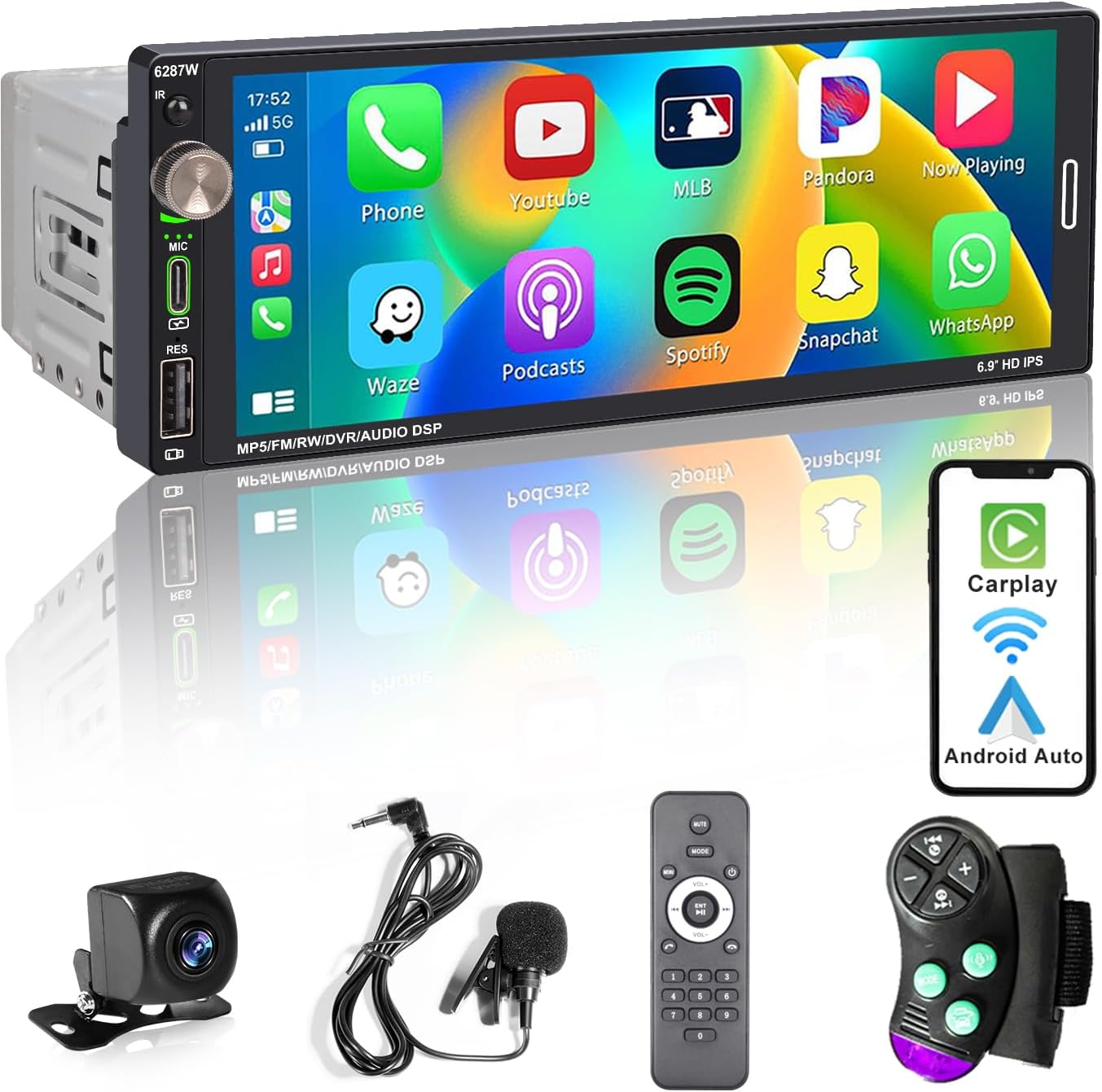
Figure 1.1: Hengweili Single Din Car Radio with Touchscreen and accessories.
2. Product Overview
The Hengweili Single Din Car Radio is designed to enhance your in-car entertainment and connectivity. Key features include:
- 6.9-inch HD Touchscreen: A high-resolution (1280*480) LCD display for clear visuals and responsive interaction.
- Wireless Apple CarPlay & Android Auto: Seamless integration with your smartphone for navigation, music, calls, and messages via voice assistants. Supports both wireless and wired connections.
- Mirror Link: Cast your phone's screen directly to the car stereo display via USB.
- Bluetooth Connectivity: Hands-free calling and audio streaming with an external microphone for clear voice pickup.
- AM/FM/RDS Radio: Access to local radio stations with Radio Data System (RDS) support.
- USB Ports: Two front USB ports, including one Type-C port for 2.1A fast charging and another for media playback. A rear USB port is available for DVR recording.
- Rear View Backup Camera Support: Automatic display of the rear camera feed when reversing, with night vision and a 170° viewing angle.
- Steering Wheel Control: Compatible with existing steering wheel controls for convenient operation.

Figure 2.1: Rear connections and dimensions of the car radio.
3. Setup and Installation
Proper installation is crucial for optimal performance. It is recommended that installation be performed by a qualified professional.
3.1 Pre-Installation Check
- Ensure your vehicle has a standard single DIN slot (178mm x 50mm).
- Verify that the front panel size (188mm x 70mm) will fit your vehicle's dashboard without obstruction.
- Disconnect the vehicle's battery before starting installation to prevent electrical damage.

Figure 3.1: Installation size diagram. Confirm vehicle compatibility before purchase.
3.2 Wiring Connections
Refer to the wiring diagram provided with your unit and Figure 2.1 for detailed connection points. Key connections include:
- Power Cable: Connect the power cable to your vehicle's electrical system according to the diagram.
- Radio Antenna: Connect your vehicle's radio antenna.
- Microphone: Plug in the external microphone for hands-free calling.
- Rear View Camera: Connect the backup camera to the designated 'Reserve Camera' input. Ensure the trigger wire is connected to the reverse light circuit.
- USB Ports: Utilize the front Type-C and standard USB ports as needed. The rear USB port is for DVR connection.
- RCA Outputs: For connecting external amplifiers or subwoofers.
- Steering Wheel Control: Connect the steering wheel control wires if your vehicle supports this feature.
3.3 Mounting the Unit
Secure the car radio into the single DIN slot using the provided mounting hardware. Ensure all connections are firm and properly insulated. Test all functions before fully reassembling the dashboard.
4. Operating Instructions
4.1 Power On/Off and Volume
- Press the power button (usually the volume knob) to turn the unit on or off.
- Rotate the volume knob to adjust the audio level.
4.2 Wireless Apple CarPlay / Android Auto
This unit supports both wireless and wired connections for Apple CarPlay and Android Auto.
- Ensure Bluetooth and Wi-Fi are enabled on your smartphone.
- On the car radio, select the CarPlay or Android Auto icon.
- Follow the on-screen prompts to pair your phone wirelessly via Bluetooth, or connect via a USB cable for a wired connection.
- Once connected, your phone's compatible apps will appear on the car radio's display.

Figure 4.1: Wireless Apple CarPlay and Android Auto in operation.
4.3 Mirror Link
Mirror Link allows you to display your smartphone's screen on the car radio.
- Connect your smartphone to the car radio via a USB cable.
- Select the 'Mirror Link' option on the car radio's main menu.
- Follow any on-screen instructions on both your phone and the car radio to establish the connection.

Figure 4.2: Mirror Link displaying a phone screen on the car radio.
4.4 Bluetooth Hands-Free Calling and Audio Streaming
- Enable Bluetooth on your smartphone.
- On the car radio, navigate to the Bluetooth settings and search for available devices.
- Select the car radio (e.g., "Hengweili Car Stereo") from your phone's Bluetooth list and pair.
- Once paired, you can make and receive calls hands-free and stream audio from your phone.

Figure 4.3: Bluetooth hands-free calling and voice control.
4.5 AM/FM/RDS Radio
- Select the 'Radio' icon from the main menu.
- Use the on-screen controls to scan for stations, save presets, and switch between AM and FM bands.
- RDS (Radio Data System) will display station information where available.
4.6 USB Media Playback and Charging
- Insert a USB drive into the standard USB port for media playback (music, videos).
- Use the Type-C USB port for fast charging compatible devices.
- The rear USB port is dedicated for DVR recording devices.
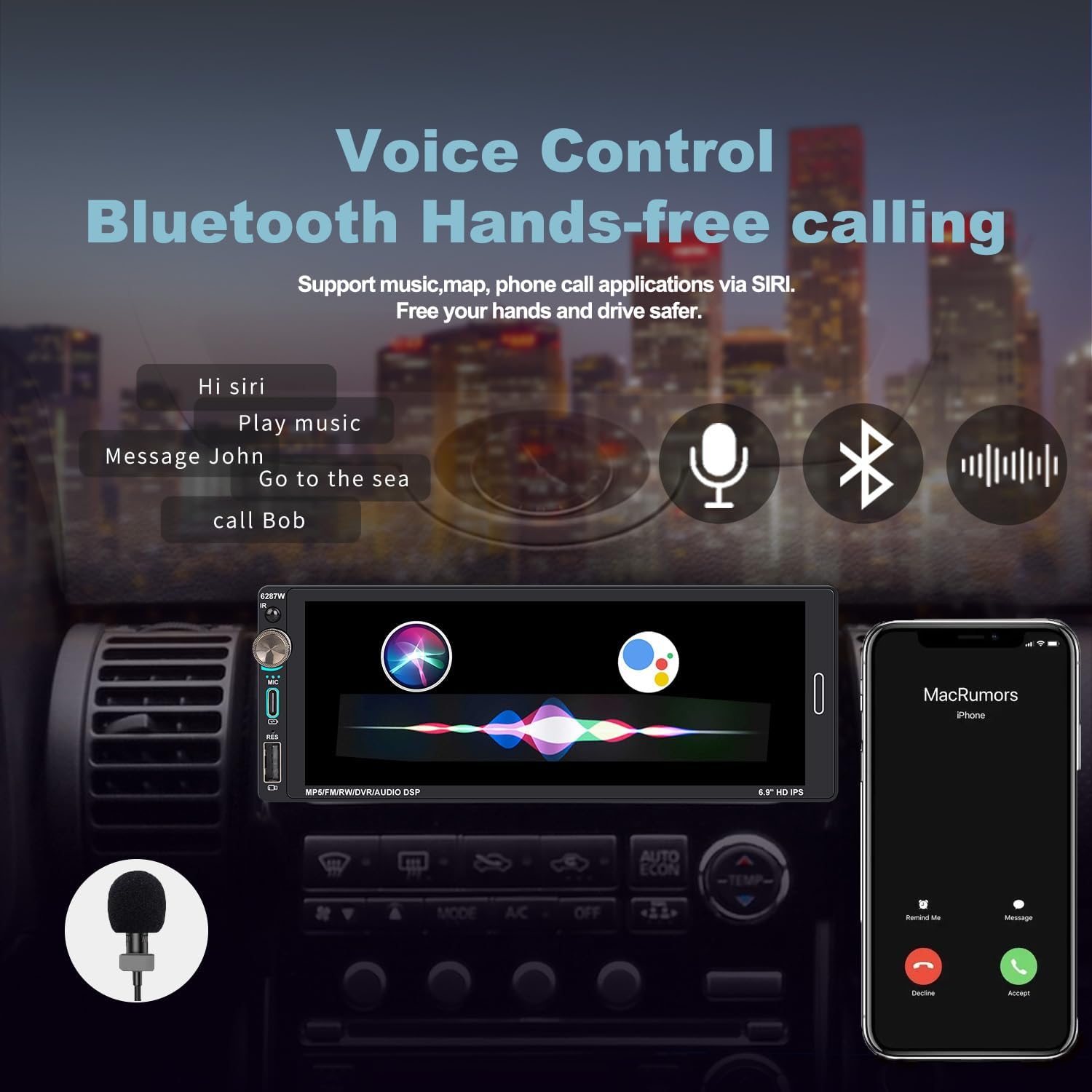
Figure 4.4: Front USB ports for charging and media.
4.7 Rear View Backup Camera
When the vehicle is shifted into reverse gear, the car radio will automatically display the feed from the connected rear view camera, providing a clear view of the area behind your vehicle.

Figure 4.5: Rear view camera display.
4.8 Steering Wheel Control
If connected, use your vehicle's existing steering wheel buttons to control basic functions like volume, track skipping, and answering calls. Refer to your vehicle's manual for specific button assignments.
5. Maintenance
- Cleaning the Screen: Use a soft, lint-free cloth to gently wipe the touchscreen. Do not use abrasive cleaners or solvents.
- General Cleaning: Keep the unit free from dust and debris. Use a soft, dry cloth for cleaning the exterior.
- Software Updates: Check the manufacturer's website periodically for any available firmware updates to ensure optimal performance and compatibility.
6. Troubleshooting
If you encounter issues with your car radio, refer to the following common problems and solutions:
- No Power: Check all power connections and the vehicle's fuse box. Ensure the unit is properly grounded.
- No Sound: Verify speaker connections, volume level, and audio source selection. Check if the mute function is active.
- Bluetooth Connectivity Issues: Ensure Bluetooth is enabled on both devices. Try unpairing and re-pairing the devices. Clear previous Bluetooth connections on both the phone and the car radio.
- CarPlay/Android Auto Not Connecting: Ensure your phone's operating system is up to date. Try both wireless and wired connections. Check USB cables for damage.
- Poor Radio Reception: Check the antenna connection. Ensure the antenna is fully extended (if applicable) and not obstructed.
- Rear View Camera Not Displaying: Verify the camera's power and video connections. Ensure the reverse trigger wire is correctly connected.
- Unresponsive Touchscreen: Try restarting the unit. If the issue persists, a factory reset might be necessary (refer to settings menu).
- Volume Control Irregularity: If the volume knob behaves erratically, ensure it is clean and free of debris. If the issue persists, contact customer support.
- Audio Hum/Noise: Check all wiring for proper grounding and shielding. Ensure power cables are not running parallel to audio cables.
If problems persist after attempting these solutions, please contact customer support.
7. Specifications
| Feature | Specification |
|---|---|
| Brand | Hengweili |
| Model | PAX-6287W-CA-2 |
| Screen Size | 6.9-inch |
| Resolution | 1280*480 |
| Tuner Technology | AM, FM (with RDS) |
| Connectivity | Bluetooth, USB (Type-C, Standard) |
| Special Features | Wireless Apple CarPlay, Android Auto, Mirror Link, Voice Control |
| Audio Output Mode | Stereo |
| Speaker Surround Sound Channel Configuration | 4.0 |
| Output Wattage | 180 Watts (4 x 45W max) |
| Product Dimensions | 8D x 17.8W x 5H cm |
| Item Weight | 800 g |
| Frequency Ranges | 2402.0MHz-2480.0MHz (Bluetooth/Wireless) |

Figure 7.1: Product label with model and frequency information.
8. Warranty and Support
This product comes with a standard manufacturer's warranty. For warranty claims, technical support, or service inquiries, please refer to the contact information provided at the point of purchase or visit the official Hengweili website. Please have your model number (PAX-6287W-CA-2) and purchase details ready when contacting support.