The Walfront WSB7020R is an integrated Human Machine Interface (HMI) and Programmable Logic Controller (PLC) system designed for industrial control applications. It features a 7-inch TFT LCD display, a powerful 32-bit ARM9 processor, and is compatible with FX3U series PLCs. This all-in-one unit offers efficient control, monitoring, and programming capabilities for various automation scenarios.
Figure 1: Walfront HMI PLC All-in-One unit. This image highlights key features such as space-saving design, simplified wiring, timing lock, floating point support, sensitive touch, and accuracy.
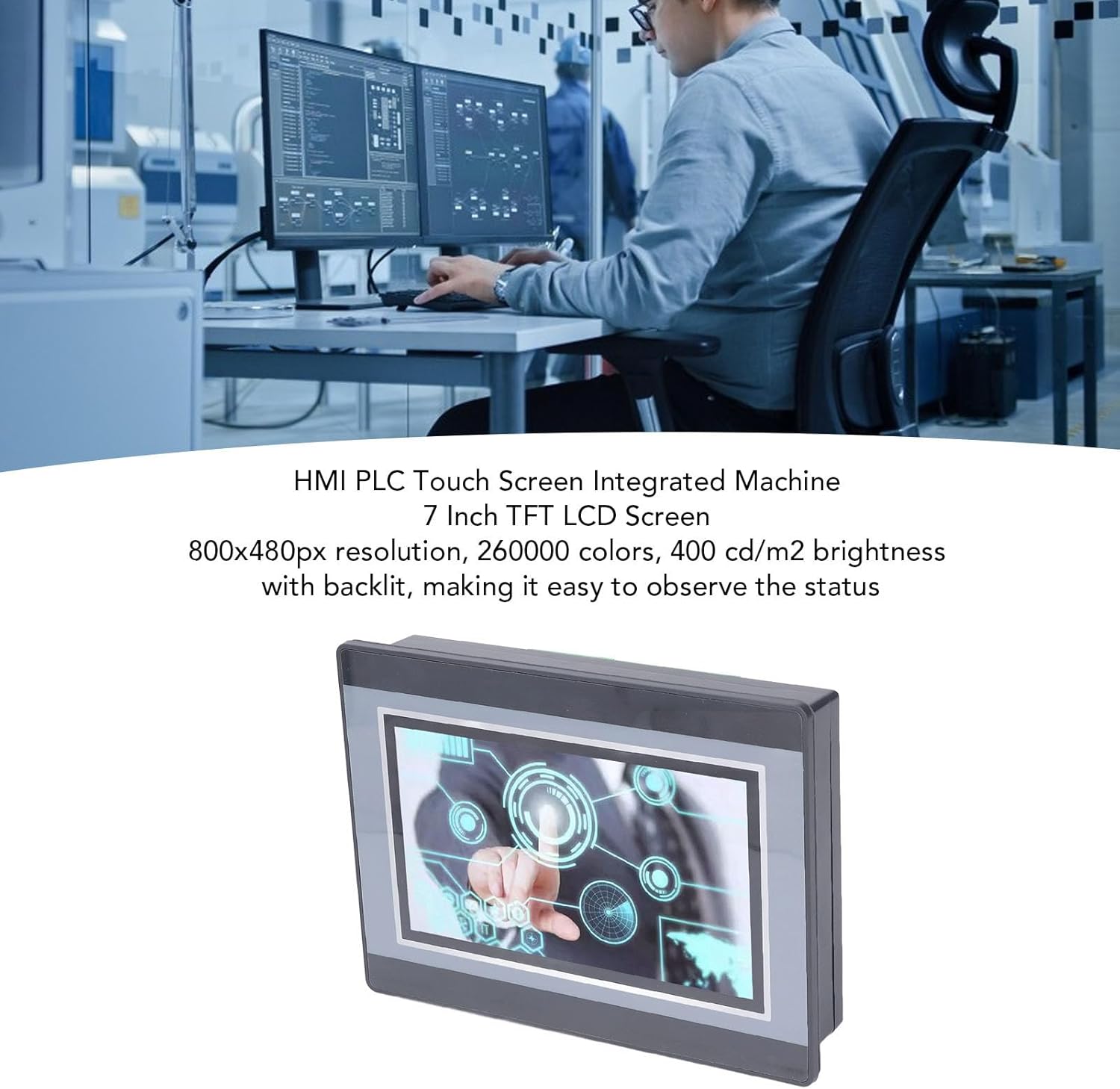
Figure 2: An engineer utilizing the HMI PLC Touch Screen Integrated Machine in a workspace. The display features an 800x480px resolution, 260,000 colors, and 400 cd/m2 brightness with backlighting for clear status observation.
2. Technical Specifications
Feature
Specification
Model
WSB7020R
Material
ABS
Dimensions (L x W x H)
Approx. 202 x 148 x 51 mm (7.95 x 5.83 x 2.01 in)
Opening Size for Installation
Approx. 190 x 135 mm (7.48 x 5.31 in)
Display Screen
7 inch TFT LCD
Resolution
800x480px
Color Depth
260,000 colors
Brightness
400 cd/m2 (with backlit display)
Touch Screen Type
4-wire industrial resistive touch screen
Touch Screen Hardness
4H
Processor
32-bit 240MHz ARM9
Memory
128M NAND FLASH
PLC Compatibility
For FX3U 20, 40, 48MRT
Input Points
12
Output Points
8
Output Type
Relay
Output Current
5A
Load
24V
High Speed Count
6/3K
Pulse Output
None
Analog Input
Default 3AD 0-10V, 3AD 0-20MA (AD0, AD1)
Analog Output
20A 0-10V
Clock
Supported
HMI Programming Software
HMI Studio 5.1
PLC Programming Software
GX Developer or GX Works2
PLC Download Speed
38.4Kbps
Figure 3: Detailed dimensions of the Walfront HMI PLC unit, showing length, width, and height measurements in both millimeters and inches.
3. Installation and Setup
The Walfront WSB7020R HMI PLC is designed for straightforward installation into industrial control panels.
3.1. Unpacking
Carefully unpack the HMI PLC unit and verify that all components are present:
1 x HMI PLC Unit (Model WSB7020R)
4 x Installation Screws
4 x Fixing Brackets
3.2. Panel Mounting
Prepare an opening in your control panel with dimensions of approximately 190 x 135 mm (7.48 x 5.31 in).
Insert the HMI PLC unit into the prepared opening from the front of the panel.
From the rear of the panel, attach the four fixing brackets to the sides of the HMI PLC unit.
Secure the unit by tightening the four installation screws through the brackets. Ensure the unit is firmly seated and stable.
3.3. Wiring
Connect power and I/O wiring according to your system's requirements. Refer to the detailed wiring diagrams in the comprehensive electronic manual for specific connections. Ensure all connections are secure and comply with local electrical codes.
4. Operation and Programming
This section outlines the basic steps for operating and programming your Walfront HMI PLC unit.
4.1. Power On
Once installed and wired, apply power to the unit. The 7-inch TFT LCD display will illuminate, and the system will boot up.
4.2. HMI Programming
To develop or modify the Human Machine Interface (HMI) program:
Install HMI Studio 5.1 software on your computer.
Connect your computer to the HMI PLC unit using a USB male-to-male cable.
Use HMI Studio 5.1 to create or edit your HMI project.
Download the HMI program to the unit via the USB connection.
4.3. PLC Programming
For programming the Programmable Logic Controller (PLC) functionality:
Install either GX Developer or GX Works2 software on your computer.
Connect your computer to the HMI PLC unit.
Use the chosen software to develop, download, and debug your PLC program.
The download speed for PLC programs is 38.4Kbps.
Note: Monitoring writing is not supported by the PLC programming software for this unit.
Figure 4: The HMI PLC unit's display, emphasizing its 4-wire industrial resistive touch screen with 4H hardness. The text also highlights its low power consumption, fast running speed, stable performance, and direct programmability, downloadability, debuggability, and monitorability using software (monitoring writing not supported).
Figure 5: Wide application range of the HMI PLC unit, including Printing, Chemical Industry, Plastic, Building Materials, Home Furnishings, Packing, Textile, Food, and Metallurgy, demonstrating its flexibility in industrial automation control scenarios.
5. Maintenance
Regular maintenance ensures the longevity and optimal performance of your HMI PLC unit.
Cleaning: Use a soft, dry cloth to clean the display and exterior. Avoid abrasive cleaners or solvents that could damage the screen or casing.
Environmental Conditions: Ensure the unit operates within its specified temperature and humidity ranges to prevent damage.
Firmware Updates: Periodically check the Walfront official website for any available firmware updates to improve performance or add features.
Connection Checks: Regularly inspect all wiring connections for tightness and signs of wear or corrosion.
6. Troubleshooting
This section provides solutions to common issues you might encounter.
Unit Does Not Power On:
Check the power supply connection and ensure it is providing the correct voltage (24V).
Verify that the power source is active.
Display Not Working:
Ensure the unit is powered on.
If the backlight is on but no image, try restarting the unit.
Touch Screen Unresponsive:
Calibrate the touch screen if available in the system settings.
Ensure the screen is clean and free from obstructions.
Cannot Download HMI/PLC Program:
Verify the USB cable connection is secure and functional.
Ensure the correct programming software (HMI Studio 5.1 for HMI, GX Developer/GX Works2 for PLC) is installed and configured properly.
Check for driver issues on your computer.
PLC Program Not Executing Correctly:
Review your PLC program logic for errors.
Ensure the program has been successfully downloaded to the unit.
Check I/O connections for proper wiring.
For further assistance, please refer to the detailed electronic manual or contact Walfront customer support.
7. Warranty and Support
7.1. Warranty Information
This Walfront HMI PLC unit comes with a manufacturer's warranty for 90 days from the date of purchase. This warranty covers defects in materials and workmanship under normal use. It does not cover damage caused by misuse, accidents, unauthorized modifications, or improper installation.
7.2. Customer Support
If you encounter any issues not covered in this manual or require further technical assistance, please contact Walfront customer support. Refer to the product packaging or the official Walfront website for the most current contact information.
Please have your product model (WSB7020R) and purchase details ready when contacting support.