
QDVOPHZA w0u5903wei
User Manual for QDVOPHZA Wireless Fingerprint Keypad
Model: w0u5903wei
Compatible with WF-018 Pro, WF-010, WF-011 Smart Invisible Door Locks
Introduction
This manual provides comprehensive instructions for the installation, operation, and maintenance of your QDVOPHZA Wireless Fingerprint Keypad. Designed for seamless integration with WF-018 Pro, WF-010, and WF-011 smart invisible door locks, this keypad offers advanced security features including fingerprint recognition and password access. Please read this manual thoroughly before use to ensure proper functionality and safety.
Safety Information
- Do not expose the keypad to extreme temperatures, direct sunlight, or moisture.
- Use only specified 4*AA batteries. Do not mix old and new batteries or different types of batteries.
- Keep the fingerprint sensor clean and dry for optimal performance.
- Avoid using abrasive cleaners or solvents on the keypad surface.
- This device is designed for indoor use.
Package Contents
Please verify that all items are present in the package:
- 1 * Fingerprint Keypad
- 1 * Installation Board
- 1 * Package Accessories (screws, anchors, etc.)
- Note: 4*AA Batteries and the smart invisible door lock (WF-010/WF-011/WF-018 Pro) are not included.
Product Overview

Figure 1: Keypad Components
This image displays the front view of the QDVOPHZA Wireless Fingerprint Keypad, highlighting its main components: the Fingerprint Reader at the top, an LED Screen below it, and the Full Touch Keypad with illuminated numbers and symbols at the bottom.
- Fingerprint Reader: High-precision semiconductor sensor for quick and accurate fingerprint identification. Supports 360-degree identification and works with both wet and dry fingerprints.
- LED Screen: Displays status indicators and prompts.
- Full Touch Keypad: Illuminated numeric keypad for password entry.
- Speakers: For voice prompts and alarms.
Setup
1. Battery Installation
The keypad is powered by 4*AA batteries (not included). Ensure correct polarity when inserting the batteries.
- Locate the battery compartment cover on the back of the keypad.
- Slide or unscrew the cover to open the compartment.
- Insert 4 new AA batteries, observing the positive (+) and negative (-) markings.
- Replace the battery compartment cover securely.

Figure 2: Energy-saving Design
This image illustrates the energy-saving design of the keypad, indicating that it is supplied by 4*AA batteries and can be used for approximately 1 year, symbolized by a battery icon and "365 days".
2. Wireless Connection and Pairing
The keypad uses 433MHz wireless communication to connect with compatible smart invisible door locks (WF-010/WF-011/WF-018 Pro). Refer to your specific door lock's manual for detailed pairing instructions. Generally, the process involves putting the door lock into pairing mode and then activating the keypad's pairing function.
- Ensure your smart invisible door lock is powered on and within range of the keypad.
- Follow the instructions provided with your WF-010/WF-011/WF-018 Pro lock to initiate pairing mode.
- On the keypad, enter the pairing command (refer to the lock's manual or keypad's quick start guide for specific key sequences).
- A voice prompt or LED indicator on the keypad will confirm successful pairing.

Figure 3: Seamless Installation
This image demonstrates the seamless installation of the keypad on a door, showing how it integrates with the invisible lock mechanism on the interior side, without affecting the original door lock's aesthetics.
Operating Instructions
1. Dual System Operation (Fingerprint & Password)
The keypad features independent systems for fingerprint and password recognition, ensuring reliable operation without interference.

Figure 4: Dual System Independence
This image visually represents the keypad's dual system, emphasizing that fingerprints and passwords operate independently, without interference, for enhanced security and flexibility.
2. Fingerprint Enrollment
The keypad supports up to 100 sets of fingerprints. Refer to your smart lock's manual for specific enrollment procedures, as the keypad acts as an input device for the lock's system.
- Access the administrator mode on your smart invisible door lock.
- Select the option to add a new fingerprint.
- Place your finger on the keypad's fingerprint reader as prompted by the lock's voice system.
- Repeat the process several times until the fingerprint is successfully registered.
3. Password Setup (Anti-peep Phantom Password)
The keypad supports up to 100 sets of passwords. The anti-peep phantom password feature allows you to enter random digits before or after your correct password, as long as the correct sequence is embedded consecutively within the entry.
- Access the administrator mode on your smart invisible door lock.
- Select the option to add a new password.
- Enter your desired password on the keypad, followed by the confirmation key (e.g., #).
- Re-enter the password for confirmation.
- To use the anti-peep feature, you can enter any random digits before or after your actual password (e.g., 123[Correct Password]456).
4. Combination Unlock Mode
This mode allows unlocking by combining a valid fingerprint user and a valid password user. This adds an extra layer of security.
- Activate combination unlock mode via your smart lock's settings (if supported).
- First, a registered fingerprint must be scanned on the keypad.
- Then, a registered password must be entered on the keypad.
- The lock will unlock only after both valid credentials are provided.
5. Deleting or Replacing Fingerprints/Passwords
Fingerprints and passwords can be easily managed through the smart lock's administrator settings.
- Access the administrator mode on your smart invisible door lock.
- Navigate to the user management section.
- Select the specific fingerprint or password you wish to delete or modify.
- Follow the on-screen or voice prompts to complete the action.
6. Smart Voice System
The keypad features a smart voice system that provides audible feedback for operations and alerts. When battery power is low, the system will issue a voice reminder, prompting timely battery replacement.
7. Smart Alarm System
For enhanced security, the keypad is equipped with a smart alarm system. If an incorrect password is entered multiple times consecutively, the system will trigger an alarm and enter a locked state to prevent unauthorized access.
8. Bilingual System
The keypad supports both Chinese and English languages. You can switch between languages at any time through the smart lock's settings or by following specific keypad commands (refer to your lock's manual).
Maintenance
1. Battery Replacement
When the smart voice system indicates low battery, replace all 4*AA batteries promptly to ensure continuous operation. Refer to the "Battery Installation" section under Setup for detailed steps.
2. Cleaning
- Wipe the keypad surface with a soft, dry cloth.
- For stubborn smudges, lightly dampen the cloth with water. Do not use chemical cleaners, abrasives, or solvents.
- Keep the fingerprint sensor free of dust, dirt, and moisture for optimal performance.
Troubleshooting
| Problem | Possible Cause | Solution |
|---|---|---|
| Keypad not responding. | Low batteries; Keypad not powered on; Connection issue. | Replace batteries; Ensure proper installation; Re-pair with the smart lock. |
| Fingerprint not recognized. | Finger dirty/wet; Sensor dirty; Fingerprint not properly enrolled; Sensor damage. | Clean finger and sensor; Re-enroll fingerprint; Contact support if sensor is damaged. |
| Password not accepted. | Incorrect password; Keypad in locked state (after multiple wrong attempts). | Verify password; Wait for the locked state to clear or use administrator unlock. |
| No voice prompts. | Volume too low; System error. | Check smart lock settings for volume control; Restart keypad/lock. |
| Keypad not communicating with lock. | Out of range; Interference; Pairing lost. | Move keypad closer to lock; Check for sources of interference; Re-pair the devices. |
Specifications
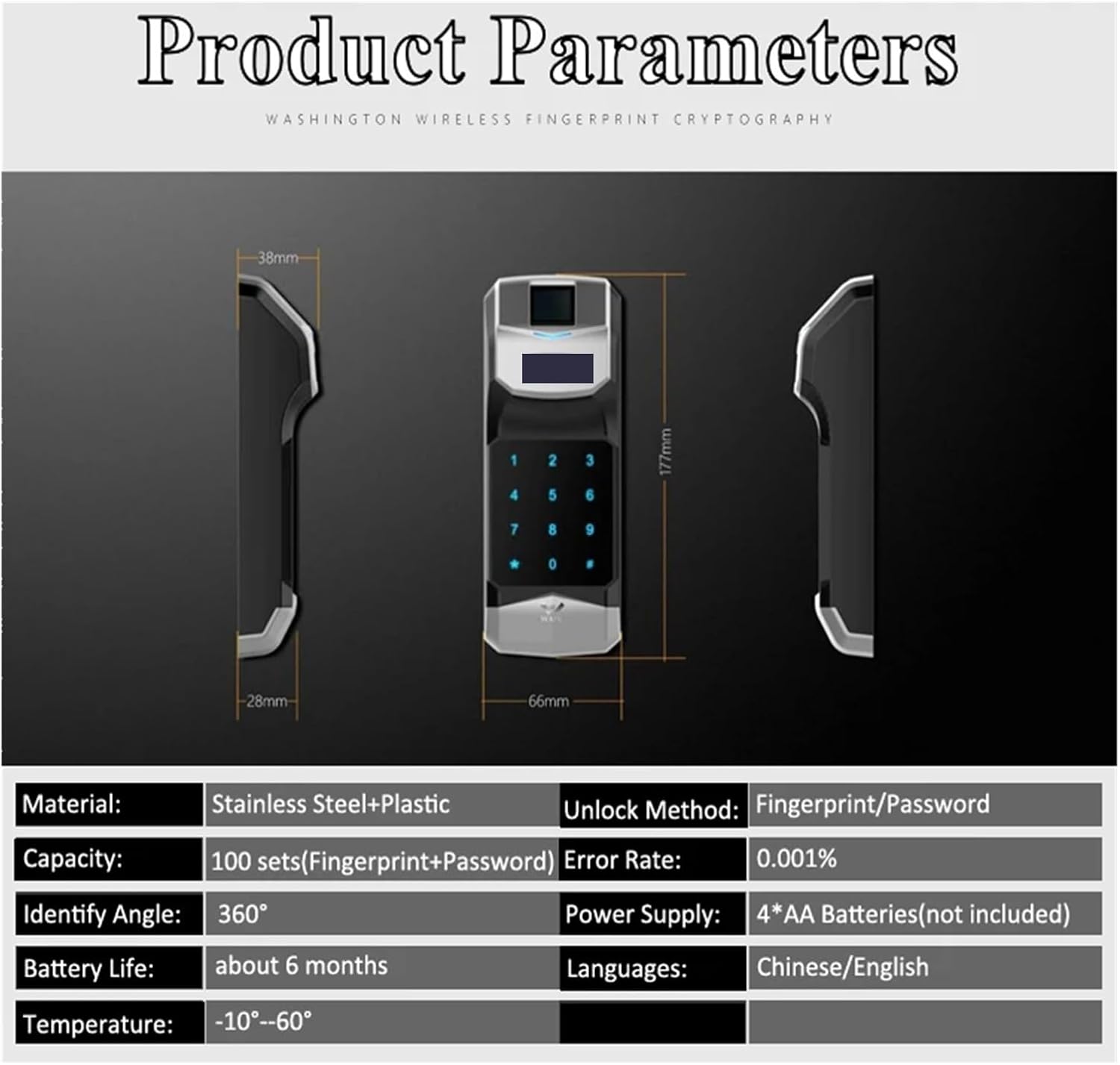
Figure 5: Product Parameters
This image presents a table detailing the technical specifications of the keypad, including its dimensions (192*72*30mm), material (Stainless Steel+Plastic), capacity (100 sets of Fingerprint+Password), error rate (0.001%), power supply (4*AA Batteries), battery life (about 6 months), and supported languages (Chinese/English).
| Parameter | Value |
|---|---|
| Brand | QDVOPHZA |
| Model Name | w0u5903wei |
| Frequency | 433MHz (±500KHz) |
| Application Range | For WF-010/WF-011/WF-018 Pro (lock not included) |
| Power Supply | 4*AA Batteries (not included) |
| Unlock Method | Fingerprint / Password |
| Language | Chinese / English |
| Fake Rate | 0.001% |
| Color | Rose Gold (also available in Silver) |
| Size | 192*72*30mm |
| Weight | 170g (without accessories) / 1.76 ounces |
| Material | Stainless Steel + Plastic |
| Capacity | 100 sets (Fingerprint + Password) |
| Identify Angle | 360° |
| Battery Life | About 6 months |
Warranty and Support
For warranty information and customer support, please refer to the documentation provided with your purchase or contact the seller directly. The product is manufactured by w0u5903wei.
- Return Policy: This product typically has a 30-day return policy for refund or replacement. Please check your purchase details for specific terms.
- Manufacturer: w0u5903wei
- For technical assistance or inquiries, please reach out to the seller or manufacturer through your purchase platform.
Ask a question about this manual
Ask about setup, troubleshooting, compatibility, parts, safety, or missing instructions. Manuals+ will review the question and use this page’s manual context to help answer it.