
1. Introduction
Welcome to the XGODY Mate 70 User Manual. This guide provides comprehensive instructions on how to set up, operate, and maintain your new smartphone. Please read this manual carefully to ensure optimal performance and longevity of your device.
The XGODY Mate 70 is a high-quality smartphone designed for powerful performance and an exquisite user experience. It features the latest Android 14 operating system, a robust octa-core processor, and ample memory for seamless multitasking and storage.
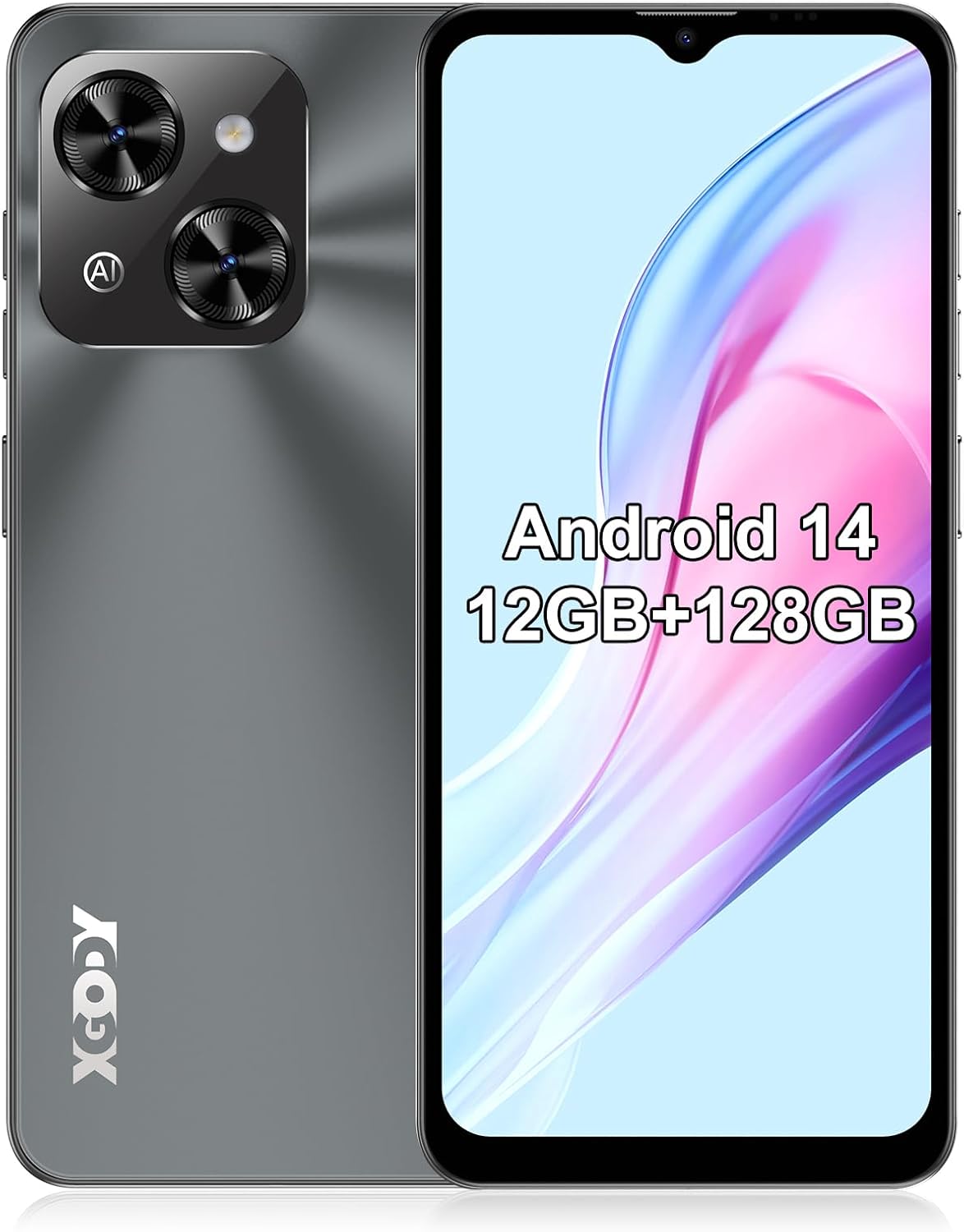
Figure 1.1: XGODY Mate 70 Overview (Front and Back)
2. Safety Information
To prevent injury to yourself and others, or damage to your device, read all safety information before using the device.
- Do not expose the device to extreme temperatures.
- Avoid dropping or subjecting the device to severe impact.
- Use only XGODY-approved chargers and accessories.
- Do not disassemble, modify, or repair the device yourself.
- Keep the device away from water and moisture.
3. Package Contents
Ensure all items are present in your product box:
- XGODY Mate 70 Smartphone
- USB Type-C Cable
- Power Adapter
- SIM Ejector Tool
- Quick Start Guide
- Warranty Card (if applicable)
4. Device Overview
Familiarize yourself with the physical features and components of your XGODY Mate 70.
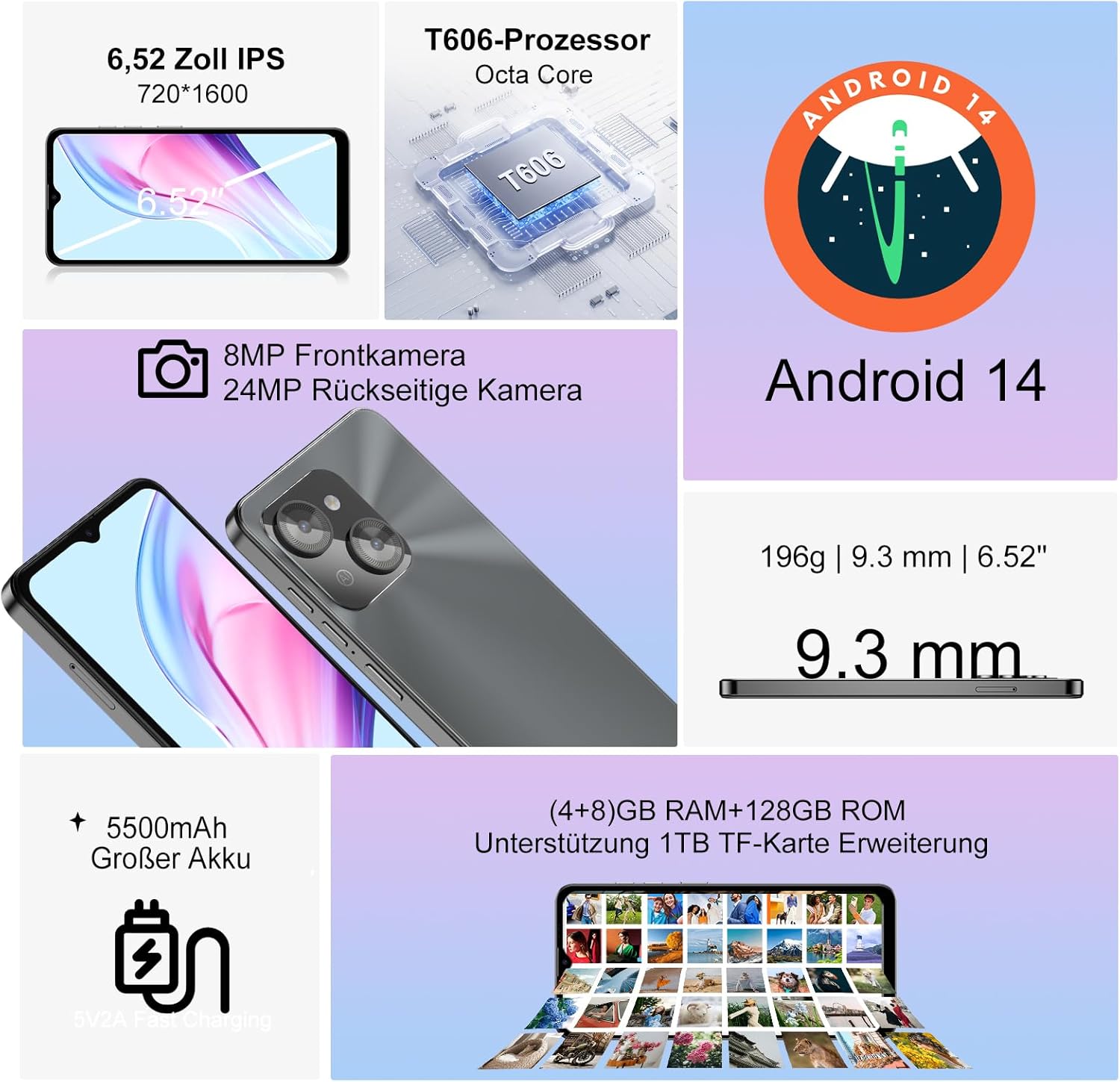
Figure 4.1: Key Features of XGODY Mate 70
Physical Dimensions and Weight
- Thickness: 9.3 mm
- Weight: 196 grams

Figure 4.2: Portable Design
5. Setup
5.1 Inserting SIM and TF Cards
The XGODY Mate 70 supports dual Nano SIM cards or one Nano SIM and one TF (Micro SD) card for expanded storage.
- Locate the SIM card tray on the side of the device.
- Insert the SIM ejector tool into the small hole next to the tray and push gently until the tray pops out.
- Place your Nano SIM card(s) and/or TF card into the designated slots on the tray. Ensure the gold contacts are facing down.
- Carefully push the tray back into the slot until it is flush with the device.

Figure 5.1: Dual SIM and Dual-Mode 4G Support
Note: SIM and TF cards are not included and must be purchased separately. Please check with your mobile provider for compatibility.
5.2 Charging the Battery
Before first use, fully charge your device.
- Connect the USB Type-C cable to the charging port at the bottom of the phone.
- Connect the other end of the cable to the power adapter.
- Plug the power adapter into a wall outlet.
- The battery indicator on the screen will show the charging status.
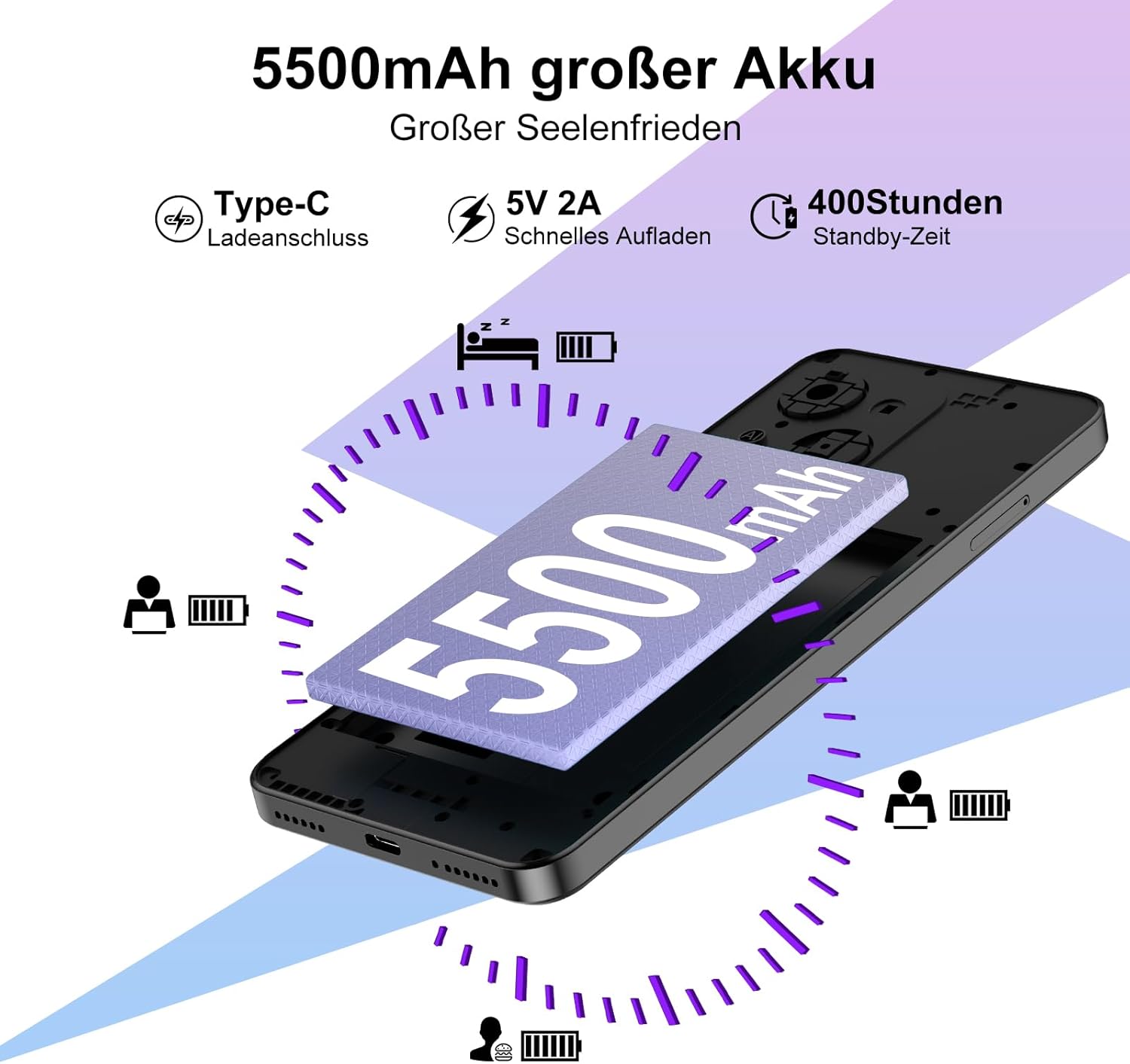
Figure 5.2: 5500mAh Large Battery with Fast Charging
5.3 Powering On/Off
- To Power On: Press and hold the Power button until the XGODY logo appears.
- To Power Off: Press and hold the Power button until the power options appear, then tap 'Power off'.
6. Operating Your Device
6.1 Android 14 Operating System
Your XGODY Mate 70 runs on the advanced Android 14 operating system, offering faster, smoother, and more secure performance. It includes enhanced privacy controls, updated data sharing options, malware defense extensions, and reinforced password support.

Figure 6.1: Android 14: Secure and Intelligent
6.2 Camera Functions
The Mate 70 features a 24MP main camera and an 8MP front camera, supporting various modes for flexible photography.
- HDR Mode: For improved dynamic range in photos.
- Beauty Mode: Enhances selfies and portraits.
- Panorama Mode: Captures wide-angle scenes.
- Professional Mode: Offers manual controls for advanced users.

Figure 6.2: Flexible Photography, Various Modes
6.3 Connectivity
The device supports 4G cellular networks, Wi-Fi, and Bluetooth 5.0 for fast and stable wireless connections.
- Wi-Fi: Connect to wireless networks for internet access.
- Bluetooth: Pair with wireless headphones, speakers, and other devices.
- 4G LTE: Enjoy high-speed mobile data.
- Face ID: Unlock your phone securely using facial recognition.
- GPS: Utilize location services for navigation and mapping.
- OTG: Connect USB devices such as flash drives or keyboards.

Figure 6.3: Unlocked Phone Benefits
7. Maintenance
Proper maintenance ensures the longevity and optimal performance of your XGODY Mate 70.
- Cleaning: Use a soft, lint-free cloth to clean the screen and body. Avoid abrasive materials or harsh chemicals.
- Software Updates: Regularly check for and install system updates to ensure your device has the latest features and security patches.
- Battery Care: Avoid fully discharging the battery frequently. For long-term storage, charge the battery to about 50%.
- Storage Management: Periodically clear unnecessary files and apps to free up storage space and maintain performance.
8. Troubleshooting
If you encounter issues with your device, refer to the following common solutions:
| Problem | Possible Solution |
|---|---|
| Device won't turn on | Ensure the battery is charged. Connect to a charger for at least 10 minutes. If still unresponsive, perform a forced restart by holding the Power button for 10-15 seconds. |
| Apps are crashing or freezing | Close background apps. Clear app cache/data. Restart the device. Ensure apps are updated. |
| Poor battery life | Reduce screen brightness. Turn off unused features like Wi-Fi, Bluetooth, GPS. Limit background app activity. Check for power-intensive apps. |
| Cannot connect to Wi-Fi | Restart your router and the phone. Forget the network and reconnect. Ensure Wi-Fi is enabled on the phone. |
| Phone is slow or lagging | Clear storage space. Uninstall unused apps. Restart the device. Perform a factory reset (backup data first). |
9. Specifications
Detailed technical specifications for the XGODY Mate 70:
| Feature | Specification |
|---|---|
| Brand | Xgody |
| Model Name | XGODY Mate 70 |
| Color | Black |
| Operating System | Android 14 |
| Processor | Octa-Core T606 |
| RAM | 12 GB (4 GB physical + 8 GB virtual) |
| Internal Storage | 128 GB |
| Expandable Storage | Up to 1 TB via TF Card |
| Screen Size | 6.52 Inches |
| Display Resolution | 720 x 1600 HD+ IPS |
| Refresh Rate | 90Hz |
| Rear Camera | 24 Megapixels |
| Front Camera | 8 Megapixels |
| Battery Capacity | 5500 mAh (Lithium-ion) |
| Charging | Fast Charging (5V 2A), USB Type-C |
| Connectivity | Wi-Fi, Bluetooth 5.0, 4G Cellular, GPS, OTG |
| SIM Type | Dual Nano SIM |
| Special Features | Face ID, Quick Charge, Dual SIM |

Figure 9.1: Display Specifications

Figure 9.2: Memory and Storage Capabilities
10. Warranty and Support
Information regarding warranty and customer support was not available in the provided product data. Please refer to the product packaging or the manufacturer's official website for the most up-to-date warranty terms and support contact details.
For general inquiries or technical assistance, you may visit the XGODY official website or contact their customer service through the channels provided with your purchase.

Figure 10.1: XGODY Brand Commitment


