
1. Introduction
This manual provides detailed instructions for the setup, operation, and maintenance of your RUOVXWU WiFi Repeater/Extender. This device is designed to extend the wireless coverage of your existing network, eliminating Wi-Fi dead zones and providing a stable, high-speed internet connection throughout your home or office.
The repeater supports both Repeater Mode and AP Mode, offering versatile solutions for your networking needs. With a transmission speed of up to 300 Mbps on the 2.4 GHz band, it ensures a robust and reliable connection for various online activities.
2. Product Overview
Familiarize yourself with the components and indicators of your WiFi Repeater.

Figure 2.1: Front view of the WiFi Repeater with labeled indicators and ports. This diagram shows the power supply switch, WiFi indicator, signal indicators (for link status with the upper-level router), RJ45 network card port, WPS Link button, and a reserved bit.
Key components include:
- Power Indicator: Shows if the device is powered on.
- WiFi Indicator: Indicates WiFi signal status.
- Signal Strength LEDs: Multiple LEDs to show the strength of the signal from the main router.
- WPS Button: For quick and easy setup with WPS-enabled routers.
- LAN/WAN Port: An Ethernet port for wired connections or AP mode setup.
- Reset Button: Used to restore factory default settings.
3. Setup
The RUOVXWU WiFi Repeater offers two primary setup methods: WPS (Wi-Fi Protected Setup) for quick connection, and manual setup via a web interface for more control.
3.1. WPS Quick Setup
WPS allows for a secure and quick connection to your existing router without needing to enter passwords.
- Plug the WiFi Repeater into an electrical outlet near your main router.
- Wait for the power indicator to light up.
- Press the WPS button on the WiFi Repeater.
- Within 2 minutes, press the WPS button on your main router.
- The devices will automatically pair. The signal strength LEDs on the repeater will indicate a successful connection.
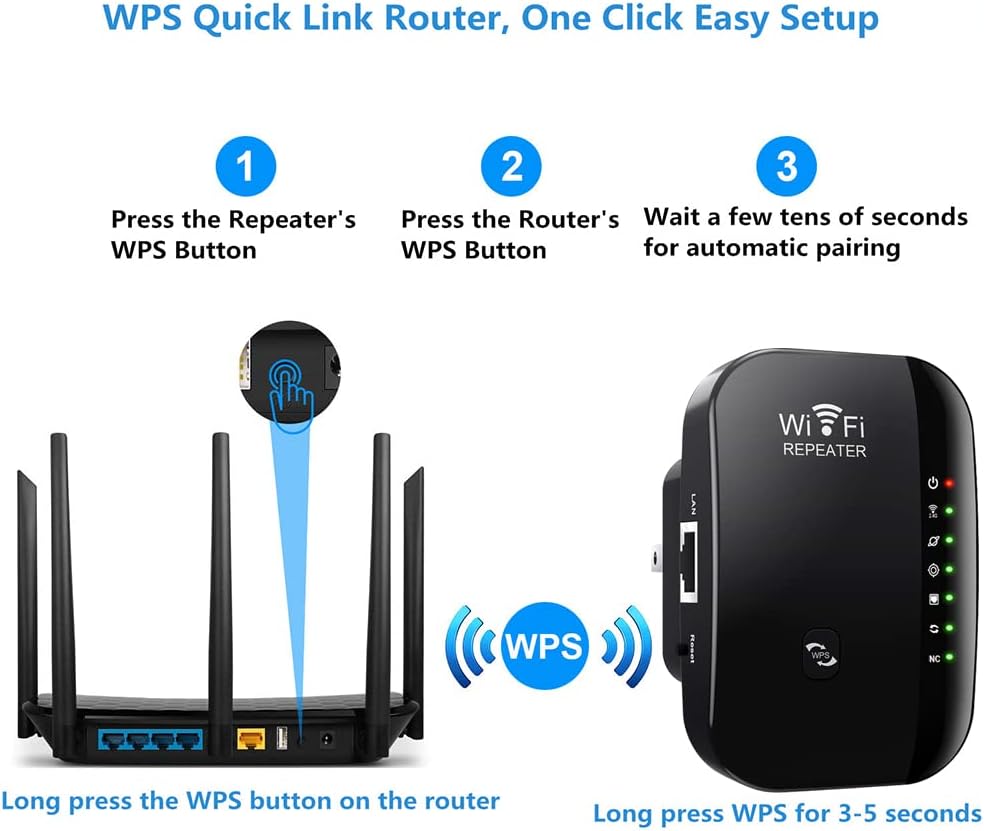
Figure 3.1: Visual guide for WPS setup, illustrating pressing the WPS button on both the repeater and the router for automatic pairing.
3.2. Manual Setup (Web Interface)
For more advanced configuration or if your router does not support WPS, use the manual setup method.
- Plug the WiFi Repeater into an electrical outlet.
- Connect your computer or mobile device to the repeater's default Wi-Fi network (usually named something like "WiFi-Repeater" or similar, without a password).
- Open a web browser and enter the default IP address (check the included English manual for the exact IP, commonly 192.168.1.1 or 192.168.0.1) or domain name (e.g., "repeater.net").
- Log in using the default username and password (typically "admin" for both).
- Follow the on-screen wizard to select your desired operating mode (Repeater or AP) and configure network settings, including selecting your main Wi-Fi network and entering its password.
- Save the settings and restart the repeater if prompted.
4. Operating Modes
The RUOVXWU WiFi Repeater supports two main operating modes to suit different networking requirements.

Figure 4.1: Multi-Mode Application diagram, showing how Repeater Mode extends existing WiFi coverage and AP Mode creates a new wireless network from a wired connection.
4.1. Repeater Mode
In Repeater Mode, the device extends the range of your existing Wi-Fi network. It receives the wireless signal from your main router and re-broadcasts it, effectively expanding your Wi-Fi coverage to areas with weak or no signal.
- Ideal for eliminating Wi-Fi dead zones.
- Uses the same SSID (network name) as your main router for seamless roaming, or you can set a new one.
- Connects wirelessly to your main router.
4.2. AP (Access Point) Mode
In AP Mode, the device converts a wired internet connection into a wireless network. You connect the repeater to your router or modem via an Ethernet cable, and it then broadcasts a new Wi-Fi signal.
- Suitable for creating a new Wi-Fi hotspot in an area with only wired internet access.
- Provides a strong, stable Wi-Fi signal.
- Requires an Ethernet cable connection to your network.
5. Signal Optimization
To achieve the best performance from your WiFi Repeater, consider the following placement tips:

Figure 5.1: Signal strength indicator guide. This image demonstrates how LED indicators help determine the ideal location for the repeater: green for strong signal (suitable location), no signal (needs to be closer to router), and yellow for poor signal (needs to be closer to router).
- Mid-point Placement: Place the repeater roughly halfway between your main router and the area where you need improved Wi-Fi coverage.
- Avoid Obstacles: Walls, large metal objects, and electronic devices can interfere with Wi-Fi signals. Try to place the repeater in an open area.
- Monitor Signal LEDs: The intelligent LED indicators on the repeater will help you find the optimal position. A strong signal (indicated by green LEDs) means the repeater is receiving a good signal from your main router. If the signal is weak (yellow) or non-existent (off), move the repeater closer to your router.
6. Compatibility
The RUOVXWU WiFi Repeater is designed for broad compatibility with various devices and network setups.

Figure 6.1: Universal Compatibility. This image illustrates the wide range of devices compatible with the WiFi Repeater, including PCs, laptops, smartphones, TV boxes, tablets, and smart TVs.
- Routers: Compatible with 99% of standard Wi-Fi routers, gateways, and access points.
- Devices: Works with virtually all Wi-Fi enabled devices, including:
- Smartphones
- Personal Computers (PCs)
- Tablets
- Smart Televisions
- Laptops
- Gaming Consoles
- Surveillance Cameras
- Blue-Ray players (via Ethernet port)
- Wireless Standard: Supports 802.11bgn wireless communication standard.
7. Maintenance
To ensure the longevity and optimal performance of your WiFi Repeater, follow these simple maintenance guidelines:
- Keep Clean: Regularly wipe the device with a soft, dry cloth to prevent dust accumulation. Do not use liquid cleaners.
- Ventilation: Ensure the device is placed in a well-ventilated area to prevent overheating. Do not block the ventilation holes.
- Power Cycle: If you experience connectivity issues, try power cycling the device (unplug it from the outlet, wait 10 seconds, then plug it back in).
- Firmware: While not typically user-upgradable for this model, ensure your main router's firmware is up to date for best compatibility.
8. Troubleshooting
If you encounter issues with your WiFi Repeater, refer to the following common problems and solutions:
| Problem | Solution |
|---|---|
| No power / Device not turning on. | Ensure the repeater is securely plugged into a working electrical outlet. Check the power indicator light. |
| Weak or no signal from the main router. | Relocate the repeater closer to your main router. Check the signal strength LEDs on the repeater for optimal placement. Avoid physical obstructions. |
| Cannot connect to the repeater's Wi-Fi network. | Ensure you are connecting to the correct network name (SSID). If you changed the SSID during setup, use the new one. Verify the Wi-Fi password. |
| Internet access is slow or intermittent after setup. | Check the signal strength LEDs on the repeater; a weak signal from the main router will result in poor extended signal. Try repositioning the repeater. Ensure your main internet connection is stable. |
| WPS setup failed. | Ensure both WPS buttons were pressed within the 2-minute window. Try again. If it continues to fail, use the manual web interface setup. |
| Forgot login password for web interface. | Perform a factory reset by pressing and holding the Reset button for 5-10 seconds. This will revert all settings to default, including the login credentials. |
9. Specifications
| Feature | Detail |
|---|---|
| Brand | RUOVXWU |
| Model Number | Répéteur WiFi Puissant Nouveau |
| Dimensions | 8 x 4 x 2 cm |
| Weight | 50 g |
| Wireless Standard | 802.11bgn |
| Data Transfer Rate | Up to 300 Megabits per second (Mbps) |
| Frequency Band | 2.4 GHz |
| Special Features | Access Point Mode, One-click Configuration (WPS), Smart LED Signal Indicator |
| Compatible Devices | Smartphone, Personal Computer, Tablet, Smart TV, Laptop, Gaming Console, Surveillance Camera |
| Ports | 1 x LAN/WAN RJ-45 Ethernet Port |
| Included Components | 1 x WiFi Repeater, 1 x RJ-45 Network Cable, 1 x English Manual |
| UPC | 787547844419 |
10. Warranty and Support
For any questions or issues regarding your RUOVXWU WiFi Repeater, please contact our customer support team. We are committed to resolving any problems you may encounter.
Please refer to the contact information provided in the packaging or the original purchase documentation for the most direct support channels.
"If you have any question, please contact us by email for the first time. We will solve any problem you want to solve."