1. Introduction
This user manual provides comprehensive instructions for setting up, operating, and maintaining your new Acer Aspire 5 15.6" FHD Touchscreen Laptop. Please read this manual thoroughly before using your device to ensure proper functionality and longevity.
The Acer Aspire 5 is a powerful and versatile laptop designed for productivity and entertainment. It features a 13th Gen Intel Core i5-13420H processor, 8GB LPDDR5 RAM, a 512GB SSD, and a vibrant 15.6-inch Full HD touchscreen display.

Figure 1.1: Front view of the Acer Aspire 5 laptop displaying the Windows 11 operating system interface.
2. Setup
2.1 Unpacking and Initial Inspection
Carefully remove the laptop and all accessories from the packaging. Verify that all components listed below are present and undamaged:
- Acer Aspire 5 Laptop
- AC Adapter
- Power Cord
- Documentation (Quick Start Guide, Warranty Card)
2.2 Connecting the Power Adapter
Before first use, ensure the laptop is fully charged. Connect the AC adapter to the power jack on the side of the laptop and then plug the power cord into a wall outlet.

Figure 2.1: Right side view of the laptop, illustrating the power input port and other connectivity options.
2.3 First Boot and Windows Setup
Press the power button to turn on the laptop. Follow the on-screen instructions to complete the Windows 11 Home setup process. This includes selecting your region, language, connecting to a Wi-Fi network, and creating a user account.
3. Operating Your Laptop
3.1 Keyboard and Touchpad
The laptop features a full-size keyboard with an integrated numeric keypad for enhanced productivity. The precision touchpad supports multi-touch gestures for navigation.

Figure 3.1: Overhead view of the laptop's keyboard and large touchpad, highlighting the integrated numeric keypad.
3.2 Display and Touchscreen Functionality
The 15.6-inch Full HD (1920 x 1080) IPS touchscreen display offers vibrant colors and wide viewing angles. You can interact directly with the screen using touch gestures.
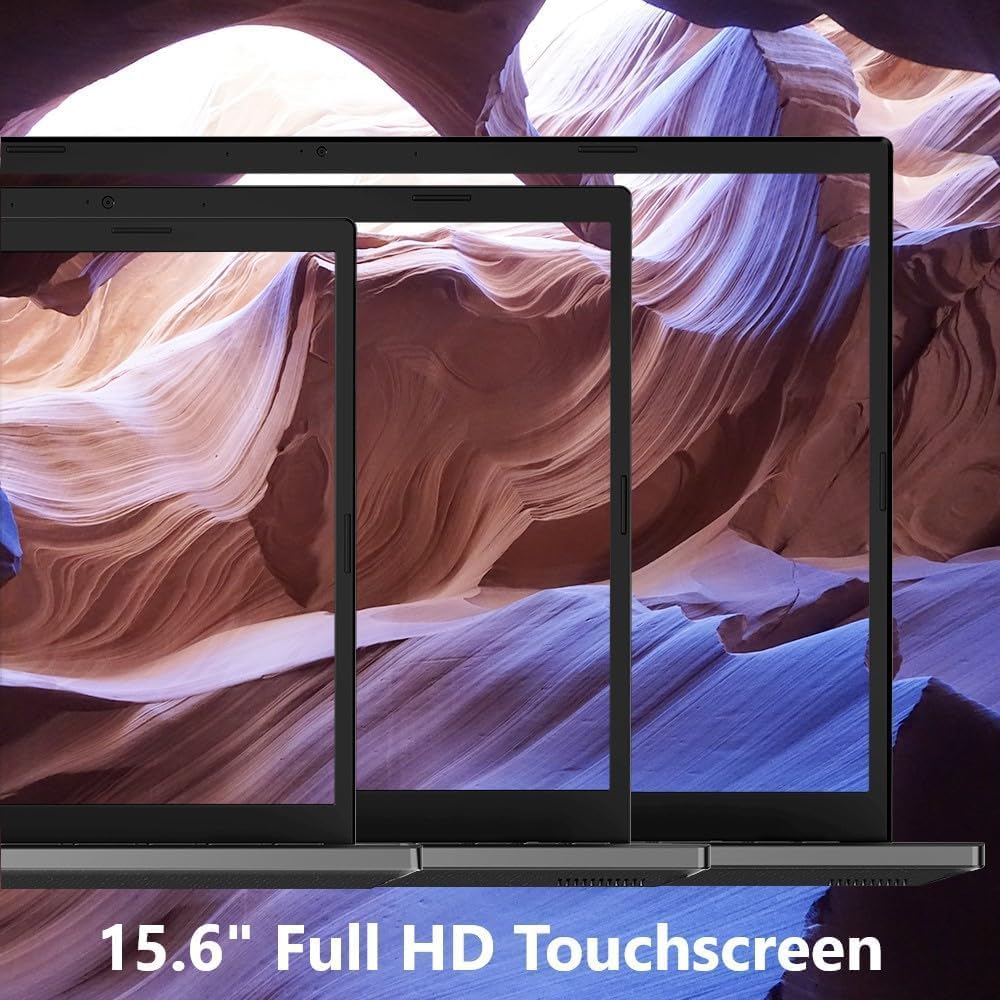
Figure 3.2: Visual representation emphasizing the 15.6-inch Full HD touchscreen display size and clarity.
3.3 Connectivity (Wi-Fi, Bluetooth, Ports)
Your laptop supports Wi-Fi 6E for fast wireless internet and Bluetooth 5.1 for connecting peripherals. It includes 2x USB 3.2 (Gen 1 Type-A) ports and 1x HDMI 2.1 port for external devices and displays.

Figure 3.3: Diagram illustrating the advanced connectivity features of the laptop, including Wi-Fi 6 and various ports.
3.4 Webcam and Audio
The integrated HD webcam with Blue Glass Lens supports 720p HD video for clear video calls. Built-in speakers and an array microphone provide comprehensive audio capabilities.

Figure 3.4: Image demonstrating the laptop's webcam and audio features in use during a video conference, highlighting Acer PurifiedVoice™ technology.
4. Maintenance
4.1 Cleaning Your Laptop
To clean the display, use a soft, lint-free cloth lightly dampened with water or a screen cleaner. For the keyboard and chassis, use a soft, dry cloth. Avoid harsh chemicals or abrasive materials.
4.2 Battery Care
To prolong battery life, avoid fully discharging the battery frequently. Store the laptop in a cool, dry place when not in use for extended periods.
4.3 System Updates
Regularly check for and install Windows updates and Acer driver updates to ensure optimal performance and security.
4.4 Cooling System
Ensure the laptop's vents are not obstructed to allow for proper airflow and prevent overheating. Periodically clean dust from the vents using compressed air.
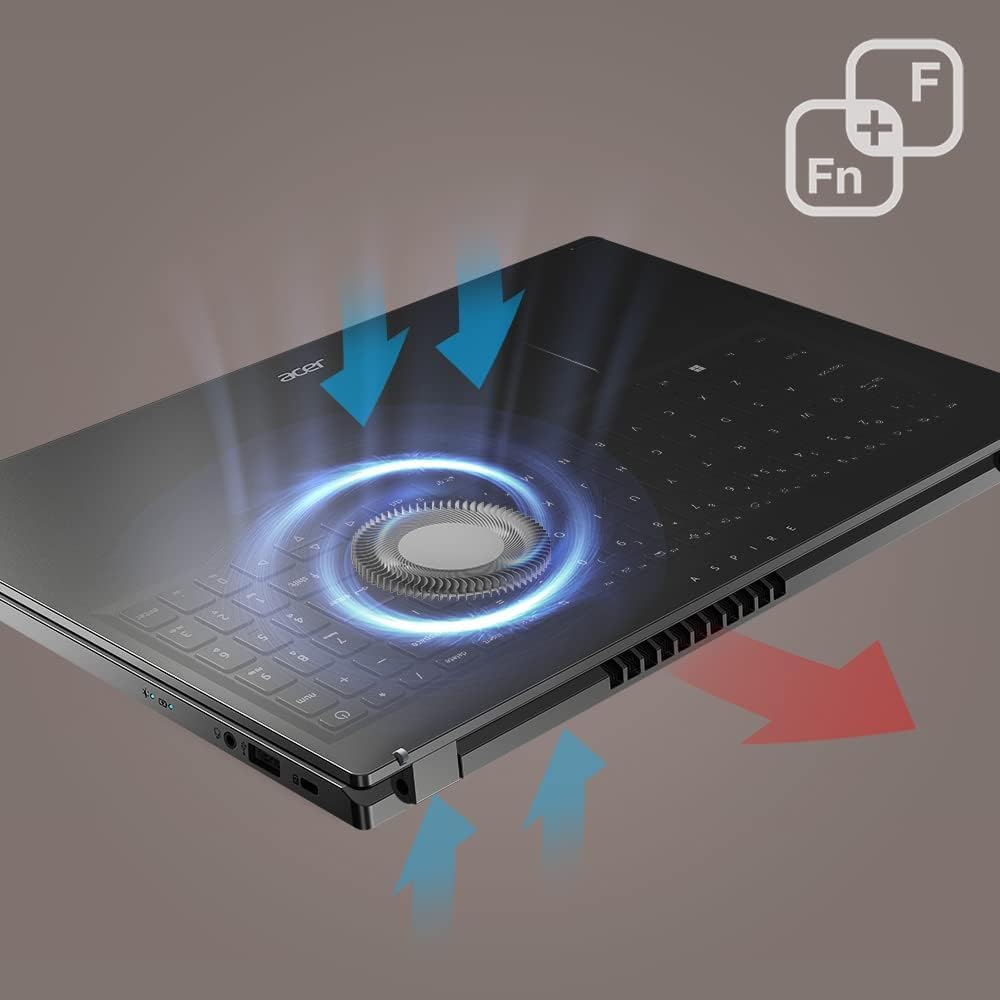
Figure 4.1: Illustration of the laptop's cooling system, depicting airflow through the internal components and vents.
5. Troubleshooting
5.1 Common Issues and Solutions
- Laptop does not power on:
- Ensure the AC adapter is securely connected and the power outlet is functional.
- Try holding the power button for 10-15 seconds to perform a hard reset.
- No Wi-Fi connection:
- Check if Wi-Fi is enabled in Windows settings.
- Restart your router and the laptop.
- Update Wi-Fi drivers from the Acer support website.
- Screen is blank or flickering:
- Connect an external monitor to check if the issue is with the laptop's display.
- Update graphics drivers.
- Adjust display brightness.
- Slow performance:
- Close unnecessary applications.
- Check for malware or viruses.
- Ensure sufficient free space on the SSD.
- Run Windows Disk Cleanup.
6. Specifications
| Feature | Detail |
|---|---|
| Model Name | Aspire 5 |
| Processor | 13th Gen Intel Core i5-13420H (up to 4.6 GHz) |
| Graphics | Intel UHD Graphics |
| RAM | 8GB LPDDR5 |
| Storage | 512GB M.2 NVMe PCIe 3.0 SSD |
| Display | 15.6" FHD Touchscreen IPS LED-backlit (1920 x 1080) |
| Operating System | Windows 11 Home |
| Wireless Connectivity | Wi-Fi 6E (802.11ax), Bluetooth 5.1 |
| Ports | 2x USB 3.2 (Gen 1 Type-A), 1x HDMI 2.1, 1x 3.5mm Combo Audio Jack, 1x Power connector |
| Webcam | Integrated HD Webcam with Blue Glass Lens (720p) |
| Dimensions (WxDxH) | 14.29 x 9.35 x 0.71 inches |
| Weight | 3.92 lbs |
| Color | Gray |
7. Warranty and Support
7.1 Product Warranty
Your Acer Aspire 5 laptop comes with a standard manufacturer's warranty. Please refer to the warranty card included in your product packaging for specific terms, conditions, and duration of coverage. Keep your proof of purchase for warranty claims.
7.2 Technical Support
For technical assistance, driver downloads, or further support, please visit the official Acer support website. You can also find FAQs and troubleshooting guides online.
Acer Support Website: www.acer.com/support
For information regarding extended protection plans, please refer to the details provided at the point of purchase or contact your retailer.