
1. Introduction
This manual provides comprehensive instructions for the setup, operation, maintenance, and troubleshooting of your Corsair Virtuoso MAX Wireless Gaming Headset. Please read this manual thoroughly before using the product to ensure optimal performance and longevity.
2. Package Contents
Verify that all items are present in your package:
- Corsair Virtuoso MAX Wireless Gaming Headset
- USB Wireless Adapter (2.4GHz)
- Detachable Omni-Directional Microphone
- USB Charging Cable
- Quick Start Guide (this document)
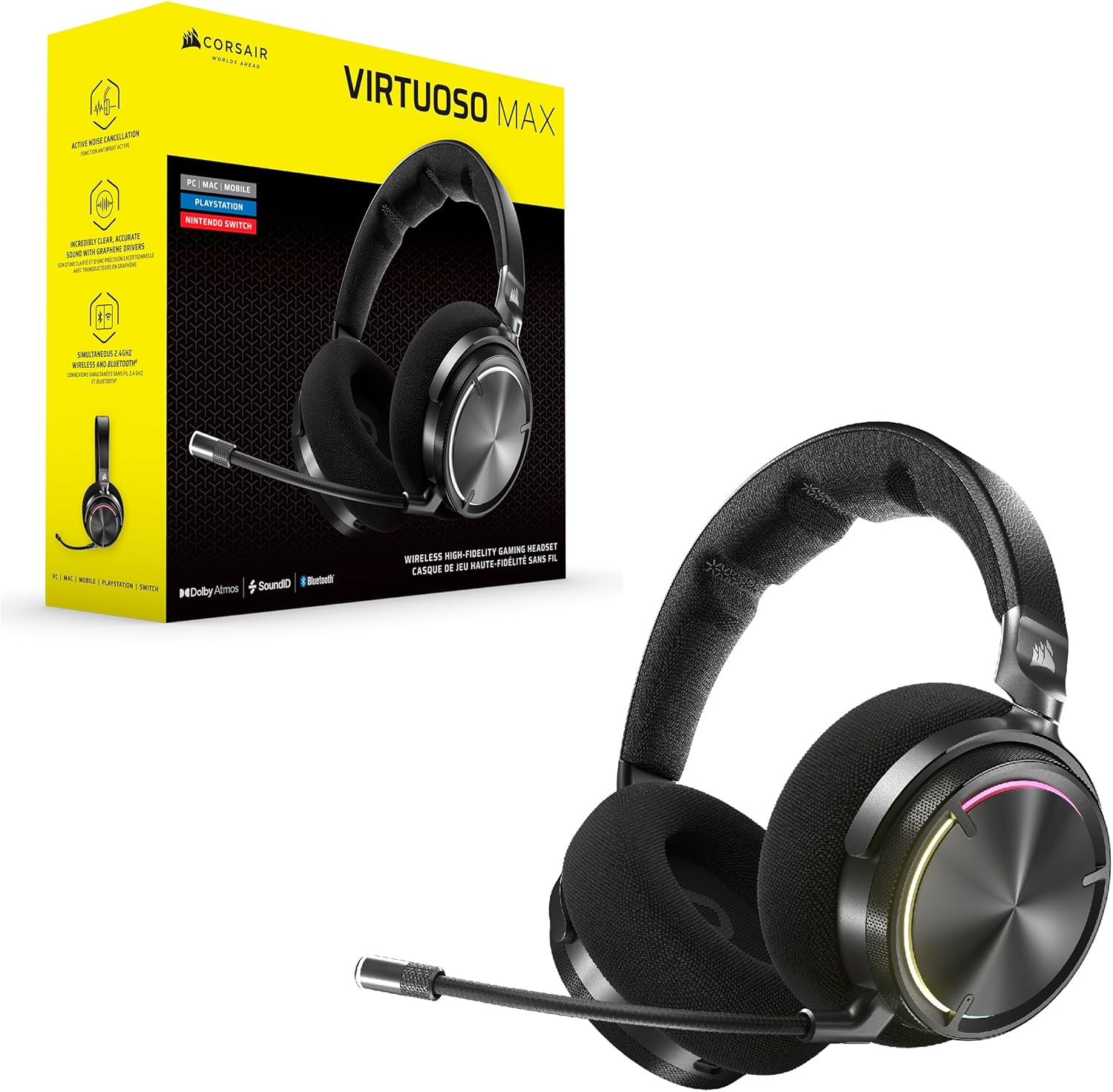
Image: The Corsair Virtuoso MAX headset displayed next to its retail packaging, showing the product and its box.
3. Product Overview
Familiarize yourself with the various components and controls of your headset.

Image: A front-angle view of the Corsair Virtuoso MAX Wireless Gaming Headset, highlighting its design and detachable microphone.
Headset Components:
- Adjustable Headband: For comfortable fit.
- Soft Cloth & Memory Foam Ear Pads: Designed for extended wear.
- 50mm Graphene Drivers: For high-fidelity audio output.
- Detachable Microphone: Omni-directional for clear voice capture.
- On-Ear Controls: For volume, power, and other functions.

Image: A close-up view of the right earcup of the headset, showing the on-ear controls and the connection point for the microphone.
4. Setup
4.1 Charging the Headset
Before first use, fully charge the headset using the provided USB charging cable. Connect the cable to the headset's USB-C port and a powered USB port (e.g., computer, wall adapter).
- Charging Time: Approximately 1.5 hours for a full charge.
- Battery Life: Up to 60 hours (with RGB lighting off via 2.4GHz wireless).
4.2 Connecting via 2.4GHz Wireless (PC, Mac, PS5/PS4)
- Insert the USB Wireless Adapter into an available USB port on your PC, Mac, PlayStation 5, or PlayStation 4.
- Power on your headset. The headset and adapter should automatically pair.
- On PC/Mac, ensure the Corsair Virtuoso MAX is selected as the default audio input and output device in your system sound settings.
4.3 Connecting via Bluetooth (Mobile, Other Devices)
- With the headset powered on, press and hold the Bluetooth button (if available, refer to product overview for exact button location) until the LED indicator flashes blue, indicating pairing mode.
- On your device, navigate to Bluetooth settings and select "Corsair Virtuoso MAX" from the list of available devices.
- The LED indicator will turn solid blue once connected.

Image: A user wearing the Corsair Virtuoso MAX headset, emphasizing its wireless capabilities via both Bluetooth and 2.4GHz connections.
4.4 Software Installation (PC/Mac)
For full functionality, including Dolby Atmos, Sonarworks SoundID, and iCUE custom settings, install the Corsair iCUE software on your PC or Mac.
- Download iCUE from the official Corsair website.
- Follow the on-screen instructions to install and update firmware.
- Dolby Atmos: A license may be included or available through iCUE for enhanced spatial audio on PC.
- Sonarworks SoundID: Use iCUE to personalize your audio profile based on your hearing preferences.
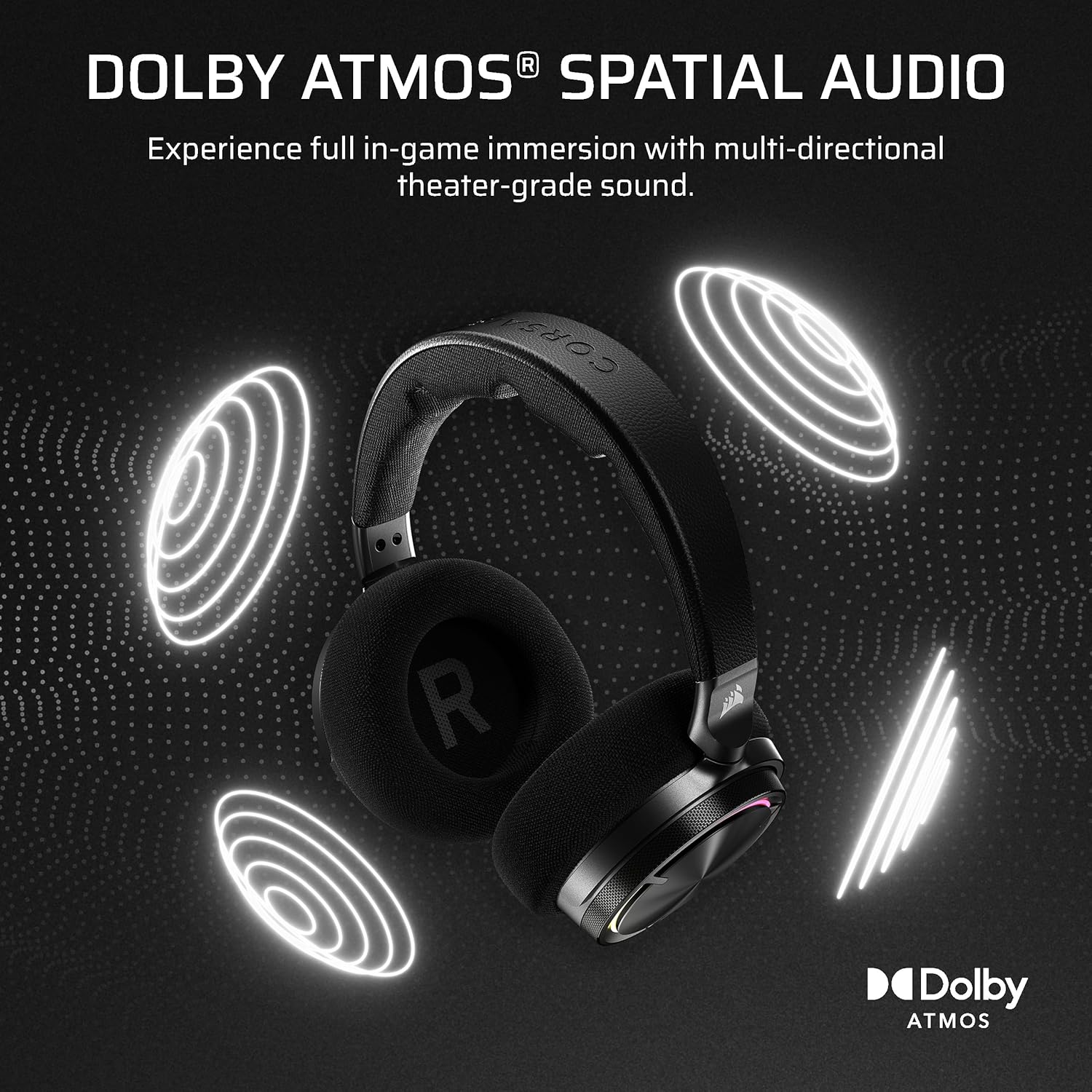
Image: Graphic illustrating Sonarworks SoundID technology, which allows for personalized audio profiles via iCUE software.

Image: Graphic depicting Dolby Atmos Spatial Audio, showcasing its ability to provide immersive, multi-directional sound.
5. Operating Instructions
5.1 Power On/Off
Press and hold the power button on the headset for approximately 3 seconds to power it on or off. An audible cue or LED indicator will confirm the status.
5.2 Volume Control
Adjust the master volume using the volume wheel located on one of the earcups. Some models may also feature separate chat/game mix controls.
5.3 Microphone Usage
Attach the detachable omni-directional microphone to the designated port on the headset. Position the microphone approximately 1-2 inches from your mouth for optimal voice clarity.
- Mute Function: A dedicated button or a flip-to-mute feature on the microphone boom allows for quick muting.
- Microphone Monitoring (Sidetone): Can be enabled and adjusted via iCUE software to hear your own voice.

Image: A detailed view of the detachable omni-directional microphone, highlighting its design for clear communication.
5.4 Active Noise Cancellation (ANC) and Ambient Mode
The headset features Active Noise Cancellation to reduce ambient noise. A dedicated button on the headset typically controls ANC and may cycle through different modes, including an Ambient Mode that allows you to hear your surroundings.
5.5 Simultaneous Connectivity
The Virtuoso MAX supports simultaneous connection to a 2.4GHz wireless source (e.g., PC) and a Bluetooth device (e.g., smartphone). This allows you to hear audio from both sources concurrently, such as game audio and phone calls.
6. Maintenance
6.1 Cleaning
- Wipe the headset with a soft, dry cloth.
- Do not use harsh chemicals or abrasive materials.
- The ear pads can be gently cleaned with a damp cloth and mild soap, then allowed to air dry completely.
6.2 Battery Care
- Avoid fully discharging the battery frequently.
- Store the headset in a cool, dry place when not in use for extended periods.
- Charge the headset periodically if stored for a long time to prevent deep discharge.
7. Troubleshooting
7.1 No Audio/Microphone Not Working
- Ensure the headset is powered on and fully charged.
- Verify the correct audio output/input device is selected in your operating system's sound settings.
- Check that the microphone is securely attached and not muted.
- Restart the headset and the connected device.
- For 2.4GHz wireless, ensure the USB adapter is properly inserted and recognized.
7.2 Connection Issues
- 2.4GHz: Ensure the headset is within range of the USB adapter. Try re-pairing by powering off both, then powering on the headset and adapter.
- Bluetooth: Unpair and re-pair the headset from your device's Bluetooth settings. Ensure no other devices are interfering.
7.3 Software Related Problems (iCUE, SoundID, Dolby Atmos)
- Ensure iCUE software is up to date.
- Check for headset firmware updates within iCUE.
- If issues persist, try reinstalling the iCUE software.
8. Specifications
| Model Name | CORSAIR VIRTUOSO MAX WIRELESS |
| Item Model Number | CA-9011372-WW |
| UPC | 840440484615 |
| Audio Driver Type | Dynamic Driver (50mm Graphene) |
| Frequency Range | 20 Hz - 40,000 Hz |
| Impedance | 32 Ohm |
| Sensitivity | 118 dB |
| Noise Control | Active Noise Cancellation |
| Microphone | Omni-Directional, Detachable |
| Connectivity Technology | 2.4GHz Wireless, Bluetooth 5.3 |
| Bluetooth Range | 30 Feet |
| Battery Life | Up to 60 Hours (with RGB off) |
| Charging Time | 1.5 Hours |
| Compatible Devices | Desktops, Gaming Consoles (PS5/PS4), Laptops |
| Material | Aluminum |
| Item Weight | 15.2 ounces (0.95 Pounds) |
| Product Dimensions | 7.89 x 7.23 x 3.99 inches |
9. Warranty and Support
9.1 Warranty Information
Corsair products come with a limited warranty. Please refer to the official Corsair website for detailed warranty terms and conditions specific to your region and product model. Retain your proof of purchase for warranty claims.
9.2 Technical Support
For further assistance, technical support, or to access FAQs and driver downloads, please visit the official Corsair support website:


