
Introduction
Thank you for choosing the MAIWO USB C Hard Drive Enclosure and Laptop Docking Station. This versatile device combines a 2.5/3.5 inch SATA SSD/HDD enclosure with a comprehensive USB hub extension, offering enhanced connectivity and storage solutions for your laptop or desktop. This manual provides detailed instructions for setup, operation, maintenance, and troubleshooting to ensure optimal performance and longevity of your device.
Package Contents
Please verify that all items are present in the package:
- 1x External Hard Drive Enclosure for 2.5/3.5'' HDD SSD
- 1x Type-C to Type-C Data Cable (USB3.1 10Gbps, 31.5inch/80cm)
- 1x 12V/3A Power Adapter (47inch/1.2m)
- 1x Screwdriver
- Screws
- 1x User Manual (this document)

Image: The MAIWO Hard Drive Enclosure, power adapter, and two USB-C cables included in the package.
Product Features
- Compatibility: Supports 2.5-inch and 3.5-inch SATA I/II/III HDD/SSD (7-9mm thickness for 2.5-inch drives).
- High-Speed Transfer: USB 3.1 Gen 2 Type-C port with UASP support, theoretical transfer speed up to 10Gbps. Actual speed for SATA drives is limited to 6Gbps.
- Extensive Connectivity:
- 1x USB 3.1 Gen 2 Type-C port (for PC connection)
- 1x USB 3.1 Gen 2 Type-C port (for extension/10Gbps)
- 1x USB 3.0 Type-A port (for mouse, keyboard, USB flash drive)
- SD/TF Card Reader
- 4K HD-MI output (4K@60Hz)
- 1000Mbps Gigabit Ethernet port (RJ45)
- 3.5mm Audio port
- Large Capacity Support: Supports hard drives up to 24TB.
- Power Supply: Includes a 12V/3A power adapter for stable operation.
- Daisy Chain Functionality: Allows combining multiple K3527P models for expanded storage.
- Operating System Support: Compatible with Windows 7/8/10/11, macOS 10.10.5 and above, Linux.
- Durable Construction: Aluminum alloy case with ABS bracket for heat dissipation and protection.

Image: A detailed view of the MAIWO Hard Drive Enclosure's front panel, labeling each port: Power Button, 12V/3A DC IN, USB3.0 Type-A, SD/TF Card slots, USB3.1 GEN2 Type-C (for extension), HD-MI 4K 60Hz, Gigabit Ethernet (RJ45), 3.5mm Audio Port, and USB3.1 GEN2 Type-C (for PC connection).
Setup Guide
1. Installing a Hard Drive/SSD
- Ensure the enclosure is disconnected from power and your computer.
- Gently slide open the enclosure cover to reveal the internal drive bay.
- Align your 2.5-inch or 3.5-inch SATA HDD/SSD with the SATA connector inside the enclosure. Ensure the drive is oriented correctly.
- Carefully push the drive into the connector until it is firmly seated. For 3.5-inch drives, you may need to secure it with the provided screws and screwdriver.
- Slide the enclosure cover back into place until it clicks securely.
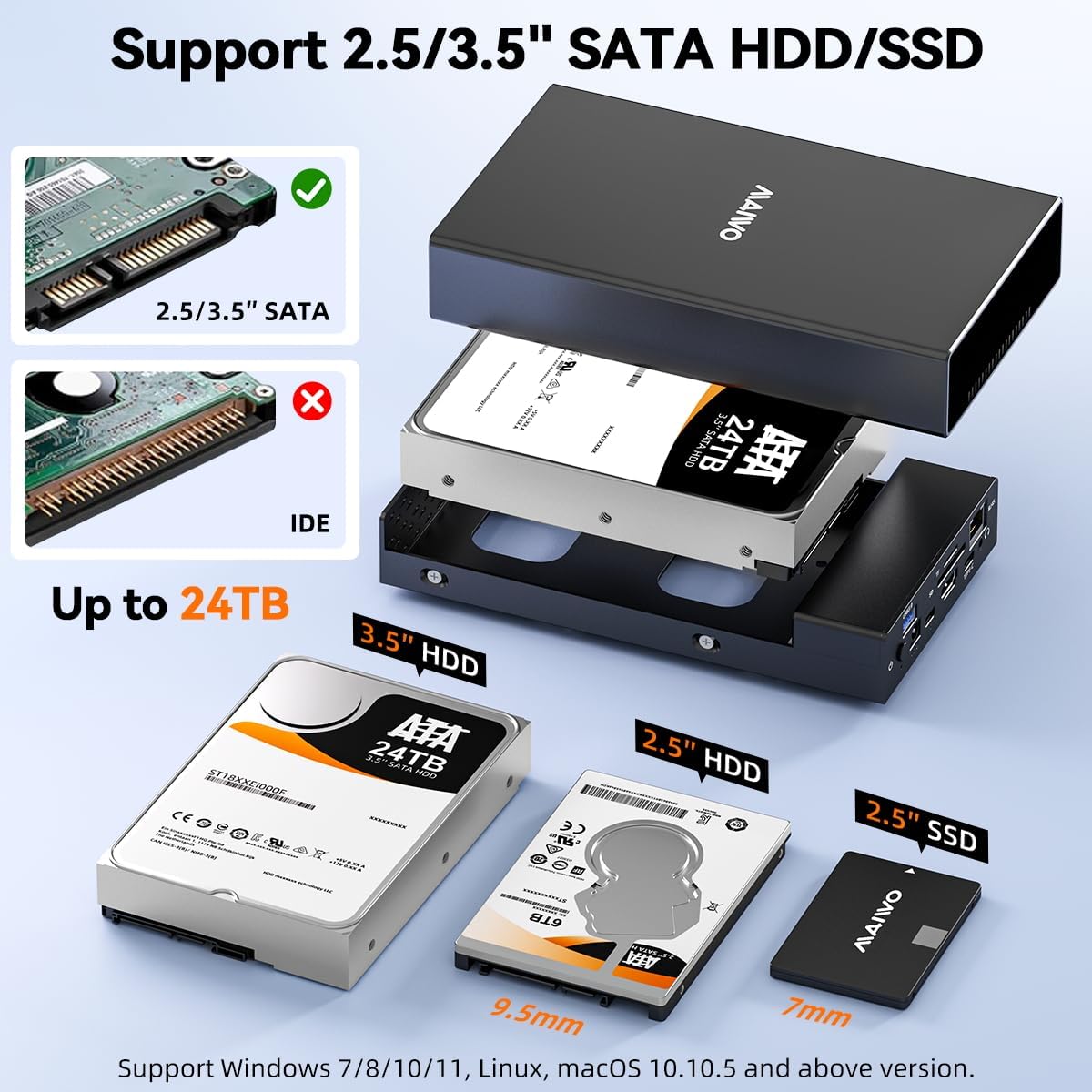
Image: A visual guide demonstrating the process of inserting a 3.5-inch hard disk drive into the MAIWO enclosure. The image highlights the compatibility with both 2.5-inch and 3.5-inch SATA drives and shows an incompatible IDE drive for comparison.
2. Connecting to Your Computer
- Connect the 12V/3A power adapter to the DC IN port on the enclosure and plug it into a power outlet.
- Use the provided Type-C to Type-C data cable to connect the USB 3.1 Gen 2 Type-C port (labeled "For PC") on the enclosure to a compatible USB-C port on your computer.
- Press the power button on the enclosure to turn it on. The power indicator light will illuminate.
- Your computer should automatically detect the device. If a new hard drive is installed, it may need to be initialized and formatted before use. Refer to your operating system's disk management tools for this process.

Image: The MAIWO Hard Drive Enclosure connected to a laptop via a USB-C cable, illustrating the 10Gbps transfer speed capability. The power adapter is also shown connected to the enclosure.
Operating Instructions
Using the Hard Drive Enclosure Function
Once connected and recognized by your computer, the installed HDD/SSD will appear as an external drive. You can now perform standard file operations such as copying, moving, deleting, and backing up data.
Using the Docking Station Functions
The MAIWO enclosure also functions as a multi-port docking station. Connect your peripherals to the corresponding ports:
- USB 3.0 Type-A Port: Connect USB flash drives, external M.2 NVMe enclosures, mice, keyboards, or other USB-A devices.
- SD/TF Card Slots: Insert SD or TF (MicroSD) cards for direct data transfer.
- HD-MI Port: Connect an external monitor or TV using an HD-MI cable for 4K@60Hz video output. Ensure your computer's USB-C port supports DisplayPort Alternate Mode.
- Gigabit Ethernet Port (RJ45): Connect an Ethernet cable for a stable wired network connection.
- 3.5mm Audio Port: Connect headphones, speakers, or a microphone.
- USB 3.1 Gen 2 Type-C Extension Port: This port can be used to connect additional USB-C devices or for daisy-chaining another MAIWO K3527P unit.

Image: A comprehensive diagram illustrating the various ports on the MAIWO Hard Drive Enclosure and their respective functions, including USB 3.0, SD/TF, USB-C Gen2, HD-MI 4K, Gigabit Ethernet, and 3.5mm Audio.
Safe Removal
Always safely eject the hard drive from your operating system before disconnecting the enclosure or turning off its power. This prevents data corruption.
Maintenance
- Cleaning: Use a soft, dry cloth to clean the exterior of the enclosure. Do not use liquid cleaners or aerosols.
- Storage: Store the device in a cool, dry place away from direct sunlight and extreme temperatures.
- Ventilation: Ensure the ventilation holes on the enclosure are not blocked to allow for proper heat dissipation, especially during extended use.
- Firmware Updates: Check the official MAIWO website periodically for any available firmware updates that may improve performance or compatibility.
Troubleshooting
| Problem | Possible Cause / Solution |
|---|---|
| Device not recognized by computer. |
|
| Hard drive not detected inside the enclosure. |
|
| Slow transfer speeds. |
|
| HD-MI output not working. |
|
| Ethernet connection issues. |
|
Specifications
| Feature | Detail |
|---|---|
| Model | K3527P |
| Supported Drives | 2.5" / 3.5" SATA I/II/III HDD/SSD (7-9mm for 2.5") |
| Max Capacity | Up to 24TB |
| Host Interface | USB 3.1 Gen 2 Type-C (10Gbps) |
| Extension Ports |
|
| Power Supply | 12V/3A Power Adapter |
| Material | Aluminum Alloy Case + ABS Bracket |
| Dimensions (L x W x H) | 13.8 x 7.5 x 4.3 inches (35 x 19 x 11 cm) |
| Item Weight | 1.39 pounds (0.63 kg) |
| Operating System Support | Windows 7/8/10/11, macOS 10.10.5+, Linux |
Warranty Information
MAIWO products come with a standard manufacturer's warranty. For specific warranty terms and conditions, please refer to the warranty card included with your product or visit the official MAIWO website. Keep your purchase receipt as proof of purchase for warranty claims.
Customer Support
If you encounter any issues or have questions regarding your MAIWO USB C Hard Drive Enclosure and Laptop Docking Station, please contact MAIWO customer support through the following channels:
- Official Website: Visit the MAIWO official website for FAQs, drivers, and support contact information.
- Email Support: Refer to your product packaging or the official website for the support email address.
- Amazon Store: You can also reach out to the seller "MAIWO STORE" via your Amazon order history for assistance.
When contacting support, please provide your product model (K3527P) and a detailed description of the issue.