
1. Introduction
The PORTWORLD W6 64MP 4K Digital Camera is designed for capturing high-resolution images and videos. Featuring a 12X optical zoom lens, 64-megapixel photo capability, and 4K video recording, this camera is suitable for various photography and videography needs. It includes an autofocus system, 6-axis anti-shake technology, and Wi-Fi connectivity for enhanced usability.
2. Safety Information
- Do not expose the camera to water or moisture. This product is not water-resistant.
- Avoid dropping the camera or subjecting it to strong impacts.
- Keep the camera away from extreme temperatures and direct sunlight.
- Use only approved batteries and charging accessories.
- Do not attempt to disassemble or repair the camera yourself. Contact customer support for assistance.
- Keep out of reach of small children.
3. Package Contents
Verify that all items are present in the package:
- 1x PORTWORLD W6 Digital Camera
- 1x Leather Case
- 2x Lanyard
- 1x Wiping Cloth
- 1x Data Cable (USB)
- 1x User Manual
- 1x 32GB TF Card (Memory Card)
- 1x Card Reader
- 1x Locking Clip
- 1x Lithium Ion Battery (included, 1 required)

Figure 3.1: Included accessories with the PORTWORLD W6 Digital Camera.
4. Camera Overview
The PORTWORLD W6 features a compact design with intuitive controls. The front includes the 12X optical zoom lens and flash. The rear features a 2.8-inch IPS LCD screen and control buttons for navigation and settings. The top panel houses the power button and shutter release.
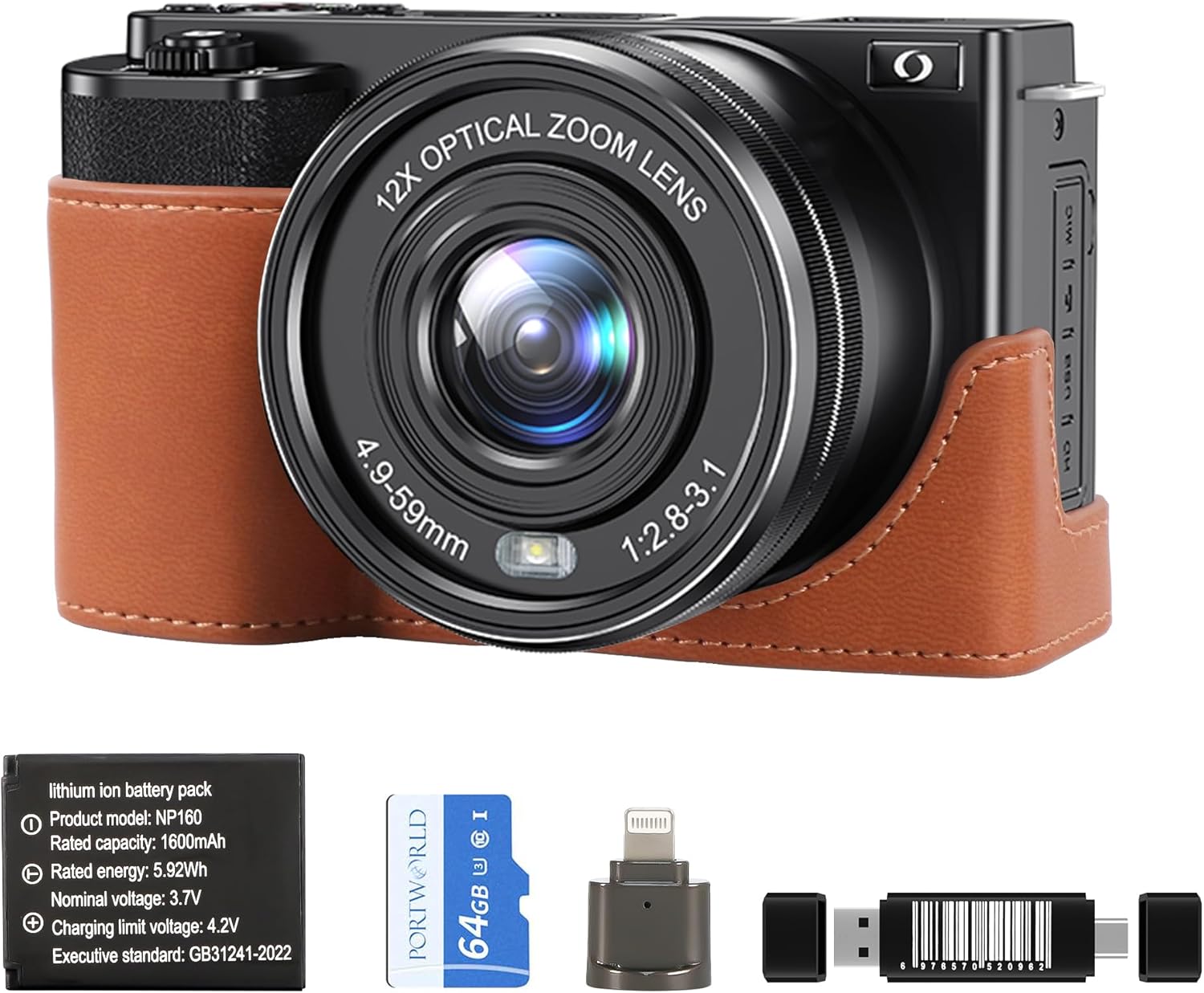
Figure 4.1: Front view of the PORTWORLD W6 Digital Camera.

Figure 4.2: Rear view of the PORTWORLD W6 Digital Camera with screen and controls.
5. Setup
5.1. Installing the Battery and Memory Card
To begin using your camera, install the included lithium-ion battery and 32GB TF card. Ensure correct orientation for both components.
Video 5.1: Demonstration of how to install the battery and format the SD card in a similar digital camera.
5.2. Charging the Battery
Connect the camera to a power source using the provided USB data cable and charging brick. The charging indicator light will show the charging status. Ensure the battery is fully charged before first use.
5.3. Formatting the Memory Card
It is recommended to format the memory card before initial use and periodically to maintain optimal performance. Access the 'Format Card' option in the camera's system settings menu. This will erase all data on the card, so back up any important files first.
6. Operating Instructions
6.1. Power On/Off
Press and hold the Power button located on the top of the camera to turn it on or off.
6.2. Taking Photos
In photo mode, frame your shot using the LCD screen. Press the Shutter button halfway to focus, then press fully to capture the image.
6.3. Recording Videos
Switch to video mode using the mode dial. Press the Record button to start and stop video recording.
6.4. Zoom Function
Use the W (Wide) and T (Telephoto) buttons to adjust the 12X optical zoom. This allows you to get closer to distant subjects without losing image quality.

Figure 6.1: Visual representation of the 12X optical zoom.
6.5. Flash Settings
The camera features a built-in smart flash with three modes: Off, Always On, and Shooting. Adjust the flash setting via the menu for optimal lighting conditions.
6.6. Self-Timer
Access the self-timer options (1S, 3S, 5S) through the camera's menu for delayed photo capture.
6.7. Playback Mode
Press the Playback button to review captured photos and videos on the LCD screen.
7. Advanced Features
7.1. Photo Modes and Filters
The camera offers various photo modes including Manual Exposure, Filter Mode (with 11 filter effects), Smart Scene, Continuous Shooting, Scene Mode, Programmed Auto Exposure, Shutter Priority, and Aperture Priority. Explore these modes to suit different shooting scenarios.

Figure 7.1: Camera mode dial and examples of filter effects.
7.2. ISO Settings
Adjust the ISO sensitivity (Auto/100/200/400/800/1600/3200) to control the camera's sensitivity to light, useful in varying lighting conditions.
7.3. 6-Axis Anti-Shake Function
The integrated 6-axis anti-shake technology helps reduce blur caused by camera movement, ensuring clearer images and smoother videos.

Figure 7.2: Visuals demonstrating anti-shake and other features.
7.4. Wi-Fi Connectivity
Connect the camera wirelessly to your smart device via Wi-Fi to transfer photos and videos. Download the dedicated application for seamless sharing.
7.5. Webcam Functionality
Connect the camera to a PC via USB cable to use it as a webcam for video calls or live streaming.
7.6. HDMI & USB Output
The camera supports HDMI and USB output for connecting to external displays or computers.
8. Maintenance
- Cleaning: Use the provided wiping cloth to gently clean the camera body and lens. Avoid using harsh chemicals or abrasive materials.
- Storage: When not in use, store the camera in its leather case in a cool, dry place away from direct sunlight and dust. Remove the battery if storing for extended periods.
9. Troubleshooting
- Camera does not power on: Ensure the battery is fully charged and correctly inserted.
- Images are blurry: Check that the lens is clean. Ensure the autofocus is engaged by pressing the shutter button halfway before fully pressing. Verify anti-shake is enabled in settings.
- Memory card error: Reinsert the memory card. If the issue persists, try formatting the card (after backing up data) or using a different compatible card.
- Wi-Fi connection issues: Ensure the camera's Wi-Fi is enabled and your smart device is within range. Refer to the app's instructions for connection details.
10. Specifications
| Image Resolution | 64M (9200*6900), 32M (6480*4860), 16M (4608*3456), 8M (3264*2448) |
| Video Resolution | UHD (4K): 2880*2160 (24fps), QHD (2K): 2560*1440 (30fps), FHD (1080P): 1920*1080 (30fps/60fps) |
| Sensor Type | 1/2.8-inch 8MP SONY CMOS Sensor |
| Lens | Optical zoom lens; f=4.9~59mm, Fno. 2.8~3.1 |
| Optical Zoom | 12X |
| Screen | 2.8 inch LCD IPS Screen |
| Image Stabilization | 6-Axis Anti-Shake (Digital) |
| Focus Type | Autofocus (AF) |
| Connectivity | Wi-Fi, HDMI Output, USB Output |
| Storage | Supports up to 256GB TF Card (64GB included) |
| Battery Type | Lithium Ion |
| Weight | 400 Grams |
| Color | Black |
11. Warranty and Support
This product comes with a 1-year warranty from the date of purchase. For technical support, troubleshooting, or warranty claims, please contact PORTWORLD customer service. Refer to the contact information provided in the product packaging or on the official PORTWORLD website.