
Introduction
Thank you for choosing the Belson DU4LB-WS-01 Automatic Pet Feeder. This device is designed to provide convenient and reliable feeding for your pets, ensuring they receive their meals on schedule, whether you are home or away. Featuring Wi-Fi connectivity, voice interaction, and a dual power supply, this feeder offers flexibility and peace of mind. Please read this manual thoroughly before operating the device to ensure proper use and maintenance.
Safety Information
- FOR ANIMAL USE ONLY: This product is intended for feeding domestic pets (dogs and cats) with dry food only.
- Do not use with wet food, canned food, or treats larger than 15mm in diameter.
- Keep out of reach of children.
- Ensure the feeder is placed on a stable, level surface to prevent tipping.
- Do not immerse the main unit in water or any other liquid.
- Always unplug the feeder before cleaning or performing maintenance.
- Use only the power adapter provided by the manufacturer.
Package Contents
Upon unpacking, please ensure all items listed below are present and in good condition:
- Belson DU4LB-WS-01 Automatic Pet Feeder Main Unit
- Stainless Steel Feeding Tray
- Power Adapter
- User Manual (this document)
Product Overview
Familiarize yourself with the components of your Belson Automatic Pet Feeder:

The Belson DU4LB-WS-01 Automatic Pet Feeder in white, featuring a transparent food reservoir and a removable feeding tray.
- Food Reservoir: Transparent container for dry pet food (4L capacity).
- Lid: Secures the food reservoir.
- Control Panel: Buttons and indicator lights for manual operation and status.
- Food Outlet: Where food is dispensed.
- Feeding Tray: Removable stainless steel tray for pets to eat from.
- Power Port: For connecting the power adapter.
- Battery Compartment: For optional battery backup (batteries not included).
Setup
1. Unpacking and Placement
- Remove all components from the packaging.
- Place the feeder on a flat, stable surface in a location accessible to your pet and near a power outlet.
2. Power Supply
The feeder supports dual power supply for reliability:
- Mains Power: Connect the power adapter to the feeder's power port and plug it into a wall outlet.
- Battery Backup (Optional): For uninterrupted operation during power outages, install 3 D-cell batteries (not included) into the battery compartment at the bottom of the unit.

Highlights the dual power supply capability (mains and battery backup) and memory function, ensuring continuous operation even during power outages or loss of WiFi signal.
3. App Installation and Wi-Fi Connection
The Belson DU4LB-WS-01 feeder connects to the Tuya Smart app for remote control and scheduling.
- Download the Tuya Smart app from your smartphone's app store (iOS or Android).
- Register or log in to your Tuya Smart account.
- Ensure your phone is connected to a 2.4GHz Wi-Fi network.
- Open the app, tap '+' to add a device, and select 'Small Home Appliances' > 'Pet Feeder (Wi-Fi)'.
- Follow the on-screen instructions to connect the feeder to your Wi-Fi network. This typically involves resetting the feeder's Wi-Fi (refer to the feeder's control panel instructions for specific reset steps) and confirming the indicator light is blinking rapidly.
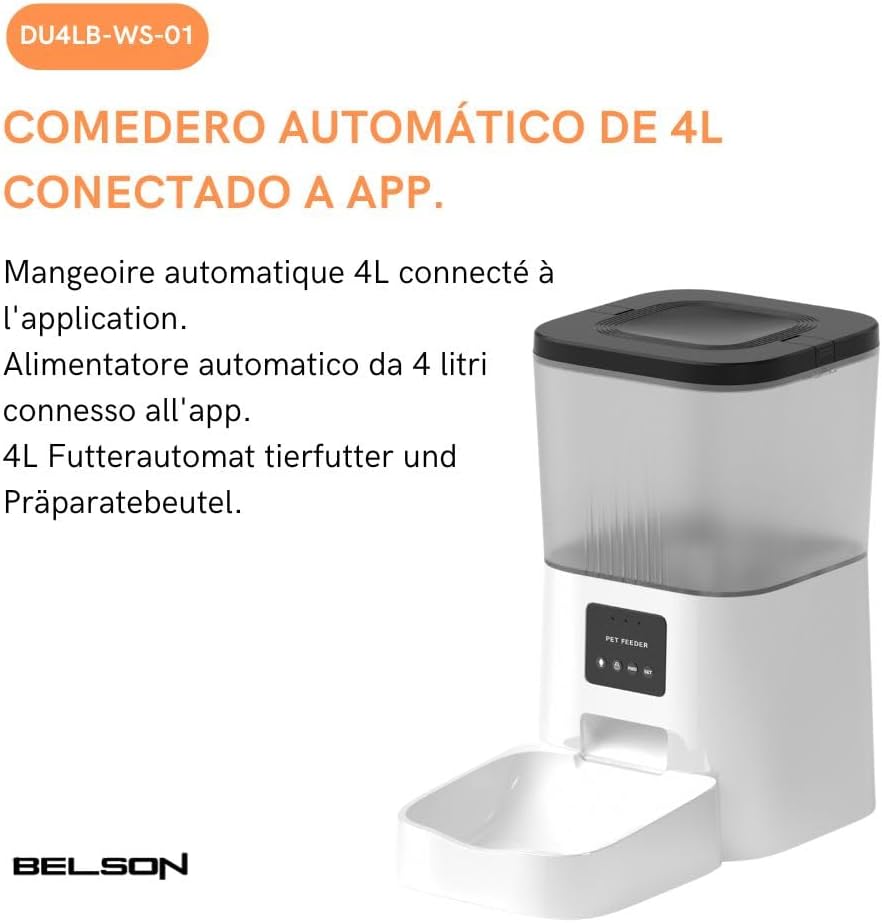
This image illustrates the 4-liter capacity of the Belson DU4LB-WS-01 automatic pet feeder and its connectivity to a mobile application for remote management.

This image emphasizes the Wi-Fi connectivity of the feeder, allowing for remote control and scheduling via the mobile application.
4. Filling the Food Reservoir
- Open the lid of the food reservoir.
- Pour dry pet food into the reservoir. Do not overfill.
- Close the lid securely. The transparent reservoir allows easy monitoring of food volume.
5. Assembling the Feeding Tray
- Slide the stainless steel feeding tray into the designated slot at the base of the feeder. Ensure it is firmly in place.
Operating Instructions
1. Scheduling Meals (Personalized Feeding Plan)
Use the Tuya Smart app to set up a personalized feeding schedule:
- In the app, select your Belson Pet Feeder.
- Navigate to the 'Schedule' or 'Feeding Plan' section.
- Add new feeding times, specifying the time of day and the number of portions (1-20 portions per meal).
- You can schedule up to 6 meals per day.

The feeder's personalized feeding plan feature is shown, allowing users to schedule up to 6 meals with 1-20 portions each, managed via the app.
2. Voice Recording
Record a custom message to call your pet for meals:
- In the Tuya Smart app, find the 'Voice Recording' or 'Voice Interaction' feature.
- Record a message (up to 10 seconds) that will play automatically at each scheduled mealtime.
- You can also manually trigger the voice message through the app.

Demonstrates the voice interaction feature, where users can record a 10-second message to call their pet for meals, enhancing the feeding experience.
3. Manual Feeding
To dispense food instantly:
- Via App: In the Tuya Smart app, select the 'Feed Now' or 'Manual Feed' option and choose the number of portions.
- Via Control Panel: Press the manual feed button on the feeder's control panel to dispense one portion. Press multiple times for more portions.
4. Monitoring Food Level
The transparent food reservoir allows you to visually check the remaining food level. The app may also provide notifications for low food levels.

A close-up view of the internal mechanism of the feeder, illustrating how dry food is dispensed from the reservoir into the feeding tray.
Maintenance
1. Cleaning
Regular cleaning ensures hygiene and proper functioning:
- Unplug the feeder and remove any batteries.
- Remove the stainless steel feeding tray and wash it with mild soap and water. Rinse thoroughly and dry completely.
- Wipe the food reservoir and the exterior of the main unit with a damp cloth. Do not use abrasive cleaners.
- Ensure all parts are completely dry before reassembling and refilling with food.
2. Refilling
When the food level is low, refill the reservoir with fresh dry pet food. Avoid mixing old and new food to maintain freshness.
Troubleshooting
| Problem | Possible Cause | Solution |
|---|---|---|
| Feeder not dispensing food. | Food reservoir empty; Food jammed; Power issue. | Refill reservoir; Clear any food blockages; Check power connection/batteries. |
| Wi-Fi connection fails. | Incorrect Wi-Fi password; Router too far; 5GHz network. | Verify password; Move feeder closer to router; Ensure 2.4GHz network is used. |
| Voice recording not playing. | Recording not saved; Volume too low. | Re-record and save the message; Check app volume settings. |
| Scheduled meals not dispensing. | Incorrect schedule settings; Feeder offline; Low battery. | Verify schedule in app; Check Wi-Fi connection; Replace batteries if using backup power. |
Specifications
| Feature | Detail |
|---|---|
| Model Number | DU4LB-WS-01 |
| Brand | Belson |
| Capacity | 4 Liters (dry food) |
| Target Species | Cat, Dog |
| Connectivity | Wi-Fi (2.4GHz) |
| Power Source | Electric Cord (Mains) and Battery Backup (3 x D-cell, not included) |
| Special Features | Android/iOS Compatible, Voice Recording, Programmable Feeding |
| Product Dimensions | 18 x 18 x 31 cm |
| Weight | 1.8 kg |
| Color | White |
Warranty and Support
Belson products are designed for reliability and performance. For warranty information, technical support, or service inquiries, please refer to the contact details provided with your purchase documentation or visit the official Belson website. Keep your purchase receipt as proof of purchase.