
Introduction
This manual provides instructions for the setup, operation, maintenance, and troubleshooting of your ENDGAME GEAR XM2w 4k Wireless Gaming Mouse. Please read this manual carefully before using the product to ensure proper function and longevity.

The ENDGAME GEAR XM2w 4k Wireless Gaming Mouse.
Package Contents
- ENDGAME GEAR XM2w 4k Wireless Gaming Mouse
- USB Wireless Dongle
- USB-C Charging Cable
- Set of Replacement Hybrid Skates
Setup
1. Connecting the Mouse
- Insert the USB wireless dongle into an available USB port on your computer.
- Locate the power switch on the bottom of the mouse. Slide the switch to the 'On' position.
- The mouse should automatically connect to the dongle. If not, refer to the troubleshooting section.

The XM2w 4k mouse shown with its wireless USB dongle.
2. Initial Charging
Before first use, it is recommended to fully charge the mouse. Connect the supplied USB-C charging cable to the front port of the mouse and the other end to a USB port on your computer or a USB wall adapter. The mouse's LED indicator will show charging status.
3. Software Installation
For full customization and advanced features, download the official ENDGAME GEAR software from the manufacturer's website. This software allows you to configure DPI settings, polling rate, button assignments, and other performance parameters.
Operating the Mouse
Basic Functions
- Left/Right Click Buttons: Utilize Kailh GX switches for responsive feedback.
- Scroll Wheel: For vertical scrolling and middle-click functionality.
- Side Buttons: Two programmable buttons located on the left side of the mouse.

Front view of the XM2w 4k mouse, showing the scroll wheel and main buttons.
Advanced Settings (via Software)
- DPI/CPI Adjustment: Customize sensitivity up to 26,000 CPI.
- Polling Rate: Select between 1000Hz and 4000Hz for wireless operation. A higher polling rate provides faster response times.
- Kailh GX Switches: Configure click modes, including GX Speed Mode for reduced click latency and GX Safe Mode for double-click prevention.
- Button Mapping: Reassign functions to any of the mouse buttons.
- Debounce Filter: Adjust the debounce time for left, right, middle, forward, and back buttons to prevent unintended double clicks.
- Motion Features: Enable or disable Angle Snapping, Ripple Control, Motion Sync, Slamclick Filter, and Motion Jitter Filter for precise tracking control.
- Power Management: Configure Power Saving Mode and Deep Sleep Mode activation delays to optimize battery life.

Illustration of the 4000 Hz wireless polling rate capability.

Close-up view of the Kailh GX switches.
Customizable Skates
The mouse features a hybrid skate design, allowing you to use either full-size or smaller skates to adjust the glide feel. Replacement skates are included in the package.
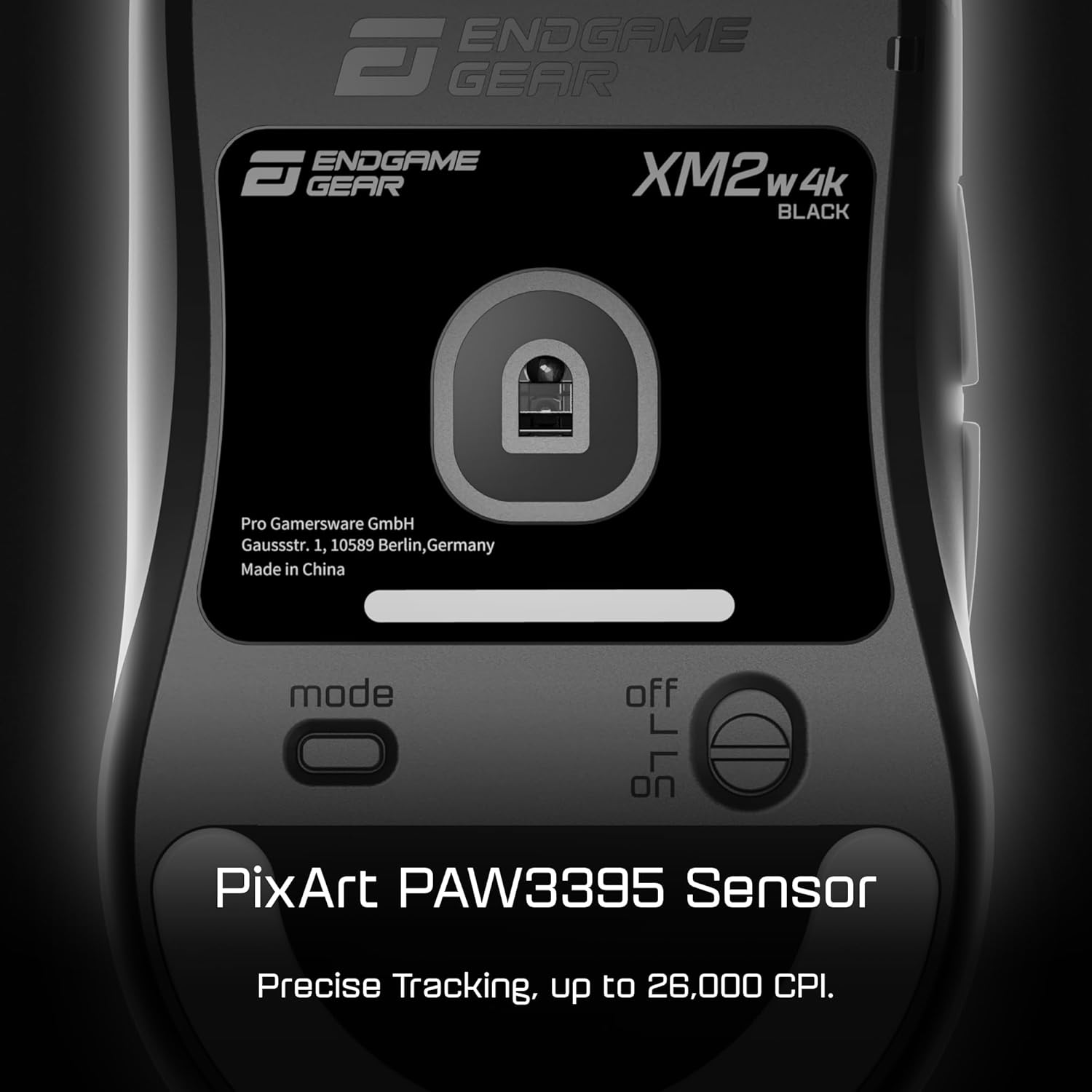
Bottom view of the XM2w 4k mouse, showing the PixArt PAW3395 sensor and hybrid skates.
Maintenance
Cleaning
To clean the mouse, use a soft, dry cloth. Avoid using liquid cleaners or abrasive materials, as these may damage the surface or internal components.
Battery Care
Charge the mouse when the battery indicator shows low power. Avoid completely draining the battery frequently to prolong its lifespan. Disconnect the charging cable once the mouse is fully charged.
Firmware Updates
Periodically check the official ENDGAME GEAR website for firmware updates. Keeping your mouse's firmware updated ensures optimal performance and access to new features or bug fixes.
Troubleshooting
- Mouse Not Responding:
Ensure the mouse is powered on and fully charged. Verify the USB dongle is securely connected to your computer. Try a different USB port. - Disconnections:
Ensure the mouse and dongle are within close proximity and free from obstructions. Check for potential wireless interference from other devices. Update mouse and dongle firmware via the software. - Scroll Wheel Issues:
Inspect the scroll wheel for any debris. Update the mouse firmware. If issues persist, contact customer support. - Unintended Double Clicks:
Adjust the Debounce Filter settings in the ENDGAME GEAR software. Alternatively, switch the click mode to GX Safe Mode. - Software Not Detecting Mouse:
Ensure the mouse is connected and powered on. Restart your computer and the software. Reinstall the software if necessary.
Specifications
| Brand | ENDGAME GEAR |
| Model Number | EGG-XM2W-4K-BLK |
| Connectivity Technology | Radio Frequency, USB |
| Movement Detection Technology | Optical (PixArt PAW3395 Sensor) |
| Maximum Sensitivity | 26,000 CPI |
| Polling Rate | Up to 4000Hz Wireless |
| Switches | Kailh GX Switches |
| Button Quantity | 5 |
| Hand Orientation | Right |
| Item Weight | ~62 g (2.2 Ounces) |
| Battery Average Life | 4 days (usage dependent) |
| Compatible Operating Systems | Windows, macOS, Linux |
Warranty
The ENDGAME GEAR XM2w 4k Wireless Gaming Mouse is covered by a Limited Warranty. For detailed terms and conditions, please refer to the warranty information provided with your product or visit the official ENDGAME GEAR website.
Support
For further assistance, technical support, or to download the latest software and firmware, please visit the official ENDGAME GEAR website or contact their customer service department.
Official Website: ENDGAME GEAR Store