
1. Introduction
This manual provides detailed instructions for the installation, operation, and maintenance of your Rimoody 7-inch 1-DIN Carplay Autoradio, Model 7039B. Please read this manual thoroughly before using the product to ensure proper function and safety.
Product Features:
- 7-inch HD Touch Screen: Full-capacity high-definition touch screen for intuitive control.
- Carplay & Android Auto: Seamless integration with Apple Carplay and Android Auto via USB for navigation, music, calls, and more.
- Mirror Link: Supports screen mirroring for iOS (version 13.4 and above) and Android (version 10.1 and above) devices via USB.
- Bluetooth Connectivity: Hands-free calling and wireless audio streaming.
- FM Radio: High-quality stereo FM radio with automatic, semi-automatic, and precise channel tuning, 18 preset stations.
- Audio Equalizer (EQ): Customizable sound settings for optimal audio experience.
- AUX/USB Input: External audio input for MP3 players, GPS, mobile phones, and USB 2.0 high-speed interface for U disk/mobile hard drive playback and mobile phone charging.
- Steering Wheel Controls: Compatible with existing steering wheel controls for convenient operation.
- Rear Camera Support: Automatic display of AHD high-definition reversing camera image when reversing.
2. What's in the Box
Upon unpacking, please ensure all items listed below are present and in good condition:
- Rimoody Car Player (Main Unit)
- Power Cable
- Steering Wheel Control (Remote)
- User Manual
- Microphone (if included in specific package)
- Rear Camera (if included in specific package)

Image: Product size and list. This image displays the front panel dimensions (180mm width, 103mm height) and side profile dimensions (112mm depth) of the car radio. It also lists the components included in the package: power cable, horn cable, remote control, steering wheel control, user manual, microphone, and camera.
3. Setup and Installation
Before installation, ensure your vehicle's battery is disconnected to prevent electrical shorts. Professional installation is recommended.
3.1 Wiring Diagram
Refer to the following diagram for proper wiring connections. Incorrect wiring can damage the unit or your vehicle's electrical system.
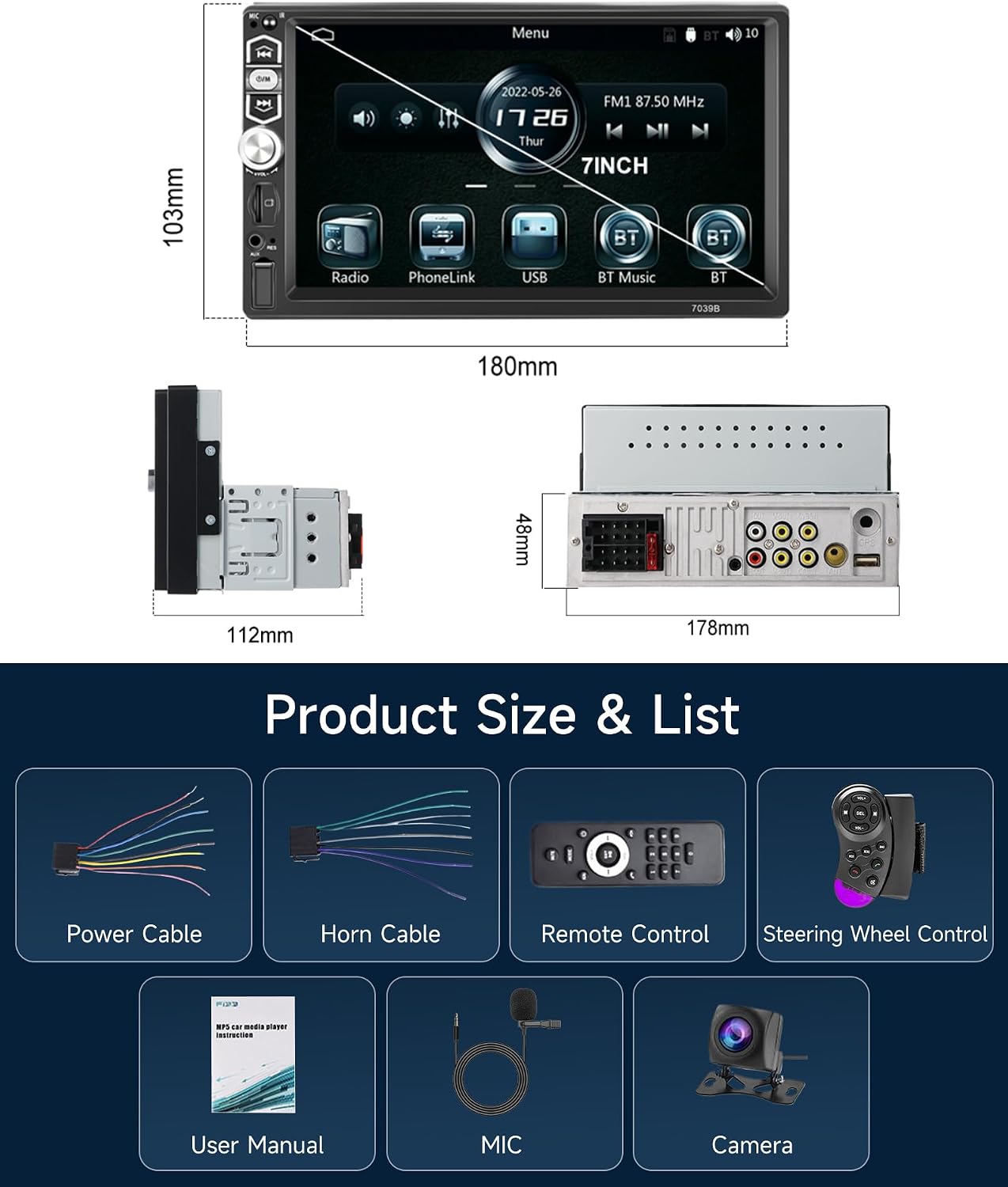
Image: Detailed wiring diagram for the Rimoody 1-DIN Carplay Autoradio. It illustrates the connections for the power harness (A and B), rear audio output (RCA), video output, CVBS input, reversing video input, and GPS antenna. Specific pins for power, ground, brake, key, battery, illumination, and ignition switch are labeled, along with speaker connections.
- Power Harness (A): Connect A1 (Back in), A2 (Brake), A3 (Key 1), A4 (Battery+), A5 (Antenna), A6 (ILL), A7 (Ignition Switch), A8 (Ground) to the corresponding vehicle wires.
- Speaker Harness (B): Connect B1-B8 for Right Rear Speaker+, Right Rear Speaker-, Right Front Speaker+, Right Front Speaker-, Left Front Speaker+, Left Front Speaker-, Left Rear Speaker+, Left Rear Speaker-.
- RCA/Video Connections:
- 1. Rear MIC IN (3.5MM)
- 2. Left Audio Output
- 3. Video Output 1
- 4. CVBS Input
- 5. Right Audio Output
- 6. Video Output 2
- 7. Reversing Video Input
- 8. Radio Antenna
3.2 Physical Installation
The unit is a standard 1-DIN size. Ensure your vehicle's dashboard opening is compatible. Secure the unit using the provided mounting hardware.
4. Operating Instructions
4.1 Basic Operation
- Power On/Off: Press the power button on the front panel or remote control.
- Volume Control: Use the rotary knob or VOL+/- buttons on the remote/steering wheel control.
- Touch Screen: Navigate menus and select functions by touching the icons on the 7-inch display.
4.2 Carplay & Android Auto
Connect your iPhone or Android smartphone via a USB cable to the unit's USB port. The system will automatically launch Carplay or Android Auto, allowing access to navigation, music, messages, and other compatible apps directly on the car radio screen.

Image: Carplay and Android Auto functionality. This image displays the car radio screen showing the Carplay interface with various app icons like Phone, Music, Maps, and Messages. Below it, the Android Auto interface is shown, also with navigation, music, and communication apps. Both are indicated to connect via USB.
4.3 Mirror Link (iOS/Android)
To mirror your smartphone screen, connect your device using its original USB cable. Ensure your phone's operating system is iOS 13.4 or higher, or Android 10.1 or higher. Follow the on-screen prompts to establish the connection. This feature allows your phone's display to be replicated on the autoradio screen.

Image: Mirror Link feature. This image shows the car radio displaying a mirrored smartphone screen, with separate sections indicating "For iOS" and "For Android" connections via USB. The mirrored content appears to be a navigation app or a general smartphone home screen.
4.4 Bluetooth Functionality
Pair your smartphone with the autoradio via Bluetooth for hands-free calling and wireless music playback.
- Go to the Bluetooth menu on the autoradio.
- Enable Bluetooth on your smartphone and search for available devices.
- Select "Rimoody" or a similar device name from your phone's list and confirm pairing.
- Once connected, you can make/receive calls and stream audio wirelessly.

Image: Vocal Function features. This composite image shows four distinct functions: Bluetooth connectivity with a phone pairing screen, FM Radio interface displaying frequency tuning, EQ Adjust with a graphic equalizer for sound customization, and Colorful Light options for changing button illumination colors.
4.5 FM Radio
Access the FM Radio function from the main menu. You can scan for stations automatically, semi-automatically, or manually tune to a specific frequency. Save your favorite stations to the 18 available presets.
4.6 Audio Equalizer (EQ)
Adjust the audio output to your preference using the built-in equalizer. Select from preset EQ modes (e.g., Jazz, Classic, Rock, Pop) or customize individual frequency bands.
4.7 AUX/USB Media Playback
Connect external audio devices via the AUX input or USB storage devices (U disk, mobile hard drive) to the USB 2.0 port. The unit supports various audio and video formats. The USB port also provides high-current output for charging mobile phones.
4.8 Rear Camera Display
If a compatible AHD rear camera is connected, the display will automatically switch to the camera view when the vehicle is put into reverse gear. This assists with safe parking and maneuvering.

Image: HD Reversing Camera and Steering Wheel Control (SWC). This image shows a car's rear view with parking guidelines overlaid on the screen, indicating the rear camera functionality. A steering wheel control remote is also depicted, highlighting its use for managing car radio functions.
4.9 Steering Wheel Controls (SWC)
The unit supports connection to your vehicle's existing steering wheel controls. This allows you to manage functions like volume, track skipping, and mode selection without taking your hands off the steering wheel. Refer to the wiring diagram and your vehicle's manual for proper connection and configuration.
5. Maintenance
- Screen Cleaning: Use a soft, lint-free cloth to clean the touch screen. Do not use abrasive cleaners or solvents.
- General Cleaning: Wipe the unit's exterior with a damp cloth. Avoid getting moisture into openings.
- Software Updates: Check the manufacturer's website periodically for any available software or firmware updates to ensure optimal performance and compatibility.
6. Troubleshooting
| Problem | Possible Cause | Solution |
|---|---|---|
| No Power | Incorrect wiring; Blown fuse; Vehicle battery low. | Check power connections (Battery+, Ignition Switch, Ground). Verify fuses. Check vehicle battery. |
| No Sound | Speaker wires disconnected; Volume too low; Mute activated. | Check speaker wiring. Increase volume. Deactivate mute function. |
| Carplay/Android Auto not connecting | Faulty USB cable; Phone OS version incompatible; USB port issue. | Use original, high-quality USB cable. Ensure phone OS meets requirements (iOS 13.4+, Android 10.1+). Try a different USB port if available. |
| Bluetooth not pairing | Bluetooth not enabled on phone/unit; Device not discoverable. | Ensure Bluetooth is active on both devices. Make the unit discoverable. Try restarting both devices. |
| Rear Camera not displaying | Camera not connected; Reversing trigger wire not connected; Faulty camera. | Check camera connections and reversing video input wire. Ensure trigger wire is correctly connected to reverse light. |
7. Specifications
| Feature | Detail |
|---|---|
| Brand | Rimoody |
| Model Number | 7039B |
| Connectivity Technology | AUX, Bluetooth, USB |
| Controller Type | Steering Wheel Control, Remote Control |
| Special Features | Carplay, Android Auto, Mirror Link |
| Compatible Devices | Smartphone, Tablet, Personal Computer |
| Audio Output Mode | Stereo, Surround |
| Surround Sound Channel Configuration | 4.0 |
| Video Encoding | H.264, H.265/HEVC |
| Number of Channels | 4 |
| Internet Services Supported | Carplay, Android Auto |
| Analog RGB Input | 3.5mm Jack, RCA |
| Control Method | Touch |
| Audio Output Type | RCA, Bluetooth |
| Wireless Technology | Bluetooth |
| Manufacturer | Rimoody |
| Country of Origin | China |
8. Warranty Information
This Rimoody product comes with a 2-year manufacturer's warranty from the date of purchase. This warranty covers defects in materials and workmanship under normal use. It does not cover damage caused by misuse, accident, unauthorized modification, or improper installation.
Please retain your proof of purchase for warranty claims.
9. Technical Support
For technical assistance, troubleshooting, or warranty inquiries, please contact Rimoody customer support. You can typically find contact information on the seller's page where you purchased the product or on the official Rimoody website.
Refer to the "Sold by Rimoody US" or "Contact Seller" options on the product's purchase platform for direct support.

Image: Customer support guide. This image illustrates how to access 24/7 technical support by first locating the "Sold by Rimoody US" link on the product page and then clicking "Contact Seller" to ask a question.


