
Introduction
The Anminto Digital Binoculars with Camera (Model ANM-02) combine powerful optical magnification with digital imaging capabilities, allowing you to observe distant subjects and capture high-resolution photos and videos. Featuring 10x optical zoom, an 8x digital zoom, a 40MP camera, and 2.5K video recording, this device is designed for various outdoor activities such as bird watching, concerts, and general observation. The integrated 2-inch LCD display provides a clear view of captured media and device settings.
Package Contents
Please verify that all items listed below are included in your package:
- Anminto Digital Binoculars with Camera
- Mini Tripod
- Portable Storage Bag
- 32GB SD Card
- USB Charging/Data Cable
- Cleaning Cloth
- User Manual (this document)
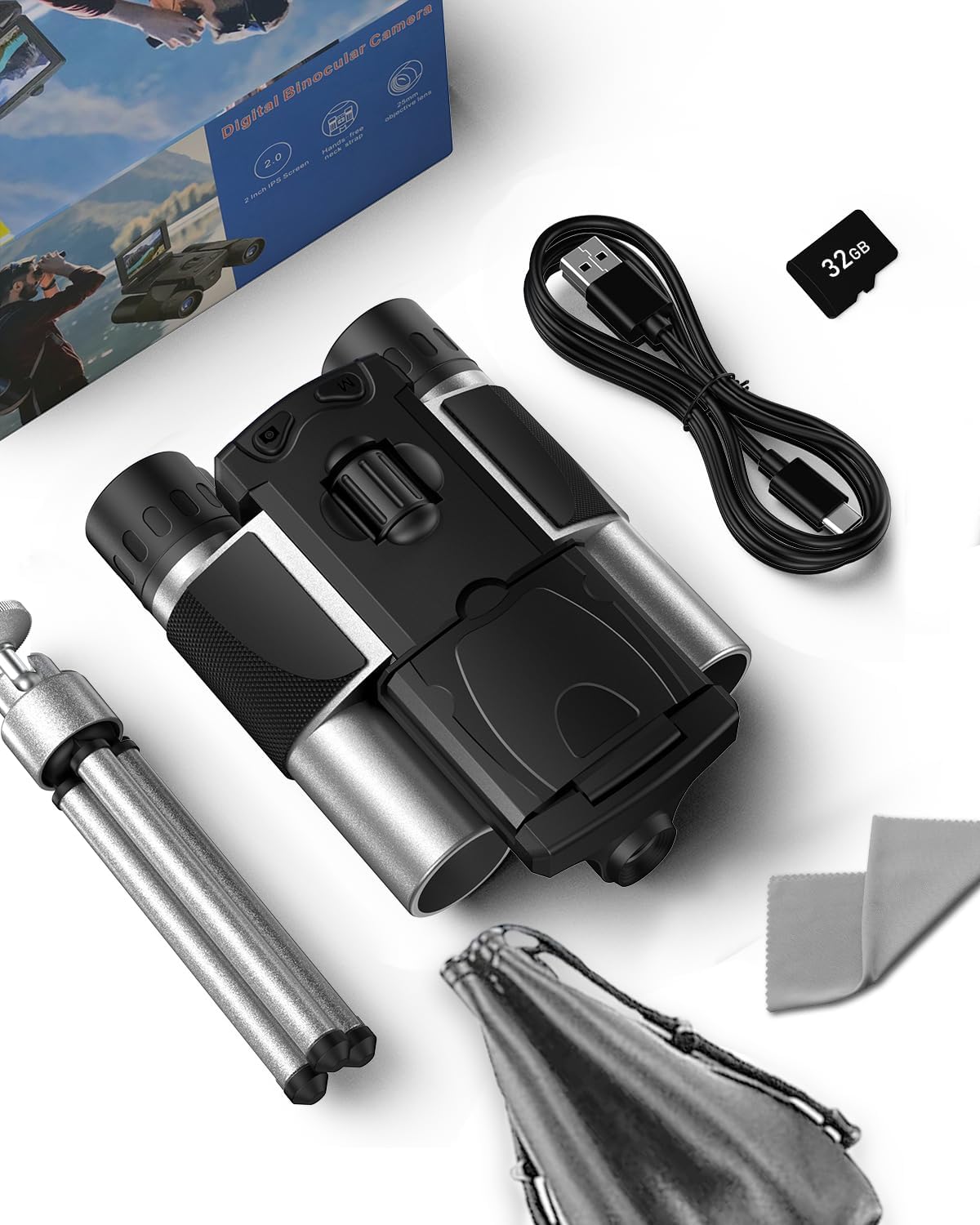
Image: The Anminto Digital Binoculars with Camera, accompanied by its included accessories: a mini tripod, USB cable, 32GB SD card, cleaning cloth, and storage bag.
Safety Information
- Do not look directly at the sun through the binoculars, as this can cause severe and permanent eye damage.
- Keep the device out of reach of small children to prevent accidental ingestion of small parts.
- Avoid exposing the device to extreme temperatures, direct sunlight for prolonged periods, or high humidity.
- Use only the provided or recommended charging cable and power adapter to prevent damage.
- Dispose of the device and its accessories responsibly according to local regulations.
Setup
1. Charging the Device
Before first use, fully charge the binoculars. Connect the provided USB cable to the device's charging port and the other end to a standard USB power adapter (not included) or a computer's USB port. The charging indicator will show the charging status and turn off when fully charged.
2. Inserting the SD Card
Locate the SD card slot, typically on the side or bottom of the device. Gently insert the included 32GB SD card with the metal contacts facing down until it clicks into place. To remove, press the card inward until it springs out.
3. Powering On/Off
Press and hold the Power button (usually located near the LCD screen or on top) for a few seconds to turn the device on. Repeat the action to turn it off.
4. Initial Settings
Upon first power-on, you may be prompted to set the date, time, and language. Navigate through the menu using the directional buttons and confirm selections with the OK/Shutter button. These settings can typically be adjusted later in the device's system settings menu.
Operating Instructions
1. Basic Binocular Use
- Adjusting Interpupillary Distance: Hold the binoculars and adjust the distance between the two barrels until you see a single, clear circular field of view.
- Focusing: Use the central focus wheel to bring the image into sharp focus. For subjects at varying distances, slight adjustments may be necessary.
2. Using the LCD Display
The 2-inch LCD display can be flipped up for convenient viewing of live footage, captured photos, and videos. Use the menu buttons adjacent to the screen to navigate through modes and settings.
3. Photo Mode
Switch to Photo Mode using the Mode button. Frame your subject using the binoculars, then press the Shutter button to capture a 40MP image. Use the zoom buttons to adjust the 8x digital zoom as needed.
4. Video Mode
Switch to Video Mode. Press the Shutter button once to start recording 2.5K video and press it again to stop. The digital zoom can also be used during video recording.
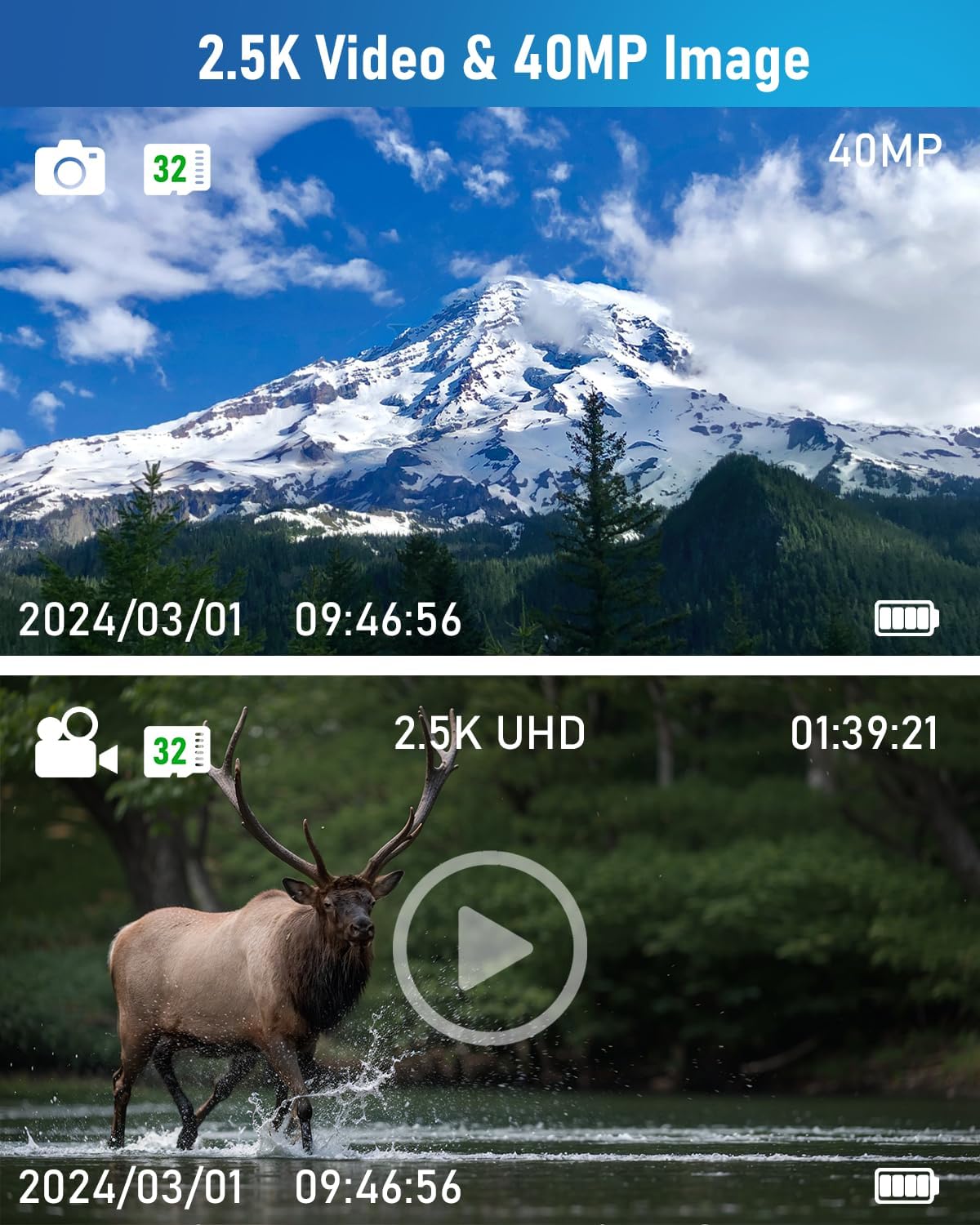
Image: The device's LCD display showing examples of a 40MP photo and a 2.5K UHD video recording, indicating the resolution and recording status.
5. Playback Mode
Enter Playback Mode to review your captured photos and videos. Use the directional buttons to browse through files. Press the OK/Shutter button to play videos or view photos in full screen.
6. Data Transfer
Connect the binoculars to a computer using the provided USB cable. The device will appear as a removable disk, allowing you to transfer photos and videos to your computer for storage or sharing.

Image: A user connecting the digital binoculars to a laptop via a USB cable to transfer captured images and videos.
7. Tripod Use
For stable viewing or recording, attach the binoculars to the included mini tripod using the tripod mount screw hole located at the bottom of the device. Ensure the connection is secure before use.
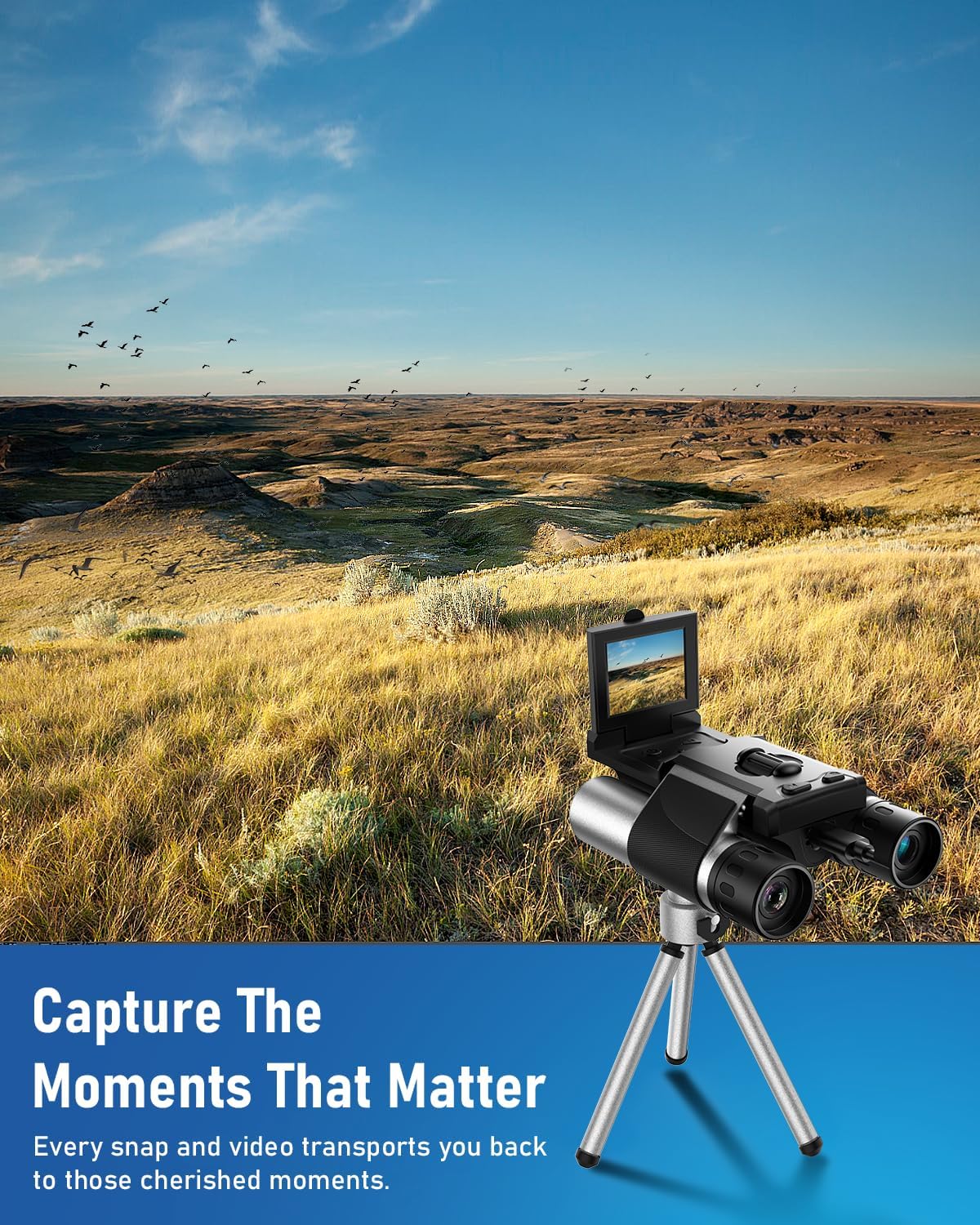
Image: The Anminto Digital Binoculars mounted on its mini tripod, positioned in an open field, ready for stable observation or recording.
8. Optical and Digital Zoom
The binoculars feature 10x optical magnification for clear, unpixelated viewing. Additionally, an 8x digital zoom allows for further enlargement of the image on the LCD display, though this may result in some loss of image quality at higher digital zoom levels.
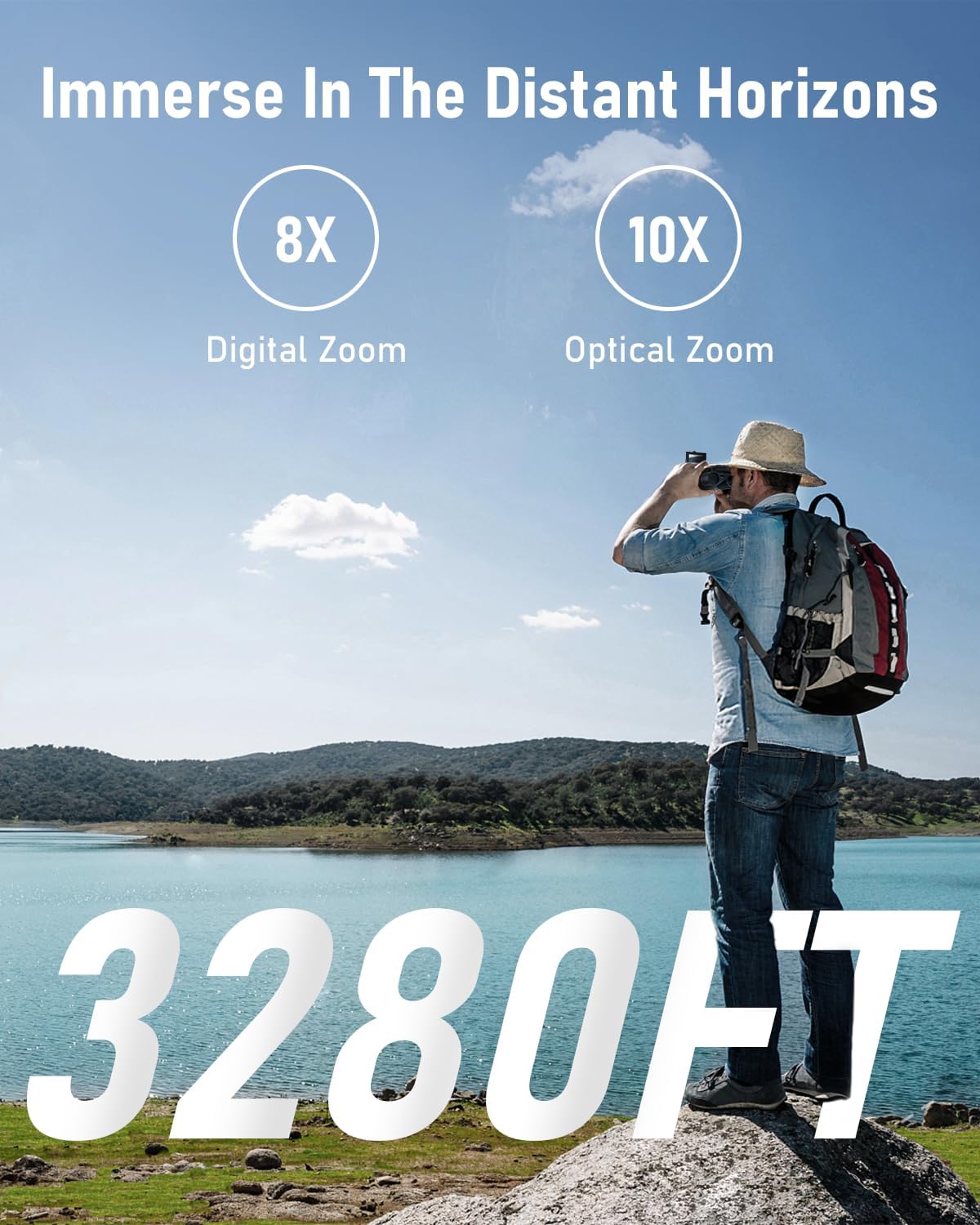
Image: A person using the binoculars to view a distant horizon, with visual indicators highlighting the 8x digital zoom and 10x optical zoom capabilities.
9. Usage Scenarios
These binoculars are suitable for a variety of activities:
- Bird Watching: Observe wildlife from a distance without disturbance.
- Concerts & Sporting Events: Get a closer view of the action.
- Outdoor Adventures: Enhance your exploration of nature and landscapes.
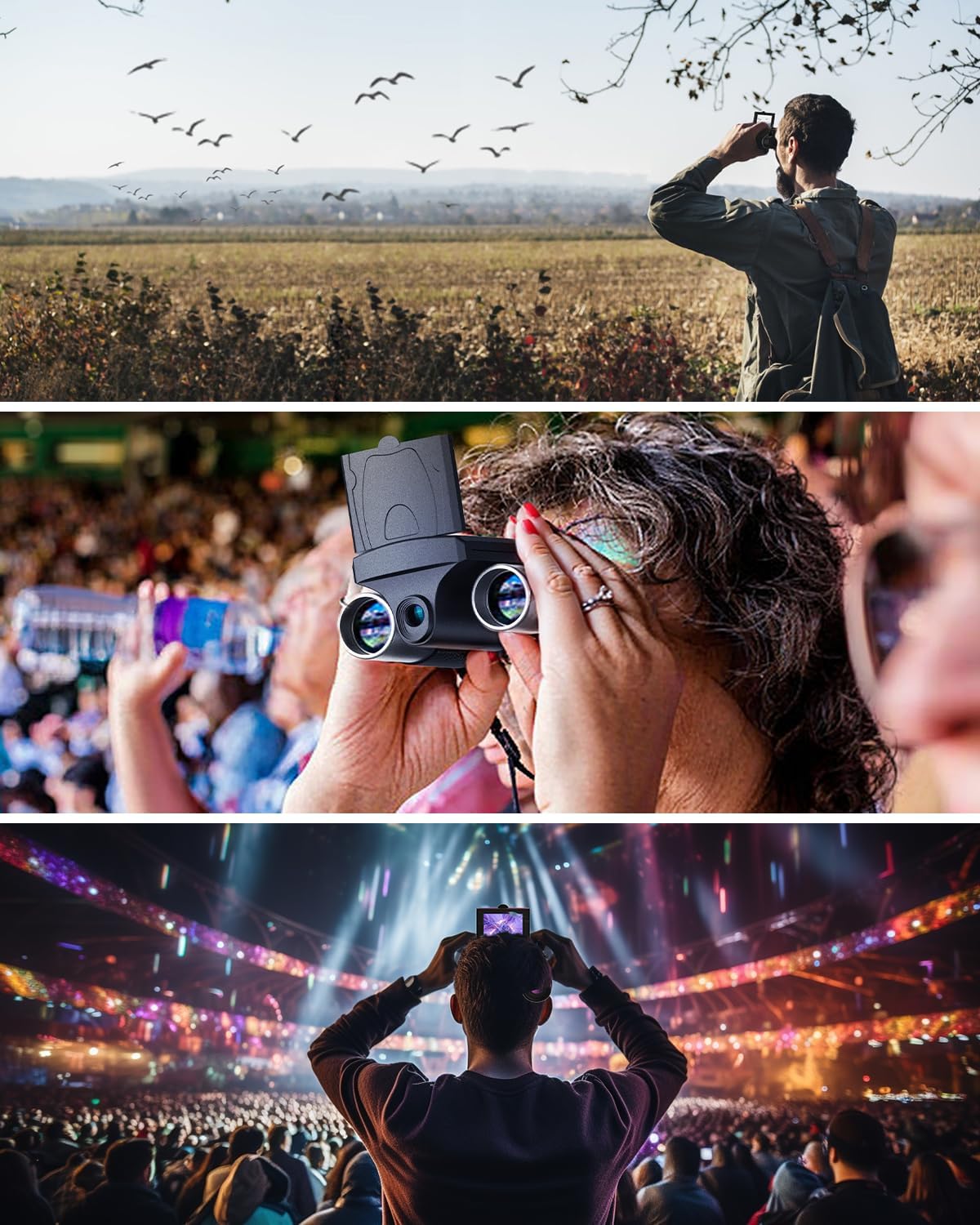
Image: A collage depicting various uses of the binoculars, including bird watching in a field, observing an event, and viewing a concert stage.
Maintenance
1. Cleaning
- Lenses: Use the provided cleaning cloth or a soft, lint-free cloth specifically designed for optics. Gently wipe the lens surfaces. For stubborn smudges, a small amount of lens cleaning fluid can be applied to the cloth, not directly to the lens.
- Body: Wipe the body of the binoculars with a soft, damp cloth. Avoid using harsh chemicals or abrasive materials.
2. Storage
When not in use, store the binoculars in the provided storage bag in a cool, dry place, away from direct sunlight and extreme temperatures. Ensure the lens caps are on to protect the lenses from dust and scratches.
Troubleshooting
| Problem | Possible Cause | Solution |
|---|---|---|
| Device won't power on | Low battery; Device malfunction | Charge the device fully. If problem persists, contact support. |
| Poor image quality | Dirty lenses; Incorrect focus; High digital zoom | Clean lenses with cleaning cloth. Adjust focus wheel. Reduce digital zoom. |
| Cannot transfer files to computer | Loose USB connection; Corrupted SD card; Driver issue | Ensure USB cable is securely connected. Try a different USB port or cable. Check if SD card is properly inserted and not corrupted. |
| SD card error | SD card not inserted correctly; Corrupted card; Incompatible card | Reinsert the SD card. Try formatting the card (this will erase all data). Ensure the card is within supported specifications. |
Specifications
| Feature | Detail |
|---|---|
| Brand | Anminto |
| Model Number | ANM-02 |
| Max. Magnification | 10x (Optical) |
| Digital Zoom | 8x |
| Objective Lens Diameter | 25 Millimeters |
| Image Resolution | Up to 40MP |
| Video Resolution | Up to 2.5K |
| LCD Display | 2-inch |
| Eye Relief | 25 Millimeters |
| Exit Pupil | 2.5 Millimeters |
| Field of View | 3280 Feet |
| Mounting Type | Tripod Mount |
| Special Features | LCD Display |
| Package Dimensions | 16.4 x 12.9 x 8 cm |
| Item Weight | 445 g |
Warranty and Support
Warranty Information
This Anminto product is covered by a 1-year limited warranty from the date of purchase. This warranty covers manufacturing defects and workmanship under normal use. It does not cover damage caused by misuse, accidents, unauthorized modifications, or natural disasters. Please retain your proof of purchase for warranty claims.
Customer Support
For technical assistance, warranty claims, or any questions regarding your Anminto Digital Binoculars with Camera, please contact Anminto customer support. Refer to the product packaging or the official Anminto website for the most current contact information.