
1. Product Overview
The VANGREE VC-003 is a versatile 4K HDMI video capture card designed for high-quality video recording and live streaming. It supports 4K@30Hz HDMI input and pass-through, and streams 1080p@60fps video via its USB C 3.0 port. This device is compatible with various gaming consoles, cameras, and computers, making it suitable for gaming broadcasts, video conferences, and content creation.
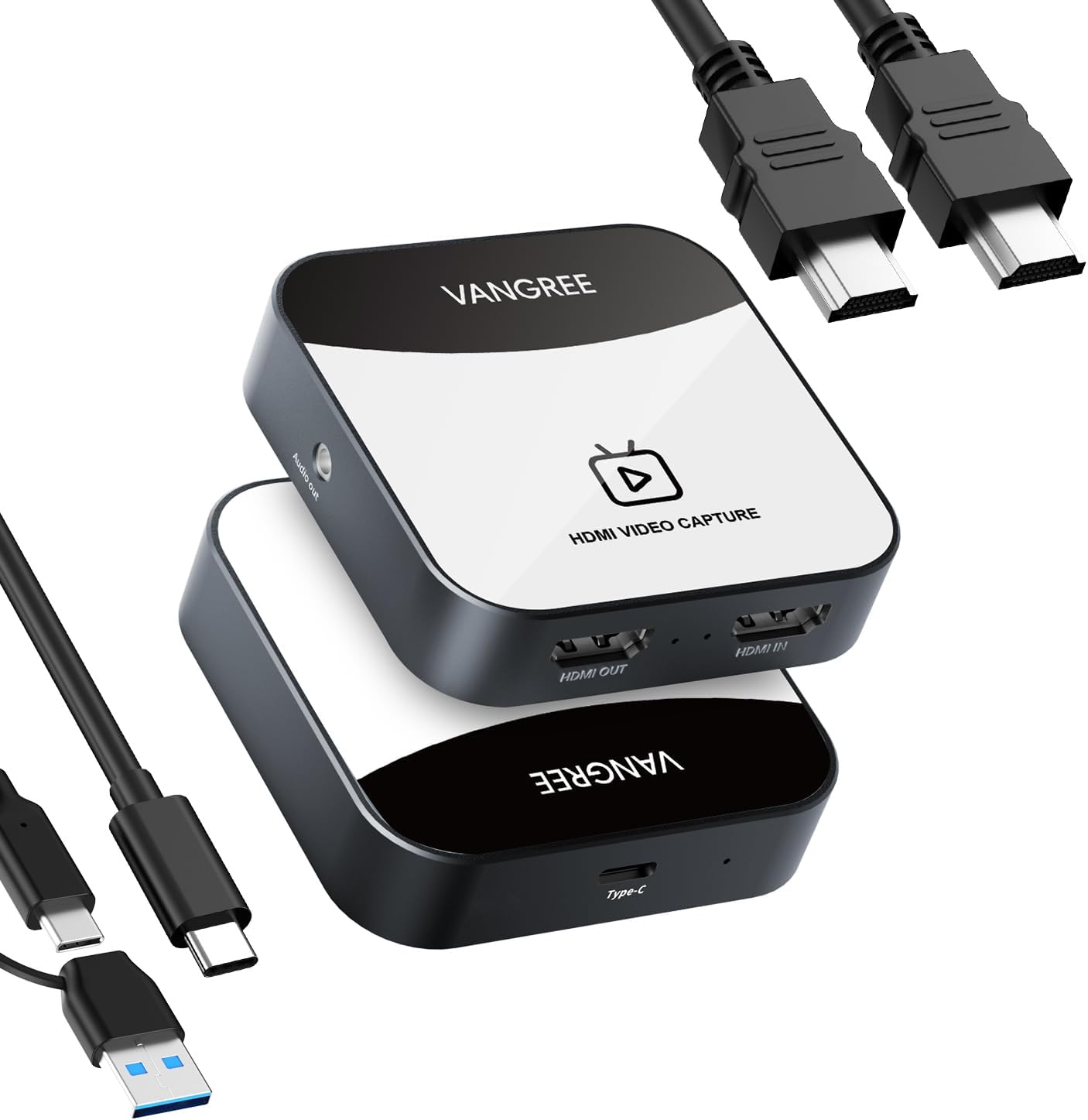
Figure 1: VANGREE VC-003 Capture Card with included cables. This image shows the compact capture card device along with a USB-C to USB-A/C cable and an HDMI to HDMI cable.
Package Contents:
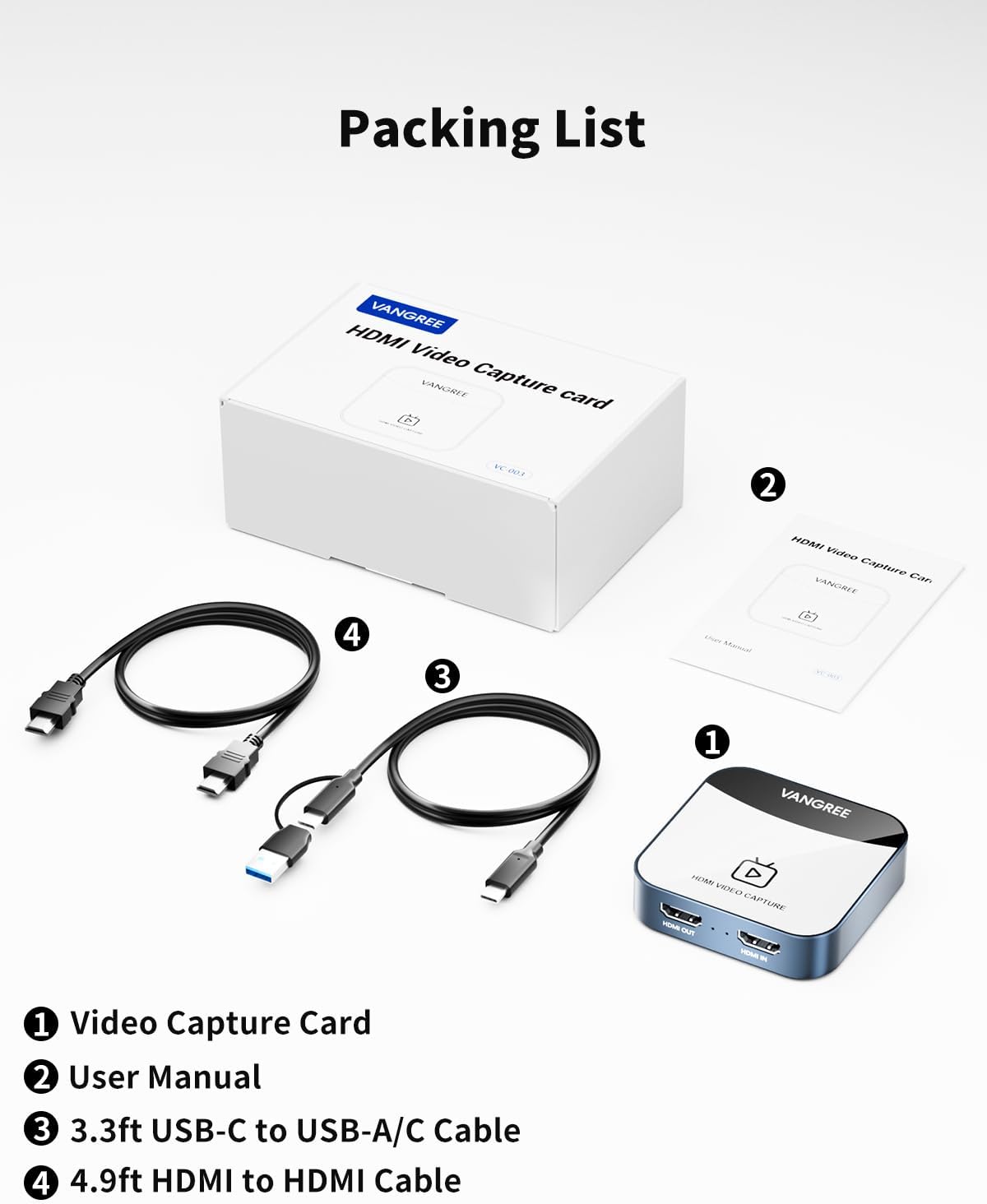
Figure 2: Contents of the VANGREE VC-003 Capture Card package. The image displays the capture card, user manual, USB-C to USB-A/C cable, and HDMI to HDMI cable included in the box.
- VANGREE VC-003 Video Capture Card
- User Manual (this document)
- USB-C to USB-A/C Cable (3.3 ft)
- HDMI to HDMI Cable (4.9 ft)
2. Setup Instructions
Follow these steps to connect your VANGREE VC-003 Capture Card to your devices.
2.1 Physical Connections

Figure 3: Detailed connection diagram for the VANGREE VC-003 Capture Card. This diagram illustrates how to connect various devices (game consoles, cameras, PCs) to the capture card's HDMI input, HDMI output, USB 3.0 port, and 3.5mm audio output.
- Connect Input Source: Connect your gaming console (e.g., Nintendo Switch, PS5, Xbox), camera, or other HDMI output device to the HDMI IN port on the capture card using an HDMI cable.
- Connect Display (Optional): If you wish to view your content on a separate monitor or TV, connect an HDMI cable from the HDMI OUT (Loop Out) port on the capture card to your display device. This provides 4K@30Hz pass-through.
- Connect to Computer: Connect the capture card to your computer (PC or Mac) using the provided USB-C to USB-A/C cable. Use the appropriate connector for your computer's USB port (USB-A or USB-C). This connection powers the device and transmits the video/audio signal to your computer.
- Connect Audio Output (Optional): If you require separate audio monitoring, connect headphones or speakers to the 3.5mm Audio Out port on the capture card.

Figure 4: Swappable 2-in-1 USB 3.0 Connector. This image shows the USB cable with both USB-A and USB-C connectors, highlighting its versatility.
2.2 Software Setup (OBS Studio Example)
The VANGREE VC-003 is plug-and-play and does not require driver installation. For capturing and streaming, you will need compatible software such as OBS Studio, XSplit, or Potplayer. The following steps outline basic setup in OBS Studio:
- Add Video Source:In the 'Sources' section, click the '+' button, then select 'Video Capture Device'. Name the source (e.g., 'Capture Card') and click 'OK'.

Figure 5: OBS Quickstart Step 1: Add sources to scenes. Screenshot of OBS Studio interface showing how to add a new source, specifically a "Video Capture Device."
- Configure Video Source:In the properties window, select 'VC-003 Video' from the 'Device' dropdown. Set the resolution to '1920x1080' and frame rate to '60'. For 'Input Format', 'Color Space', and 'Video Range', use the recommended settings (e.g., YUY2, Rec. 709, Limited).
Figure 6: OBS Quickstart Step 2: Configure video capture source. Screenshot of OBS Studio showing device selection ("VC-003 Video"), resolution, frame rate, input format, color space, and video range settings.
- Add Audio Source:In the 'Sources' section, click the '+' button again and select 'Audio Input Capture'. Name it (e.g., 'Capture Card Audio') and click 'OK'. In the properties, select 'VC-003' from the 'Device' dropdown.
Figure 7: OBS Quickstart Step 3: Add Audio Input Capture. Screenshot of OBS Studio showing how to add an "Audio Input Capture" source and select the "VC-003" device.
- Adjust Audio Monitoring:In the 'Audio Mixer' section, click the gear icon next to your audio source and select 'Advanced Audio Properties'. For the 'Capture Card Audio' source, set 'Audio Monitoring' to 'Monitor Only (mute output)' if you want to hear the audio through your headphones without it looping back into the stream, or 'Monitor and Output' if you want both.
Figure 8: OBS Quickstart Step 4: Adjust audio monitoring. Screenshot of OBS Studio's Audio Mixer advanced settings, illustrating options for audio monitoring (Monitor Off, Monitor Only (mute output), Monitor and Output).
3. Operating Instructions
Once connected and configured, the VANGREE VC-003 Capture Card is ready for use.
3.1 Basic Operation
- Power On: The capture card is powered via the USB connection to your computer. Ensure your computer is on and the USB cable is securely connected.
- Input Signal: Ensure your HDMI input device (console, camera) is powered on and outputting a signal. The capture card supports up to 4K@30Hz input.
- Software Detection: Your chosen capture software (e.g., OBS Studio) should detect the 'VC-003 Video' and 'VC-003 Audio' devices.
- Start Recording/Streaming: Within your software, initiate recording or live streaming. The capture card will provide a 1080p@60fps video signal to your software.

Figure 9: Nintendo Switch connected to the VANGREE VC-003 Capture Card for 4K@30Hz pass-through and 1080p@60fps capture. The image illustrates a Nintendo Switch dock connected via HDMI to the capture card, which then connects to a monitor for pass-through and a laptop running OBS for capture.

Figure 10: PlayStation 5 connected to the VANGREE VC-003 Capture Card for simultaneous gameplay and recording. A PlayStation 5 console is shown connected to the capture card, which outputs to a monitor and a laptop for recording.
3.2 Key Features in Operation
- 4K@30Hz Pass-Through: Enjoy your content on a connected display with minimal latency at up to 4K resolution and 30 frames per second.
- 1080p@60fps Capture: Record or stream high-definition video at a smooth 60 frames per second for clear and fluid playback.
- Ultra-low Latency: The device is engineered to minimize delay between your input source and the captured/passed-through signal, ensuring a responsive experience for gaming and live interactions.
- YUY2 4:4:4 1080P with 60FPS: The capture card supports the YUY2 uncompressed video format, preserving high-quality video data without compression artifacts, ideal for professional applications.
- Dual-Channel Stereo Sound: The capture card processes dual-channel stereo audio, providing clear and detailed sound for your recordings and streams.
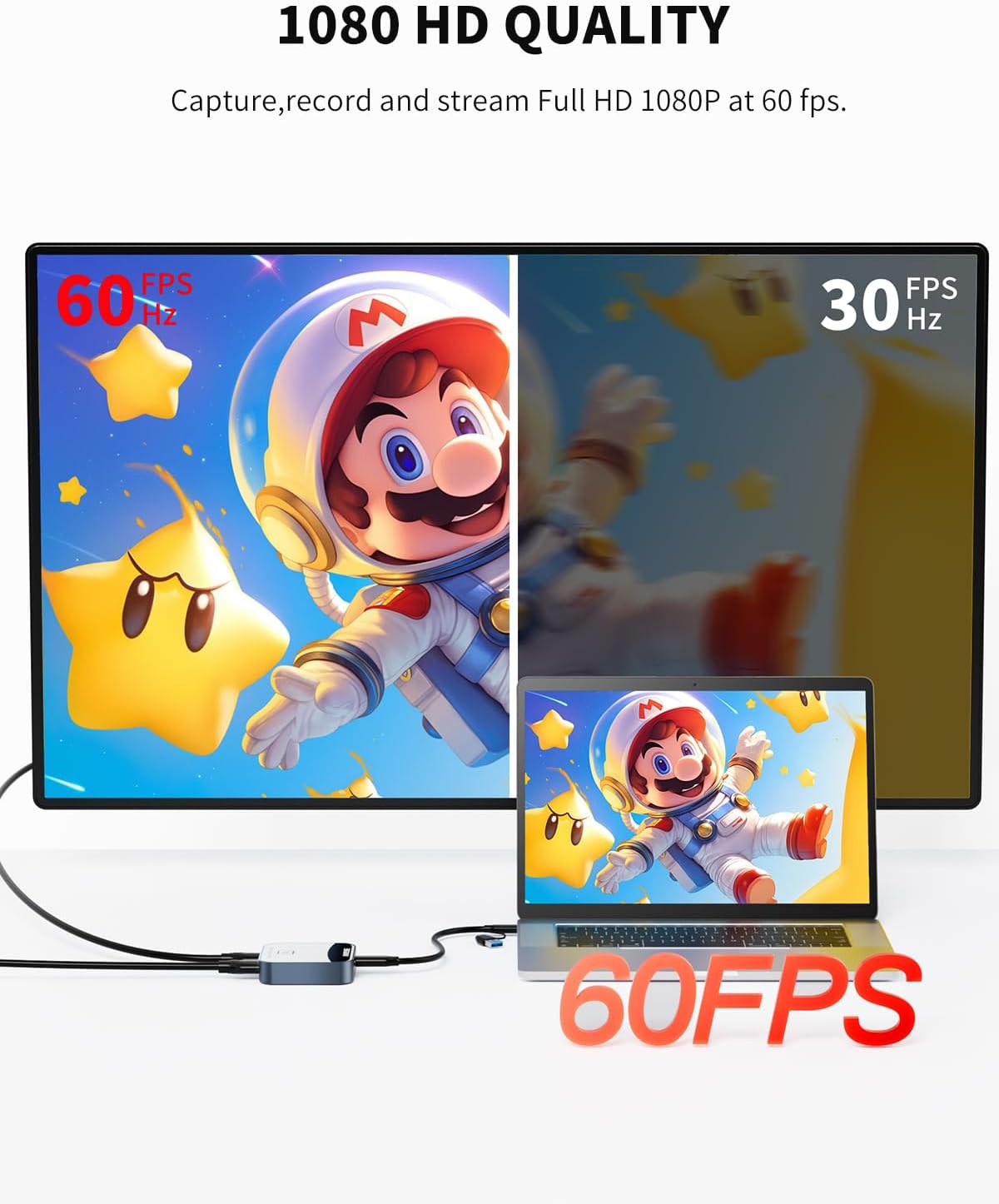
Figure 11: Visual comparison of 60FPS and 30FPS video quality. This image highlights the difference in smoothness between 60 frames per second and 30 frames per second video output.

Figure 12: User wearing headphones, demonstrating dual-channel stereo sound capture. A person is shown using the capture card with headphones, indicating the device's ability to process and output stereo audio.

Figure 13: User experiencing ultra-low latency gaming with the VANGREE VC-003 Capture Card. A gamer is shown playing on two monitors, with the capture card connected, emphasizing the minimal delay in video transmission.
4. Maintenance
To ensure the longevity and optimal performance of your VANGREE VC-003 Capture Card, follow these simple maintenance guidelines:
- Cleaning: Use a soft, dry cloth to clean the exterior of the device. Avoid using liquid cleaners or abrasive materials.
- Storage: When not in use, store the capture card in a cool, dry place away from direct sunlight and extreme temperatures.
- Cable Care: Handle HDMI and USB cables carefully. Avoid sharp bends or excessive pulling, which can damage the connectors or internal wiring.
- Ventilation: Ensure the device has adequate ventilation during operation to prevent overheating. Do not block any vents.
5. Troubleshooting
If you encounter issues with your VANGREE VC-003 Capture Card, refer to the following common troubleshooting steps:
5.1 No Video Signal
- Check Connections: Ensure all HDMI and USB cables are securely connected to the correct ports on the capture card, input device, display, and computer.
- Input Device Power: Verify that your gaming console or camera is powered on and outputting an HDMI signal.
- HDMI Cable Integrity: Try using a different HDMI cable to rule out a faulty cable.
- Software Source: In your capture software (e.g., OBS Studio), confirm that the 'Video Capture Device' source is correctly selected and configured to 'VC-003 Video'.
- HDCP: Some devices (e.g., PS3, certain streaming boxes) may output content protected by HDCP (High-bandwidth Digital Content Protection), which prevents capture. Ensure HDCP is disabled on your source device if possible, or use a source that does not employ HDCP.
5.2 No Audio or Distorted Audio
- Audio Source in Software: In your capture software, ensure the 'Audio Input Capture' source is correctly selected and configured to 'VC-003 Audio'.
- Audio Monitoring Settings: Check the 'Advanced Audio Properties' in your software to ensure audio monitoring is enabled and set appropriately (e.g., 'Monitor Only (mute output)' or 'Monitor and Output').
- System Audio Settings: Verify your computer's sound settings to ensure the correct playback device is selected and volume levels are adequate.
- 3.5mm Audio Out: If using the 3.5mm audio out, ensure headphones/speakers are properly connected and functional.
5.3 Lag or Stuttering Video
- Computer Performance: Ensure your computer meets the minimum system requirements for capturing and streaming. Close unnecessary applications to free up CPU and RAM.
- USB Port: Connect the capture card to a USB 3.0 or USB-C 3.0 port on your computer. Older USB 2.0 ports may not provide sufficient bandwidth.
- Software Settings: In your capture software, try reducing the output resolution or frame rate if your computer struggles to process the 1080p@60fps signal.
- Cable Quality: Ensure you are using high-quality HDMI and USB 3.0 cables.
5.4 Device Not Recognized
- USB Port: Try connecting the capture card to a different USB port on your computer.
- Restart: Restart your computer and reconnect the capture card.
- Operating System: Ensure your operating system (Windows, macOS, Android, Unix, Linux) is up to date and compatible.
6. Specifications
| Feature | Specification |
|---|---|
| Brand | VANGREE |
| Model Number | VC-003 |
| Hardware Interface | HDMI Input, HDMI Output, USB 3.0 Type-C, 3.5mm Audio Out |
| Max HDMI Input Resolution | 4K@30Hz |
| Max HDMI Pass-Through Resolution | 4K@30Hz |
| Max Video Capture Resolution | 1080p@60fps |
| Video Output Format | YUY2 (uncompressed) |
| Operating System Compatibility | Windows, macOS, Android, Unix, Linux |
| Special Features | Compact, Easy Setup, Plug & Play, Ultra-low Latency |
| Item Weight | 9.6 ounces |
| Package Dimensions | 6.18 x 4.49 x 2.24 inches |
7. Warranty and Support
VANGREE products are designed for reliability and performance. For any questions or support needs, please refer to the following information:
7.1 Warranty Information
Please refer to the warranty card included in your product packaging or visit the official VANGREE website for detailed warranty terms and conditions. Typically, VANGREE offers a limited warranty against defects in materials and workmanship from the date of purchase.
7.2 Customer Support
For technical assistance, troubleshooting, or general inquiries, please contact VANGREE customer service. Support is available to help you with product setup, operation, and any issues you may encounter.
- Online Support: Visit the VANGREE official website for FAQs, drivers, and support resources.
- Email Support: Contact VANGREE customer service via email (address typically found on the product packaging or official website).
- Seller Support: If purchased through Amazon, you may also contact the seller, VANGREE Direct, for assistance.
