
1. Introduction
Thank you for choosing the YDuupxe C20 Mini Portable Thermal Printer. This compact and lightweight device is designed for convenient printing of various content directly from your smartphone. It supports multiple functions including printing photos, labels, messages, lists, records, and files. The companion application offers a variety of fonts and themes to enhance your printing experience. This manual provides essential information for setting up, operating, and maintaining your printer.
2. Package Contents
Please verify that all items are present in your package:
- 1 x YDuupxe C20 Thermal Printer
- 1 x USB Charging Cable
- 1 x User Manual
- 11 x Thermal Paper Rolls (57x25mm)
- 5 x Adhesive Thermal Paper Rolls
- 5 x Color Markers (for coloring printed outlines)
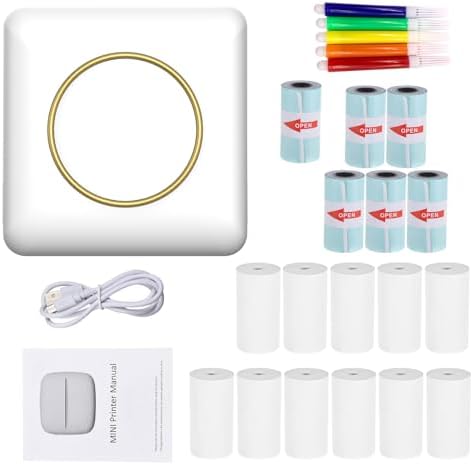
Figure 2.1: The printer shown alongside its accessories, including the USB charging cable, thermal paper rolls, and the user manual.
3. Product Overview
The YDuupxe C20 is a compact thermal printer designed for portability and ease of use. It features a simple design with a single button for operation and a thermal printing mechanism that does not require ink cartridges.
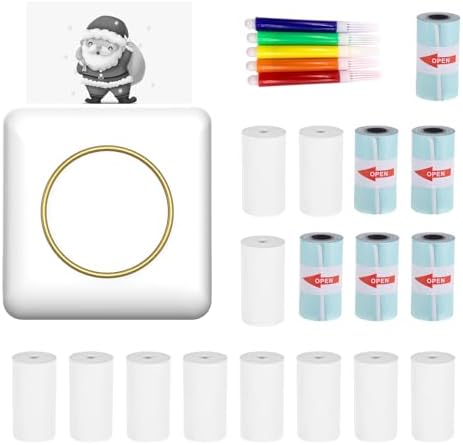
Figure 3.1: The YDuupxe C20 Mini Portable Thermal Printer, a compact device designed for on-the-go printing.

Figure 3.2: A diagram illustrating the compact dimensions of the YDuupxe C20 Mini Portable Thermal Printer, measuring approximately 80mm x 80mm x 35mm.
4. Setup
4.1 App Download
To use your YDuupxe C20 printer, you must download the companion application, "Fun Print".
- For iOS devices, search for "Fun Print" in the Apple App Store.
- For Android devices, search for "Fun Print" in the Google Play Store.
- Install the application on your smartphone.
4.2 Bluetooth Connection
The printer connects to your smartphone via Bluetooth 4.0 or above.
- Ensure your printer is charged and powered on.
- Enable Bluetooth on your smartphone.
- Open the "Fun Print" application.
- Within the app, navigate to the device connection section (usually indicated by a Bluetooth icon or "Connect Device").
- Select your printer from the list of available devices. The printer may appear as "C20" or a similar identifier.
- Once connected, the app will indicate a successful pairing.
5. Operating Instructions
The "Fun Print" app provides various functionalities for printing.
5.1 Printing Functions
The printer supports a wide range of printing tasks:
- Photo Print: Print images directly from your phone's gallery.
- Words Print: Print text, messages, or notes.
- Listing Print: Create and print lists, such as shopping lists or to-do lists.
- Text Print: Print longer text documents or articles.
- Note Print: For quick notes and reminders.
- Web Pages Print: Print content directly from web pages.
- Label Print: Design and print custom labels.
- Working Memo Print: For professional memos and reminders.
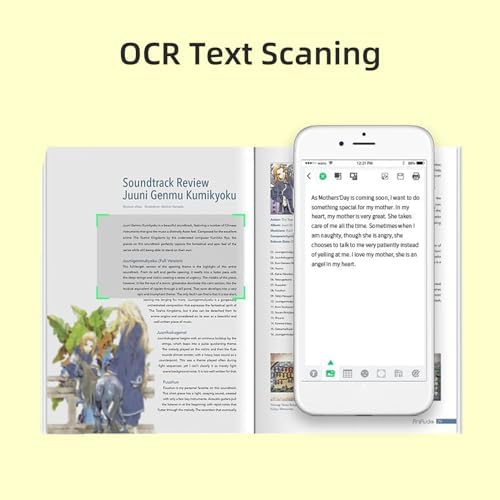
Figure 5.1: A visual guide to the diverse templates offered by the app, including options for photo prints, text, lists, notes, web pages, labels, and memos.
5.2 OCR Text Scanning
The app includes an Optical Character Recognition (OCR) feature, allowing you to scan text from physical documents and print it.
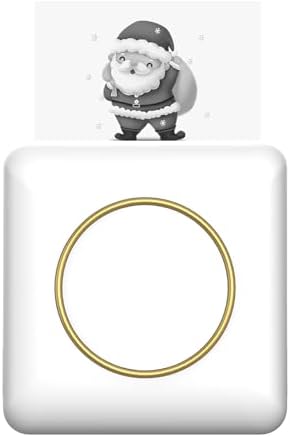
Figure 5.2: A smartphone displaying the Optical Character Recognition (OCR) function within the companion app, allowing text from documents to be scanned and printed.
5.3 Print and Color Filling
Utilize templates to print outlines for coloring, providing an interactive and creative printing option.
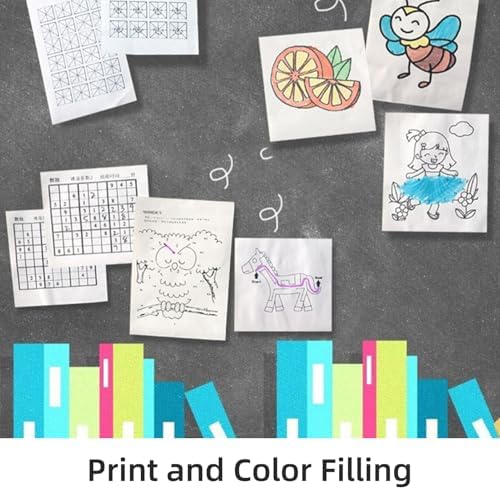
Figure 5.3: An illustration demonstrating how the printer can produce outlines for coloring activities, such as animals and patterns.

Figure 5.4: An infographic highlighting the key functionalities of the printer, including label printing, website printing, scanning, photo printing, template printing, and banner printing.
6. Maintenance
6.1 Loading Thermal Paper
The YDuupxe C20 printer uses 57x25mm thermal paper rolls. To load paper:
- Gently open the printer's cover.
- Insert a new thermal paper roll, ensuring the printing side is facing the print head.
- Pull a small amount of paper out beyond the print head.
- Close the cover firmly until it clicks into place.
6.2 Charging the Printer
The printer is equipped with a built-in 1000mAh rechargeable battery.
- Connect the provided USB cable to the printer's charging port and to a standard USB power adapter or computer USB port.
- An indicator light will typically show the charging status.
- Charge the printer fully before first use and whenever the battery is low.
6.3 Cleaning
To maintain optimal print quality, occasionally clean the print head with a soft, lint-free cloth. Do not use harsh chemicals or abrasive materials.
7. Troubleshooting
If you encounter issues with your YDuupxe C20 printer, please refer to the following common solutions:
- Printer not connecting via Bluetooth: Ensure Bluetooth is enabled on your phone, the printer is powered on and charged, and you are within range. Try restarting both the printer and your phone.
- Poor print quality: Check if the thermal paper is loaded correctly with the printing side facing up. Ensure the paper roll is not damaged. Clean the print head if necessary.
- Printer not printing: Verify that the printer is connected to the app and has sufficient battery charge. Check if there is enough thermal paper.
- App issues: Ensure the "Fun Print" app is updated to the latest version. Try restarting the app or reinstalling it if problems persist.
For further assistance, please refer to the support information provided with your purchase.
8. Specifications
| Model | C20 |
| Resolution | 203dpi |
| Print Method | Thermal Printing |
| Battery | 1000mAh 7.4V Rechargeable Battery |
| Connection | Bluetooth 4.0 and above |
| Dimensions | 110 x 80 x 30mm (approx. 4.33 x 3.15 x 1.18 inches) |
| Weight | 147g (approx. 5.2oz) |
| Thermal Paper Roll Length | Approx. 4.5m |
| Adhesive Thermal Paper Roll Length | Approx. 300cm |
9. Warranty and Support
For warranty information and customer support, please refer to the documentation included with your purchase or contact the retailer where the product was acquired. Keep your proof of purchase for warranty claims.


