
Arfepa TDO-XGA0840
Arfepa 8.4" Uconnect 4 4C UAQ LCD Touchscreen Navigation Display User Manual
Model: TDO-XGA0840
Introduction
Thank you for choosing the Arfepa 8.4" Uconnect 4 4C UAQ LCD Touchscreen Navigation Display. This product is designed as a direct replacement for the original equipment in various Chrysler, Jeep, Dodge, and RAM models, ensuring a precise fit and superior performance. This manual provides detailed instructions and important information to help you install, operate, and maintain your new display.
This display is compatible with the following vehicle models and Uconnect systems:
- Chrysler 200 & 300 (2018-2023)
- Jeep Grand Cherokee, Cherokee, Wrangler, Compass, Gladiator (2018-2023)
- Dodge RAM 1500-3500, Durango, Charger (2018-2023)
- Uconnect 4, 4C, UAQ, UAS systems (8.4-inch touchscreen, compatible with both GPS-equipped and non-GPS variants)
It replaces OE part numbers TDO-XGA08400001, TDO-XGA084, and 68388570AB.
Setup and Installation
The Arfepa 8.4" Uconnect display is engineered for direct, plug-and-play installation. While designed for ease of replacement, professional installation is highly recommended to ensure proper fitment and functionality, especially given the sensitive nature of vehicle electronics.
Pre-Installation Checks:
- Verify Compatibility: Confirm your vehicle's make, model, and year match the compatibility list provided in the introduction.
- Inspect the Unit: Before installation, carefully inspect the new display for any visible damage.
- Gather Tools: Ensure you have the necessary tools for removing your existing display and installing the new one. This typically includes trim removal tools, screwdrivers, and possibly a socket set.
Installation Steps (General Guidance):
- Disconnect Battery: For safety, always disconnect the vehicle's negative battery terminal before beginning any electrical work.
- Remove Trim Panels: Carefully remove the dashboard trim panels surrounding the existing display. Use plastic trim removal tools to avoid scratching surfaces.
- Unscrew Old Display: Locate and remove the screws securing the old display unit.
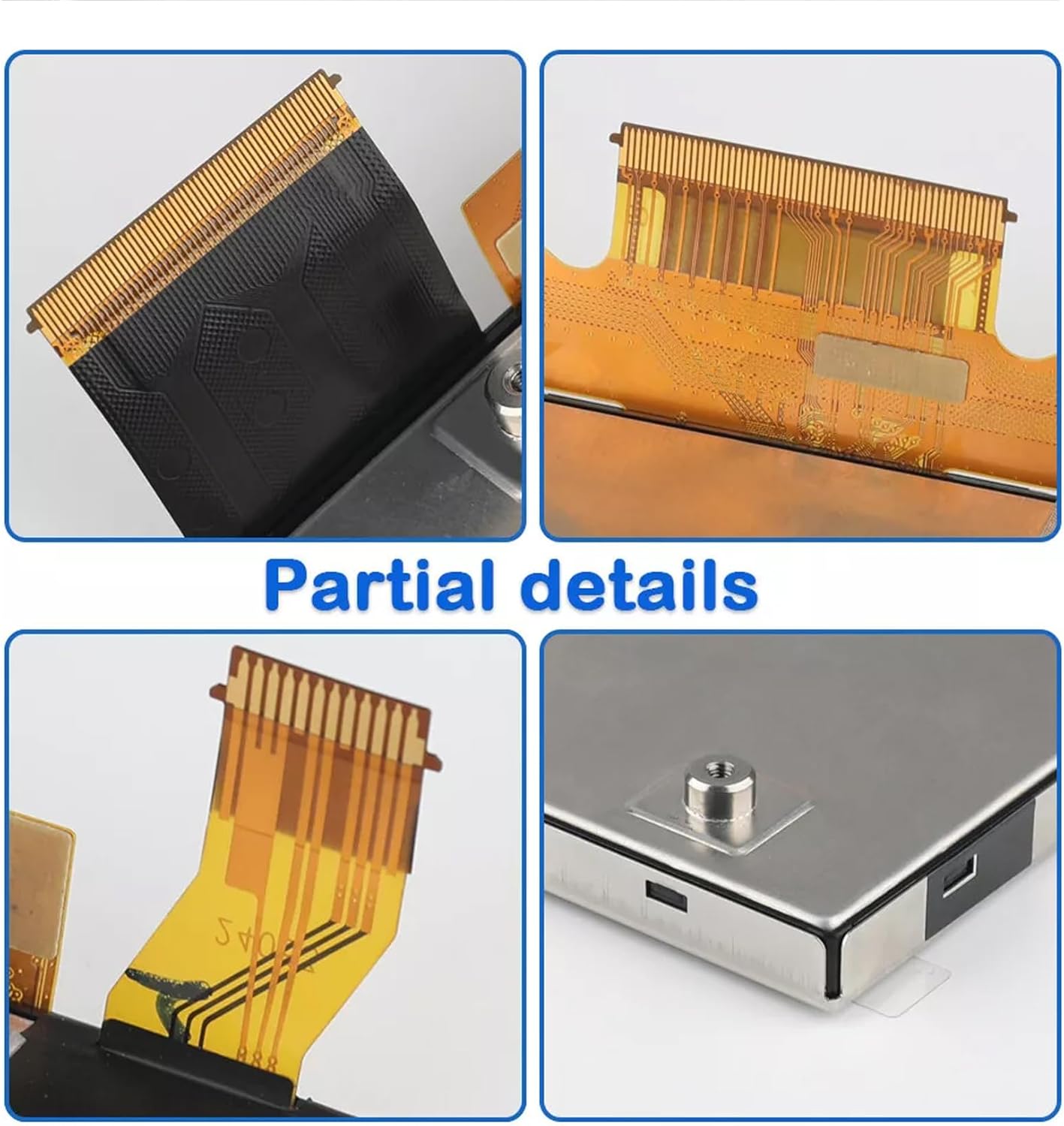
- Disconnect Cables: Gently disconnect all electrical connectors and ribbon cables from the back of the old display. Note their positions for re-connection.
- Install New Display: Connect all cables to the new Arfepa display. Ensure all connections are secure and properly seated.
- Secure New Display: Mount the new display using the original screws.
- Reinstall Trim Panels: Carefully reattach all trim panels.
- Reconnect Battery: Reconnect the vehicle's negative battery terminal.
- Test Functionality: Turn on the vehicle and test the display's touchscreen functionality, clarity, and responsiveness.

Operating the Display
The Arfepa 8.4" Uconnect display offers a superior visual experience and responsive touch control, designed to rejuvenate your in-car interface.
Key Features:
- Brilliant Display Quality: Experience a clear, translucent, and vibrant display that meets or surpasses factory standards for visual clarity.
- Responsive Touchscreen: The display features an advanced touchscreen interface, ensuring smooth and accurate input.
- Enhanced Durability: Boasts an upgraded surface hardness to resist scratches, along with anti-glare and anti-fog treatments for optimal visibility in various conditions.
- Zero Drift Precision: Once calibrated, the touchscreen ensures unwavering precision and high stability throughout its operational lifetime.
Basic Operation:
Interaction with the Uconnect system is primarily through the touchscreen. Simply touch the desired icons or areas on the screen to navigate menus, select options, or input information. The display supports standard touchscreen gestures as dictated by the Uconnect system.
For voice commands, the system utilizes the integrated touchscreen interface. Refer to your vehicle's Uconnect system manual for specific voice command functionalities and prompts.

Maintenance
Proper care and maintenance will ensure the longevity and optimal performance of your Arfepa touchscreen display.
Cleaning the Screen:
- Power Off: It is recommended to turn off the vehicle's ignition or the display unit before cleaning.
- Use Soft Cloth: Gently wipe the screen with a clean, soft, lint-free microfiber cloth.
- Avoid Harsh Chemicals: Do not use abrasive cleaners, ammonia-based cleaners (like window cleaner), or alcohol-based solvents. These can damage the anti-glare coating and the screen surface.
- Damp Cloth (Optional): For stubborn smudges, lightly dampen the cloth with distilled water or a screen-specific cleaning solution designed for electronics. Do not spray liquid directly onto the screen.
- Dry Thoroughly: Ensure the screen is completely dry before turning the display back on.
General Care:
- Avoid Pressure: Do not press on the screen with sharp objects or excessive force.
- Temperature Extremes: While designed for automotive environments, avoid exposing the vehicle to extreme temperatures for prolonged periods when possible.
- Protect from Scratches: Despite its upgraded surface hardness, avoid placing objects on the display that could cause scratches.
Troubleshooting
If you encounter issues with your Arfepa touchscreen display, try the following troubleshooting steps. If the problem persists, please contact customer support.
Common Issues and Solutions:
- No Display/Black Screen:
- Check all cable connections at the back of the display unit. Ensure they are firmly seated.
- Verify that the vehicle's ignition is on and the Uconnect system is powered.
- Temporarily disconnect and reconnect the vehicle's battery (negative terminal first) to perform a system reset.
- Unresponsive Touchscreen:
- Ensure the screen is clean and free of debris or moisture.
- Restart the vehicle's Uconnect system (refer to your vehicle's manual for specific steps, or try turning the vehicle off and on).
- If the issue is persistent, the display may require recalibration. This is typically handled by the Uconnect system itself; if not, professional assistance may be needed.
- Distorted Image/Flickering:
- Check for loose or damaged ribbon cables connecting the display.
- Ensure the display is securely mounted and not experiencing excessive vibration.
- This could indicate an internal issue; contact support if other steps fail.
For complex issues or if troubleshooting steps do not resolve the problem, it is recommended to seek assistance from a qualified automotive technician or contact Arfepa customer support.
Specifications
| Feature | Detail |
|---|---|
| Model Number | TDO-XGA0840 |
| Display Size | 8.4 Inches |
| Item Weight | 1.3 pounds |
| Package Dimensions | 10.32 x 8.12 x 1.65 inches |
| Voice Command | Touchscreen |
| Connectivity Technology | USB |
| Mounting Type | Dashboard Mount |
| OE Part Numbers Replaced | TDO-XGA08400001, TDO-XGA084, 68388570AB |

Warranty and Support
Product Warranty:
The Arfepa 8.4" Uconnect LCD Touchscreen Display comes with a 3-month warranty from the date of purchase. This warranty covers manufacturing defects and ensures the product meets its stated performance standards under normal use.
Customer Satisfaction Promise:
At Arfepa, we are committed to excellence. Our touchscreens undergo rigorous testing to ensure longevity and reliability. We stand behind our products with full confidence, offering unmatched support to our customers.
Should you have any inquiries, require technical assistance, or experience any issues with your product, please do not hesitate to reach out to our customer support team. Your satisfaction is our priority.
For support, please refer to the contact information provided with your purchase or visit the official Arfepa store page on Amazon: Arfepa Store.
Ask a question about this manual
Ask about setup, troubleshooting, compatibility, parts, safety, or missing instructions. Manuals+ will review the question and use this page’s manual context to help answer it.