
1. Introduction
Thank you for choosing the Zopsc 1080P HD Digital Camera. This manual provides essential information for setting up, operating, and maintaining your camera. Please read it thoroughly before use to ensure optimal performance and longevity of your device.
This compact digital camera is designed for ease of use, featuring 1080P video recording, 50MP photo capabilities, a 2.8-inch TFT screen, 16x digital zoom, and a built-in LED flash, making it suitable for various photography needs.
2. Product Overview
2.1 Key Features
- High Definition Imaging: Capture 50MP still images and record 1080P high-definition videos.
- 2.8-inch TFT Screen: View your shots and navigate menus with clarity.
- 16x Digital Zoom & Autofocus: Achieve precise focus and zoom in on distant subjects.
- Built-in LED Flashlight: Illuminate subjects in low-light conditions for clear photos and videos.
- Versatile Functions: Includes playback, fill light, time-lapse video, slow motion, continuous shooting, and auto timer (2s, 5s, 10s).
- Image Enhancement: Supports exposure compensation, white balance adjustment, ISO settings, and anti-shake functionality.
- Compact and Portable: Lightweight design for easy carrying and travel.
2.2 Package Contents
Please check that all the following items are included in your package:
- Zopsc Digital Camera
- Carrying Bag
- Charging Data Cable (USB)
- Hand Strap
- User Manual (this document)
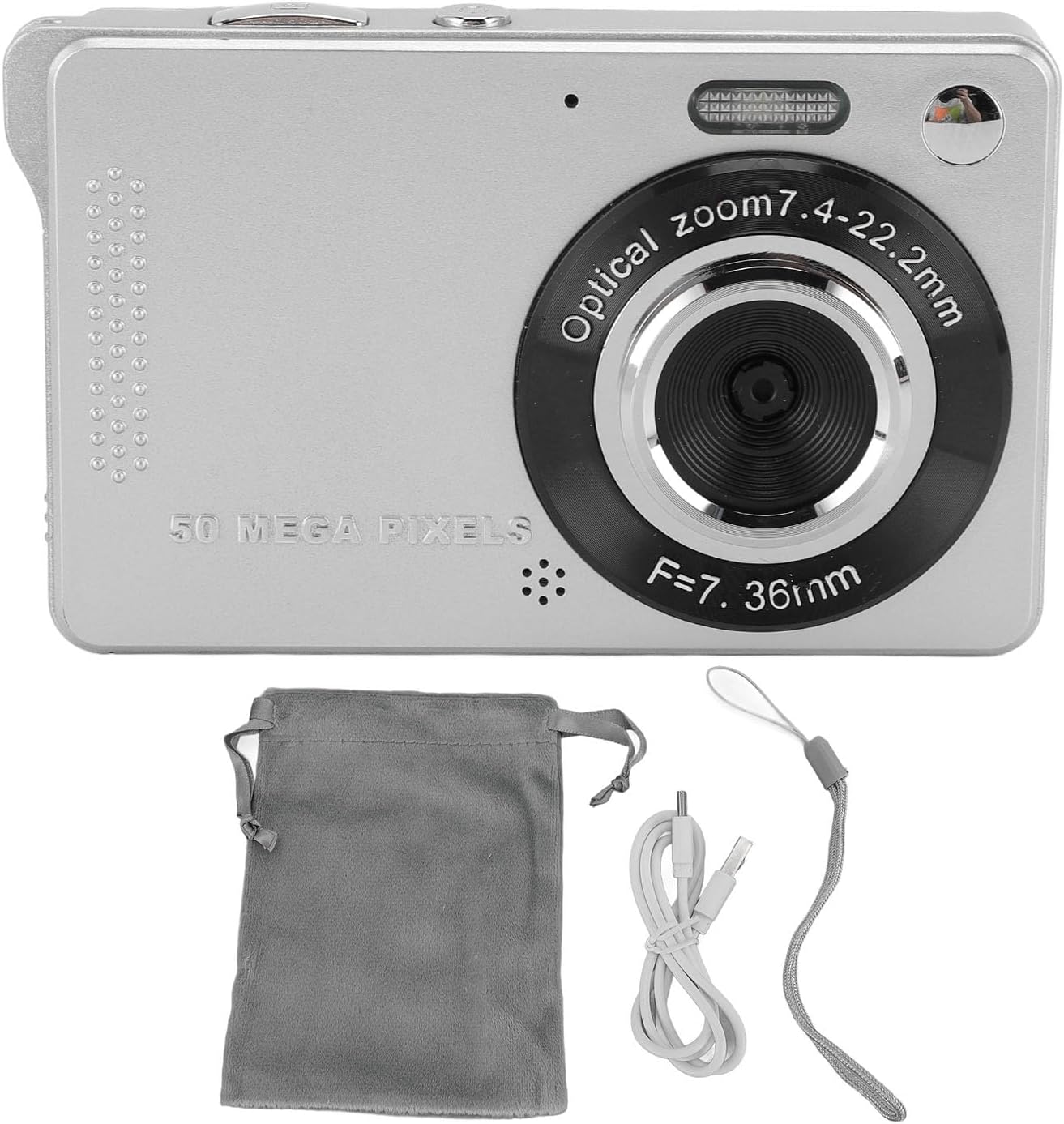
Image: The Zopsc Digital Camera shown with its included accessories: a gray carrying pouch, a white USB charging cable, and a gray hand strap.
3. Camera Parts and Controls
Familiarize yourself with the camera's layout and controls:
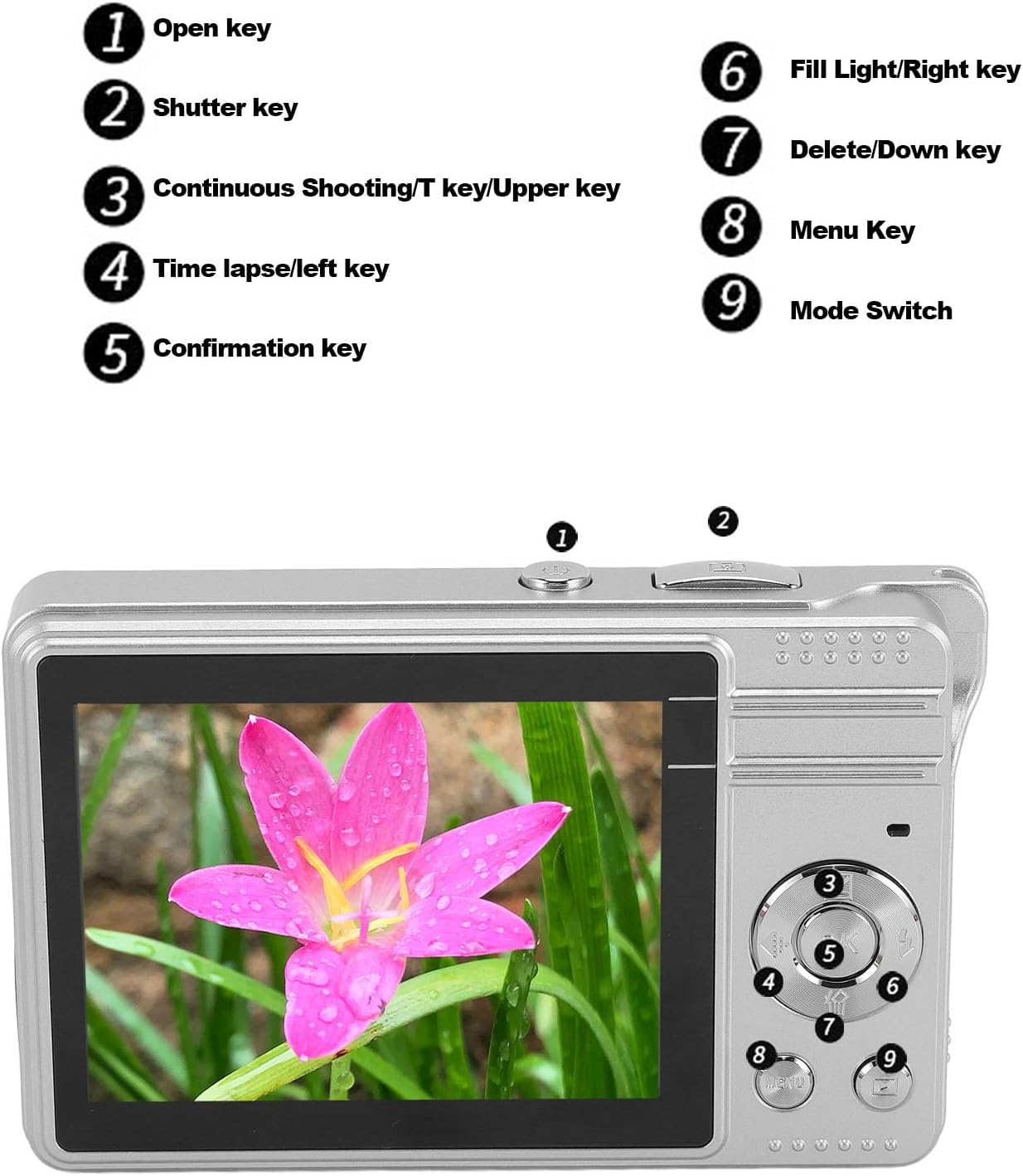
Image: A diagram illustrating the camera's buttons and their corresponding functions. Keyed numbers point to: 1. Open key, 2. Shutter key, 3. Continuous Shooting/T key/Upper key, 4. Time lapse/left key, 5. Confirmation key, 6. Fill Light/Right key, 7. Delete/Down key, 8. Menu Key, 9. Mode Switch.
- Open Key: Powers the camera on or off.
- Shutter Key: Press to take a photo or start/stop video recording.
- Continuous Shooting/T Key/Upper Key: Activates continuous shooting mode, controls zoom in (Telephoto), or navigates up in menus.
- Time Lapse/Left Key: Activates time-lapse mode or navigates left in menus.
- Confirmation Key: Confirms selections in menus.
- Fill Light/Right Key: Toggles the LED fill light or navigates right in menus.
- Delete/Down Key: Deletes selected files or navigates down in menus.
- Menu Key: Accesses the camera's settings menu.
- Mode Switch: Changes between photo, video, and playback modes.

Image: A close-up side view of the Zopsc Digital Camera, highlighting the USB port and the memory card slot (labeled TF for TransFlash/microSD).
4. Setup
4.1 Charging the Battery
- Locate the USB port on the side of the camera.
- Connect the provided USB charging data cable to the camera's USB port.
- Connect the other end of the USB cable to a USB power adapter (not included) or a computer's USB port.
- The charging indicator light will illuminate. Once fully charged, the light will change or turn off.
Note: The camera has a built-in 750mAh lithium battery. Ensure the camera is fully charged before first use.
4.2 Inserting a Memory Card
The camera requires a small memory card (up to 64GB, not included) for storing photos and videos.
- Locate the memory card slot next to the USB port.
- Gently insert the memory card into the slot with the gold contacts facing the correct direction (refer to the diagram or markings on the camera).
- Push the card in until it clicks into place. To remove, push it in again until it springs out.
Caution: Do not force the memory card. Incorrect insertion may damage the card or camera.
5. Operating Instructions
5.1 Powering On/Off
- To power on, press and hold the Open Key.
- To power off, press and hold the Open Key again.
5.2 Taking Photos
- Ensure the camera is in photo mode using the Mode Switch.
- Frame your shot using the 2.8-inch TFT screen.
- Press the Shutter Key halfway down to activate autofocus. The focus indicator will appear.
- Press the Shutter Key fully down to capture the photo.

Image: The Zopsc Digital Camera in silver, showcasing its compact design and front lens. This camera is capable of capturing 50MP images.
5.3 Recording Videos
- Switch to video mode using the Mode Switch.
- Press the Shutter Key to start recording. A recording indicator will appear on the screen.
- Press the Shutter Key again to stop recording.
5.4 Using Digital Zoom
While in photo or video mode, use the Continuous Shooting/T Key/Upper Key to zoom in (Telephoto) and the Delete/Down Key to zoom out (Wide).
5.5 Activating LED Flashlight
In low light conditions, press the Fill Light/Right Key to turn the built-in LED flashlight on or off.

Image: A side-by-side comparison showing the effect of the built-in LED flash. The "Before" image is darker, while the "After" image, taken with the flash, is brighter and clearer, demonstrating its utility in low-light environments.
5.6 Auto Timer Function
To use the auto timer for self-portraits or group photos:
- In photo mode, press the Menu Key.
- Navigate to the self-timer option using the arrow keys.
- Select your desired delay (2s, 5s, or 10s) using the Confirmation Key.
- Press the Shutter Key. The camera will count down before taking the picture.
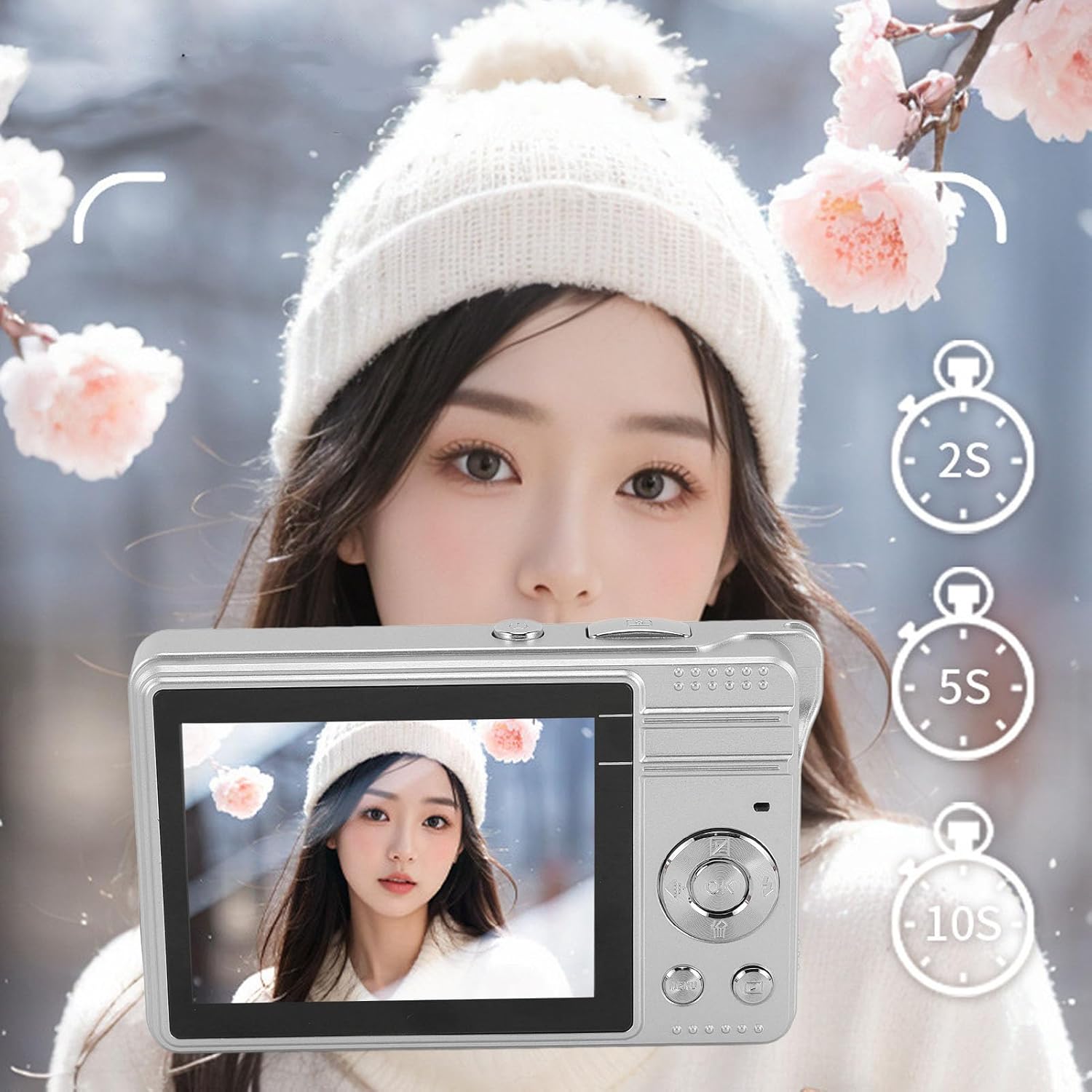
Image: The Zopsc Digital Camera held up, with the screen showing options for a 2-second, 5-second, or 10-second self-timer, indicating the camera's auto-timer functionality.
5.7 Playback Mode
To view your captured photos and videos:
- Switch to playback mode using the Mode Switch.
- Use the arrow keys to navigate through your files.
- Press the Confirmation Key to view a video or a larger image.
- To delete a file, select it and press the Delete/Down Key, then confirm.

Image: The Zopsc Digital Camera's screen showing a grid of six different filter effects applied to an image, demonstrating the camera's ability to shoot in various styles.
6. Maintenance
6.1 Cleaning the Camera
- Use a soft, dry cloth to clean the camera body.
- For the lens and screen, use a specialized lens cleaning cloth and solution. Avoid abrasive materials.
- Do not use organic solvents or strong chemicals to clean the camera.
6.2 Storage
- Store the camera in a cool, dry place away from direct sunlight and extreme temperatures.
- If storing for an extended period, ensure the battery is partially charged (around 50%) and recharge it every few months to prevent deep discharge.
- Use the provided carrying bag to protect the camera from dust and scratches.
6.3 Battery Care
- Avoid fully discharging the battery frequently.
- Do not expose the battery to high temperatures or direct heat.
- If the battery performance significantly degrades, it may need replacement by a qualified service center.
7. Troubleshooting
| Problem | Possible Cause | Solution |
|---|---|---|
| Camera does not power on. | Battery is depleted. | Charge the camera battery using the provided USB cable. |
| Cannot take photos/videos. | Memory card is full or not inserted correctly. | Insert a new memory card or delete unnecessary files. Ensure the card is properly seated. |
| Images are blurry. | Lens is dirty; camera shake; subject too close/far for autofocus. | Clean the lens. Hold the camera steady. Ensure subject is within autofocus range. |
| LED flash not working. | Flash is turned off; battery low. | Press the Fill Light/Right Key to activate. Charge the battery. |
| Camera freezes or becomes unresponsive. | Software glitch. | Press and hold the Open Key to force a shutdown, then restart the camera. |
8. Specifications
| Feature | Detail |
|---|---|
| Model Name | Zopscqx4w6gnfpa-12 |
| Maximum Image Resolution | 50 MP |
| Maximum Video Resolution | 1980x1080 (1080P) at 30 FPS |
| Screen Size | 2.8 Inches TFT |
| Digital Zoom | 16x |
| Storage | Supports small memory card up to 64GB (not included) |
| Battery Type | Built-in Lithium battery, 750mAh |
| File Format | JPEG (images), MP4 (videos) |
| Image Stabilization | Digital |
| Flash | Built-In LED Flashlight |
| Minimum Shutter Speed | 0.001 seconds |
| Exposure Control | Automatic |
| Focus Type | Auto Focus |
| Connectivity | USB |
| Water Resistance Level | Not Water Resistant |
9. Warranty and Support
This product comes with a standard manufacturer's warranty. Please refer to the warranty card included in your package for specific terms and conditions, including warranty duration and coverage details.
For technical support, troubleshooting assistance, or warranty claims, please contact Zopsc customer service through the retailer where you purchased the product or visit the official Zopsc brand store online:
Please have your model number (Zopscqx4w6gnfpa-12) and purchase information ready when contacting support.