
Introduction
Thank you for choosing the DeLUX GM909 Full Size Wireless Ergonomic Keyboard. This keyboard is designed to provide a comfortable and efficient typing experience with its ultra-thin, split ergonomic design, cushioned palm rest, and versatile multi-device connectivity. This manual will guide you through the setup, operation, and maintenance of your new keyboard.
Package Contents
- DeLUX GM909 Wireless Ergonomic Keyboard
- USB 2.4G Receiver
- USB-C Charging Cable
- User Manual
Product Overview
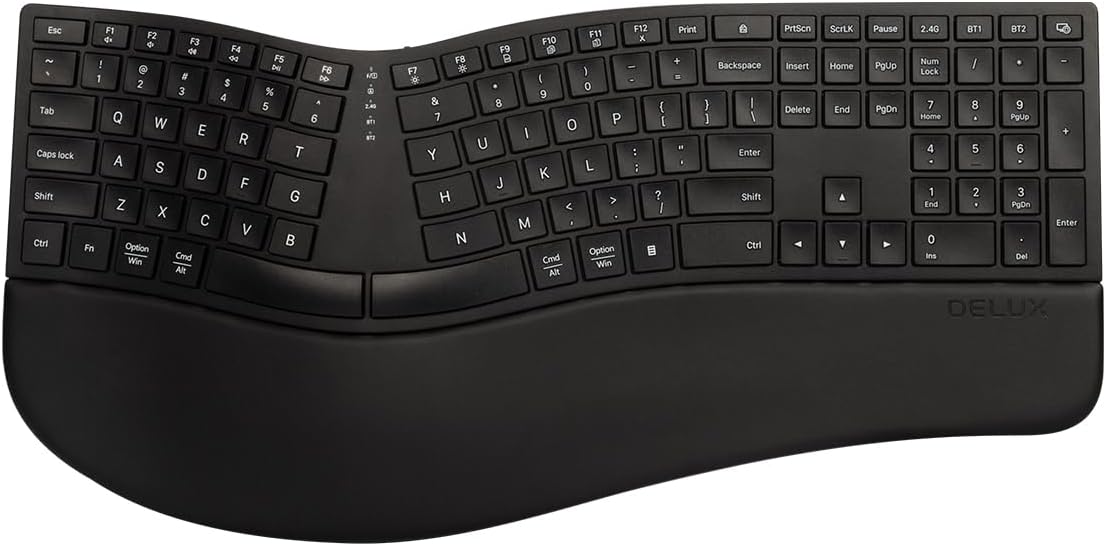
Figure 1: Top-down view of the DeLUX GM909 Wireless Ergonomic Keyboard, showcasing its split design and integrated palm rest.

Figure 2: Illustration of the ultra-thin ergonomic split design, highlighting the natural arc and slope for comfortable typing.

Figure 3: Detail of the cushioned palm rest, showing its soft synthetic leather and memory foam layers for wrist support.
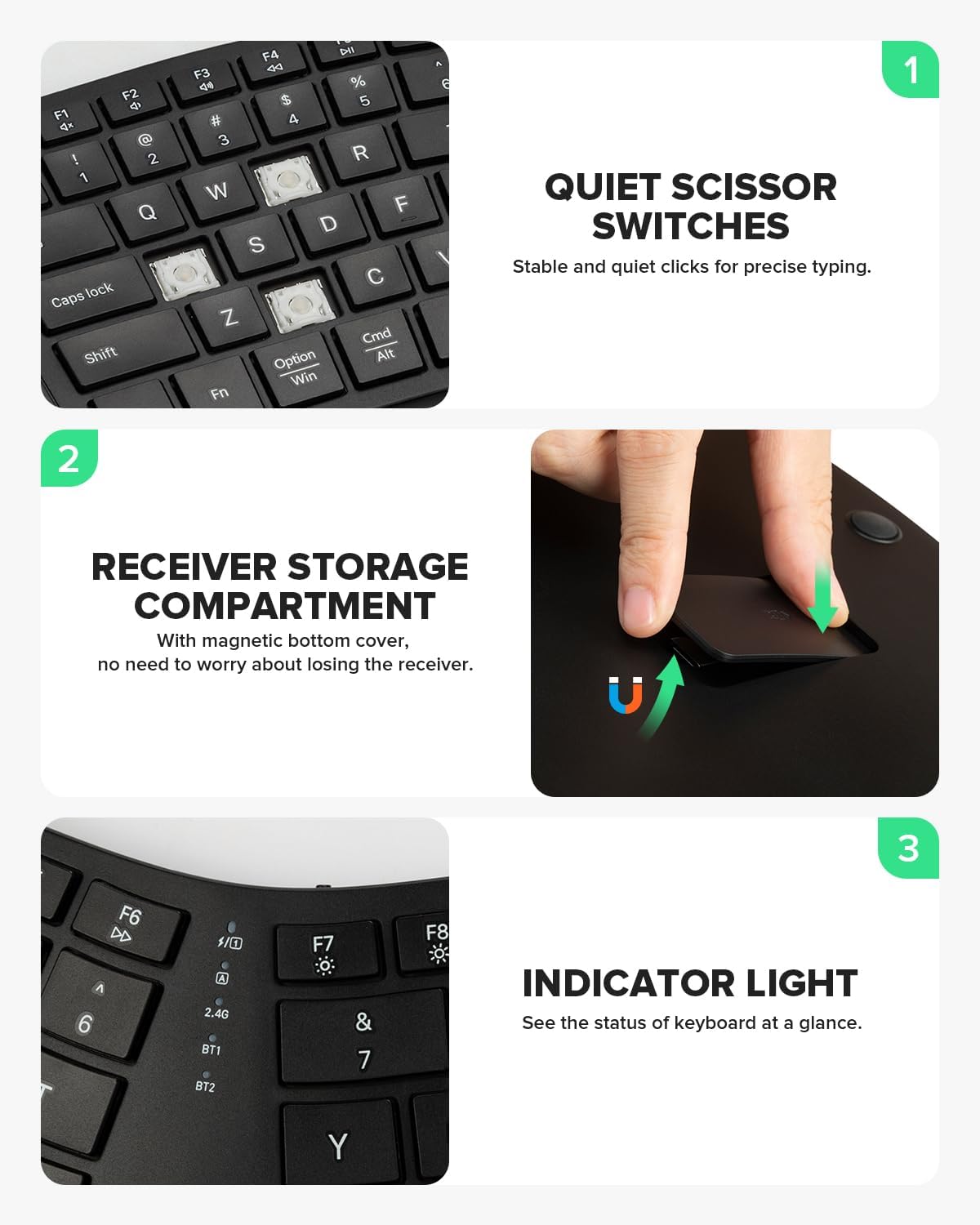
Figure 4: Key features including quiet scissor switches, the magnetic receiver storage compartment, and the indicator light for status updates.
Setup
1. Charging the Keyboard
Before first use, it is recommended to fully charge the keyboard. Connect the provided USB-C charging cable to the keyboard's charging port and the other end to a USB power source (e.g., computer USB port, USB wall adapter). The charging indicator light will show charging status. A full charge takes approximately 1.5 hours and provides up to 150 hours of battery life.

Figure 5: The keyboard connected to a USB-C charging cable, illustrating the charging port location.
2. Connecting to Devices
The DeLUX GM909 keyboard supports both 2.4G wireless and Bluetooth dual channels, allowing connection to up to three devices simultaneously.

Figure 6: The keyboard demonstrating multi-device connectivity with a laptop, tablet, and desktop monitor, highlighting the 2.4G, BT1, and BT2 connection indicators.
2.1. 2.4G Wireless Connection
- Locate the USB 2.4G receiver, typically stored in the magnetic compartment on the underside of the keyboard.
- Plug the USB 2.4G receiver into an available USB port on your computer.
- Turn on the keyboard. The keyboard should automatically connect to the receiver. The 2.4G indicator light on the keyboard will illuminate.
2.2. Bluetooth Connection (BT1 / BT2)
- Turn on the keyboard.
- Press and hold the BT1 or BT2 key for 3-5 seconds until the corresponding indicator light flashes rapidly, indicating pairing mode.
- On your device (computer, tablet, smartphone), enable Bluetooth and search for new devices.
- Select "DeLUX GM909" from the list of available devices.
- Once connected, the indicator light will stop flashing and remain solid for a few seconds before turning off.
Operating Instructions
1. Switching Between Devices
To switch between connected devices, simply press the corresponding connection key: 2.4G, BT1, or BT2. The keyboard will switch to the selected device instantly.
2. Auto Sleep Mode
For power savings and extended standby times, the keyboard will automatically enter sleep mode after 10 minutes of inactivity. To wake up the keyboard, press any key. This feature is fixed and cannot be disabled.
3. Scissor Switches Keys
The keyboard features scissor-switch keys, providing a quiet and responsive typing experience with quick rebound. This design ensures stable and precise keystrokes.
4. Multimedia Function Buttons
The function keys (F1-F12) have dual purposes. By default, they operate as standard F-keys. To access their multimedia shortcut functions (e.g., volume control, media playback), press the Fn key simultaneously with the desired F-key.
Maintenance
- Cleaning: Use a soft, dry cloth to wipe the keyboard surface. For stubborn dirt, a slightly damp cloth with mild soap can be used, ensuring no liquid enters the keyboard.
- Palm Rest: The leather cushioned palm rest is designed to be easy to clean. Wipe with a damp cloth as needed.
- Storage: When not in use for extended periods, store the keyboard in a cool, dry place away from direct sunlight and extreme temperatures.
- Battery Care: To prolong battery life, avoid fully discharging the battery frequently. Charge the keyboard regularly.
Troubleshooting
| Problem | Possible Cause | Solution |
|---|---|---|
| Keyboard not responding | Low battery; Incorrect connection mode; Receiver not plugged in (2.4G); Bluetooth not paired. | Charge the keyboard. Ensure the correct connection mode (2.4G, BT1, BT2) is selected. For 2.4G, ensure the receiver is securely plugged in. For Bluetooth, re-pair the keyboard with your device. |
| Keys not registering or delayed input | Keyboard in sleep mode; Interference; Low battery. | Press any key to wake the keyboard. Move closer to the receiver/device. Charge the keyboard. |
| Bluetooth connection unstable | Interference from other wireless devices; Distance from device. | Reduce distance between keyboard and device. Minimize other wireless devices operating nearby. |
| Cannot switch between devices | Incorrect button press. | Ensure you are pressing the dedicated 2.4G, BT1, or BT2 buttons to switch. |
Specifications
- Model: GM909
- Dimensions: 18.15 x 9.06 x 1.17 inches (46.1 x 23.0 x 3.0 cm)
- Weight: 3.29 pounds (1.49 kg)
- Connectivity: 2.4G Wireless, Bluetooth (BT1, BT2)
- Battery: 500mAh Lithium Ion (Rechargeable)
- Charging Time: Approximately 1.5 hours
- Battery Life: Up to 150 hours (usage may vary)
- Number of Keys: 112
- Key Type: Scissor Switches
- Compatible Devices: Laptop, PC (Windows, Mac, iOS, Android systems)
- Special Features: Ergonomic Split Design, Cushioned Palm Rest, Multi-device Connection, Auto Sleep Mode
Warranty and Support
DeLUX products are designed and manufactured to the highest quality standards. For warranty information and technical support, please refer to the warranty card included with your product or visit the official DeLUX website. Please retain your proof of purchase for warranty claims.
For further assistance, you may contact DeLUX customer service through their official channels. Details can typically be found on the product packaging or the brand's official website.