Package Contents
Verify all items are present in the package:
- Radio Housing
- Original USB cable
- Installation Tool
- Canbus
- CVBS Out Cable
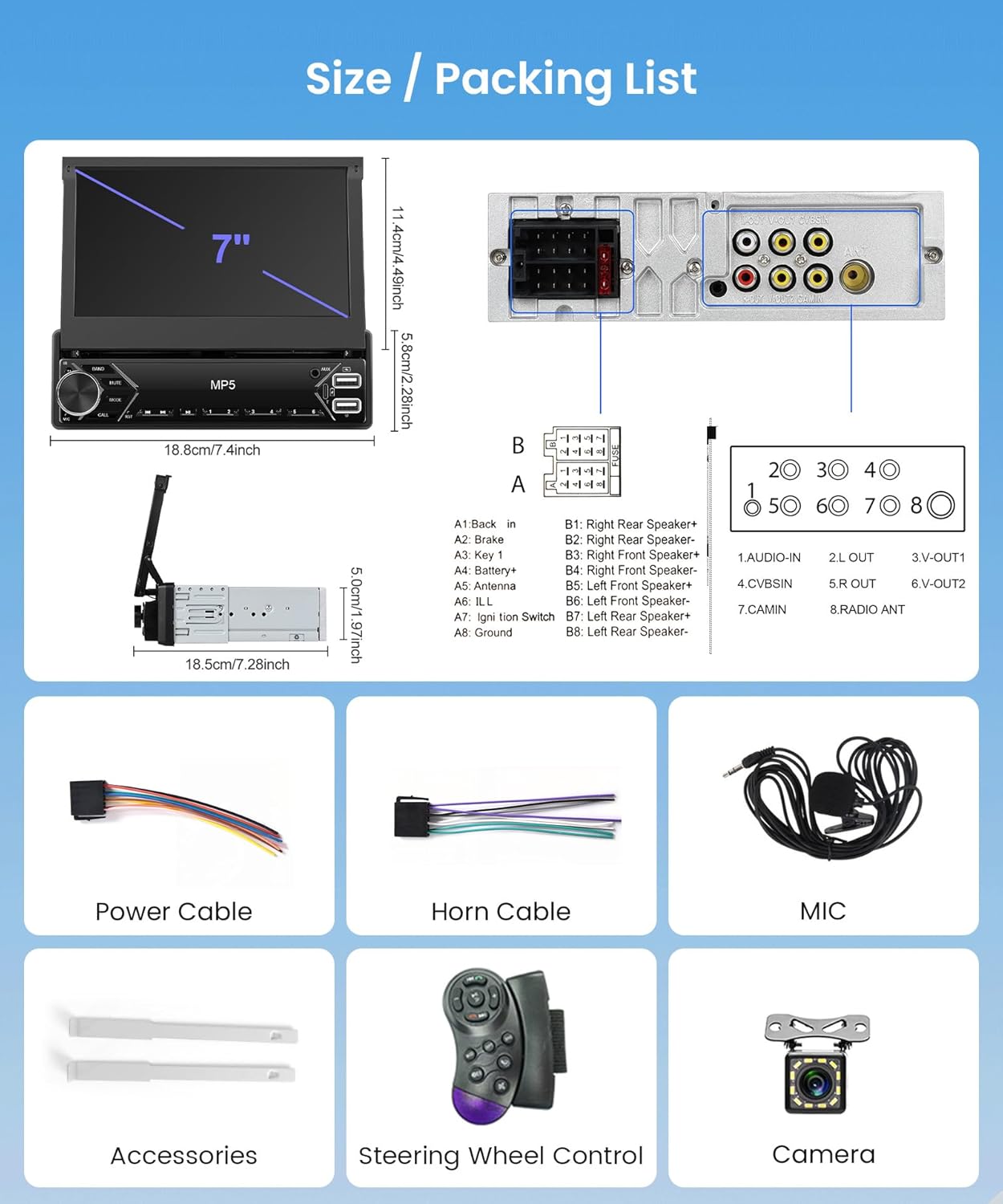
Figure 1: Package contents and unit dimensions.

Model: F133
This manual provides detailed instructions for the installation, operation, and maintenance of your Rimoody Single Din Car Stereo. Please read thoroughly before use.
Verify all items are present in the package:
Figure 1: Package contents and unit dimensions.
Before installation, carefully measure your vehicle's dash size to ensure compatibility. You may need to purchase a special wiring harness, dash kit, or antenna adapter depending on your car model. Consult a professional if unsure.
Refer to the following diagram for proper wiring connections. The diagram is integrated into the 'Size / Packing List' image (Figure 1) and details the pin assignments for the power and speaker connections, as well as RCA outputs and camera input.
After installation, turn on your vehicle's ignition to power the unit. The system should boot automatically.
The unit supports wireless Carplay and Android Auto. Upon starting your vehicle, the radio will automatically connect to your phone if previously paired, providing seamless integration of navigation, music, and communication apps.

Figure 2: Wireless Carplay and Android Auto functionality.
Project your phone screen onto the car radio via USB or Wi-Fi. This allows for viewing movies, navigation, and other content directly on the stereo's display.

Figure 3: Mirror Link via USB or WiFi.
The 7-inch touch screen features 1024*600 high resolution and 2.5D tempered glass. Navigate menus and select functions by touching the screen. You can choose from 18 UI theme wallpapers to personalize the display.
Utilize Bluetooth for hands-free calling with clear sound quality and stable performance. Bluetooth also supports music playback from your connected device.

Figure 4: Bluetooth, FM Radio, and EQ settings interfaces.
Access FM radio for real-time traffic updates, news broadcasts, and weather forecasts. The unit provides multiple channel choices and preset functions.
Customize the sound quality of your car MP5 player using the built-in equalizer settings. Adjust frequency bands to match your audio preferences.
Connect your vehicle's steering wheel controls to operate the radio for safer and more convenient driving, allowing control of volume, track changes, and more without taking your hands off the wheel.

Figure 5: Steering Wheel Control and Rear View Camera display.
When the vehicle is in reverse, the rear image will automatically display on the screen, assisting with parking and preventing collisions with obstacles or children.
Play music and watch movies via USB input (U-disk) or SD card. The unit also supports fast charging for your devices via USB ports.

Figure 6: Colorful Backlight Settings and Multimedia Input options.
Personalize the unit's appearance by selecting from seven color backlight options in the setup menu to match your vehicle's interior or your personal preference.
To ensure longevity and optimal performance, keep the unit clean and free from dust. Use a soft, dry cloth for cleaning the screen and exterior. Avoid abrasive cleaners or solvents, which can damage the display or finish.
Check the manufacturer's website periodically for any available software updates. Updates can improve performance, add new features, or resolve known issues.
If you encounter issues not covered in this section, please contact Rimoody customer service for assistance. Provide your model number (F133) and a detailed description of the problem.
Email: support@rimoody.com
| Feature | Detail |
|---|---|
| Package Dimensions | 10.83 x 8.27 x 3.54 inches |
| Item Weight | 3.57 pounds |
| ASIN | B0DFY65C5P |
| Item model number | F133 |
| Date First Available | September 3, 2024 |
| Manufacturer | Rimoody |
| Country of Origin | China |
| Brand | Rimoody |
| Connectivity Technology | Bluetooth, Wi-Fi, USB |
| Controller Type | Android |
| Special Feature | Touchscreen |
| Compatible Devices | Smartphone |
| Connector Type | RCA |
| Audio Output Mode | Stereo |
| Surround Sound Channel Configuration | 2.1 |
| Output Power | 180 Watts |
| Number of Channels | 4 |
Rimoody offers a 12-month replacement warranty and a 30-day money-back guarantee from the date of purchase.
Enjoy lifetime technical support for your product. Our professional technical team is available to assist with any installation or usage queries. We aim to respond within 24 hours.
Optional extended protection plans are available for purchase:

Figure 7: Rimoody customer service commitments.
For support, please email us or visit the official Rimoody store page on Amazon: Rimoody Store
Ask about setup, troubleshooting, compatibility, parts, safety, or missing instructions. Manuals+ will review the question and use this page’s manual context to help answer it.