
1. Introduction
The Xiaomi A27i 27-inch monitor (Model: P27FBA-RAGL) is designed to provide a clear and natural viewing experience with its Full HD (1920 × 1080) IPS hard screen. Featuring a 100Hz high refresh rate and a 7.5mm ultra-slim body with narrow bezels on three sides, it enhances both work efficiency and daily entertainment. This manual provides essential information for setting up, operating, maintaining, and troubleshooting your new monitor.
2. Package Contents
Please verify that all items listed below are included in your package:
- Monitor ×1
- Base ×1
- Bracket ×1
- HDMI cable ×1
- Screwdriver ×1
- Screws ×2
- Power adapter ×1
- User manual ×1
- Warranty card ×1
3. Setup Guide
3.1 Physical Assembly
- Assemble the Stand: Attach the bracket to the base using the provided screws and screwdriver. Ensure it is securely fastened.
- Attach Stand to Monitor: Carefully align the assembled stand with the mounting slot on the back of the monitor. Gently push until it clicks into place.
- Connect Power: Plug the power adapter into the DC IN port on the monitor and then into a power outlet.
- Connect Video Cable: Connect one end of the HDMI cable (or DisplayPort cable, if using) to the corresponding port on the monitor and the other end to your computer's video output port.

Figure 3.1: Rear view of the Xiaomi A27i monitor with input ports.
3.2 Initial Configuration
After connecting your monitor, power on your computer. The monitor should automatically detect the signal. If not, you may need to adjust display settings on your computer:
- Windows: Right-click on the desktop, select 'Display settings'. Under 'Multiple displays', choose 'Extend these displays' or 'Duplicate these displays' as needed.
- macOS: Go to System Settings > Displays.
4. Operating Instructions
The Xiaomi A27i monitor features an intuitive On-Screen Display (OSD) menu for adjusting various settings. The control button is located on the back of the monitor, typically near the power input.
4.1 OSD Menu Navigation
| Button Operation | Function |
|---|---|
| Short press to right | Enter the main menu (when no menu displayed) / Enter/Select (when main menu displayed) |
| Short press to up/down | Open brightness settings / Switch Menu adjusting values |
| Short press to left | Open signal source switching list / Return |
| Short press the middle | Turn the monitor on / Open the shortcut menu / Enter/Select |
| Press and hold for 3 seconds | Shutdown |
4.2 Key Settings
- Picture Mode: Select from various preset modes (e.g., Standard, Movie, Energy Saver) or customize your own.
- Brightness & Contrast: Adjust these to your preferred levels for optimal viewing.
- Color Temperature: Choose between Warm, Cool, or Custom settings to fine-tune the color balance.
- HDR: Enable or disable High Dynamic Range for enhanced contrast and color.
- Input: Manually select the input source (HDMI or DP) if auto-detection fails.
- Refresh Rate: Ensure your computer's display settings match the monitor's 100Hz refresh rate for the smoothest experience.
5. Product Features
The Xiaomi A27i monitor is equipped with several advanced features to enhance your visual experience:
- FHD Resolution: Clear and Natural Picture Quality
The IPS hard screen with a 178° visual angle and 1920 × 1080 resolution ensures high-definition picture quality and a vivid viewing experience, whether you're viewing tables and documents, or watching videos. - 16.7 Million Colors for Vivid and Natural Images
16.7 million colors, up to 8-bit* high color depth, and a 99% sRGB color gamut, create high-quality vivid pictures, and more natural and bright photographs and videos. - ΔE<2* Screen Calibration: Accurately Restore True Colors
Every Xiaomi Monitor A27i has been strictly inspected for correct color calibration before leaving the factory, effectively reducing display color issues. A professional display for those with professional demands! - 100Hz High Refresh Rate: Ultra-Smooth Working Experience
With a refresh rate of up to 100Hz, it can effectively reduce lag and freezing when browsing web pages and tables, not only improving working efficiency but also providing a better dynamic picture display for daily entertainment. Say goodbye to ghosting and lagging, and get more enjoyment from your work and entertainment. - Comfortable Low Blue Light: Clear and Protect Your Eyes
With TÜV Low Blue Light Certification, the low blue light mode can filter short-wave blue light, ensuring comfort even after working long hours. DC dimming can effectively reduce display flicker to protect your eyes even more. - Ultra-Slim Body and Narrow Bezels
The 7.5mm ultra-slim body and unique narrow bezel design on three sides greatly improve viewing angles and offer an enhanced, more immersive experience. When multiple displays are used together, the viewing experience is even more impressive.
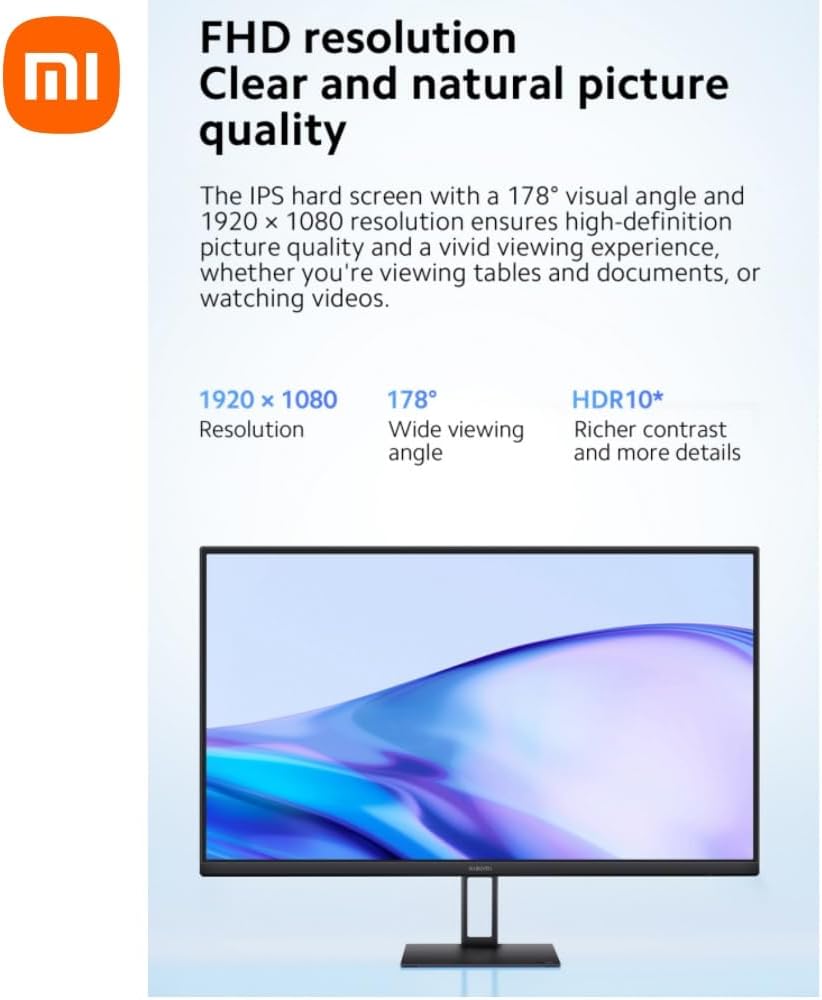
Figure 5.1: FHD Resolution and Wide Viewing Angle.
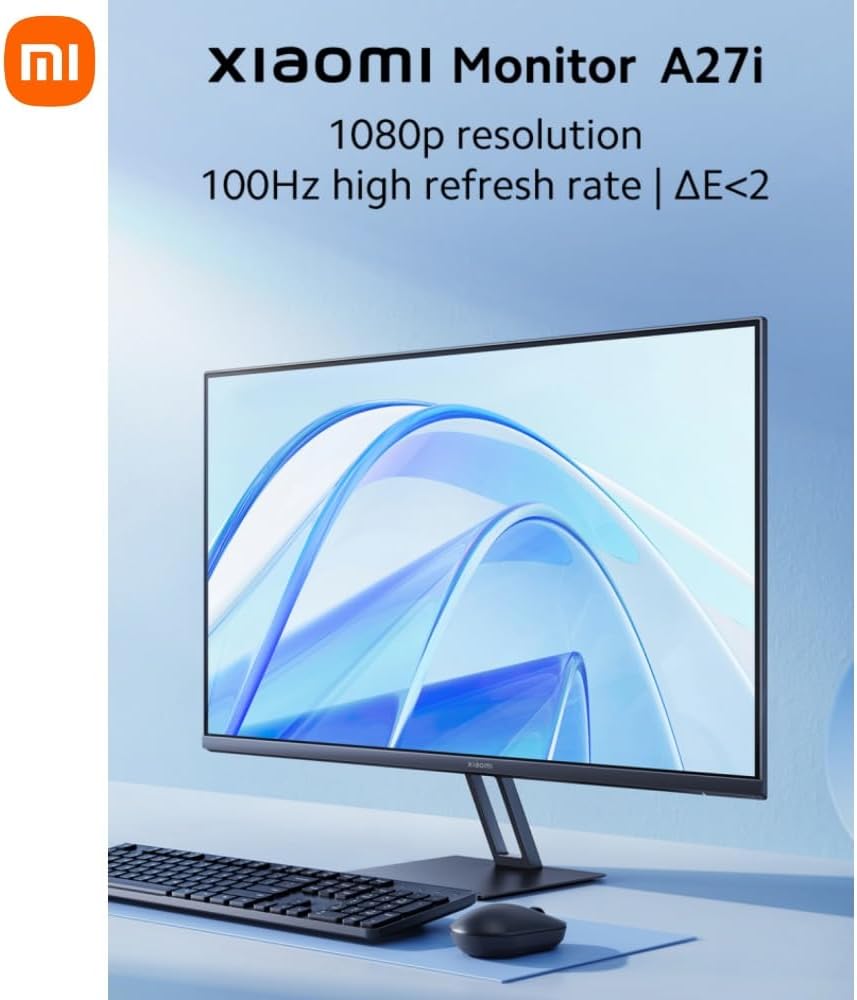
Figure 5.2: Rich Color Depth and sRGB Gamut.
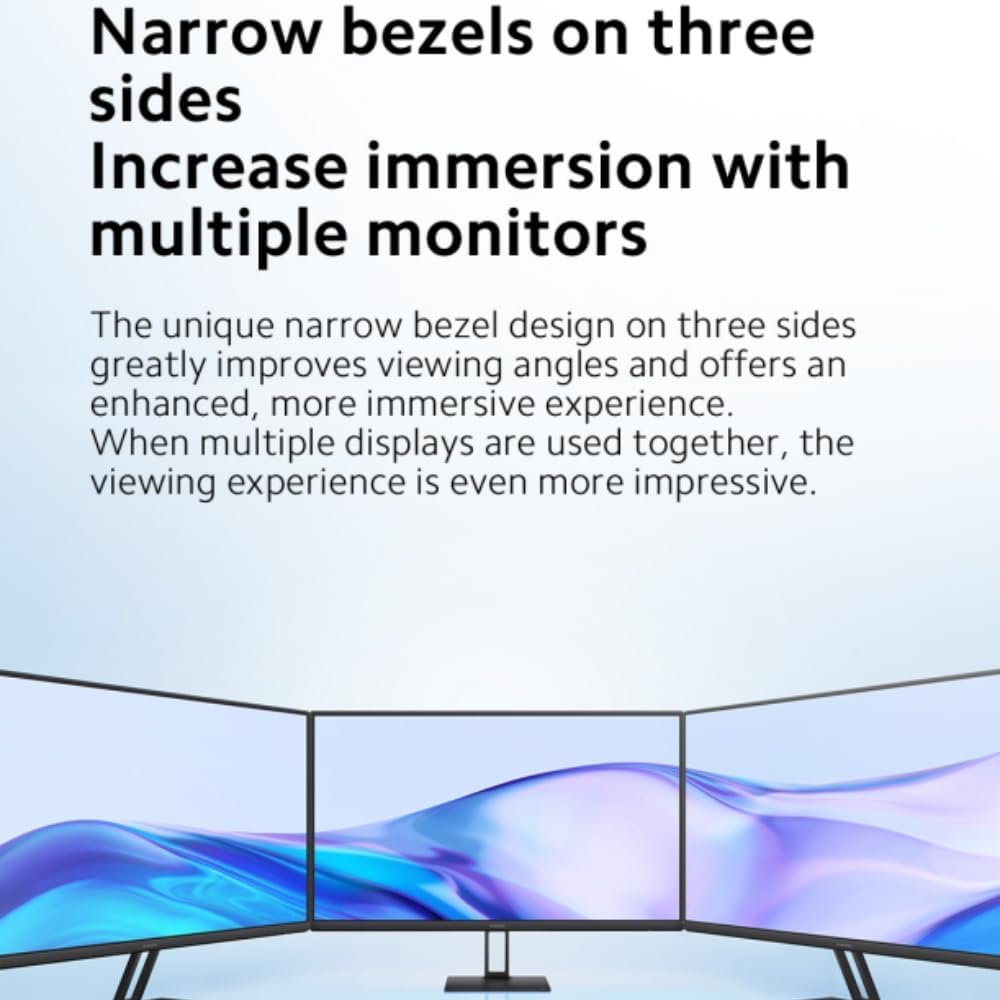
Figure 5.3: Factory Color Calibration for Accuracy.
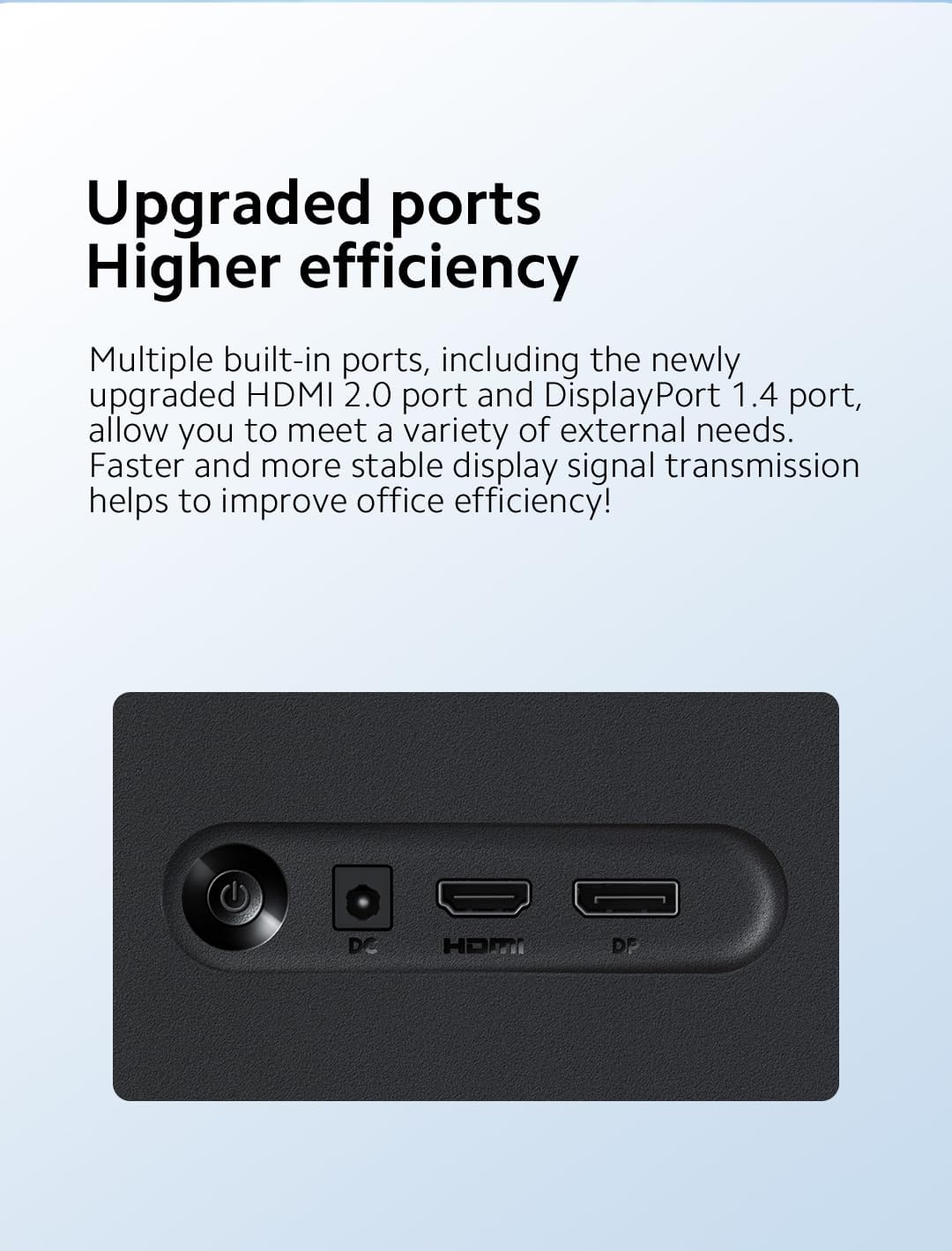
Figure 5.4: High Refresh Rate for Smooth Visuals.

Figure 5.5: Narrow Bezels for Increased Immersion.
6. Maintenance
Proper maintenance ensures the longevity and optimal performance of your Xiaomi A27i monitor.
- Cleaning the Screen: Use a soft, lint-free cloth specifically designed for electronics. For stubborn smudges, lightly dampen the cloth with water or a screen-cleaning solution. Never spray liquid directly onto the screen.
- Cleaning the Casing: Wipe the monitor's casing with a soft, dry cloth. Avoid using abrasive cleaners, waxes, or solvents as they can damage the finish.
- Ventilation: Ensure the ventilation openings on the monitor are not blocked to prevent overheating.
- Storage: When not in use for extended periods, store the monitor in a cool, dry place, away from direct sunlight and extreme temperatures.
7. Troubleshooting
If you encounter issues with your monitor, refer to the table below for common problems and solutions:
| Issue | Possible Cause | Solutions |
|---|---|---|
| Unable to turn on | No power | Make sure the power adapter is plugged in properly. |
| Image is dark | Brightness/Contrast not adjusted properly | Adjust the brightness and contrast. |
| Image is jittery or has ripples | Interference | Keep the monitor away from electronic devices that may cause electrical interference. |
| No image on the screen | No signal, entering sleep mode | Turn on the computer. Make sure the computer's graphics card is working properly. Make sure the cable is plugged in properly. |
| The monitor displays that the current resolution is not supported | Resolution is incorrect | Use the specified recommended resolution settings. |
8. Specifications
| Feature | Specification |
|---|---|
| Product Model | P27FBA-RAGL |
| Power Input | 12V⎓2.0A |
| Rated Power | 24W |
| Screen Size | 27 inches |
| Viewing Angle | 178° (H) / 178° (V) |
| Brightness | 250 nits (typ) |
| Contrast Ratio | 1000:1 |
| Color Depth | 16.7M |
| Aspect Ratio | 16:9 |
| Resolution | 1920 × 1080 (FHD) |
| Panel Refresh Rate (max.) | 100Hz |
| G to G Response Time | 6ms (typ) |
| Dimensions (including base) | 612.3 (L) × 170 (W) × 451.7 (H) mm |
| Weight (including base) | 3.6kg |
| Wall Mount Size | VESA 75mm × 75mm |
| Tilt (angle) | -5° ± 2 ~+ 15° ± 2 |
| DP Port | ×1 |
| HDMI 2.0 Port | ×1 |
| DC IN Cable Port | ×1 |
9. Warranty and Support
For warranty information and support, please refer to the Warranty Card included in your package. You can also visit the official Xiaomi website or contact their customer service for further assistance.
Official Xiaomi Website: www.mi.com