

Introduction
Thank you for choosing the BBPECO Smart Bird Feeder Camera. This device combines a traditional bird feeder with advanced camera technology, offering 1080P HD video, AI bird identification, and real-time notifications directly to your smartphone. This manual provides detailed instructions for setup, operation, maintenance, and troubleshooting to ensure optimal performance and an enjoyable birdwatching experience.
1. Setup
1.1 Unboxing and Components
Carefully unpack all items from the box. Ensure the following components are present:
- BBPECO Smart Bird Feeder Camera Unit
- Mounting Hardware (screws, wall anchors, straps)
- USB Charging Cable
- User Manual
- Refillable Food Reservoir
1.2 Charging the Battery
The camera unit is powered by a 5200mAh rechargeable lithium-ion battery. Before initial use, fully charge the camera battery.
- Locate the charging port on the camera unit.
- Connect the provided USB charging cable to the camera and a standard 5V/1A USB power adapter (not included).
- The charging indicator light will illuminate. Charging typically takes approximately 8 hours for a full charge.
- Once fully charged, the indicator light will change or turn off, depending on the model.

This image illustrates the battery specifications, including its 5200mAh capacity, 2160 hours runtime, and 8 hours charging time.
1.3 App Installation and Wi-Fi Connection
To operate the smart bird feeder, you must install the companion mobile application and connect it to your home Wi-Fi network.
- Download the BBPECO app from your smartphone's app store (iOS or Android).
- Open the app and create an account or log in if you already have one.
- Follow the in-app instructions to add a new device. This typically involves scanning a QR code on the camera or manually selecting the device type.
- Ensure your smartphone is connected to a 2.4GHz Wi-Fi network. The camera does not support 5GHz Wi-Fi.
- Enter your Wi-Fi network name and password into the app when prompted.
- The app will guide you through connecting the camera to your Wi-Fi. A voice prompt from the camera will confirm successful connection.
1.4 Mounting the Feeder
Choose a suitable location for your bird feeder, ensuring it is within range of your 2.4GHz Wi-Fi network and offers a clear view for the camera.
- Use the provided mounting hardware to securely attach the feeder to a tree, post, or wall.
- Consider the height and angle to optimize bird visibility and camera coverage.
- Ensure the feeder is stable and cannot be easily dislodged by wind or animals.

This image demonstrates the BBPECO Smart Bird Feeder Camera mounted on a tree, showing its placement for bird observation.
1.5 Filling the Feeder
The feeder is designed for easy refilling.
- Open the top lid of the feeder.
- Pour your preferred bird seed into the reservoir.
- Close the lid securely to protect the seed from weather and pests.

This image shows the process of refilling the bird feeder with seed.
2. Operating Instructions
2.1 Live View and Real-time Notifications
Access live video streams and receive instant alerts on your smartphone.
- Open the BBPECO app on your smartphone.
- Select your bird feeder from the device list to view the live camera feed.
- The camera features motion detection. When motion is detected, you will receive a real-time notification on your phone.
- Configure notification settings within the app to customize alerts.

This image illustrates the real-time notification feature, showing an alert on a smartphone when a bird is detected.
2.2 AI Bird Identification
The camera utilizes AI technology to identify bird species.
- When a bird is detected, the AI system attempts to identify its species.
- Identification results are displayed within the app, often alongside the recorded footage.
- Note: AI-powered species recognition may require a subscription for full functionality.

This image highlights the AI bird identification feature, showing a Blue Jay being recognized by the system.
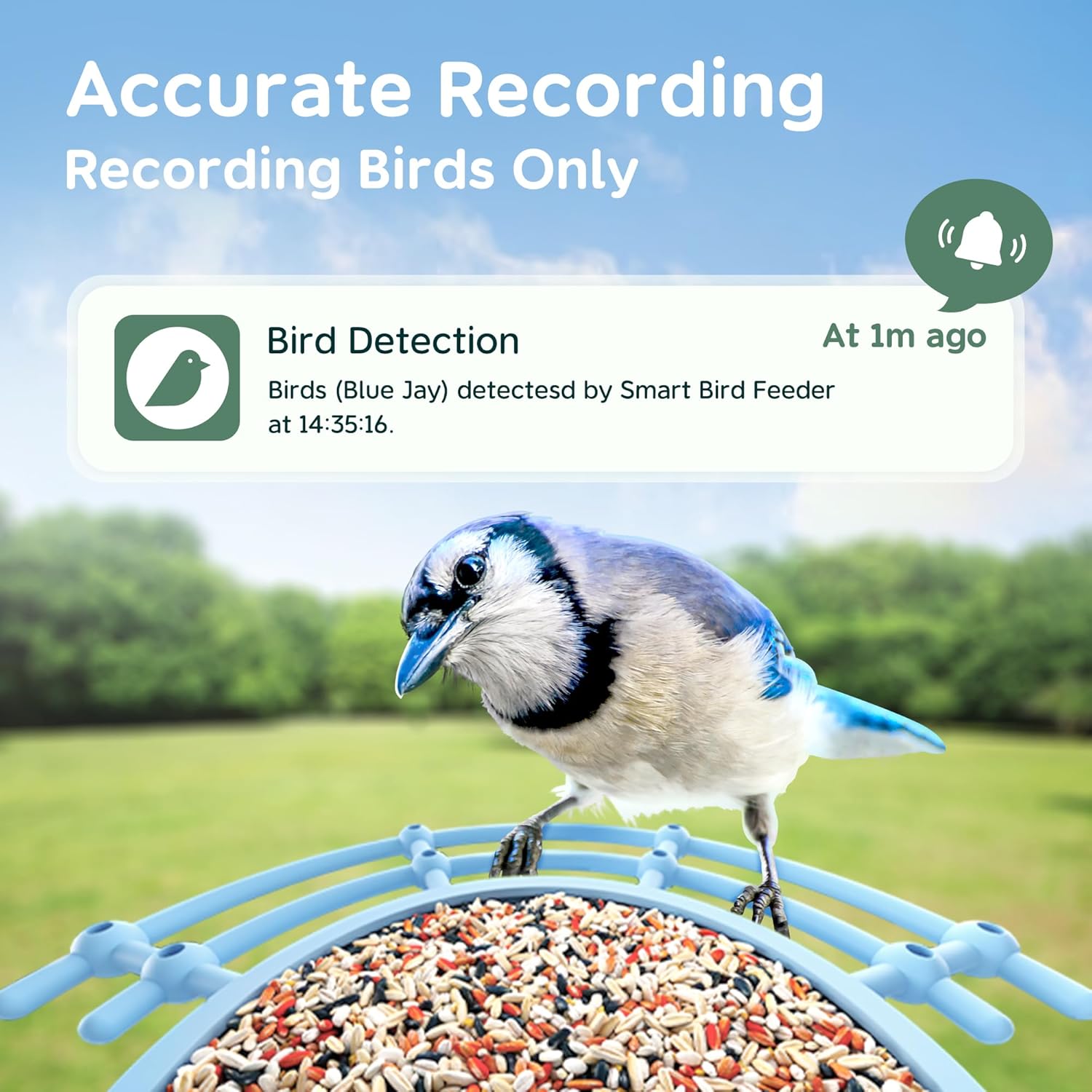
This image displays an accurate recording notification, indicating a bird detection event.
2.3 Recording and Playback
The camera automatically captures events and stores them for later viewing.
- Recordings are triggered by motion detection.
- Access recorded videos and images through the app's gallery or playback section.
- Storage options include a local SD card (not included, up to 128GB) and cloud storage (subscription may be required).
2.4 Sharing Memories
Share your birdwatching moments with others.
- The app allows you to share access to the feeder's live stream or recorded content with family and friends.
- Follow the in-app instructions to invite other users or share specific videos/images to social media or messaging platforms.

This image demonstrates that the feeder supports multiple viewers, allowing family and friends to share the birdwatching experience.
2.5 Night Vision
The camera is equipped with night vision capabilities to monitor birds in low-light conditions.
- Night vision activates automatically in dim light.
- This feature allows for continuous observation of nocturnal bird activity.
3. Maintenance
3.1 Cleaning the Feeder
Regular cleaning is essential for the health of the birds and the longevity of the feeder.
- Before cleaning, remove the camera unit from the feeder housing.
- Empty any remaining bird seed.
- Wash the feeder components (excluding the camera) with warm, soapy water. A mild disinfectant solution can also be used.
- Rinse thoroughly and allow all parts to dry completely before reassembling and refilling.
- Wipe the camera lens and housing with a soft, damp cloth. Do not use harsh chemicals or abrasive materials.
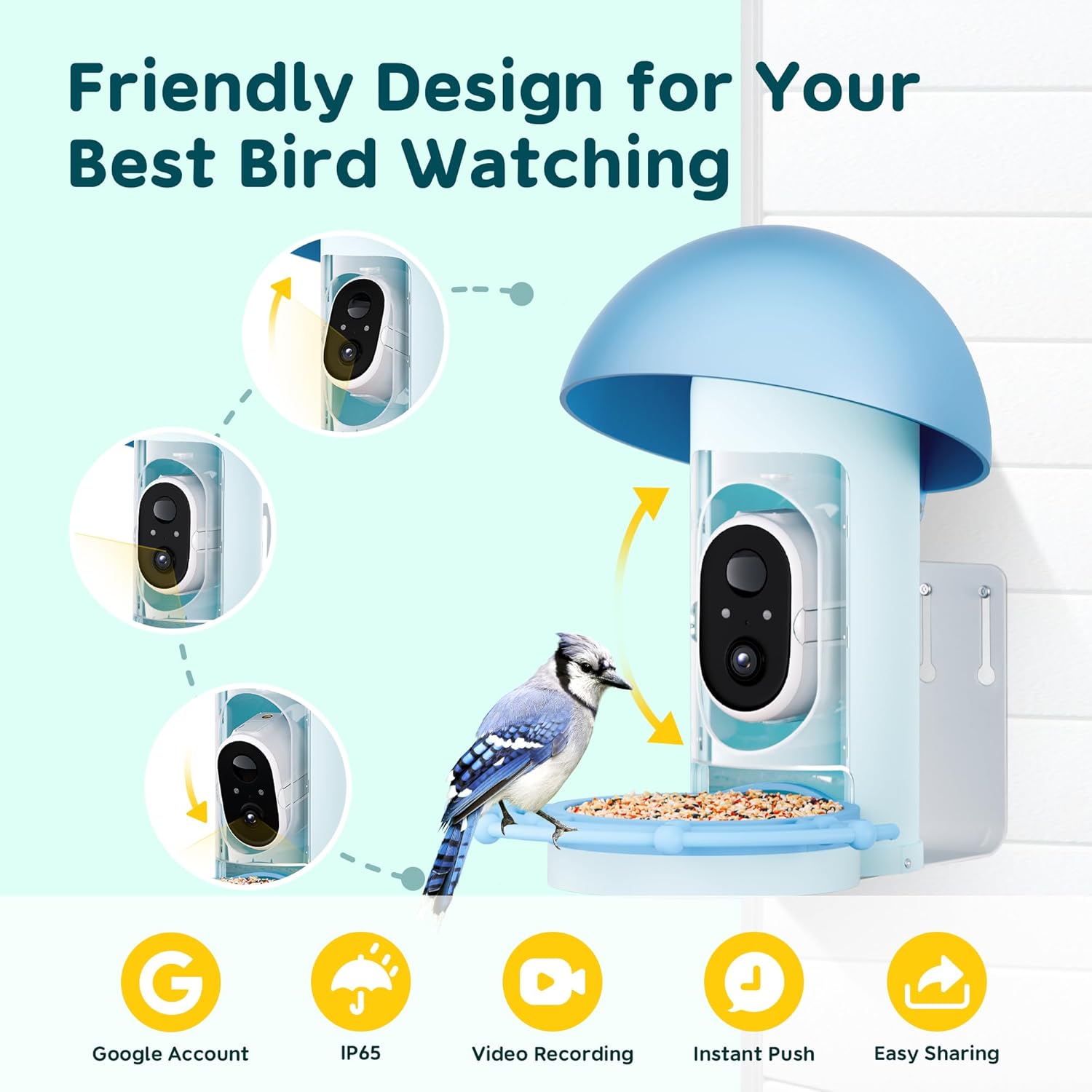
This image illustrates the friendly design of the feeder, showing the camera unit being easily removed for cleaning or charging.
3.2 Battery Care
To maximize battery life:
- Avoid extreme temperatures.
- Charge the battery fully before long periods of inactivity.
- Monitor battery levels through the app and recharge when low.
3.3 Firmware Updates
Periodically check for firmware updates through the BBPECO app to ensure your camera has the latest features and security enhancements.
- The app will typically notify you if an update is available.
- Follow the on-screen instructions to download and install updates. Ensure the camera has sufficient battery charge during updates.
4. Troubleshooting
| Problem | Possible Cause | Solution |
|---|---|---|
| Camera not connecting to Wi-Fi | Incorrect Wi-Fi password; 5GHz network used; camera too far from router | Verify password; ensure 2.4GHz network is selected; move camera closer to router or use a Wi-Fi extender. |
| No notifications received | App notifications disabled; motion detection off; low battery | Check app notification settings; ensure motion detection is enabled in the app; charge the camera battery. |
| Poor video quality | Dirty lens; weak Wi-Fi signal; low light conditions | Clean the camera lens; improve Wi-Fi signal strength; ensure adequate lighting (night vision will activate in low light). |
| Battery drains quickly | Frequent motion detection; extreme temperatures; continuous live viewing | Adjust motion detection sensitivity; avoid placing in direct sunlight or extreme cold; limit continuous live viewing. |
| AI identification inaccurate | Poor lighting; partial view of bird; subscription required for advanced features | Ensure clear view of birds; check lighting; verify subscription status if applicable. |
5. Specifications
- Brand: BBPECO
- Model: SC053-WQ2
- Product Dimensions: 12"L x 6"W x 14"H
- Item Weight: 4.26 pounds
- Material: Plastic
- Power Source: Battery Powered (1 Lithium Ion battery included)
- Battery Capacity: 5200mAh
- Video Resolution: 1080P HD
- Connectivity: 2.4GHz Wi-Fi (5GHz not supported)
- Special Features: AI Bird Identification, Auto Capture, Motion Detection, Night Vision, Easy-Refill Top, IP65 Weatherproof
- Mounting Type: Hanging Mount
6. Important Safety Information
Please read and adhere to the following safety guidelines:
- Always follow the instructions provided with the product.
- Keep batteries out of reach of children and pets.
- Do not place the feeder in areas where it may be damaged by severe weather or other external factors.
- Always supervise children when they are interacting with the product.
- Do not feed birds with food that is not suitable for them. Consult local wildlife resources for appropriate bird seed types.
- Check local regulations regarding feeding wildlife in your area.
- Ensure the feeder is securely mounted to prevent falling and potential injury or damage.
7. Warranty and Support
BBPECO products are designed for reliability and performance. For warranty information or technical support, please refer to the contact details provided on the product packaging or the official BBPECO website. Keep your purchase receipt as proof of purchase for warranty claims.
For further assistance, please visit the BBPECO store on Amazon: BBPECO Store