
Introduction
The Thermalright Assassin Spirit 120 Vision ARGB White CPU Air Cooler is designed to provide excellent heat dissipation for your CPU while offering customizable visual aesthetics through its integrated IPS LCD screen. This manual provides detailed instructions for installation, operation of the TRCC software, maintenance, and troubleshooting to ensure optimal performance and longevity of your cooler.
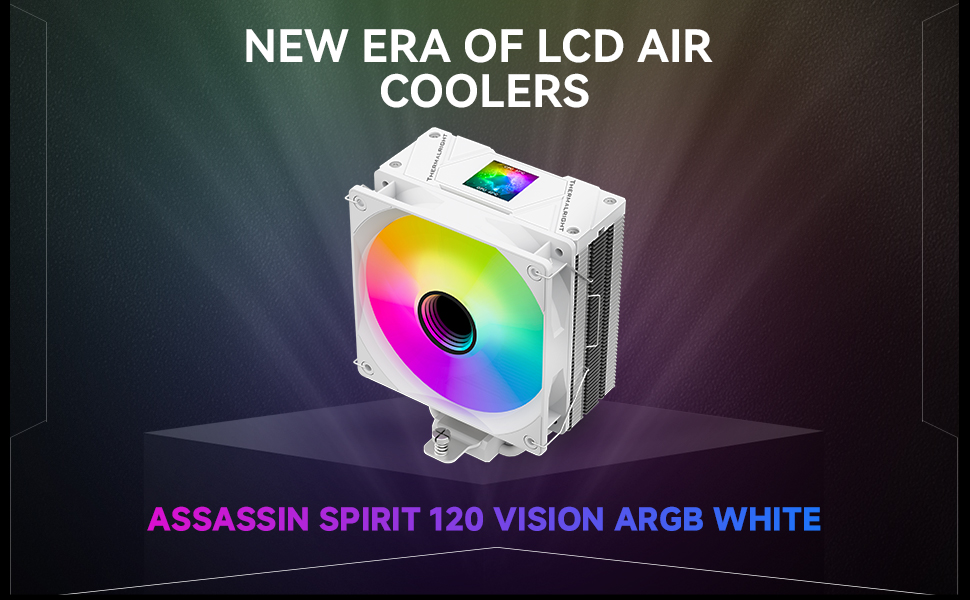
Image: The Thermalright Assassin Spirit 120 Vision ARGB White CPU Air Cooler, showcasing its white design and vibrant ARGB fan.
What's in the Box
- CPU COOLER
Setup and Installation Guide
Follow these steps carefully to install your Thermalright Assassin Spirit 120 Vision ARGB White CPU Air Cooler. The installation process varies slightly depending on your motherboard's CPU socket type (AMD or Intel).
General Installation Procedures
Before beginning, ensure your system is powered off and unplugged. Prepare your workspace and organize all components.

Image: Overview of the Thermalright Assassin Spirit 120 Vision ARGB White CPU Cooler and its included components, such as the heatsink, fan, mounting brackets, screws, and thermal compound.
AMD AM4/AM5 Installation
For AMD AM4 and AM5 motherboards, you will need to remove the motherboard's pre-installed plastic brackets but keep the original backplate. Install the four red standoffs onto the motherboard, then secure the two metal brackets with the provided screws. Ensure the brackets are firmly attached.
Video: Detailed installation guide for the Thermalright Assassin Spirit 120 Vision ARGB White CPU Cooler on AMD AM4/AM5 platforms, showing removal of plastic brackets, installation of standoffs, and securing metal brackets.
Intel LGA1700 Installation
For Intel LGA1700 motherboards, adjust the mounting hole position on the backplate to 1700. Install the backplate from the rear side of the motherboard. Then, install the four blue Intel 1700 plastic standoffs. Secure the brackets on the standoffs using the Intel screws, ensuring they pass through the LGA1700 holes on the brackets.
After securing the brackets for either AMD or Intel, apply thermal compound to the CPU's Integrated Heat Spreader (IHS). Remove the protective sticker from the heatsink base. Carefully place the heatsink onto the CPU, aligning the nuts on the heatsink with the screws on the installed brackets. Tighten both nuts evenly with a screwdriver until secure.

Image: Close-up view of the mounting systems for AMD (AM4/AM5) and Intel (LGA115X/1200, LGA1700) platforms, highlighting the different components and installation points.
Connecting Cables
Connect the 4-pin PWM fan cable to the motherboard's 4-pin fan header to power and control the fan speed. Connect the ARGB lighting cable to the motherboard's 5V 3-pin ARGB header for lighting control. Finally, connect the USB cable to a USB 2.0 header on the motherboard and the display power connector to a SATA power cable from your power supply.
Operating TRCC Software
The Thermalright Assassin Spirit 120 Vision ARGB White CPU Cooler features a 1.54-inch IPS LCD screen that can be customized using the TRCC (Thermalright Control Center) software. This software allows you to monitor system parameters, display custom backgrounds, and define text presentations.
Download and install the TRCC software from the official Thermalright website. Once installed, you can launch the application to access its features.
Video: An overview of the TRCC Digital Series software, demonstrating its interface and various customization options for the LCD screen.
Video: A detailed demonstration of the TRCC software for the AS/BA120 VISION series, showing how to customize themes, display information, and manage settings for the LCD screen.
The TRCC software allows for extensive customization, including:
- System Parameter Monitoring: Display CPU and GPU temperatures, usage, and other relevant system information directly on the LCD screen.
- Custom Backgrounds: Upload your own images, GIFs, or videos to personalize the screen background.
- Text Presentation: Customize text content, font, color, and size for various display elements.
- Theme Customization: Choose from default themes or create your own unique themes.
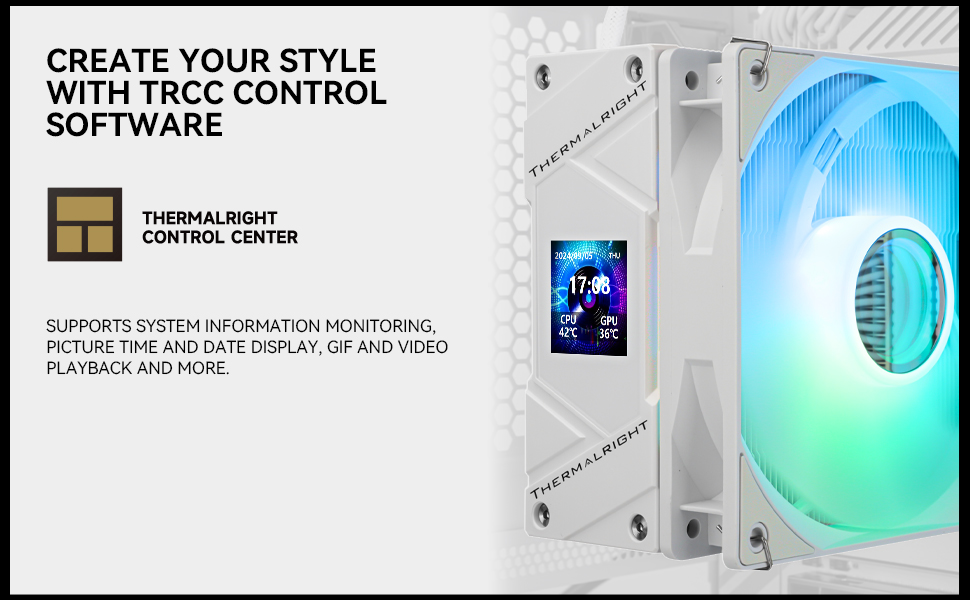
Image: The TRCC Control Software interface, showing options for system information monitoring, picture, time, date display, and GIF/video playback.
Maintenance
Regular maintenance ensures the longevity and optimal performance of your CPU cooler.
- Dust Removal: Periodically clean the heatsink fins and fan blades to prevent dust buildup, which can impede airflow and reduce cooling efficiency. Use compressed air or a soft brush.
- Fan Inspection: Check the fan for any unusual noises or wobbling. Ensure the fan is securely mounted and its cables are not obstructing the blades.
- Thermal Compound: While not required frequently, consider reapplying thermal compound every few years or if you notice a significant increase in CPU temperatures.
Troubleshooting
If you encounter issues with your Thermalright Assassin Spirit 120 Vision ARGB White CPU Air Cooler, refer to the following common troubleshooting steps:
- No Power/Fan Spin: Ensure all power cables (4-pin PWM, SATA power for display) are securely connected to the motherboard and power supply. Check motherboard fan headers in BIOS.
- No ARGB Lighting: Verify the 5V 3-pin ARGB cable is correctly connected to the motherboard. Check your motherboard's ARGB software for control settings.
- LCD Screen Not Displaying: Ensure the USB 9-pin cable and SATA power cable for the display are properly connected. Confirm the TRCC software is installed and running.
- High CPU Temperatures: Check that the heatsink is securely mounted and making proper contact with the CPU. Verify thermal compound application. Ensure adequate airflow within your PC case.
- TRCC Software Issues: If the software is not functioning correctly, try reinstalling it from the official Thermalright website. Ensure your operating system is up to date.
For further assistance, please consult Thermalright customer service.
Specifications
| Feature | Specification |
|---|---|
| Model | AS120 VISION ARGB White |
| Overall Size | 120x73x154mm |
| Fan Size | 120x120x25.6mm |
| Fan Speed | 1500RPM ±10% |
| Operating Noise | ≤25.6DB(A) |
| Fan Power Connector | 4PIN PWM |
| Lighting Connector | 5V 3pin ARGB |
| Bearing Type | S-FDB bearings |
| Height | 154mm (overall) |
| LCD Screen | 1.54-inch IPS LCD (240x240 resolution) |
| Compatibility | AMD: AM4/AM5; Intel: LGA1851/1700/1150/1151/1152/1155/1200 |
| Heatpipes | 4 x 6mm nano fully painted white heatpipes |
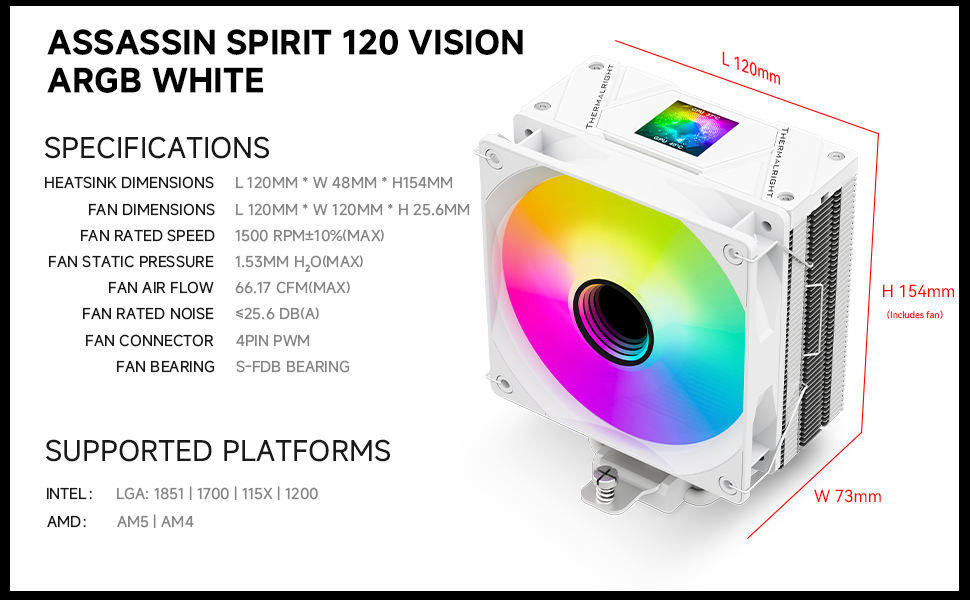
Image: A graphic detailing the specifications and dimensions of the Thermalright Assassin Spirit 120 Vision ARGB White CPU Cooler.
Warranty and Support
For warranty information and technical support, please refer to the official Thermalright website or contact their customer service directly. Keep your proof of purchase for warranty claims.
Official Website: www.thermalright.com