
HP 9C2F6AA#ABA
HP 510 Ultra-Fast Rechargeable Wireless Mouse
User Manual
Introduction
This manual provides detailed instructions for setting up, operating, maintaining, and troubleshooting your HP 510 Ultra-Fast Rechargeable Wireless Mouse. Designed for productivity, this ambidextrous mouse offers rapid charging, precise control, and customizable features across various operating systems.

Image: The HP 510 Ultra-Fast Rechargeable Wireless Mouse, showcasing its sleek black design and ergonomic shape.
Setup
What's in the Box
- HP 510 Ultra-Fast Rechargeable Wireless Mouse
Charging the Mouse
The HP 510 mouse features a supercapacitor for ultra-fast charging. To charge, simply plug the mouse into any USB-C port using a compatible cable. A three-minute charge can provide up to 30 days of use, depending on usage patterns.

Image: Close-up view of the HP 510 mouse highlighting the USB-C charging port located at the front.
Connecting the Mouse
The HP 510 mouse connects wirelessly using the HP Unifying Dongle (not explicitly listed in 'whats_in_the_box' but implied by 'HP UNIFYING DONGLE' feature). Insert the USB dongle into an available USB port on your computer. The mouse should automatically connect. If not, ensure the mouse is powered on and in pairing mode (refer to specific pairing instructions if provided with the dongle).
Operating the Mouse
Basic Functions
- Left Click: Primary selection and activation.
- Right Click: Accesses contextual menus.
- Scroll Wheel: Scrolls vertically through documents and webpages. The 2D scroll wheel also allows for horizontal scrolling.
Advanced Features
The HP 510 mouse offers up to 4000 DPI sensitivity for accurate control on almost any surface. Its ambidextrous design ensures comfortable use for both left and right-handed users. The mouse also features four programmable buttons, allowing you to customize functions to suit your workflow.
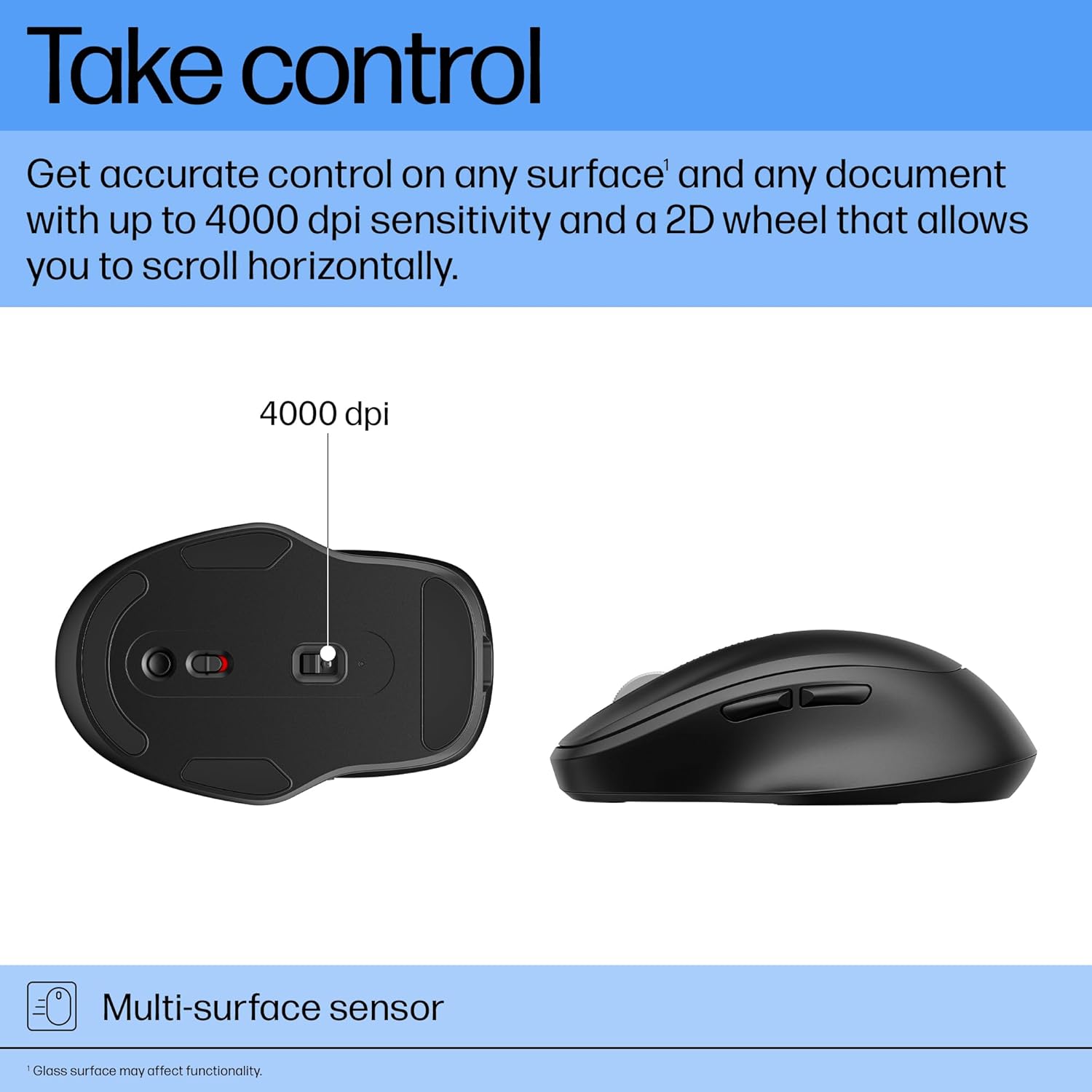
Image: Underside view of the HP 510 mouse showing the multi-surface sensor, capable of up to 4000 DPI tracking.

Image: Top-down view of the HP 510 mouse highlighting the locations of the four programmable buttons and its ambidextrous design.
Maintenance
Cleaning
To clean your mouse, gently wipe the exterior with a soft, damp cloth. Avoid using harsh chemicals or abrasive materials. Ensure no liquid enters the mouse's internal components.
Battery Care
The supercapacitor battery requires minimal maintenance. For optimal lifespan, avoid completely depleting the charge frequently. Regular short charges are beneficial due to its fast-charging capability.
Troubleshooting
Mouse Not Responding
- Ensure the mouse is charged. Plug it into a USB-C port for a few minutes.
- Verify the HP Unifying Dongle is securely inserted into a working USB port on your computer.
- Try connecting the dongle to a different USB port.
- Restart your computer.
Inaccurate Tracking
- Clean the mouse sensor area on the underside of the mouse with a soft, dry cloth.
- Ensure you are using the mouse on a suitable surface. Highly reflective or transparent surfaces may affect tracking performance.
Specifications
| Feature | Detail |
|---|---|
| Model Number | 9C2F6AA#ABA |
| Connectivity Technology | USB Wireless |
| Movement Detection Technology | Laser |
| DPI Sensitivity | Up to 4000 dpi |
| Power Source | Wireless Rechargeable (Supercapacitor) |
| Average Battery Life | Up to 1 month (from 3-minute charge) |
| Operating System Compatibility | Windows, macOS, Linux |
| Item Weight | 3.2 ounces (88.5 g) |
| Color | Black |
| Dimensions (L x W x H) | 4.53 x 2.88 x 2.01 inches (116.06 x 73.15 x 51.05 mm) |
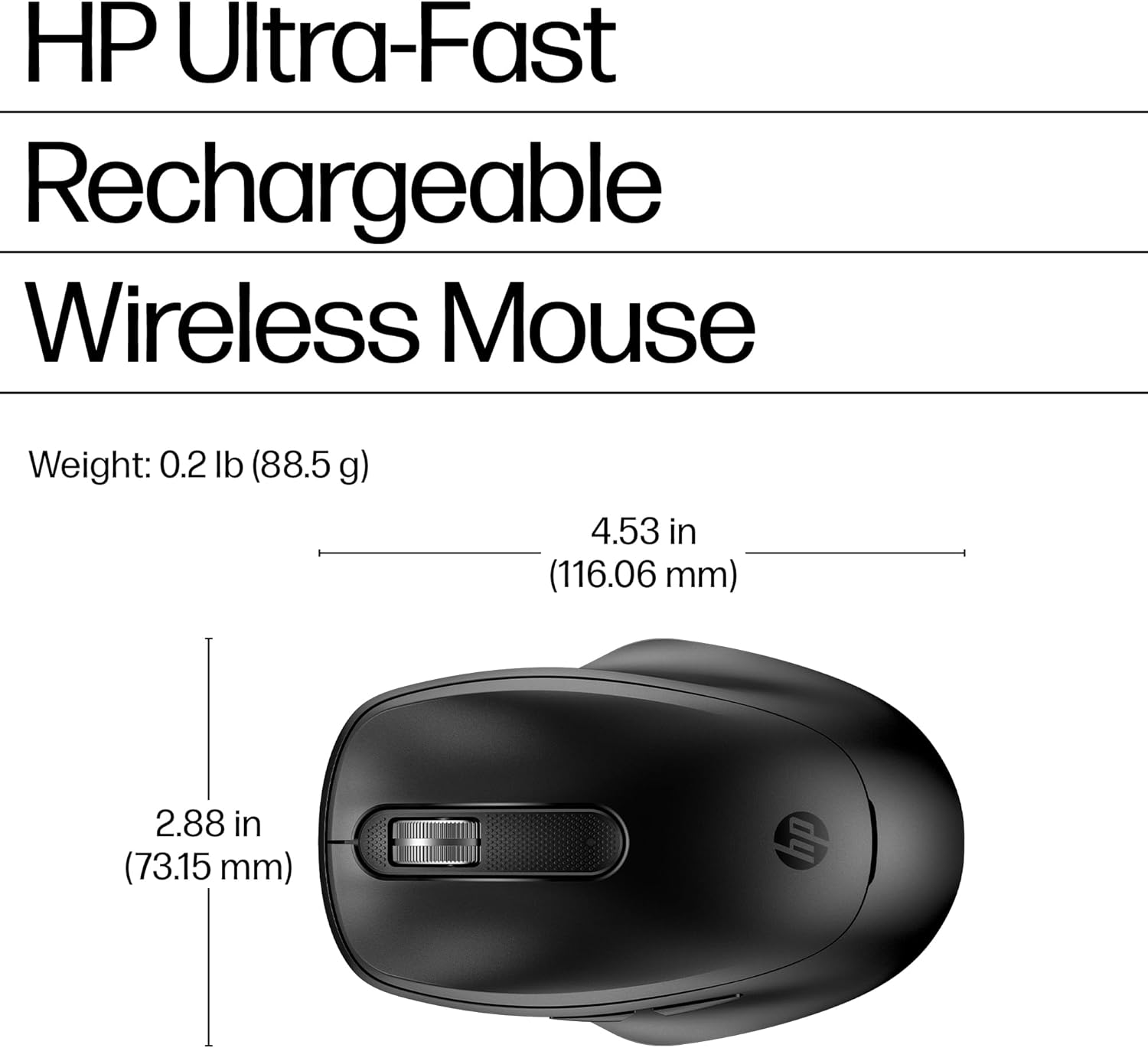
Image: Diagram showing the dimensions of the HP 510 Ultra-Fast Rechargeable Wireless Mouse.
Environmental Considerations
The HP 510 Ultra-Fast Rechargeable Wireless Mouse is designed with sustainability in mind. It is made with at least 70% post-consumer recycled materials and comes in FSC-certified packaging, reflecting a commitment to environmental responsibility.

Image: Front view of the HP 510 mouse, emphasizing its construction from recycled materials and sustainable packaging.
Warranty and Support
For detailed warranty information and technical support, please visit the official HP support website or contact HP customer service. Keep your purchase receipt for warranty claims.
HP Support Website: www.hp.com/support
Ask a question about this manual
Ask about setup, troubleshooting, compatibility, parts, safety, or missing instructions. Manuals+ will review the question and use this page’s manual context to help answer it.