
1. Introduction
This manual provides detailed instructions for the installation, operation, and maintenance of your AZUIQiMeng 12.3" 2K QLED Car Radio Stereo. Please read this manual thoroughly before using the device to ensure proper function and safety.
This unit is specifically designed for Mitsubishi Xpander models from 2017 to 2024. To confirm compatibility, it is recommended to compare your car's dashboard with the images provided in this manual or consult with a professional installer.
2. Product Features
- Display: 12.3-inch 2K QLED touch screen for clear visuals and responsive interaction.
- Operating System: Android 12 9863 OS for smooth performance.
- Connectivity: Wireless/Wired Car-Play and Android Auto support.
- Bluetooth: Built-in BT 5.0 for hands-free calling and audio streaming.
- Audio: Integrated DSP (Digital Sound Processor) for enhanced sound quality.
- Radio: FM/AM radio with RDS (Radio Data System) for stable frequency reception.
- Internet: 5G WiFi and 4G LTE support for seamless online access.
- Navigation: Built-in GPS module with external antenna for accurate navigation.
- Cooling: Equipped with a built-in cooling fan to maintain stable operation during extended use.
- Control: Steering Wheel Control (SWC) compatibility.
3. Installation Guide
Professional installation is highly recommended for this car radio stereo. Incorrect installation can lead to damage to the unit or your vehicle's electrical system.
3.1. Pre-Installation Check
Before proceeding with installation, ensure the unit is compatible with your vehicle. Compare your car's dashboard with the provided images to verify fitment.
3.2. Installation Overview
The images below illustrate the appearance of the dashboard before and after the installation of the 12.3" 2K QLED Car Radio Stereo.

This image displays the car dashboard with the original stereo unit (left) and the same dashboard after the installation of the 12.3" 2K QLED Car Radio Stereo (right). The new unit integrates seamlessly into the vehicle's interior.
3.3. Cooling Fan Integration
The unit includes a high-efficiency cooling fan designed to prevent overheating during prolonged use or in high-temperature environments, ensuring stable performance.

An illustration of the high-efficiency cooling fan integrated into the car radio stereo unit. This fan helps dissipate heat, ensuring optimal performance and longevity of the device.
4. Operating Instructions
4.1. Car-Play and Android Auto
The unit supports both wireless and wired Car-Play (for iOS devices) and Android Auto (for Android devices).
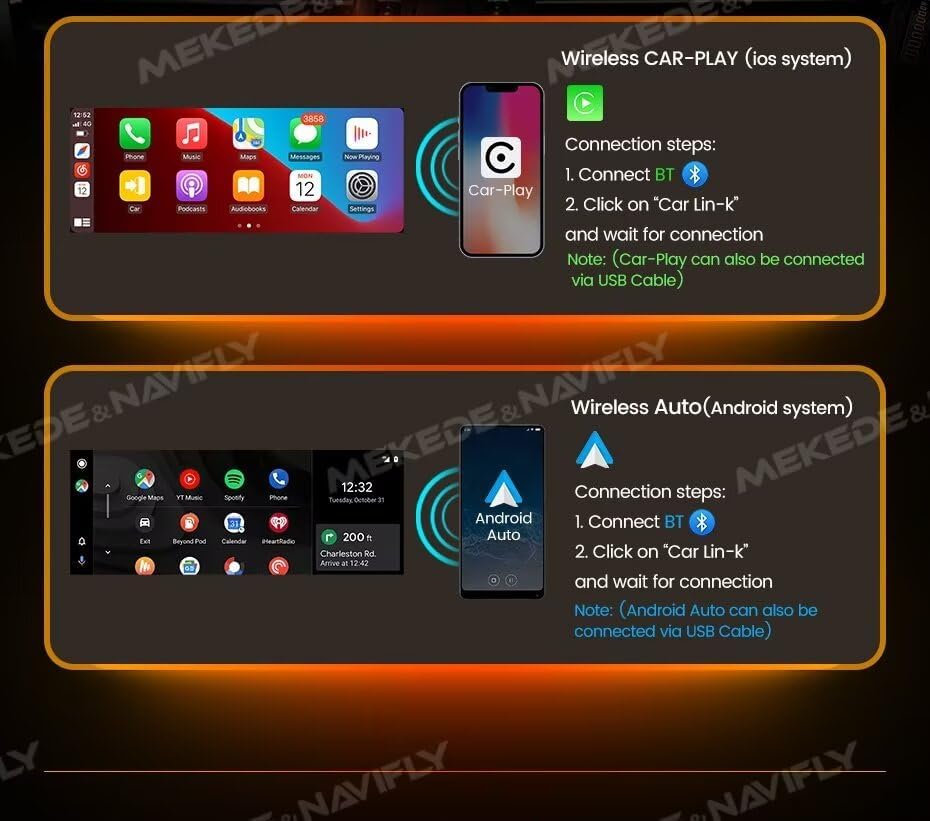
This image illustrates the connection steps for both Wireless Car-Play (iOS) and Wireless Android Auto (Android). For both systems, the process involves connecting via Bluetooth and then selecting 'Car Lin-k' on the stereo. Wired connections are also supported via USB cable.
Connection Steps:
- Connect your smartphone to the car stereo via Bluetooth.
- On the car stereo, select the application labeled "Car Lin-k" and wait for the connection to establish.
- Alternatively, Car-Play and Android Auto can be connected via a USB cable.
4.2. Bluetooth 5.0 Function
The built-in Bluetooth 5.0 module enables hands-free calling, phonebook access, and Bluetooth music streaming.

This image demonstrates the Bluetooth 5.0 interface on the car stereo, showing options for call record, phone book, and BT settings. It highlights features such as BT music, contact synchronization, and synchronous call recording, along with a visual of an incoming call on a connected smartphone.
Features:
- Hands-Free Calling: Make and receive calls directly from the stereo.
- Phonebook: Access your phone's contacts with a name search function.
- BT Music Streaming: Play audio from your smartphone through the car speakers.
- Caller ID: Incoming, dialed, and missed calls display caller information.
4.3. RDS Radio (FM/AM)
The unit features an FM/AM radio tuner with RDS support, allowing for automatic and manual station searching.

This image shows the RDS Radio interface on the car stereo, displaying FM/AM frequencies and controls for station search and saving presets. It also highlights the internal power amplifier (TDA 7850) and radio chip (TDA 7708) components.
Operation:
- Use the automatic search function to scan for available stations.
- Manually tune to specific frequencies.
- Drag and drop station icons to customize your channel list.
4.4. DSP (Digital Sound Processor)
The integrated DSP provides advanced sound customization options, allowing you to optimize the audio experience within your vehicle.

This image illustrates the DSP sound control interface, showing options for adjusting sound timing (Field), Bass Enhancement, and Bass Filter. It details how to reverse high and low frequency tones and set desired frequencies for individual speakers (Front Dynamics, Rear Dynamics).
Functions:
- Sound Timing Control: Adjust the timing of sound emitted from car speakers to create a surround effect.
- Bass Enhancement: Modify high and low frequency tones to boost bass.
- Bass Filter: Set specific frequencies for individual speakers (e.g., Front Dynamics, Rear Dynamics).
4.5. GPS Navigation
The unit includes a built-in GPS module and an external GPS antenna for reliable navigation.
- Supports online maps with real-time traffic updates.
- Allows downloading of offline maps for navigation in areas without mobile signal.
4.6. 5G WiFi & 4G LTE Connectivity
Stay connected with 5G WiFi and 4G LTE support.
- Connect via your smartphone's hotspot.
- Insert a 4G SIM card (if supported by the specific model variant) for direct internet access.
4.7. Display Features: Floating Window and Split Screen
Enhance multitasking and viewing experience with these display modes.

This image demonstrates two advanced display features: the Floating Window, which allows a video or DVR application to be displayed in a customizable position over other apps, and the Split Screen mode, enabling two applications to run simultaneously side-by-side for enhanced convenience.
Floating Window:
- Supports video and DVR applications in a movable, resizable window.
- Customize the display position for optimal viewing.
Split Screen:
- Run two applications simultaneously on the screen.
- Provides convenience for navigation while using other apps.
4.8. Steering Wheel Control (SWC)
The unit supports connection to your vehicle's steering wheel controls, allowing you to manage basic functions like changing songs or adjusting volume without taking your hands off the wheel.
5. Maintenance
To ensure the longevity and optimal performance of your car radio stereo, follow these maintenance guidelines:
- Cleaning: Use a soft, dry cloth to clean the screen and exterior. Avoid abrasive cleaners or solvents.
- Temperature: Avoid exposing the unit to extreme temperatures, both hot and cold.
- Moisture: Keep the unit dry and away from moisture.
- Software Updates: Periodically check for and install any available software updates to improve performance and add new features.
6. Troubleshooting
If you encounter issues with your car radio stereo, refer to the following common troubleshooting steps:
- No Power: Ensure all power connections are secure. Check the vehicle's fuse box for any blown fuses related to the stereo.
- No Sound: Verify speaker connections. Check volume levels and audio settings (e.g., DSP equalizer).
- Bluetooth Connection Issues: Ensure Bluetooth is enabled on both the stereo and your smartphone. Try unpairing and re-pairing the devices.
- GPS Signal Loss: Ensure the GPS antenna is properly installed and has a clear view of the sky.
- Touch Screen Unresponsive: Try restarting the unit. If the issue persists, a factory reset might be necessary (consult support before performing a factory reset).
For persistent issues, please contact customer support.
7. Specifications
| Feature | Specification |
|---|---|
| Brand | AZUIQiMeng |
| Model Name | JGMCMFAMM-8CORE2+32GB |
| Item Model Number | JGMCMFAMM-8CORE2+32GB |
| ASIN | B0DFX3QW78 |
| Item Weight | 1.76 ounces (50 Grams) |
| Package Dimensions | 1.18 x 0.79 x 0.39 inches |
| Date First Available | September 2, 2024 |
| Manufacturer | AZUIQiMeng |
8. Warranty and Support
For warranty information or technical assistance, please refer to the documentation included with your purchase or contact the manufacturer directly. Keep your purchase receipt as proof of purchase.