
1. Product Overview
The GTRUI 10.1 inch 4K Android 14 Portable Car TV Headrest Monitor is designed to provide entertainment and connectivity in your vehicle's back seat. It features an Android 14 operating system, a 10.1-inch QLED IPS touch screen with 1280x720p resolution, and 2GB RAM with 32GB ROM for smooth performance. The device supports 5GHz WiFi for online streaming, Bluetooth for audio connections, and UHD 4K video decoding (H.265) powered by a G52 GPU. It also includes support for phone control, Mirror Link, HDMI, and RCA inputs.

Image: Overview of the GTRUI 10.1 inch Car TV Headrest Monitor's main features and design.
2. What's in the Box
Please verify that all items listed below are included in your package:
- 10.1" Car Headrest Screen (1 unit)
- Car battery power cable (1 unit)
- Cigarette Lighter Cable (1 unit)
- AC To DC 12V Adapter (1 unit)
- Mounting Bracket (1 unit)
- User Manual (1 unit)
- 64GB TF Card (1 unit)
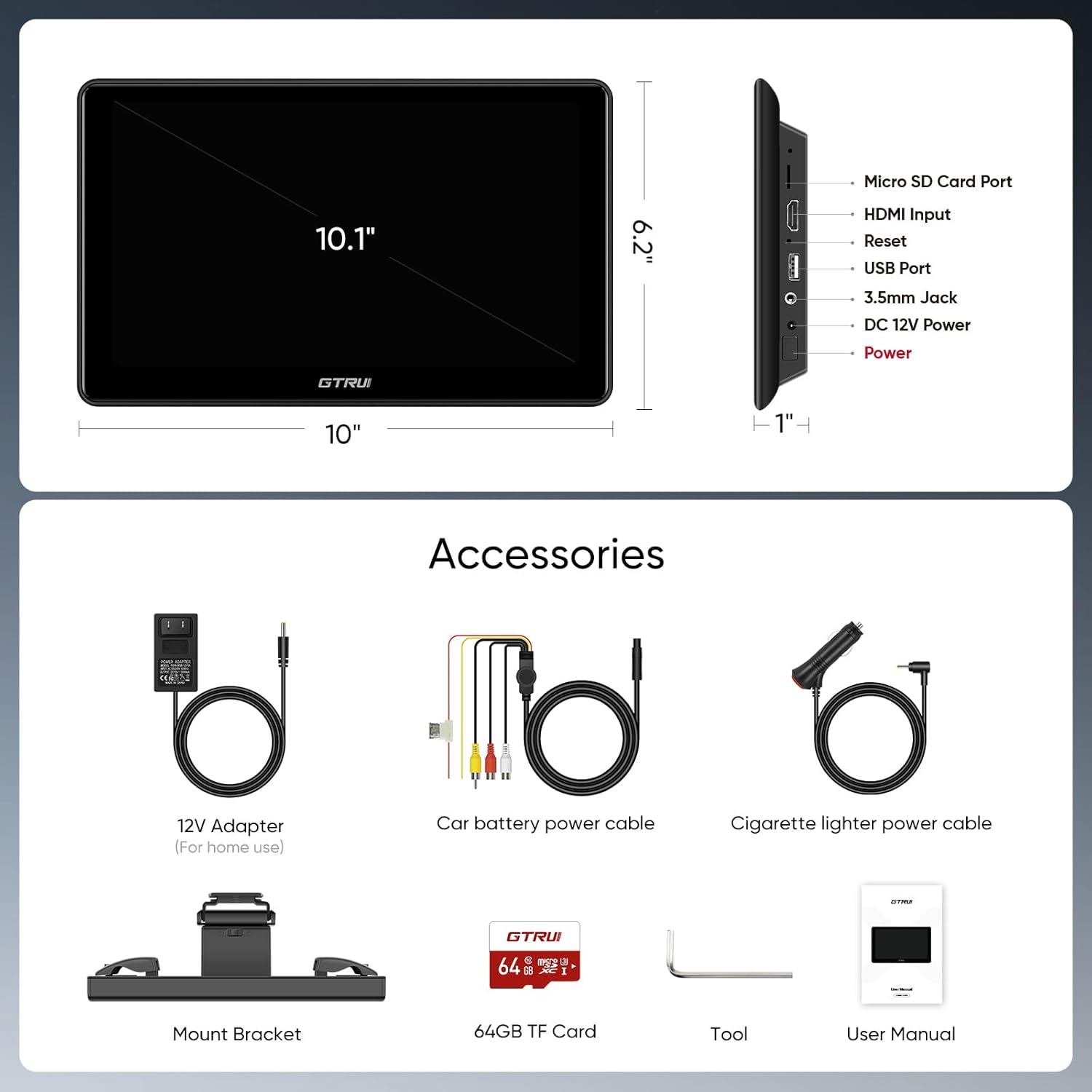
Image: Contents of the product package, including the monitor and all accessories.
3. Setup Guide
3.1 Mounting the Monitor
The monitor is designed for easy installation on most car headrests with round stainless steel posts, supporting over 98% of car installations. Follow these steps for secure mounting:
- Adjust Bracket: Adjust the mounting bracket left or right to align with your headrest posts.
- Tighten Screws: Securely tighten the screws on the bracket to fix it to the headrest posts.
- Unlock Monitor: Unlock the monitor's attachment mechanism.
- Attach Monitor: Slide the monitor onto the bracket.
- Lock Monitor: Lock the monitor into place by adjusting the up/down locking mechanism.
- Adjust Position: Adjust the monitor's height and viewing angle for optimal comfort.

Image: Step-by-step instructions for installing the headrest monitor.

Image: Headrest compatibility for installation.
3.2 Powering the Device
The monitor offers multiple power options:
- Cigarette Lighter Cable: Plug the car charger adapter into your vehicle's cigarette lighter port.
- Car Battery Power Cable: For a more permanent installation, connect the provided power cables directly to your car's fuse box (ACC, B+, and GND). Note that settings may not be saved after powering off in this way.
- AC to DC 12V Adapter: Use the AC adapter for home use or when a car power source is not available.
3.3 Initial Setup
Upon first power-on, the device will guide you through initial setup steps, including language selection and Wi-Fi connection. Connect to a stable 5GHz Wi-Fi network for optimal streaming performance.
The device is Google Play Protect certified, allowing you to install and update applications like Disney+, YouTube, and Netflix directly from the Google Play Store.

Image: Google Play Protect certification ensures secure app usage.
4. Operating Instructions
4.1 Touch Screen Navigation
The 10.1-inch QLED IPS touch screen provides a responsive and intuitive interface. Navigate through menus, open applications, and control media playback with simple touch gestures, similar to a smartphone.

Image: Details of the 10.1-inch IPS Touch Screen display technology.
4.2 Connectivity
- Wi-Fi: Connect to a 5GHz Wi-Fi network to access online content, stream videos, and download apps.
- Bluetooth: Pair Bluetooth headsets or external speakers for enhanced audio experience.
- HDMI Input: Connect external devices such as TV boxes, computers, laptops, gaming consoles (PS3/4/5, Switch), or smartphones (with an appropriate HDMI adapter, not included) via the HDMI input port.
- RCA Input: Utilize the RCA input for connecting older video sources.

Image: Extensive connectivity options for various devices.
4.3 Media Playback and Apps
The monitor supports UHD 4K video decoding (3840x2160@60fps) using H.265 technology, allowing for high-quality video playback. The powerful G52 GPU ensures fast decoding speeds for various media content, from HD to 4K UHD, both online and offline.
Pre-installed applications include YouTube, Netflix, Disney+, Amazon Video, HBO, and TikTok. Additional apps can be downloaded from the Google Play Store.
4.4 Audio Options
The device includes two built-in speakers. For alternative audio experiences:
- FM Transmitter: Transmit audio wirelessly to your car's speakers via FM radio.
- Bluetooth: Connect wireless Bluetooth headsets or speakers.
- 3.5mm Jack: Use wired headphones or connect to external audio systems.

Image: Audio output options for both in-car and home use.
4.5 Screen Mirroring
The monitor supports screen mirroring via Android Cast and Mirror Link, allowing you to display content from your smartphone directly onto the monitor.
4.6 Multi-Color Ambient Lighting
The device features multi-color ambient lighting at the bottom, which can be adjusted through the settings to match your preference or car interior.
4.7 Using at Home
The monitor can also be used as a portable tablet at home by connecting it to the AC to DC 12V adapter. This allows for flexible entertainment options outside of the vehicle.

Image: The monitor's versatility for home use.
5. Media Demonstrations
5.1 Product Demonstration Video
Video: A demonstration of the GTRUI 10.1-inch Android Car TV Monitor in use, showcasing its interface and media playback capabilities.
6. Maintenance
6.1 Cleaning
To clean the screen, use a soft, lint-free cloth. For stubborn marks, lightly dampen the cloth with water or a screen-safe cleaning solution. Avoid harsh chemicals or abrasive materials that could damage the screen or device finish.
6.2 Software Updates
Ensure your device is connected to Wi-Fi to receive and install system updates. Regular updates can improve performance, add new features, and enhance security.
6.3 Storage Management
Periodically check the device's storage usage. Delete unnecessary files or applications to free up space and maintain optimal performance. The included 64GB TF card can be used for additional storage.
7. Troubleshooting
7.1 Device Not Powering On
- Ensure all power cables are securely connected.
- If using the cigarette lighter cable, verify the car's power outlet is functional.
- If hardwired, check the fuse connections.
- Press and hold the power button for several seconds to ensure it registers.
7.2 No Wi-Fi Connection
- Check if Wi-Fi is enabled in the device settings.
- Verify the Wi-Fi network is active and within range.
- Re-enter the Wi-Fi password to ensure correctness.
- Restart the device and the Wi-Fi router/hotspot.
7.3 No Sound Output
- Check the volume level on the device.
- If using Bluetooth, ensure the headset/speaker is paired and connected.
- If using FM transmitter, verify the frequency is correctly set and your car radio is tuned to it.
- If using the 3.5mm jack, ensure headphones are fully inserted and functional.
7.4 Screen Mirroring Issues
- Ensure both devices are connected to the same Wi-Fi network.
- Verify that the screen mirroring feature is activated on both the monitor and your smartphone.
- Check for compatibility issues between your phone and the mirroring application.
7.5 General Performance Issues
- Close unused applications to free up RAM.
- Clear cache and data for problematic apps.
- If issues persist, consider a factory reset (note: this will erase all user data).
8. Specifications
| Item Model Number | X1S Pro |
| Brand | GTRUI |
| Screen Size | 10.1 Inches |
| Display Type | LCD (QLED IPS Touch Screen) |
| Resolution | 1280 x 720p (Supports 4K video decoding) |
| Operating System | Android 14 |
| Processor | RK processor Cortex A55 14nm 64bit |
| RAM | 2GB |
| ROM | 32GB |
| Wi-Fi | 5GHz |
| Bluetooth | Supported |
| Media Type | Video |
| Color | Black |
| Item Weight | 3.76 pounds |
| Package Dimensions | 13.3 x 8.7 x 3.62 inches |
9. Warranty and Support
The GTRUI 10.1 inch 4K Android 14 Portable Car TV Headrest Monitor comes with a 1-year warranty. For technical support, warranty claims, or any product-related inquiries, please contact GTRUI customer service via Amazon email. Our team is committed to providing professional assistance and will respond promptly.