
TMKB Technology Mechanical KeyBoard T68-DE
TMKB T68 Gaming Keyboard User Manual
Model: T68-DE
1. Introduction
The TMKB T68 is a compact 60% wireless RGB mechanical gaming keyboard featuring 68 keys. It supports Bluetooth, 2.4G wireless, and Type-C wired connectivity. This model comes with a German QWERTZ layout and linear red switches. Its anti-ghosting function ensures precise input during gaming and typing. The compact and ergonomic design makes it suitable for on-the-go use or space-saving workstations. With its RGB lighting and customizable features, it serves as a functional tool for both gamers and professionals. The keyboard is constructed from high-quality materials for durability.
Package Contents

Image Description: This image displays the complete package contents of the TMKB T68 keyboard. It includes the T68 keyboard itself, a USB-C cable for wired connection and charging, a 2.4G wireless dongle, a keycap puller for maintenance, and the user manual.
- TMKB T68 Keyboard x 1
- Type-C Cable x 1
- 2.4G Dongle x 1
- Keycap Puller x 1
- User Manual x 1
2. Setup and Connectivity
The TMKB T68 keyboard offers three connection methods: 2.4G wireless, Bluetooth 5.0, and wired USB Type-C. This allows for versatile use across various devices such as laptops, PCs, tablets, and smartphones.

Image Description: This image highlights the keyboard's 3-in-1 connectivity model. It shows the 2.4GHz wireless dongle slot, the Bluetooth pairing indicator, and the Type-C port for wired connection, emphasizing quick switching between modes.
2.1. 2.4G Wireless Connection
- Locate the 2.4G wireless dongle in the package.
- Plug the 2.4G dongle into an available USB port on your computer or device.
- Ensure the keyboard's mode switch (usually on the back or side) is set to 2.4G mode.
- The keyboard should automatically connect.
2.2. Bluetooth Connection
- Ensure the keyboard's mode switch is set to Bluetooth mode.
- On your device (laptop, PC, tablet, smartphone), go to Bluetooth settings and enable Bluetooth.
- Press FN + Z/X/C keys simultaneously on the keyboard to switch between three Bluetooth devices. The corresponding key will flash, indicating pairing mode.
- Select "TMKB T68" from the list of available Bluetooth devices on your screen to pair.
- Once paired, the indicator light will become solid.
2.3. Wired (Type-C) Connection
- Connect one end of the provided Type-C cable to the keyboard's Type-C port.
- Connect the other end of the cable to an available USB port on your computer or device.
- The keyboard will automatically switch to wired mode and begin charging.
3. Operating Instructions
3.1. Mechanical Switches
The TMKB T68 keyboard utilizes self-developed mechanical switches with a lifespan of 50 million keystrokes per switch. This ensures consistent tactile feedback over extended use. This model is equipped with linear red switches, which are known for their smooth and quiet operation, making them suitable for both office work and gaming.

Image Description: This image illustrates the internal mechanism of a TMKB autonomous mechanical red switch, highlighting its linear travel. It also states a lifespan of 50 million cycles per key, emphasizing durability.
3.2. RGB Backlighting Control
The T68 features a dynamic RGB lighting system with 18 different lighting modes and 16.8 million customizable colors. Use the following FN key combinations to control the backlighting:
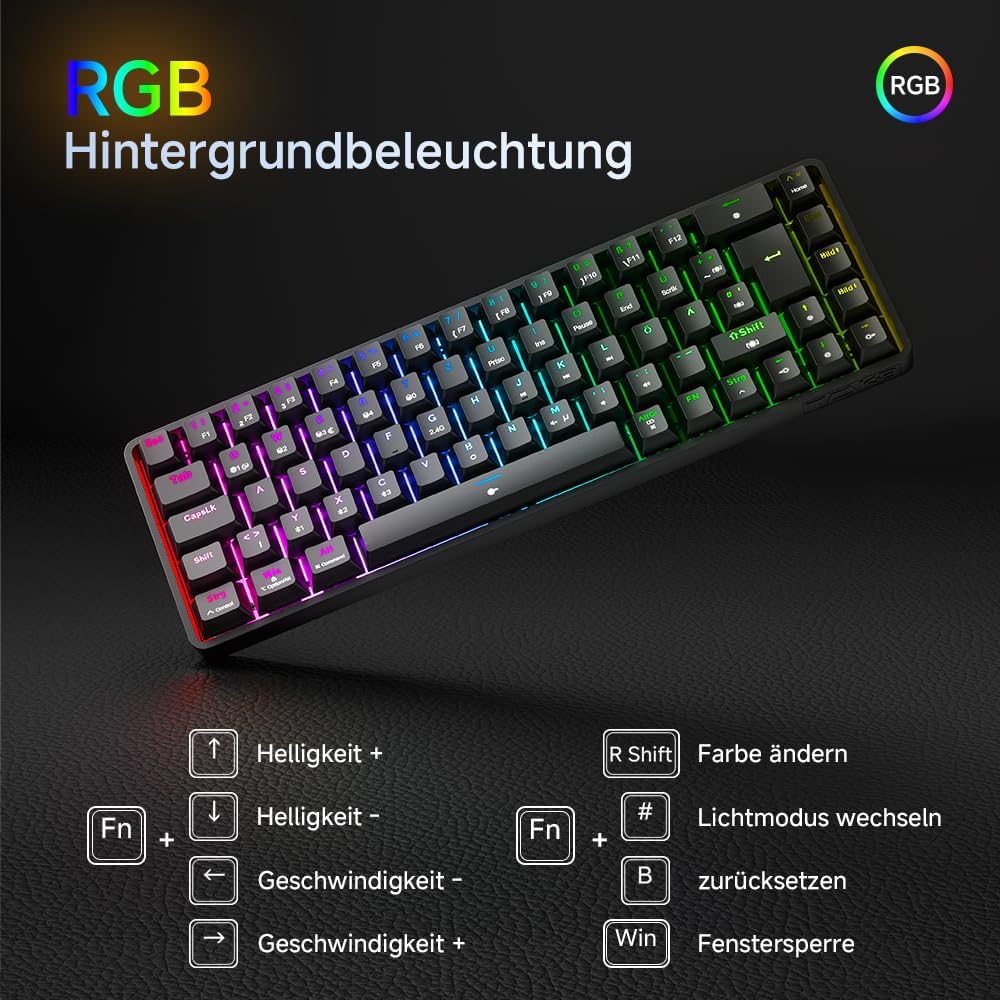
Image Description: This image details the FN key combinations for controlling the RGB backlight. It shows how to adjust brightness (FN + Up/Down Arrow), change color (FN + Right Shift), switch light modes (FN + #), reset settings (FN + B), and lock the Windows key (FN + Win).
- FN + ↑ (Up Arrow): Increase Brightness
- FN + ↓ (Down Arrow): Decrease Brightness
- FN + ← (Left Arrow): Decrease Lighting Speed
- FN + → (Right Arrow): Increase Lighting Speed
- FN + Right Shift: Change Color
- FN + #: Switch Light Mode (18 modes available)
- FN + B: Reset Lighting Settings
- FN + Win: Lock/Unlock Windows Key
3.3. Battery Status Check
The T68 is equipped with a 3000 mAh battery. In 2.4GHz or Bluetooth mode, you can check the battery status using a specific key combination:

Image Description: This image demonstrates how to check the battery level in wireless mode by pressing FN + AltGr. It shows visual indicators for battery levels: 0-25%, 20-80%, and 80-100%.
- Press FN + AltGr (in 2.4GHz/Bluetooth mode) to display the battery level.
- The indicator lights will show the approximate charge:
- 0% - 25%
- 20% - 80%
- 80% - 100%
The keyboard can operate for approximately 8 hours with full backlight brightness. With the lighting off, it can be used continuously for about 90 hours, and the standby time is up to 360 hours.
4. Maintenance
Proper maintenance can extend the lifespan and performance of your keyboard.
- Cleaning: Use a soft, dry cloth to wipe the keyboard surface. For deeper cleaning, use the provided keycap puller to remove keycaps and clean dust or debris with compressed air or a small brush.
- Storage: Store the keyboard in a cool, dry place away from direct sunlight and extreme temperatures.
- Charging: Use the provided Type-C cable for charging. Avoid using damaged cables or non-standard chargers.
- Liquid Exposure: Avoid spilling liquids on the keyboard. If liquid exposure occurs, immediately disconnect the keyboard and allow it to dry completely before reuse.
5. Troubleshooting
If you encounter issues with your TMKB T68 keyboard, refer to the following common solutions:
- Keyboard not responding:
- Ensure the keyboard is charged.
- Check the connection mode (2.4G, Bluetooth, or wired) and ensure it matches your device's connection.
- For wireless connections, ensure the dongle is properly inserted or Bluetooth is paired.
- Try connecting via the Type-C cable to rule out wireless issues.
- Keys not working or ghosting:
- Clean under the keycaps for any debris.
- Ensure the keyboard firmware is up to date (if applicable, check the manufacturer's website).
- RGB lighting issues:
- Ensure the keyboard is sufficiently charged.
- Use the FN key combinations to adjust brightness or reset lighting modes.
- Connectivity drops:
- For 2.4G, ensure the dongle is not obstructed and is close to the keyboard.
- For Bluetooth, ensure no other devices are interfering and the keyboard is within range.
- Re-pair the Bluetooth connection if necessary.
6. Specifications
| Feature | Detail |
|---|---|
| Brand | TMKB Technology Mechanical KeyBoard |
| Model Number | T68-DE |
| Color | Black |
| Connectivity Technology | 2.4 GHz, Bluetooth 5.0, USB-C (Wired) |
| Keyboard Description | 60% Wireless RGB Mechanical Keyboard |
| Number of Keys | 68 |
| Key Switch Type | Linear Red Switch |
| Backlight Color Management | RGB (18 modes, 16.8 million colors) |
| Compatible Devices | Laptop, PC, Tablet, Smartphone |
| Battery Capacity | 3000 mAh Lithium-ion |
| Power Source | Battery Powered |
| Included Components | USB Cable, Keycap Puller |
| Dimensions | 29.5 x 10.5 x 3.8 cm (approx.) |
| Weight | 550 g (approx.) |
7. Warranty and Support
For any questions regarding your TMKB T68 keyboard, please contact the seller or manufacturer's support team. Refer to your purchase documentation for specific warranty terms and contact information.
You can typically find support contact details by clicking on the store name where you purchased the product.
Ask a question about this manual
Ask about setup, troubleshooting, compatibility, parts, safety, or missing instructions. Manuals+ will review the question and use this page’s manual context to help answer it.